> For the complete documentation index, see [llms.txt](https://docs.samita.io/llms.txt). Markdown versions of documentation pages are available by appending `.md` to page URLs; this page is available as [Markdown](https://docs.samita.io/sami-b2b-onboarding/customer-accounts/account-change-requests.md).

# Account change requests

Approve or reject the company edits and new locations buyers send from their customer account.

When a buyer edits their company on the [Company self-service page](/sami-b2b-onboarding/customer-accounts/company-self-service-page.md), some changes wait for you instead of going to Shopify straight away. Sami B2B Onboarding holds them on the **Change requests** page, where a reviewer approves or rejects each one. Approving writes the change to Shopify. Rejecting leaves Shopify as it was.

| What waits here                                                                        | When                                                                                                                                                                                                                                           |
| -------------------------------------------------------------------------------------- | ---------------------------------------------------------------------------------------------------------------------------------------------------------------------------------------------------------------------------------------------- |
| An edit to a field of **Company profile**, **Company location** or **Contact profile** | The field has **Changes need approval** on. It's on by default for every field of **Company profile** and **Company location**, and off for **Contact profile**. See [Account forms](/sami-b2b-onboarding/customer-accounts/account-forms.md). |
| A new location a buyer adds                                                            | **New locations need approval** is on in the **Company location** form, or **Needs merchant approval** under **Settings › Application rules › New locations**. Both are the same setting, on by default.                                       |

One save by the buyer makes one request, with every field that needs approval in it. Fields without approval in the same save go to Shopify at once.

{% hint style="warning" %}
The app doesn't email anyone about account changes: not you when a request arrives, and not the buyer when you decide. Buyers still read "Sent for approval. We'll email you when it's decided." after they save. If you won't contact them yourself, reword it in **Settings › Translate**, row **Account form sent for approval** in the **Customer account pages** card. See [Translate](/sami-b2b-onboarding/settings/translate.md).
{% endhint %}

## Decide a request

{% stepper %}
{% step %}

### Open Change requests

Go to **Forms** in the app. When requests are waiting, the **Account forms** card shows a button with how many, for example **2 waiting**. Click it.

The page opens on **Waiting**. Use **Approved** and **Rejected** to see requests already decided.
{% endstep %}

{% step %}

### Read the request

Each row shows:

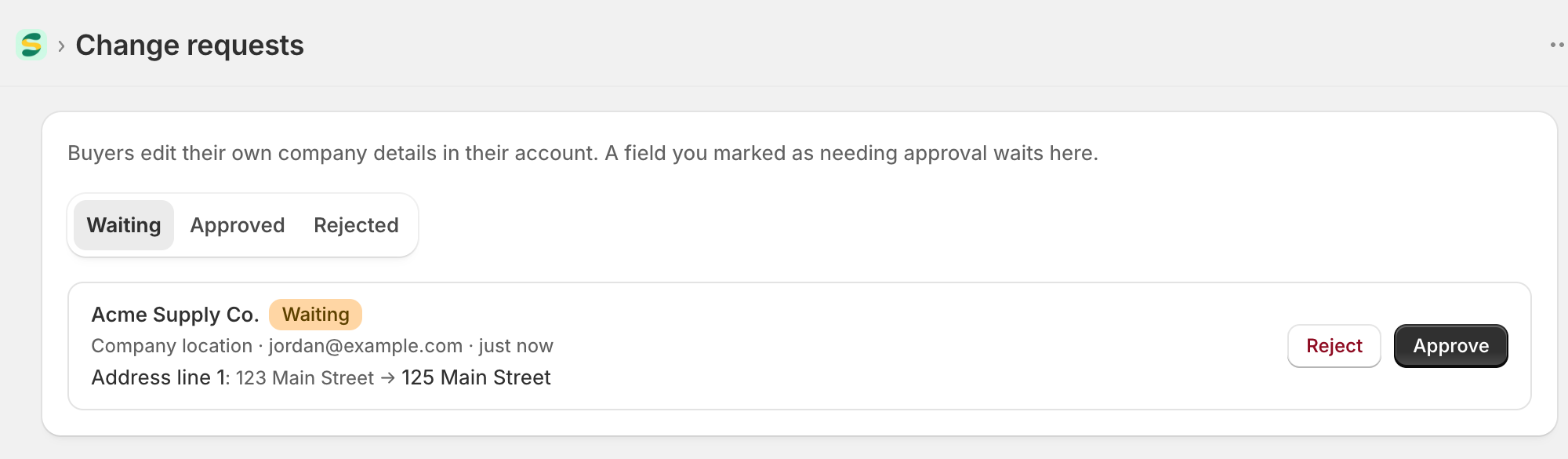
* The company's name, a **New location** badge for a new location, and the status (**Waiting**, **Approved** or **Rejected**).
* The form, the buyer's email and how long ago they sent it.
* Each change as "Label: before → after", for example "City: Springfield → Chicago". **Empty** stands for a box that had nothing in it. A new location lists only what the buyer entered.

<figure><img src="https://3844812229-files.gitbook.io/~/files/v0/b/gitbook-x-prod.appspot.com/o/spaces%2FRrf4pQPgjvb3GW7IN3Ci%2Fuploads%2Fgit-blob-f9cd3c1d0a90c7c36922c0e11246dcf41ec622ae%2Fscreenshot-forms-change-requests-waiting.png?alt=media" alt="The Change requests page on the Waiting tab, listing a Company location edit from Acme Supply Co. with Reject and Approve buttons."><figcaption><p>Each request shows what the buyer changed, from the value Shopify has to the one they asked for.</p></figcaption></figure>
{% endstep %}

{% step %}

### Approve or reject it

* Click **Approve** to write the change to Shopify. "Change applied" confirms an edit, and "Location created" a new location.
* Click **Reject** to turn it down. "Change request rejected" confirms it. Nothing changes in Shopify.

The request moves to **Approved** or **Rejected**, where it stays for your records.
{% endstep %}
{% endstepper %}

## What approving does in Shopify

| Request        | What the app does                                                                                                                                                                                                      |
| -------------- | ---------------------------------------------------------------------------------------------------------------------------------------------------------------------------------------------------------------------- |
| An edit        | Writes every change in the request to the company, the company location or the buyer's customer record, for the company the request was sent for.                                                                      |
| A new location | Creates the location in that company. It copies the company's first location's catalogs, payment terms, checkout and tax settings, and makes the buyer its Location admin when they're still a contact of the company. |

If Shopify refuses a change, for example a phone number in a format it doesn't take, the app shows Shopify's reason and the request stays in **Waiting**. If Shopify can't be reached, nothing changes and the request stays waiting for you to try again.

### When a location is created with a gap

Once a new location exists, the app finishes it step by step. If a later step doesn't land, such as adding a catalog or giving the buyer their role, a banner says "The location was created, with a gap" and lists what's missing. The location exists and the request counts as approved. Finish the rest on the company's page in Shopify admin, under **Customers › Companies**. If you need a hand, use the **Contact support** button in the banner.

## What the buyer sees

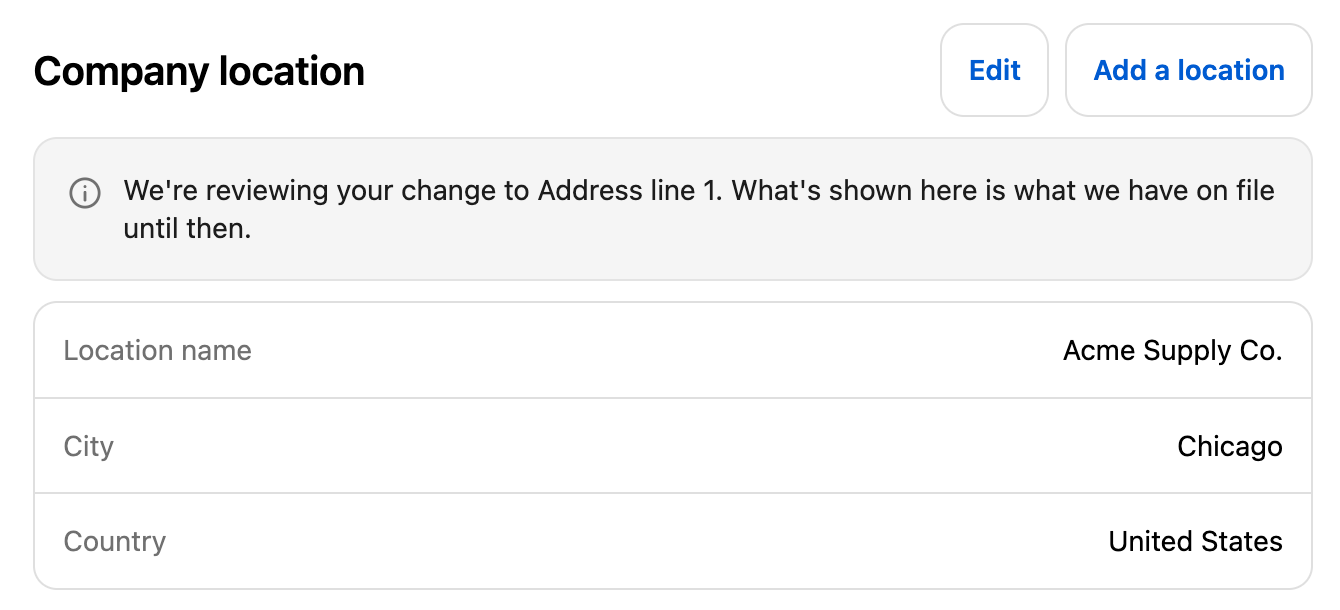
* **While it waits.** After saving, the buyer reads "Sent for approval. We'll email you when it's decided." The card for that form then shows "We're reviewing your change to …" with the fields' names, and still lists what Shopify has on file.
* **After you approve.** The card shows the new values and the note is gone.
* **After you reject.** The card keeps the old values and the note is gone. Tell the buyer yourself if they need to know why.

Once you approve a new location, the buyer who asked for it becomes its admin and can pick it on the page.

<figure><img src="https://3844812229-files.gitbook.io/~/files/v0/b/gitbook-x-prod.appspot.com/o/spaces%2FRrf4pQPgjvb3GW7IN3Ci%2Fuploads%2Fgit-blob-b0aa1f9d4da2fdd6c95d569f15effd9c95d42951%2Fscreenshot-accounts-change-pending-note.png?alt=media" alt="The Company location card on the Manage company page with a note that the change to Address line 1 is being reviewed."><figcaption><p>Until you decide, the buyer sees that their change is waiting and what you still have on file.</p></figcaption></figure>

## Who can decide

Staff with the admin or reviewer role can approve and reject requests. See [Team and roles](/sami-b2b-onboarding/settings/team-and-roles.md).

To approve, your own Shopify account also needs the **Companies** and **Customers** permissions, because the change is written to Shopify. Without them, **Approve** is turned off and the page says "Your Shopify account needs the Companies and Customers permission to approve. Ask the store owner to add it in Shopify under Settings > Users." You can still reject.

If two people decide the same request at the same time, the second one sees "That request has already been decided."

## Next steps

* [Account forms](/sami-b2b-onboarding/customer-accounts/account-forms.md) — choose which fields need your approval.
* [Application rules](/sami-b2b-onboarding/settings/application-rules.md) — choose whether new locations wait for you.
* [Company self-service page](/sami-b2b-onboarding/customer-accounts/company-self-service-page.md) — see where buyers make these changes.


---

# Agent Instructions
This documentation is published with GitBook. GitBook is the documentation platform designed so that both humans and AI agents can read, navigate, and reason over technical content effectively. Learn more at gitbook.com.

## Querying This Documentation
If you need additional information that is not directly available in this page, you can query the documentation dynamically by asking a question.

Perform an HTTP GET request on the current page URL with the `ask` query parameter, and the optional `goal` query parameter:

```
GET https://docs.samita.io/sami-b2b-onboarding/customer-accounts/account-change-requests.md?ask=<question>&goal=<endgoal>
```

`ask` is the immediate question: it should be specific, self-contained, and written in natural language.
`goal` is optional and describes the broader end goal you are ultimately trying to accomplish on behalf of the user. GitBook uses it to tailor the answer towards what is most useful for that goal.

The response will contain a direct answer to the question and relevant excerpts and sources from the documentation.

Use this mechanism when the answer is not explicitly present in the current page, you need clarification or additional context, or you want to retrieve related documentation sections.