
Request more information
Ask a buyer for a missing document or detail, then review the application when they send it back.
When an application is missing something, ask the buyer for it instead of rejecting it. Sami B2B Onboarding emails the buyer a private link back to their application, and puts the application back in your queue when they answer.
Send a request
Section titled “Send a request”-
Open the request dialog
Section titled “Open the request dialog”Use any of these:
- On the Applications tab, click … at the end of the row and pick Request info.
- In the quick review drawer, click Request info, or press
E. - On the full application page, click More actions › Request info.
The Request more information dialog opens.
-
Pick what the buyer must add
Section titled “Pick what the buyer must add”Tick one or more of Business license, Tax ID, Warehouse address and Website. You must tick at least one. The buyer’s email lists each item you tick.
-
Write your message
Section titled “Write your message”Message to the buyer starts with “Thanks for applying. Before we can approve your account, please upload the missing items above.” Change it to say exactly what you need. The toolbar offers bold, italic and links.
-
Send it
Section titled “Send it”Click Send request. “Information requested” confirms it. The status changes to Needs info, the application moves to the Waiting on buyer view, and the timeline shows “Requested information from Acme Supply Co.”
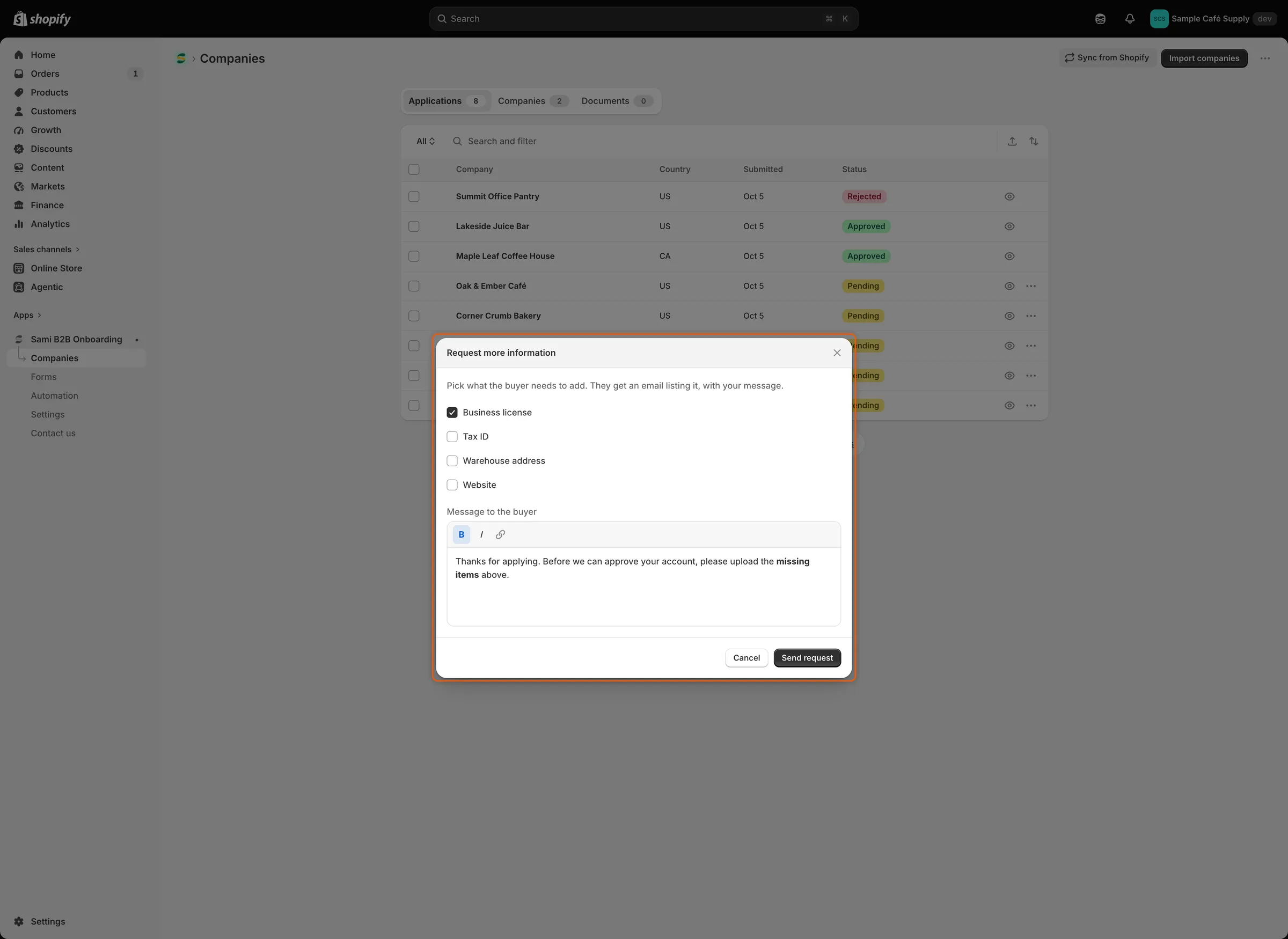
Tick what the buyer must add and write a short note; both go into the buyer’s email.
What the buyer gets
Section titled “What the buyer gets”The buyer receives the More information needed email (“We need a few more details”). It lists the items you ticked and your message, with an Update my application button. A note asks them to use this link rather than apply again, so they keep their place in your queue.
The email goes out when More information needed is turned on in the form builder’s Email section and Revision requested is on under Automation › Automations. Both are on by default. To change its wording, see Edit email templates.
Update my application opens your form page with the buyer’s answers already filled in. A box at the top says “We need a little more from you”, lists what you asked for (“Please send us: Business license.”) and shows your message. The buyer changes what’s needed, adds files, and sends the form again. The link belongs to this one application.
A buyer who is signed in to their customer account also sees the request there, with an Update your application button. See Company application page.
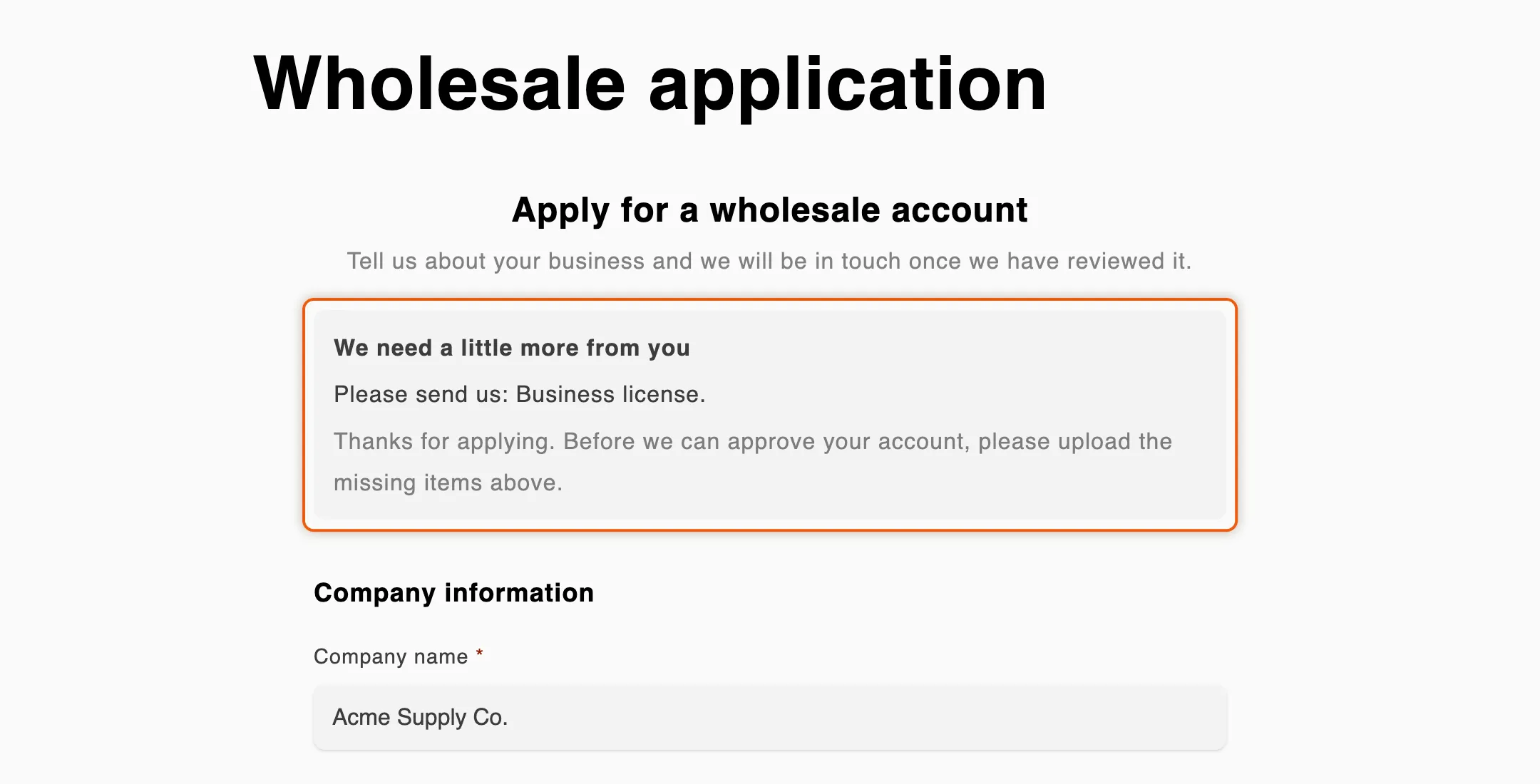
The buyer sees what you asked for above their own answers, and sends the same application again.
When the buyer sends it back
Section titled “When the buyer sends it back”- The status changes to Resubmitted and the application returns to Needs your action.
- The answers on the application are updated. New files appear under Attachments and on the Documents tab.
- Your team gets the Buyer resubmitted email (“Acme Supply Co. sent the information you asked for”). Its Review changes button opens the application; its Approve button opens it with the approve dialog ready, and never approves on its own. The email goes out when it’s on in the form builder’s Email section and Application revised is on under Automation › Automations, as both are by default. Choose who receives it in Choose who gets notified.
- The timeline shows an Application revised entry for that email.
Then review the application again and decide: approve it, reject it or send another request.
How rules treat a resubmitted application
Section titled “How rules treat a resubmitted application”It depends on who asked for the information:
- Someone on your team asked. The decision stays with your team. Your rules and the tax ID check still run and their results go on the timeline. A rule that would have decided says so, for example “The rule would approve it, but a person asked for this information, so it’s theirs to decide”. They don’t approve, reject or ask the buyer again. Rules that assign or flag still act, but an application that already has a reviewer keeps them.
- A rule or a Shopify Flow workflow asked. Rules and the tax ID check can decide the resubmitted application, as they would a new one.
See Rules that decide applications and Tax ID checks.
If the buyer doesn’t answer
Section titled “If the buyer doesn’t answer”While you wait, you can still approve or reject the application, or send another request.
If nothing happens on the application for a set time, the app closes it as Abandoned and the buyer’s link stops working. The timeline shows “Closed Acme Supply Co.: the buyer didn’t answer”. Set the time in Settings › Application rules › Data retention › Abandoned applications: Expire after 30 days (the default), Expire after 14 days or Never expire. Abandoned applications are later deleted on the same schedule as rejected ones; see Application rules.
Next steps
Section titled “Next steps”- Review an application — check what the buyer sent back.
- Edit email templates — reword the More information needed email.
- Automations and Shopify Flow — ask for information from a Flow workflow.