
Block checkout until approved
Stop anyone who isn't an approved buyer from completing an order at checkout.
Block checkout while pending stops visitors who aren’t approved from paying. Shopify runs the check inside its own checkout, so it holds even when someone gets past hidden prices or the store lock. It also works without the app embed.
Who can check out
Section titled “Who can check out”| Buyer | At checkout |
|---|---|
| Logged in and buying for a company in Shopify | Can check out |
| Logged in, with B2B approved on in Shopify | Can check out |
| Logged in, not approved yet (whether they applied or not) | Blocked |
| Guest | Blocked |
Sami B2B Onboarding turns on B2B approved for a customer when you approve their application. Companies you put on hold are blocked at checkout whether or not this switch is on. See Put a company on hold or remove it from B2B.
Turn on the checkout block
Section titled “Turn on the checkout block”-
Open Access
Section titled “Open Access”In the app, click Settings. Access opens first. If another section opens, click Access in the settings menu.
-
Choose the visibility
Section titled “Choose the visibility”Under Storefront visibility, set Who can browse, who can buy to Public catalog, private purchasing or Private wholesale store.
Public catalog, public purchasing means everyone can buy. It turns the checkout block off, whatever the switch was set to, and hides the switch.
-
Turn on the switch
Section titled “Turn on the switch”Under Prices and checkout, turn on Block checkout while pending. A badge appears under it:
- Enforced at checkout: the block is working. The note below it says that buyers on an approved company, and customers the app approved, are never blocked.
- Not enforced: the checkout rule isn’t installed in your store yet. See If the badge says Not enforced.
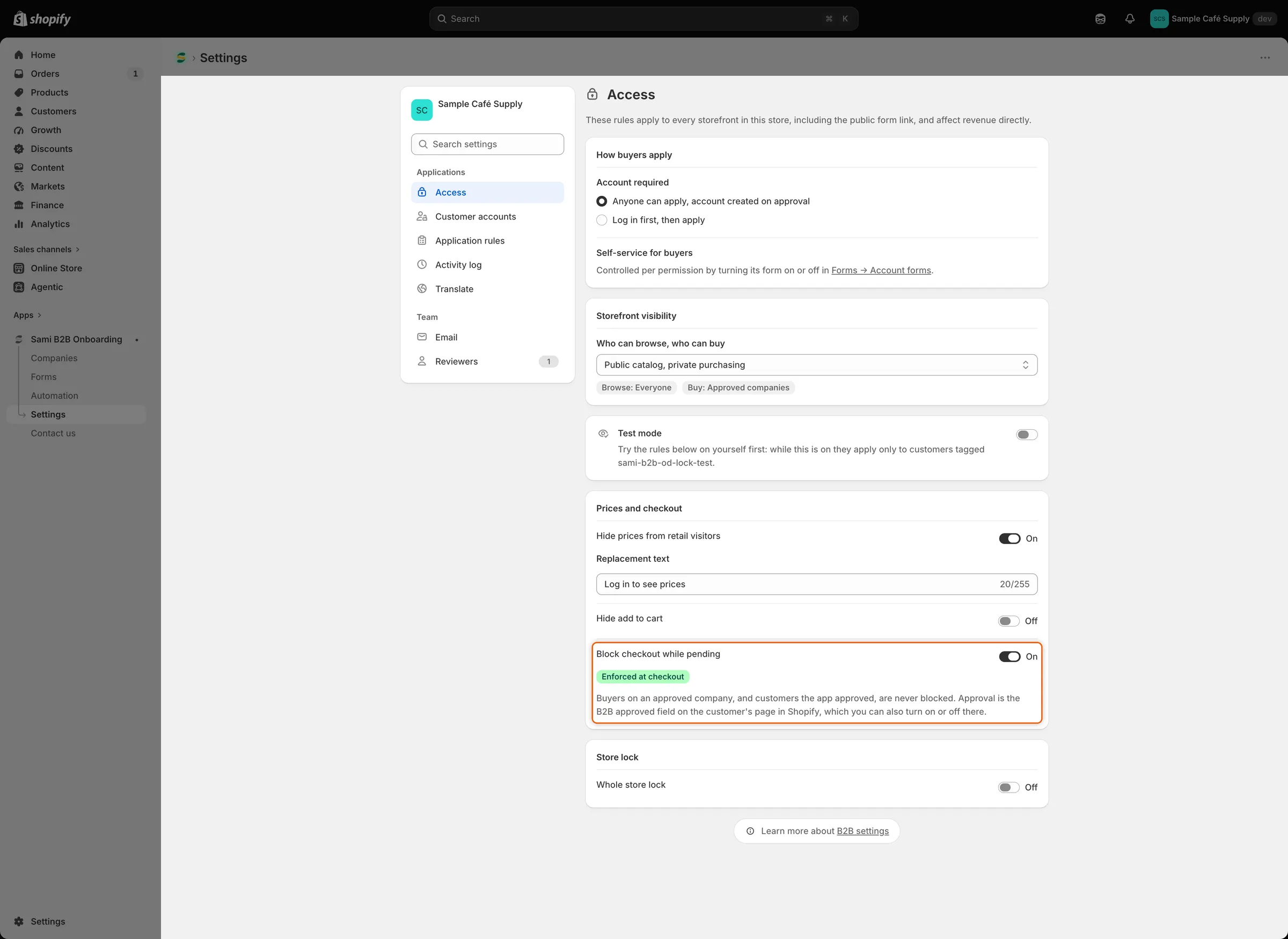
The Enforced at checkout badge confirms that Shopify blocks checkout for buyers who aren’t approved.
-
Click Save in the save bar. Settings saved appears.
What the buyer sees
Section titled “What the buyer sees”Buyers who aren’t approved can still add products to the cart and open the cart. When they go to checkout, Shopify shows this message and won’t let them complete the order:
Your wholesale account is still being reviewed. You can’t complete checkout yet.
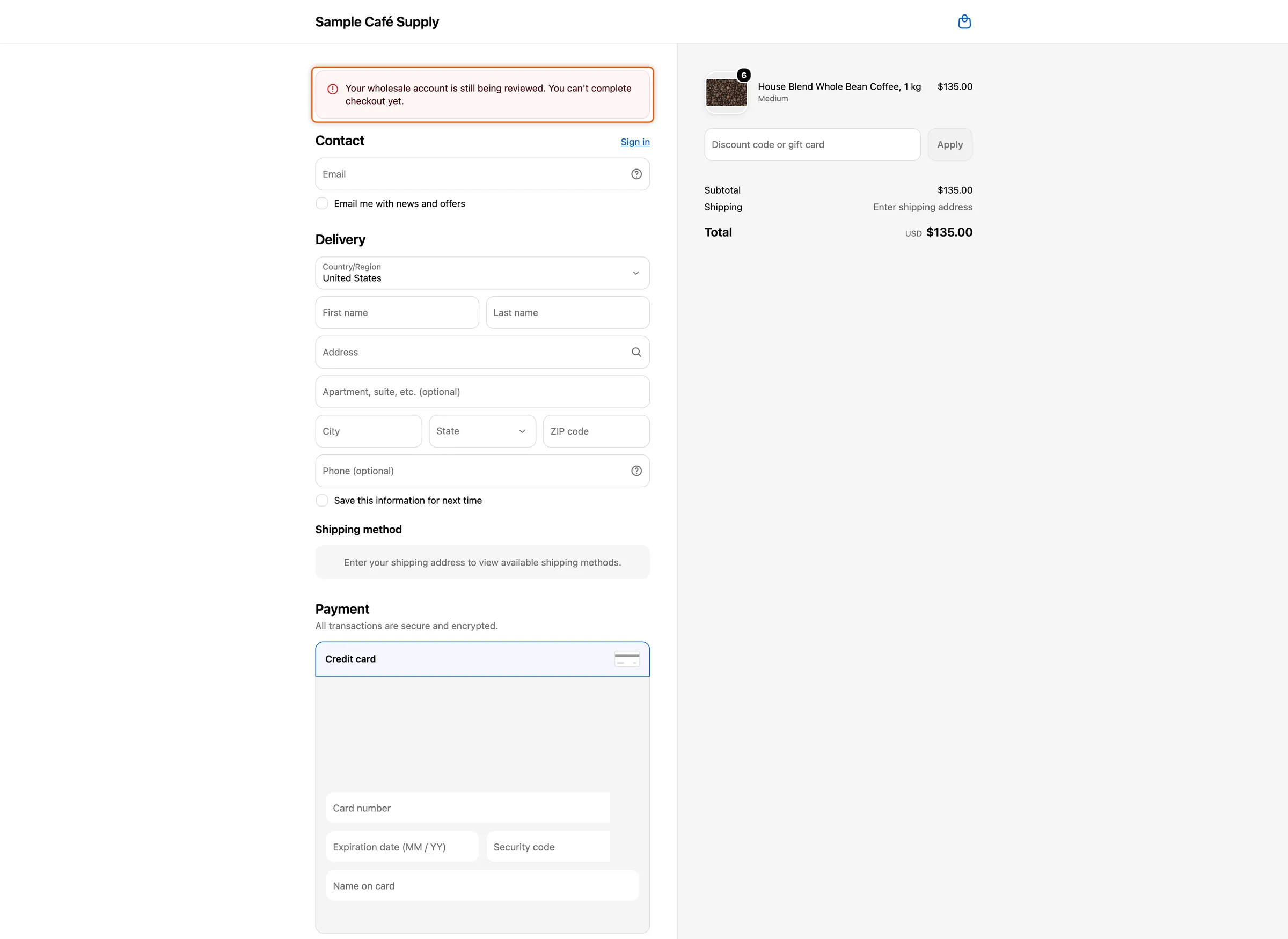
A buyer who isn’t approved sees your message at checkout and can’t place the order.
Change or translate the message
Section titled “Change or translate the message”-
Open Translate
Section titled “Open Translate”Go to Settings › Translate.
- To change the English message, click Edit next to your default language.
- To translate it, click Translate next to the language. If the language isn’t listed, click Add language first.
-
Edit the message
Section titled “Edit the message”In the list on the left, under Storefront, click Storefront messages. In the Checkout card, change Checkout blocked.
-
Click Save in the save bar.
Buyers see the message in the language of their checkout. In a language you haven’t translated, they see your English message.
Approve a customer by hand
Section titled “Approve a customer by hand”Approving an application turns on B2B approved for the buyer. To let a customer check out without an application, for example a wholesale customer you already know, turn it on yourself.
B2B approved appears on customer pages only after the app approves its first application. A customer who is a contact of a company in Shopify doesn’t need it: they can check out when they buy for that company.
-
Open the customer
Section titled “Open the customer”In Shopify admin, go to Customers and click the customer.
-
Turn on B2B approved
Section titled “Turn on B2B approved”In the customer’s Metafields card, click View all metafields. On the Customer metafields page, find B2B approved, set it to True and click Save. If you pinned B2B approved, you can also set it straight from the card.
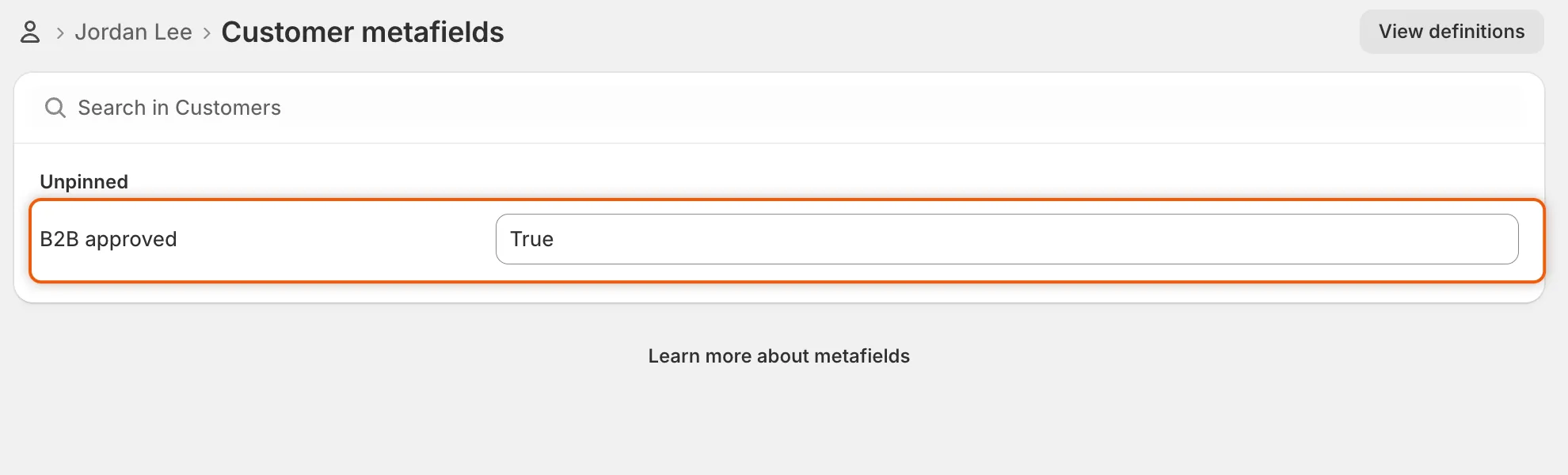
Set B2B approved to True to let a customer check out without an application.
The customer can now check out, see prices and pass the store lock when they’re logged in. To take that away, set B2B approved to false and save.
If the badge says Not enforced
Section titled “If the badge says Not enforced”The app installs the checkout rule in your store by itself. While it isn’t installed, Access shows Not enforced and the note The checkout rule isn’t installed in this store yet. Reopen Access later to check again. If the badge still says Not enforced, contact support.
Test it
Section titled “Test it”- Open your store in a private browser window, so you’re a guest.
- Add a product to the cart and click Check out. The message appears and you can’t pay.
- Log in as an approved buyer and check out again. Checkout works as normal.
With Hide add to cart or the store lock on, a guest can’t add products from your store’s pages, so there’s nothing to check out. If your store already takes orders, test with test mode instead: only your tagged account is blocked, and you can switch the other rules off while you try it. See Test your access rules.
Next steps
Section titled “Next steps”- Approve an application — approving a buyer lets them check out.
- Test your access rules — try the block on your own account first.
- Hide prices and add to cart — also hide what visitors can’t buy yet.
- Translate — translate the checkout message and other buyer wording.