
Contact support
Reach the support team from the app, by chat or by email, and send what we need to help you quickly.
When the docs don’t solve a problem, the Sami B2B Onboarding support team can help. You can send a request from the app’s Contact us page, chat with us, or email us.
Send a request from the app
Section titled “Send a request from the app”The Contact us page sends your request by email, with your screenshots attached. We reply to the email address you give.
-
Open Contact us
Section titled “Open Contact us”In the Shopify admin, open Sami B2B Onboarding and click Contact us in the app menu.
-
Pick a topic
Section titled “Pick a topic”Under What do you need help with?, click the card closest to your problem, for example The form isn’t showing on my store. The other cards fold away. To pick another one, click Change topic.
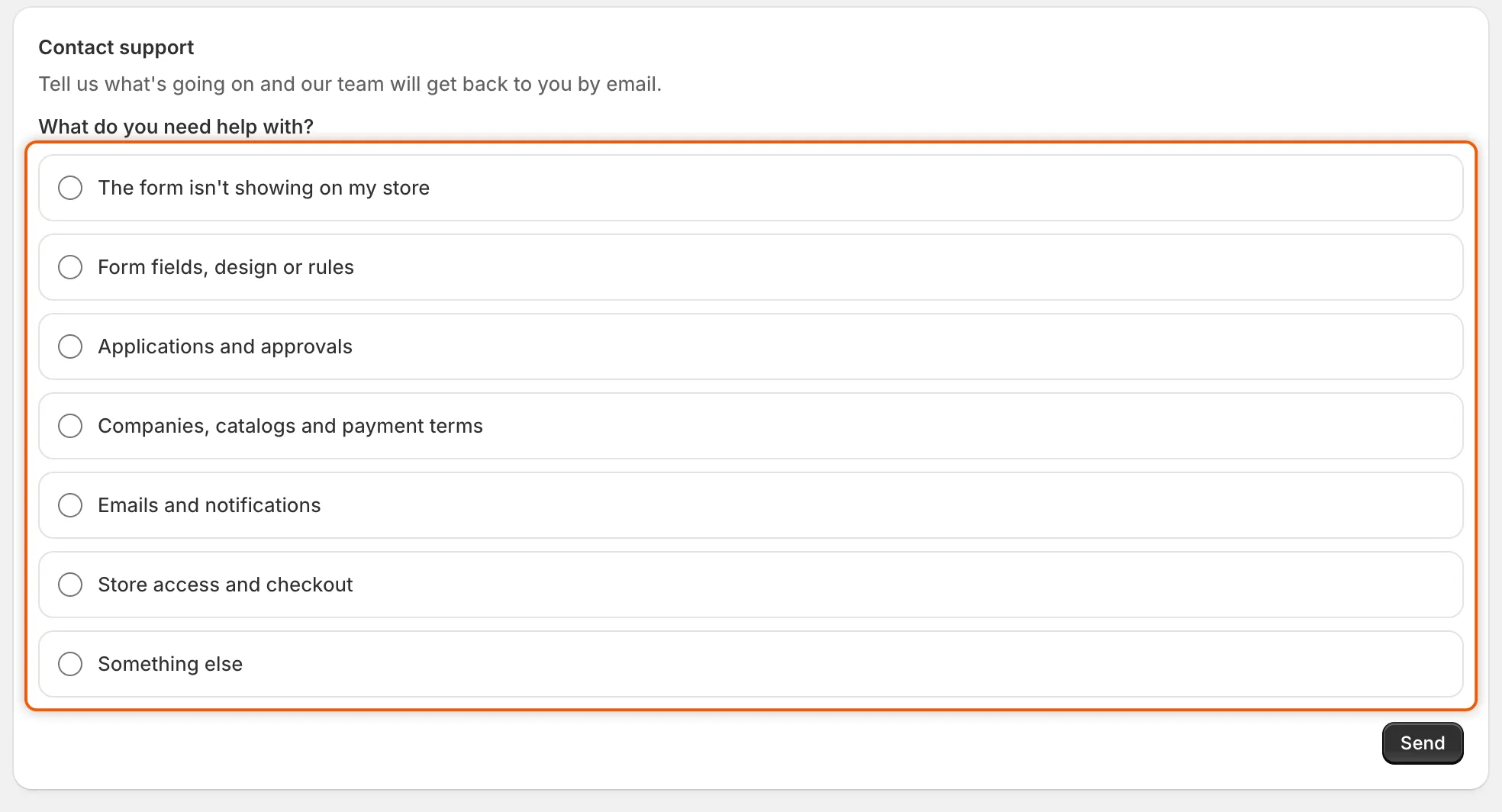
Start by picking the topic closest to your problem.
-
Pick the issue
Section titled “Pick the issue”In Which issue best describes it?, pick the closest match. Each topic has its own list, ending with Other / I’m not sure.
-
Check your name and email
Section titled “Check your name and email”Your name and Your email are filled in from your store when the app knows them. Change them if replies should go to someone else.
-
Add the page and access code (optional)
Section titled “Add the page and access code (optional)”- Page URL: the address of the page where you see the problem, for example your form’s page on your store.
- Collaborator request code: the 4-digit code that lets us ask for access to your store, if we need to look at your theme or settings. In Shopify admin, find it under Settings › Users › Security. Shopify asks you to approve any access request before we can sign in.
-
Describe the problem
Section titled “Describe the problem”In Describe your issue, write what you did, what you expected, and what happened instead. Paste any message you saw, word for word.
-
Attach screenshots or a video (optional)
Section titled “Attach screenshots or a video (optional)”Drop files on Screenshots or video, or click it to choose them. You can attach up to 5 images or videos, 7 MB in total. For a longer recording, paste a link to it in your message.
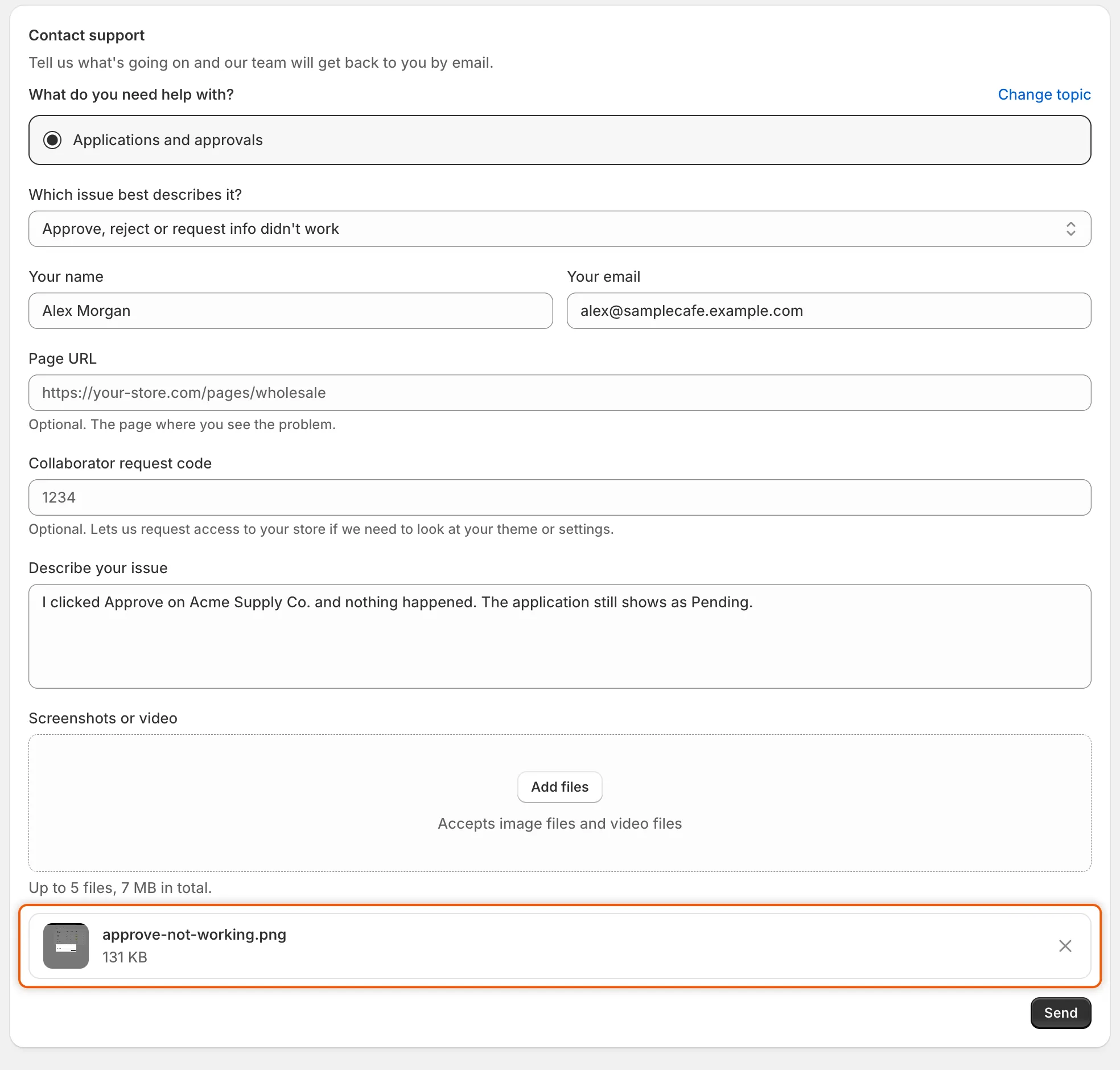
Each file you attach is listed under the drop zone, with its size and a button to remove it.
-
Click Send. A green banner confirms it: “Thanks for your message. We’ll reply to” your email “as soon as we can.” Our reply comes by email.
If it doesn’t send
Section titled “If it doesn’t send”| Message | What to do |
|---|---|
| “You can attach up to 5 files.” | Remove a file with the × on its row. |
| “Attachments can add up to 7 MB. For a longer video, paste a link in your message.” | Remove a file or use smaller ones, or paste a link to the video instead. |
| “Only images and videos can be attached.” | Attach a screenshot or a screen recording. Send other files by email. |
| “Those files are too large to send. Remove some, or paste a link in your message instead.” | Remove some files, or paste a link to them in your message. |
| A red banner that says something went wrong | Click Send again in a moment. If it fails again, email us. |
Topics you can pick
Section titled “Topics you can pick”| Topic | Issues you can choose from |
|---|---|
| The form isn’t showing on my store | The page is blank, the link shows a 404, nothing shows with the embed on, it stopped after a theme change |
| Form fields, design or rules | A field or layout looks wrong, it looks wrong on mobile, a rule isn’t working, translations, a custom style |
| Applications and approvals | Applications don’t arrive, a decision didn’t work, an automation rule didn’t run, document uploads or the tax ID check |
| Companies, catalogs and payment terms | No company after approval, the wrong catalog or prices, payment terms or credit limit, Sync from Shopify or import |
| Emails and notifications | A buyer didn’t get an email, your team doesn’t get new-application emails, email content, your own SMTP server |
| Store access and checkout | Prices or add to cart show to the wrong visitors, a buyer can’t check out, a buyer can’t sign in or see their company, the customer account pages |
| Something else | Help setting up, a bug, a feature request, Shopify Flow or integrations |
Chat with us
Section titled “Chat with us”- From Home. At the bottom of Home, click Chat with support. The chat opens in the app.
- From an error. When something fails, the red banner that reports it has a Contact support button. It opens the chat with the error already typed in, so you only add what you were doing. If the chat can’t open, for example because a browser extension blocks it, the Contact us page opens instead, usually with the error already in Describe your issue.
Email us
Section titled “Email us”Write to [email protected]. Tell us your store’s address, so we know which store you mean.
What to include
Section titled “What to include”The more of this we get in the first message, the faster we can help:
- What you did, step by step, and what you expected to happen.
- The exact message you saw, if any.
- The address of the page on your store, or the screen in the app, where it happened.
- For an application, its company name and reference.
- Screenshots or a short screen recording.
- Your collaborator request code, if the problem is in your theme or settings.
Next steps
Section titled “Next steps”- Troubleshooting — causes and fixes for the most common problems.
- FAQ — short answers to common questions.
- Permissions and data — what the app accesses and stores.