
Choose who gets notified
Choose who on your team receives the app's emails, give a form its own list, and turn on the daily summary of applications waiting for review.
Sami B2B Onboarding emails your team when there is something to act on. You choose the people once in Settings › Email, and you can give any application form a list of its own, for example so distributor applications reach a different team.
These emails go to your team:
| When it’s sent | On at first | |
|---|---|---|
| New application | A buyer submits an application. | Yes |
| Buyer resubmitted | A buyer sends the information you asked for. | Yes |
| Daily pending summary | Each morning around 8 a.m. in your store’s time zone, with how many applications are waiting for review. Skipped on days when nothing is waiting. | No |
| Import completed | A company import from a CSV file finishes. | Yes |
Who receives a team email
Section titled “Who receives a team email”The app looks for recipients in this order and uses the first list that has anyone in it:
- The form’s own recipients, for New application and Buyer resubmitted, if the form has a list in the builder’s Email section.
- Default recipients in Settings › Email.
- A fallback address. The store owner’s email once they have opened the app, otherwise your store’s contact email in Shopify. Settings › Email shows this address under the default list: “When this list is empty, emails go to …”, followed by the address.
All recipients get the same email together, so they can see each other’s addresses.
Set your default recipients
Section titled “Set your default recipients”-
Open Default recipients
Section titled “Open Default recipients”In the app, click Settings, then click Email. Find the Default recipients card.
-
Add people
Section titled “Add people”Click Add an email in Recipients. A list opens with the email addresses of the people on your team who have opened the app, apart from collaborator accounts. Click an address to add it, or type any email address and press
Enter. Add as many as you need.To remove someone, click the × on their address.
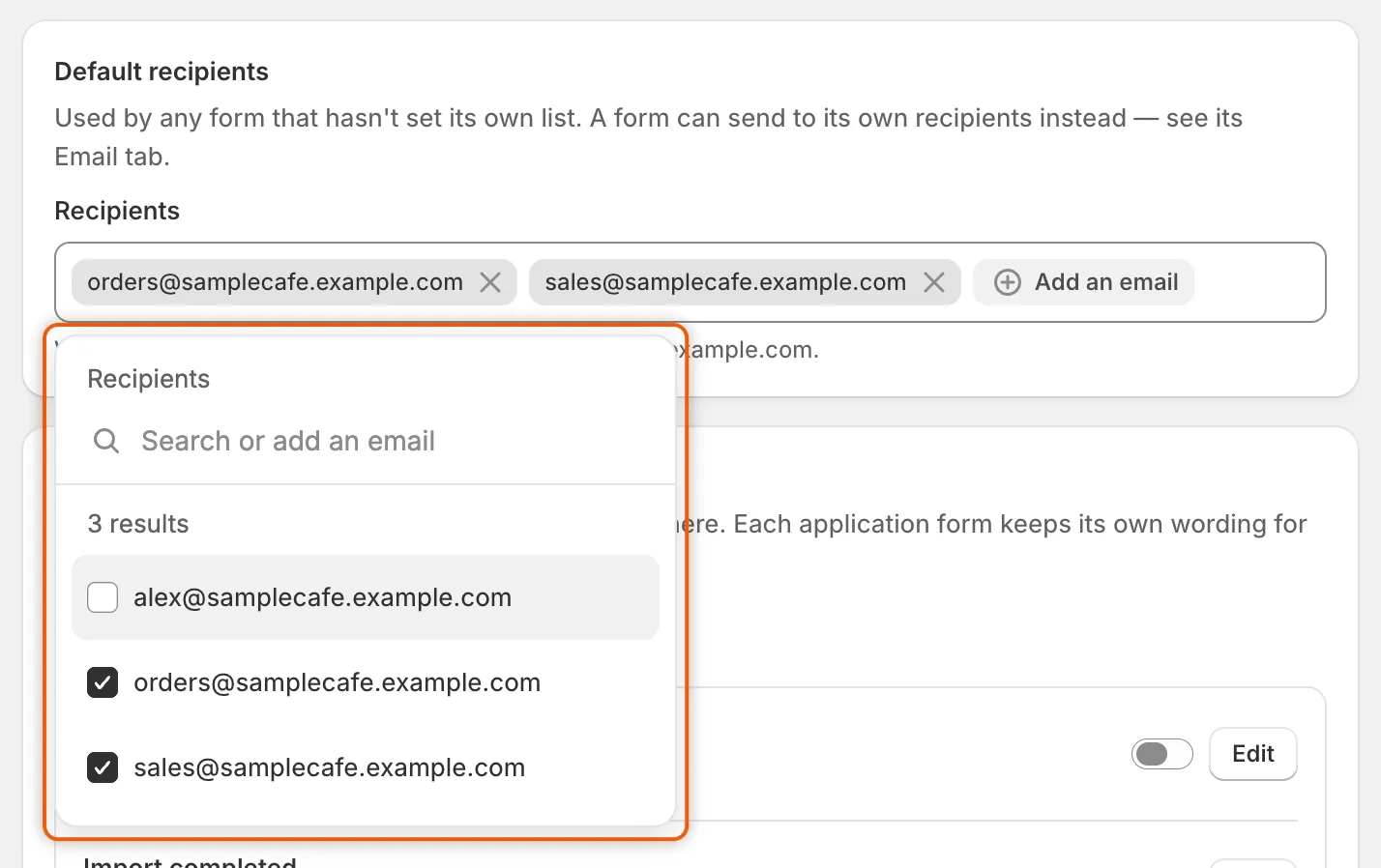
Pick team members from the list, or type any email address and press Enter.
-
Click Save in the save bar. The next team email goes to everyone on the list. If an address isn’t valid, the save stops with “… isn’t an email address we can send to.” Fix or remove it, then save again.
Give a form its own recipients
Section titled “Give a form its own recipients”Use this when different forms belong to different teams. The form’s list replaces the default recipients for that form’s New application and Buyer resubmitted emails.
-
Open the form’s Email section
Section titled “Open the form’s Email section”Go to Forms and click Edit beside the form, for example Wholesale application. In the rail on the left of the builder, click Email.
A form that has never been saved shows “Save the form once before editing its emails.” Save it first.
-
Add the form’s recipients
Section titled “Add the form’s recipients”Under Who hears about this form, click Add an email and add people the same way as on Settings › Email. While the list is empty, the section says “Using the default recipients on Settings → Email.” If the default list is empty too, it names the fallback address the emails go to instead.
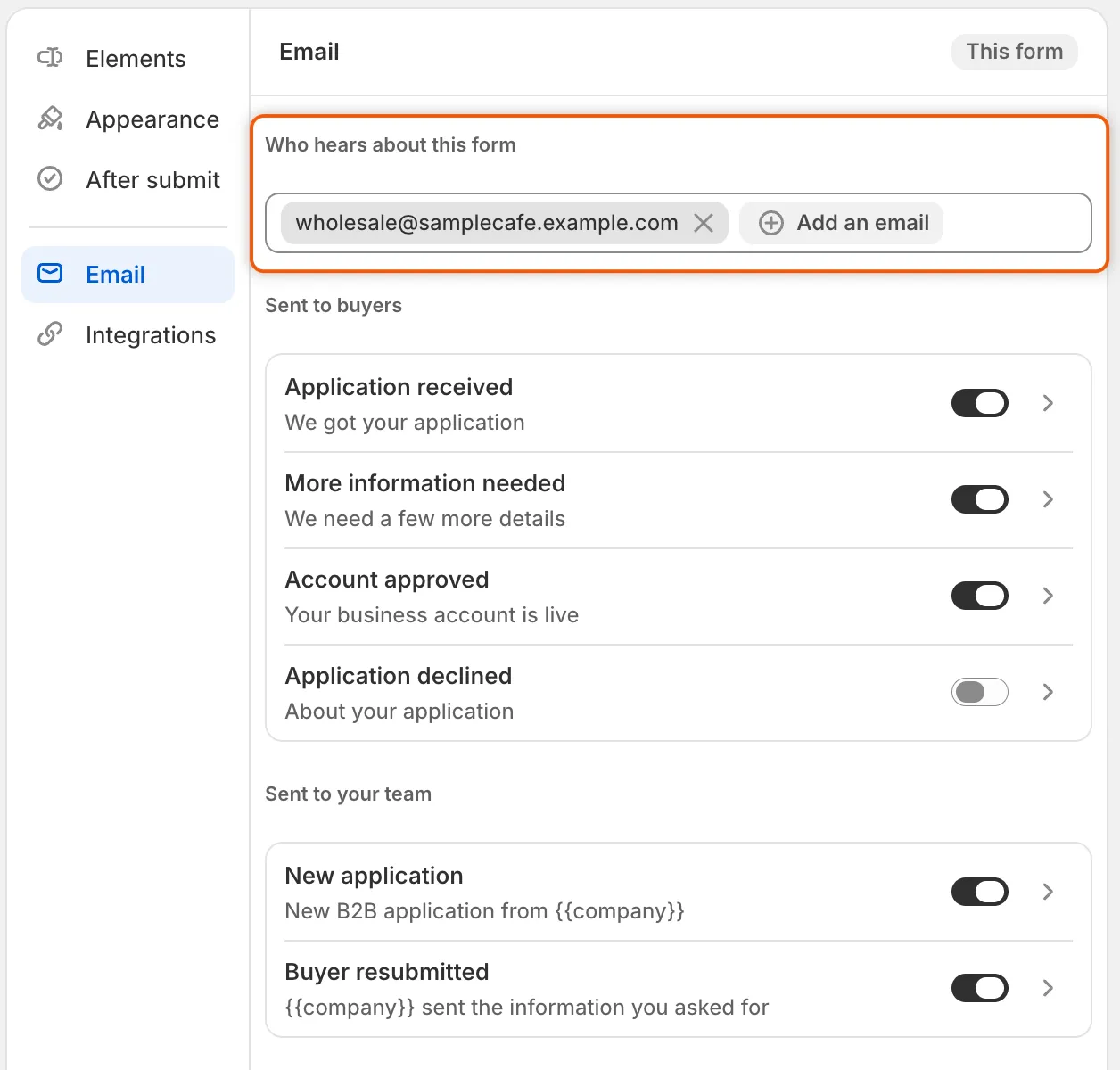
A form’s own recipients replace the default list for that form’s team emails.
-
Save the form
Section titled “Save the form”Click Save in the builder’s save bar.
To go back to the default list, remove every address from Who hears about this form and save the form.
Turn on the daily pending summary
Section titled “Turn on the daily pending summary”The summary is off when you install the app.
-
Find Store emails
Section titled “Find Store emails”Go to Settings › Email and find Store emails.
-
Turn the summary on
Section titled “Turn the summary on”Under Sent to your team, turn on the switch next to Daily pending summary.
-
Click Save in the save bar.
From then on, the default recipients get one email a day, sent from 8 a.m. in your store’s time zone. It says how many applications are waiting for review (new ones and ones the buyer sent back), and its Open the review queue button opens them in the app. On a day with nothing waiting, no email is sent.
Turn team emails off
Section titled “Turn team emails off”An empty recipient list doesn’t stop team emails: they go to the fallback address instead. To stop an email, turn it off.
| Where to turn it off | |
|---|---|
| New application, Buyer resubmitted | For one form: Forms › Edit › Email, then turn off its switch under Sent to your team and save the form. |
| Daily pending summary, Import completed | Settings › Email › Store emails: turn off its switch and click Save. |
The New application email also stops when Application received is off under Automation › Automations, and Buyer resubmitted when Application revised is off. Turning off Application received also stops the buyer’s Application received email. See Automations and Shopify Flow.
Next steps
Section titled “Next steps”- Edit email templates — change what each team email says.
- Team and roles — add the people you want to pick as recipients.
- Send from your own address (SMTP) — send team emails through your own mail server.
- Activity log — check which emails went out and to whom.