> For the complete documentation index, see [llms.txt](https://docs.samita.io/llms.txt). Markdown versions of documentation pages are available by appending `.md` to page URLs; this page is available as [Markdown](https://docs.samita.io/sami-b2b-onboarding/help/troubleshooting.md).

# Troubleshooting

Find the cause of a problem with the form, store access, approvals, emails, customer accounts or imports, and fix it.

This page lists the problems merchants run into most with Sami B2B Onboarding, grouped by where they show up. Each one gives the likely causes in the order to check them, and what to do about each.

{% hint style="info" %}
Two places in the app tell you why most things happened:

* **An application's timeline.** Open the application in **Companies › Applications** and scroll to **Timeline**. Click an entry, such as **Shopify company** or an email, to read its result.
* **Settings › Activity log.** Use the **Applications**, **Emails** and **Imports** views to see what the app did across your store.
  {% endhint %}

## Storefront form

### The form page shows only its title

| Cause                                                                           | Fix                                                                                                                                                                                                                                                                                          |
| ------------------------------------------------------------------------------- | -------------------------------------------------------------------------------------------------------------------------------------------------------------------------------------------------------------------------------------------------------------------------------------------- |
| The app embed is off. The page the app creates and the embed code both need it. | On **Home**, click **Activate embed** on the **Turn on the app embed** card. Or go to **Online Store › Themes › Edit theme › App embeds**, switch on **Sami B2B Onboarding** and click **Save**. See [Turn on the app embed](/sami-b2b-onboarding/getting-started/turn-on-the-app-embed.md). |
| You published another theme. Each theme has its own app embed setting.          | Switch on **Sami B2B Onboarding** in the new theme's **App embeds** and click **Save**. A **B2B application form** block you added to the old theme's pages needs adding to the new theme too.                                                                                               |

### The form's link shows "page not found"

| Cause                                                        | Fix                                                                                                                         |
| ------------------------------------------------------------ | --------------------------------------------------------------------------------------------------------------------------- |
| The form is a **Draft**. Unpublishing a form hides its page. | In **Forms**, click **…** (More actions) on the form's row and choose **Publish**. The page comes back at the same address. |
| The form was deleted. Its page was hidden with it.           | Use the link of a published form. In **Forms**, click **Copy link** on its row.                                             |
| The page was deleted in **Online Store › Pages**.            | Rename the form, or unpublish and publish it again. The app makes a new page at the same address.                           |

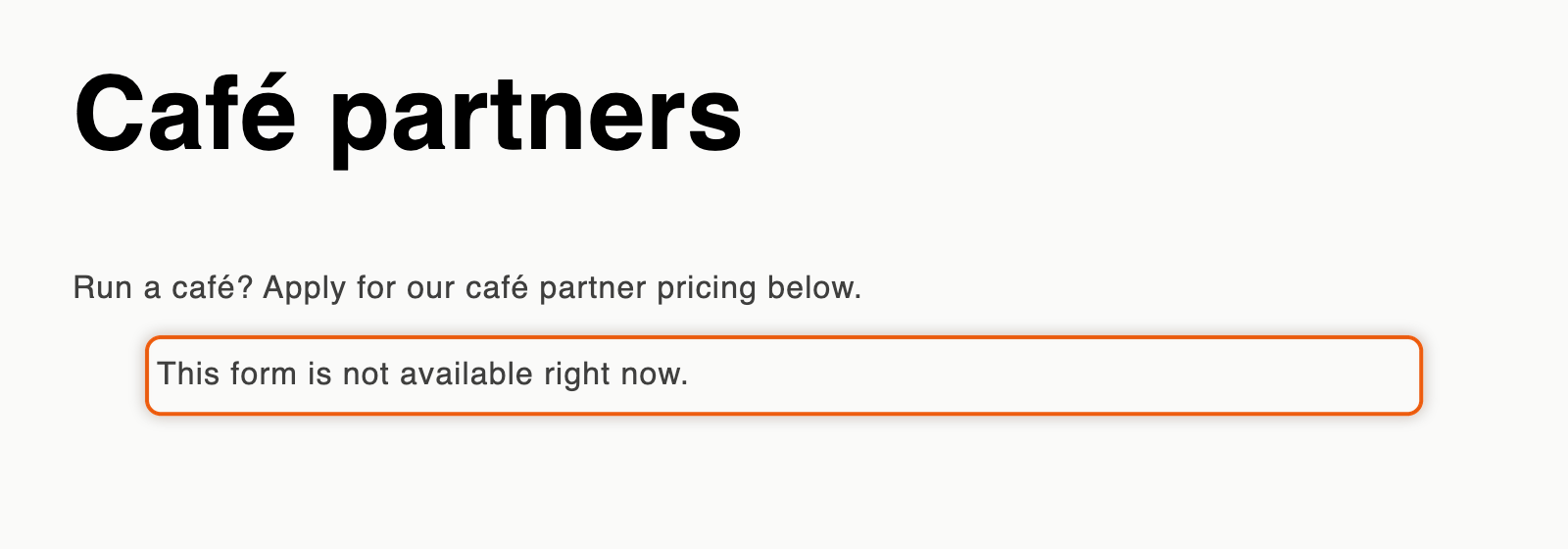
### The page says "This form is not available right now."

| Cause                                                                                                              | Fix                                                                                                                                                                                                                            |
| ------------------------------------------------------------------------------------------------------------------ | ------------------------------------------------------------------------------------------------------------------------------------------------------------------------------------------------------------------------------ |
| The **B2B application form** block or the pasted code names a form that is a **Draft**, deleted, or spelled wrong. | Publish the form in **Forms**. Or check the slug in the block's **Form** box, or copy the embed code again. See [Add the form block in the theme editor](/sami-b2b-onboarding/add-a-form-to-your-store/theme-editor-block.md). |
| The block's **Form** box is empty and no application form is published.                                            | Publish a form in **Forms**. A block with an empty **Form** box shows your default form, or another published form if the default is a **Draft**.                                                                              |
| Your store couldn't reach the app for a moment.                                                                    | Reload the page. If the message stays, [contact support](/sami-b2b-onboarding/help/contact-support.md) with the page's address.                                                                                                |

You can reword this message in **Settings › Translate**: click **Edit** beside your default language, open **Storefront messages** and change the **Form unavailable** row.

<figure><img src="https://3844812229-files.gitbook.io/~/files/v0/b/gitbook-x-prod.appspot.com/o/spaces%2FRrf4pQPgjvb3GW7IN3Ci%2Fuploads%2Fgit-blob-d1e9d7845fd89da84ba8575ab2c6f6f3ce7056da%2Fscreenshot-storefront-troubleshoot-form-unavailable.png?alt=media" alt="A storefront page called Café partners showing the line This form is not available right now. where the application form would be."><figcaption><p>When the form a block or embed code names isn't published, buyers see this line instead of the form.</p></figcaption></figure>

### You see a message instead of the form when you test it

When you're logged in to your store as a customer who already applied, or who already buys for a company, the form page shows where you stand instead of a blank form. Examples are **Your application is being reviewed** and **You already have a business account**. The app takes one application per customer account.

To test the form, open its page in a private browser window, where you're a guest.

### Buyers see "Log in to apply" instead of the form

**Settings › Access › How buyers apply** is set to **Log in first, then apply**. Guests see the log-in prompt until they log in. To let anyone apply, choose **Anyone can apply, account created on approval** and click **Save**. See [Ask buyers to log in before applying](/sami-b2b-onboarding/store-access/log-in-before-applying.md).

### A buyer gets an error when they submit

| What the buyer sees                                                                | Why                                                                                                                                       | What to do                                                                                                                                                                              |
| ---------------------------------------------------------------------------------- | ----------------------------------------------------------------------------------------------------------------------------------------- | --------------------------------------------------------------------------------------------------------------------------------------------------------------------------------------- |
| "That captcha check failed. Please try again."                                     | The captcha's site key and secret key don't belong together, or the buyer didn't pass the check.                                          | Check both keys. See [Captcha](/sami-b2b-onboarding/integrations/captcha.md).                                                                                                           |
| "That tax ID doesn't look valid for" followed by the country                       | The tax ID check is set to **Block the submit and show the error**, and the number's format is wrong for that country.                    | The buyer corrects the number. To let such applications in and decide yourself, change what a failed check does. See [Tax ID checks](/sami-b2b-onboarding/automation/tax-id-checks.md). |
| "Your company already has an account with us. Contact us and we'll add you to it." | **Duplicate companies** is set to **Block the submit and tell the buyer to contact sales**, and the company matches one you already have. | Add the buyer to that company yourself, or pick another option in [Application rules](/sami-b2b-onboarding/settings/application-rules.md).                                              |
| "You have already applied. Check your account for its status."                     | The buyer is logged in and has applied before.                                                                                            | Nothing to fix: one application per customer account. Their application is in **Companies › Applications**.                                                                             |
| "That file is larger than" a size, or "That file type isn't accepted here."        | The file breaks the limits of the form's **File upload** field.                                                                           | In the builder, select the field. Raise **Max size** (up to 20 MB), or add the type under **File types**, or set **Accepted** to **Any file type**. Save the form.                      |
| "Too many attempts. Wait a moment and try again."                                  | Many submits from the same visitor in a short time.                                                                                       | Wait a minute and submit again.                                                                                                                                                         |

### The link in the "More information needed" email doesn't work

| What the buyer sees                                                                    | Why                                                                                                                                                                              | What to do                                                                                                                                                                                      |
| -------------------------------------------------------------------------------------- | -------------------------------------------------------------------------------------------------------------------------------------------------------------------------------- | ----------------------------------------------------------------------------------------------------------------------------------------------------------------------------------------------- |
| "This link isn't valid anymore. Please use the link in the store's most recent email." | The link belongs to an application that no longer exists.                                                                                                                        | Ask the buyer to apply again.                                                                                                                                                                   |
| "This application is not open for changes."                                            | The application isn't waiting for the buyer any more. It was already sent back, approved, closed as **Abandoned**, or rejected without **Let them update it and send it again**. | If the application is **Resubmitted** and you need more, [request more information](/sami-b2b-onboarding/reviewing-applications/request-more-information.md) again. The buyer gets a new email. |

## Store access and checkout

### Prices or add to cart still show to visitors who aren't approved

| Cause                                                                                  | Fix                                                                                                                                               |
| -------------------------------------------------------------------------------------- | ------------------------------------------------------------------------------------------------------------------------------------------------- |
| You're checking in the theme editor. Access rules never apply there.                   | Check your live storefront in a private browser window.                                                                                           |
| You're logged in as an approved customer, or as a customer who buys for a company.     | Approved buyers see prices by design. Check as a guest.                                                                                           |
| **Test mode** is on. The rules apply only to customers tagged `sami-b2b-od-lock-test`. | Turn off **Test mode** in **Settings › Access** and click **Save**. See [Test your access rules](/sami-b2b-onboarding/store-access/test-mode.md). |
| **Who can browse, who can buy** is **Public catalog, public purchasing**.              | Pick **Public catalog, private purchasing** or **Private wholesale store** and click **Save**.                                                    |
| The app embed is off in your published theme.                                          | Switch on **Sami B2B Onboarding** under **App embeds** and save.                                                                                  |
| Your theme draws a price or button the app doesn't recognize.                          | [Contact support](/sami-b2b-onboarding/help/contact-support.md) with the address of the page.                                                     |

Prices in the cart and at checkout always stay visible, so a cart adds up. See [Hide prices and add to cart](/sami-b2b-onboarding/store-access/hide-prices-and-add-to-cart.md).

### Checkout isn't blocked

| Cause                                                                                             | Fix                                                                                                                                                                                  |
| ------------------------------------------------------------------------------------------------- | ------------------------------------------------------------------------------------------------------------------------------------------------------------------------------------ |
| The badge under **Block checkout while pending** says **Not enforced**.                           | The app's checkout rule isn't installed yet. Reopen **Settings › Access** later. If it still says **Not enforced**, [contact support](/sami-b2b-onboarding/help/contact-support.md). |
| **Who can browse, who can buy** is **Public catalog, public purchasing**. This lets everyone buy. | Pick one of the other two options and click **Save**.                                                                                                                                |
| **Test mode** is on.                                                                              | Only customers tagged `sami-b2b-od-lock-test` are blocked. Turn it off to block everyone else.                                                                                       |
| The buyer is approved, or buys for a company.                                                     | Approved buyers are never blocked. Check as a guest.                                                                                                                                 |
| The rule was turned off in Shopify.                                                               | In Shopify admin, go to **Settings › Checkout**, find **B2B checkout lock** under **Checkout rules** and turn it on.                                                                 |

### An approved buyer can't check out

| Cause                                                                                                                                         | Fix                                                                                                                                                                                                                                                           |
| --------------------------------------------------------------------------------------------------------------------------------------------- | ------------------------------------------------------------------------------------------------------------------------------------------------------------------------------------------------------------------------------------------------------------- |
| The buyer isn't logged in, or logged in with another email.                                                                                   | Ask them to log in with the email they applied with.                                                                                                                                                                                                          |
| **B2B approved** isn't on for their customer. The **Shopify customer** entry on the application's timeline says when the flag wasn't written. | In Shopify admin, open **Customers**, click the customer and turn on **B2B approved**. See [Block checkout until approved](/sami-b2b-onboarding/store-access/block-checkout-until-approved.md#approve-a-customer-by-hand).                                    |
| Their company is **On hold** or **Removed from B2B**. Checkout says "Your company account is on hold. Contact us to place an order."          | Open the company. For **On hold**, turn **Can place orders** back on. For **Removed from B2B**, click **Restore to B2B**. Then click **Save**. See [Put a company on hold or remove it from B2B](/sami-b2b-onboarding/companies/hold-or-remove-a-company.md). |
| **Test mode** is on and the buyer carries the test tag.                                                                                       | Tagged customers get the rules even when approved. Remove the tag.                                                                                                                                                                                            |

### The store lock covers a page that should stay open

Log-in pages, customer account pages and the pages of your published application forms are always open. To open another page, go to **Settings › Access**, add it under **Always allow these pages** and click **Save**. See [Lock the store](/sami-b2b-onboarding/store-access/lock-the-store.md).

## Approval and Shopify

### No company was created in Shopify

Open the application and click the **Shopify company** entry on its timeline. Its result says what happened.

| Result on the timeline                                                         | Why                                                                                                                                                                | Fix                                                                                                                                                                                                             |
| ------------------------------------------------------------------------------ | ------------------------------------------------------------------------------------------------------------------------------------------------------------------ | --------------------------------------------------------------------------------------------------------------------------------------------------------------------------------------------------------------- |
| "Shopify didn't create the company" and Shopify's reason                       | Usually your Shopify plan doesn't include B2B. The customer is still created and marked **B2B approved**, and the company is kept in the app's **Companies** list. | Creating companies needs a plan that includes B2B.                                                                                                                                                              |
| "No company name is mapped to Company · Name, so no company could be created." | No question on the form fills the company's name.                                                                                                                  | In the builder, open **Integrations**, click **Manage** on **Shopify** and map a field to the company **Name**. See [Map answers to Shopify](/sami-b2b-onboarding/application-forms/map-answers-to-shopify.md). |
| "Added the buyer to the existing Shopify company"                              | The buyer joined a company you already have.                                                                                                                       | Nothing to fix: no second company is made.                                                                                                                                                                      |

The Shopify steps run in the background. If there's no entry yet, wait a few moments and reload the page. A change you make now applies to the next approvals. The app doesn't run an approval again, so for an application already approved, [contact support](/sami-b2b-onboarding/help/contact-support.md).

### You can't approve an application

| What you see                                                                                                                                           | Fix                                                                                                                                                                                                             |
| ------------------------------------------------------------------------------------------------------------------------------------------------------ | --------------------------------------------------------------------------------------------------------------------------------------------------------------------------------------------------------------- |
| **Approve application** is turned off, with "Your Shopify account needs the Companies and Customers permission to approve."                            | The store owner gives your staff account these permissions in Shopify admin, under **Settings › Users**. See [Team and roles](/sami-b2b-onboarding/settings/team-and-roles.md).                                 |
| **Required answers** in the readiness checks, and "This application can't be approved until these answers are filled in:" with a list when you approve | The form requires those answers before approval. Fill them in with **Edit answers** on the application, or [request more information](/sami-b2b-onboarding/reviewing-applications/request-more-information.md). |

### A rule didn't decide an application

Open the application's timeline and find the rule's entry.

| Entry on the timeline                                                                                           | Why                                                                                                                                                                                                                               |
| --------------------------------------------------------------------------------------------------------------- | --------------------------------------------------------------------------------------------------------------------------------------------------------------------------------------------------------------------------------- |
| No entry from any rule                                                                                          | No **Live** rule matched. Check that the rule is **Live** and that the answers meet its conditions. A rule with no conditions never matches. The rules also don't run when the tax ID check has already rejected the application. |
| An entry from a different rule                                                                                  | A rule higher in the list matched first. Only the first rule that matches acts. Move your rule up, or narrow the conditions of the one above it.                                                                                  |
| "Rule “…” couldn't approve it"                                                                                  | An answer the form requires for approval is empty.                                                                                                                                                                                |
| "Looks like …, a company you already have". Click it to read "Automation rules left it for a person to decide". | The application matches a company you already have, so the rules don't run.                                                                                                                                                       |
| "Rule “…” matched". Click it to read that a person asked for this information, so it's theirs to decide.        | A person on your team asked the buyer for more, so the answer comes back to them.                                                                                                                                                 |

See [Rules that decide applications](/sami-b2b-onboarding/automation/rules.md).

## Emails

### A buyer didn't get an email

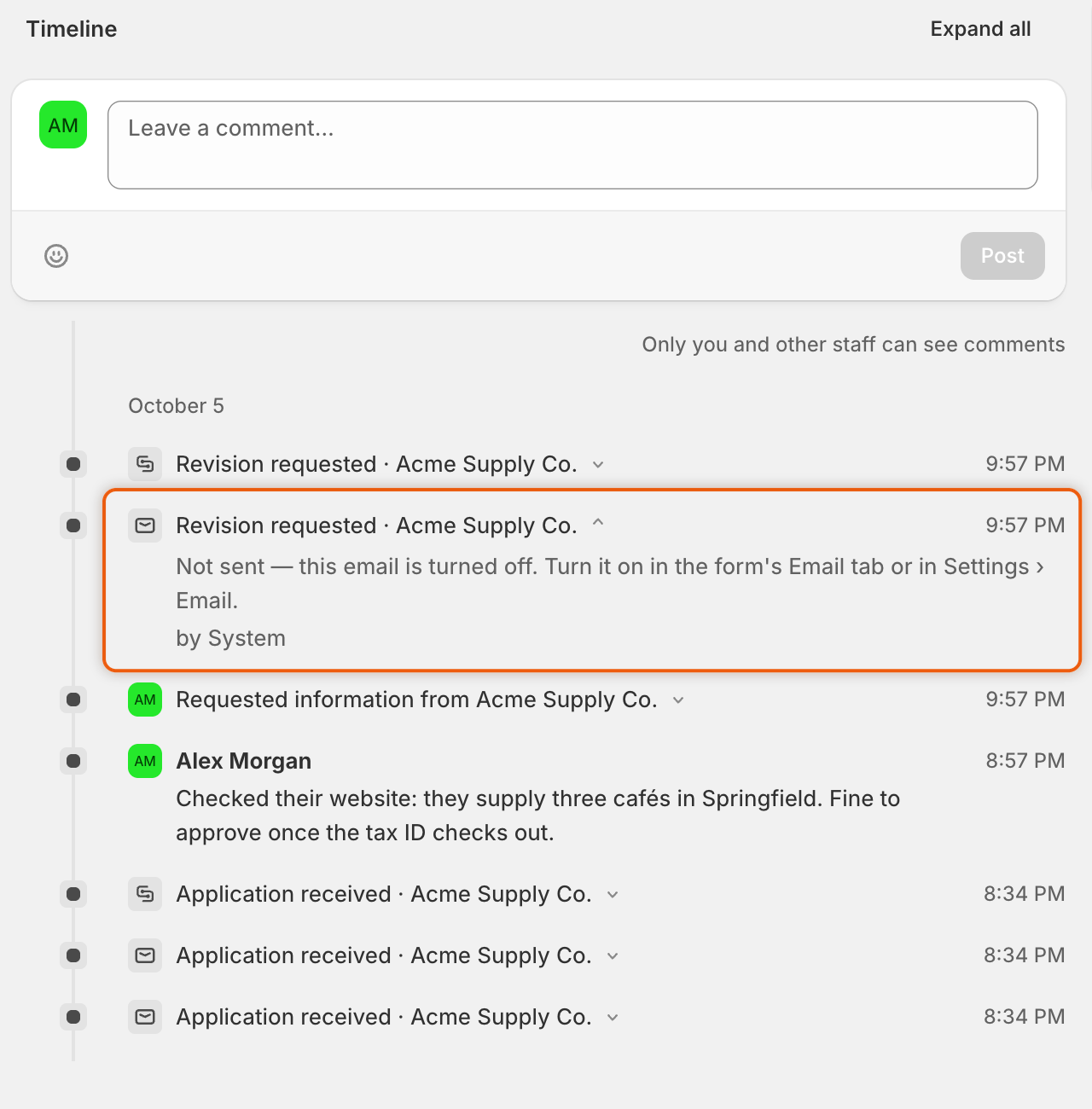
Open the application and find the email's entry on the timeline.

| What the timeline shows                 | Fix                                                                                                                                                                                                                                                                                                                                                                                                                     |
| --------------------------------------- | ----------------------------------------------------------------------------------------------------------------------------------------------------------------------------------------------------------------------------------------------------------------------------------------------------------------------------------------------------------------------------------------------------------------------- |
| "Not sent — this email is turned off."  | Turn the email on in the form's builder: open the **Email** section, switch on **Send this email for this form**, and save the form.                                                                                                                                                                                                                                                                                    |
| "Reviewer chose not to email the buyer" | The reviewer unticked **Email the buyer about this decision**. Nothing to fix.                                                                                                                                                                                                                                                                                                                                          |
| No entry for the email                  | The email is turned off, or so is the event that sends it. Check the email's switch in the form's **Email** section, and the event's switch under **Automation › Automations**. **Application declined** starts turned off, and when you reject one application while it's off, the timeline shows no email entry. See [Automations and Shopify Flow](/sami-b2b-onboarding/automation/automations-and-shopify-flow.md). |
| The email was sent                      | Ask the buyer to check their spam folder. Sending from your own address can help. See [Send from your own address (SMTP)](/sami-b2b-onboarding/settings/smtp.md).                                                                                                                                                                                                                                                       |

<figure><img src="https://3844812229-files.gitbook.io/~/files/v0/b/gitbook-x-prod.appspot.com/o/spaces%2FRrf4pQPgjvb3GW7IN3Ci%2Fuploads%2Fgit-blob-c1fbba4d5b5b1c64e4db2929539a2cd0f53ead99%2Fscreenshot-applications-troubleshoot-email-not-sent.png?alt=media" alt="An application timeline with the Revision requested email entry opened, saying it wasn&#x27;t sent because the email is turned off."><figcaption><p>Click an email's entry on the timeline to see whether it went out, and why not.</p></figcaption></figure>

### Your team doesn't get new-application emails

| Cause                                                                                                               | Fix                                                                                                                                                                      |
| ------------------------------------------------------------------------------------------------------------------- | ------------------------------------------------------------------------------------------------------------------------------------------------------------------------ |
| The form has its own recipients, which replace **Default recipients**.                                              | Check the list in the form's **Email** section in the builder.                                                                                                           |
| **Default recipients** is empty. Emails then go to the one address named under the list, such as the store owner's. | Add people under **Settings › Email › Default recipients** and click **Save**. See [Choose who gets notified](/sami-b2b-onboarding/settings/notification-recipients.md). |
| **New application** is turned off for the form.                                                                     | Turn it on in the form's **Email** section and save the form.                                                                                                            |

### Settings › Email shows a red or yellow banner

| Banner                                      | Fix                                                                                                                         |
| ------------------------------------------- | --------------------------------------------------------------------------------------------------------------------------- |
| **These mail settings haven't been tested** | Under **Send a test**, type your email and click **Send**.                                                                  |
| **Emails are failing to send**              | Your mail server refused the last emails. Check the host, port, username and password with your provider, then send a test. |
| **Your mail credentials can't be read**     | Type your SMTP password again and click **Save**. Until then, emails go out through the app's mail service.                 |

If the test says "That test email couldn't be sent.", check the same settings. A Google mailbox needs an app password, not your account password. See [Send from your own address (SMTP)](/sami-b2b-onboarding/settings/smtp.md).

## Customer accounts

### The account pages or banners don't show

| Cause                                                                              | Fix                                                                                                                                                                                                                              |
| ---------------------------------------------------------------------------------- | -------------------------------------------------------------------------------------------------------------------------------------------------------------------------------------------------------------------------------- |
| The pieces aren't added yet. **Settings › Customer accounts** shows **Not added**. | Click **Add blocks in Customer accounts**, add the app's blocks in Shopify's editor and save. Back in the app, click **Refresh statuses**. See [Customer accounts](/sami-b2b-onboarding/customer-accounts/customer-accounts.md). |
| Your store uses legacy customer accounts.                                          | The pages work only with Shopify's customer accounts. Switch in Shopify admin under **Settings › Customer accounts**.                                                                                                            |
| The buyer isn't a contact of a Shopify company.                                    | The **Company self-service page** is for company buyers only. See [Company self-service page](/sami-b2b-onboarding/customer-accounts/company-self-service-page.md).                                                              |

## Imports

### The CSV file isn't accepted

| Message                                                                 | Fix                                                                      |
| ----------------------------------------------------------------------- | ------------------------------------------------------------------------ |
| "That isn't a CSV file. Save it as .csv and try again."                 | Export the sheet as CSV from your spreadsheet app, then upload it again. |
| "We couldn't read that file. Check it's a CSV and try again."           | Start from **Download template**, keep the header row, and save as CSV.  |
| "That file is over 20 MB. Split it and import the parts one at a time." | Split the file. Each import also reads at most 50,000 rows.              |

### Some rows were skipped

In **Companies › Import companies**, find the run in **Import history** and click **View skipped rows**. Each row shows its line and the reason. Click **Download skipped rows**, fix them in the file and import it again. Matching companies are updated, not duplicated. See [Import companies from a CSV file](/sami-b2b-onboarding/companies/import-companies-from-csv.md).

### Imported companies aren't in Shopify

That's expected. Companies from a CSV file live in the app only. To bring in companies that already exist in Shopify, use [Sync from Shopify](/sami-b2b-onboarding/companies/sync-from-shopify.md).

## Your access to the app

| What you see                                                                       | Fix                                                                                                                                                     |
| ---------------------------------------------------------------------------------- | ------------------------------------------------------------------------------------------------------------------------------------------------------- |
| **Only admins can open this page**, or "Only an admin can create or change forms." | You're a reviewer. Ask an admin to change your role in **Settings › Reviewers**. See [Team and roles](/sami-b2b-onboarding/settings/team-and-roles.md). |
| **We couldn't confirm your account**                                               | Reload the app. If it keeps happening, [contact support](/sami-b2b-onboarding/help/contact-support.md).                                                 |
| A colleague isn't on your team list                                                | People appear after they open the app once. Give them access to the app in Shopify under **Settings › Users**, then ask them to open it.                |

## Still stuck

When something in the app fails, the red banner that reports it has a **Contact support** button. It opens the support chat with the error already typed in. See [Contact support](/sami-b2b-onboarding/help/contact-support.md).

## Next steps

* [Contact support](/sami-b2b-onboarding/help/contact-support.md) — send us your problem with screenshots.
* [FAQ](/sami-b2b-onboarding/help/faq.md) — short answers to common questions.
* [How it works](/sami-b2b-onboarding/reference/how-it-works.md) — what happens to an application, step by step.
* [Activity log](/sami-b2b-onboarding/settings/activity-log.md) — see everything the app did in your store.


---

# Agent Instructions
This documentation is published with GitBook. GitBook is the documentation platform designed so that both humans and AI agents can read, navigate, and reason over technical content effectively. Learn more at gitbook.com.

## Querying This Documentation
If you need additional information that is not directly available in this page, you can query the documentation dynamically by asking a question.

Perform an HTTP GET request on the current page URL with the `ask` query parameter, and the optional `goal` query parameter:

```
GET https://docs.samita.io/sami-b2b-onboarding/help/troubleshooting.md?ask=<question>&goal=<endgoal>
```

`ask` is the immediate question: it should be specific, self-contained, and written in natural language.
`goal` is optional and describes the broader end goal you are ultimately trying to accomplish on behalf of the user. GitBook uses it to tailor the answer towards what is most useful for that goal.

The response will contain a direct answer to the question and relevant excerpts and sources from the documentation.

Use this mechanism when the answer is not explicitly present in the current page, you need clarification or additional context, or you want to retrieve related documentation sections.