> For the complete documentation index, see [llms.txt](https://docs.samita.io/llms.txt). Markdown versions of documentation pages are available by appending `.md` to page URLs; this page is available as [Markdown](https://docs.samita.io/sami-b2b-onboarding/add-a-form-to-your-store/embed-code.md).
# Paste the embed code
Copy a form's embed code and paste it into a Custom Liquid section, a page's content or a page builder.
The embed code is one line of HTML that shows your form wherever you paste it. Use it when the theme editor block doesn't fit: in a Custom Liquid section, inside a page's own content next to your text, or in a page builder app.
{% hint style="info" %}
Before you start: the app embed must be on. The code only marks the spot, and the app embed is what loads the form into it. See [Turn on the app embed](/sami-b2b-onboarding/getting-started/turn-on-the-app-embed.md). The form must also be published (**Active** in **Forms**).
{% endhint %}
## Copy the embed code
{% stepper %}
{% step %}
### Open the form's menu
In Sami B2B Onboarding, go to **Forms**. Click **…** (More actions) on the form's row.
{% endstep %}
{% step %}
### Copy the code
Choose **Copy embed code**. A **Code copied** message appears.
The code looks like this, with your form's slug in the last pair of quotes:
```html
```
{% endstep %}
{% endstepper %}
The **Your form is ready** dialog that opens after you save a new form for the first time has the same code, under **Embed code**.
To always show whichever form is your default, empty the last pair of quotes: `data-samita-b2bod-form=""`.
Then paste it in one of the three places below.
## Paste it into a Custom Liquid section
Most themes include a **Custom Liquid** section that takes code like this.
{% stepper %}
{% step %}
### Open the theme editor
In your Shopify admin, go to **Online Store › Themes** and click **Edit theme** on your current theme. Use the template menu at the top to open the template where the form should go.
{% endstep %}
{% step %}
### Add a Custom Liquid section
In the sidebar on the left, click **Add section** under **Template**, type `Custom Liquid` in **Search sections** and choose **Custom Liquid**.
{% endstep %}
{% step %}
### Paste the code
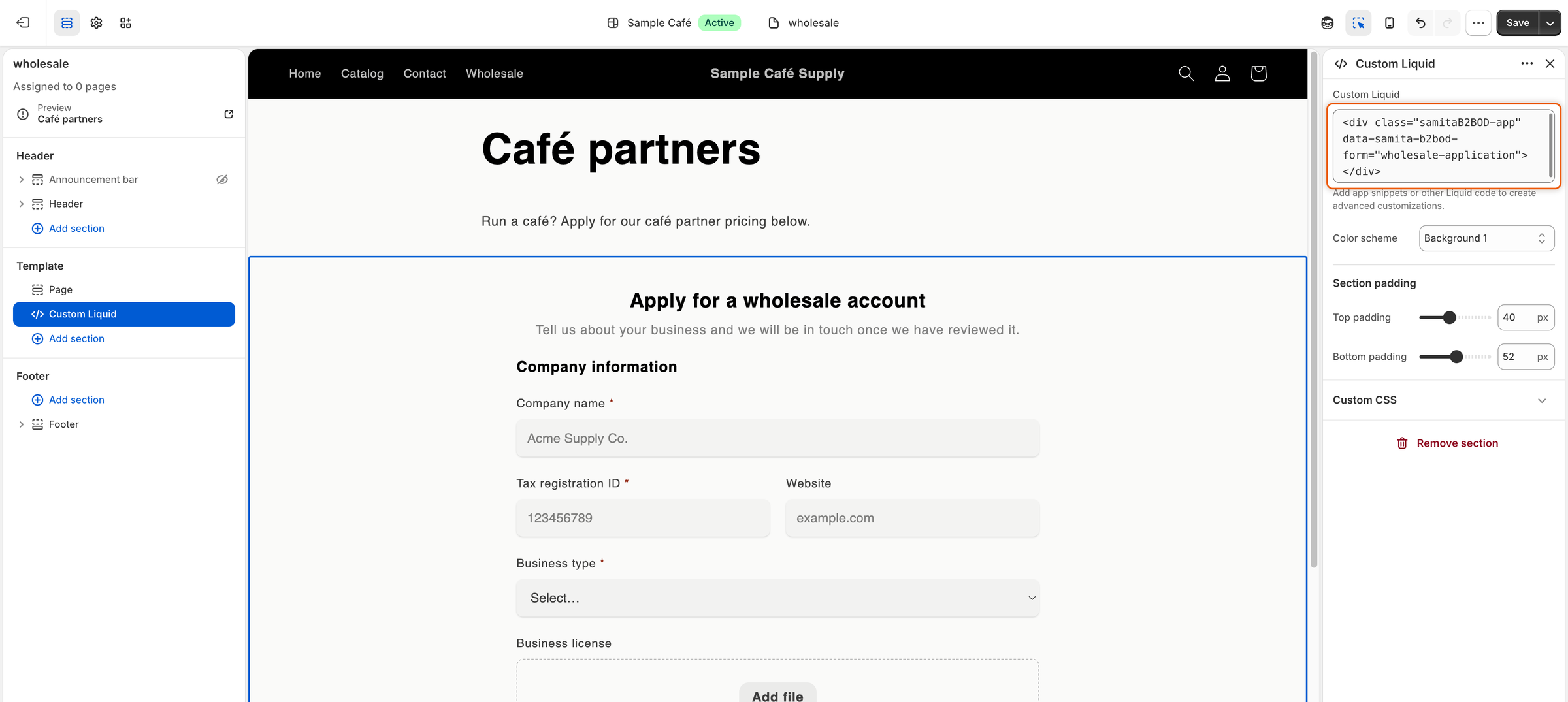
Click the new section and paste the embed code into its code box. The preview shows your form.
Paste the embed code into a Custom Liquid section and the form appears in its place.
{% endstep %}
{% step %}
### Save
Click **Save** at the top right of the theme editor.
{% endstep %}
{% endstepper %}
## Paste it into a page's content
Use this to put the form inside a page, with your own text above or below it.
{% stepper %}
{% step %}
### Open the page
In your Shopify admin, go to **Online Store › Pages**. Open the page, or click **Add page** to make one and give it a title.
{% endstep %}
{% step %}
### Switch to HTML
In the content editor's toolbar, click **Show HTML** (the `<>` button).
{% endstep %}
{% step %}
### Paste the code
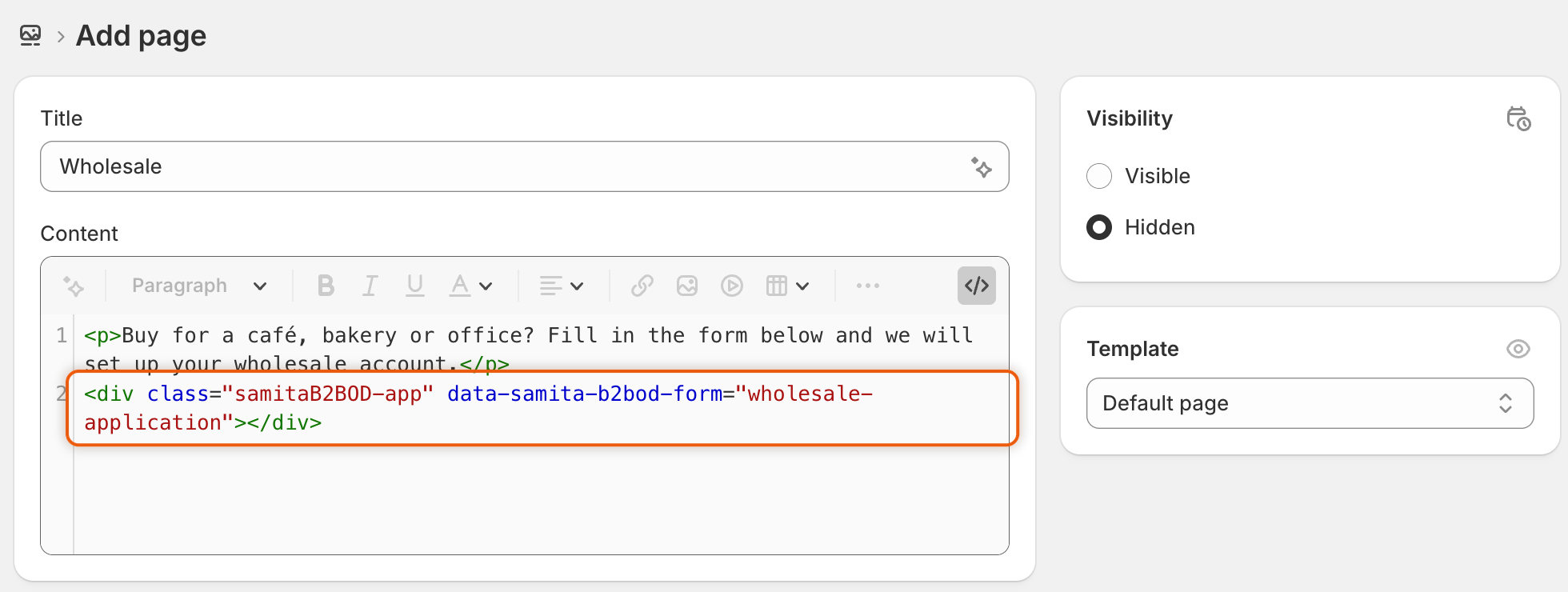
Paste the embed code where the form should appear. Keep any text of your own before or after it.
In a page's HTML, the embed code goes where you want the form to show.
{% endstep %}
{% step %}
### Save
Click **Save**. Make sure the page is visible, so buyers can open it.
{% endstep %}
{% endstepper %}
## Paste it into a page builder
Page builder apps usually have an element for HTML or custom code.
{% stepper %}
{% step %}
### Add an HTML element
In your page builder, add its HTML or custom code element where the form should go.
{% endstep %}
{% step %}
### Paste and publish
Paste the embed code into the element, then save and publish the page. The page must be part of your online store, where the app embed runs.
{% endstep %}
{% endstepper %}
## Check it on your store
{% stepper %}
{% step %}
### Open the page as a guest
Open the page in a private browser window, so you see it as a buyer who isn't signed in. After a moment, the form appears where you pasted the code.
{% endstep %}
{% step %}
### Fix what you see, if needed
* **Nothing shows where you pasted the code.** Check that the app embed is on, and that the code was pasted as it was copied.
* **This form is not available right now.** The slug in the code doesn't match a published form. Copy the code again, or publish the form in **Forms**.
{% endstep %}
{% endstepper %}
## Good to know
* You can paste the code in as many places as you like, and use different forms on different pages.
* If you lock your store, a page from **Online Store › Pages** that holds the form stays open to visitors. A form pasted on another kind of page, such as your home page, doesn't open that page. See [Lock the store](/sami-b2b-onboarding/store-access/lock-the-store.md).
* Signed-in customers who have already applied see a message about their application instead of the form. See [After the buyer submits](/sami-b2b-onboarding/application-forms/after-the-buyer-submits.md#what-signed-in-customers-see).
## Next steps
* [Add the form block in the theme editor](/sami-b2b-onboarding/add-a-form-to-your-store/theme-editor-block.md) — place the form as a section without any code.
* [Design the form](/sami-b2b-onboarding/application-forms/design-the-form.md) — match its look to the page you pasted it into.
* [Lock the store](/sami-b2b-onboarding/store-access/lock-the-store.md) — keep the rest of the store private while the form stays open.
---
# Agent Instructions
This documentation is published with GitBook. GitBook is the documentation platform designed so that both humans and AI agents can read, navigate, and reason over technical content effectively. Learn more at gitbook.com.
## Querying This Documentation
If you need additional information that is not directly available in this page, you can query the documentation dynamically by asking a question.
Perform an HTTP GET request on the current page URL with the `ask` query parameter, and the optional `goal` query parameter:
```
GET https://docs.samita.io/sami-b2b-onboarding/add-a-form-to-your-store/embed-code.md?ask=&goal=
```
`ask` is the immediate question: it should be specific, self-contained, and written in natural language.
`goal` is optional and describes the broader end goal you are ultimately trying to accomplish on behalf of the user. GitBook uses it to tailor the answer towards what is most useful for that goal.
The response will contain a direct answer to the question and relevant excerpts and sources from the documentation.
Use this mechanism when the answer is not explicitly present in the current page, you need clarification or additional context, or you want to retrieve related documentation sections.