> For the complete documentation index, see [llms.txt](https://docs.samita.io/llms.txt). Markdown versions of documentation pages are available by appending `.md` to page URLs; this page is available as [Markdown](https://docs.samita.io/sami-b2b-onboarding/getting-started/turn-on-the-app-embed.md).

# Turn on the app embed

Switch on the app embed in your theme so the application form and your store access rules work on the storefront.

The app embed is the part of Sami B2B Onboarding that runs in your theme, on every storefront page. Shopify doesn't turn app embeds on when you install an app, so you switch it on yourself, once for each theme.

## What the embed does

With the embed on, your storefront:

* shows the application form on the page the app creates for each form
* hides prices and add to cart from visitors who aren't approved, if you turned that on
* locks the store, including a private wholesale store, and shows visitors the prompt to log in or apply
* runs **Test mode**, so you can try your rules on your own account first

You choose these rules in **Settings › Access**. **Block checkout while pending** doesn't need the embed: Shopify checks it at checkout.

## Turn it on from Home

{% stepper %}
{% step %}

### Open the app

In Shopify admin, click **Apps**, then **Sami B2B Onboarding**. The app opens on **Home**.
{% endstep %}

{% step %}

### Open the theme editor

On the **Turn on the app embed** card, click **Activate embed**.

If you closed that card, look at the top of the **Recent activity** card instead. Next to **App embed**, click **Open theme editor**.

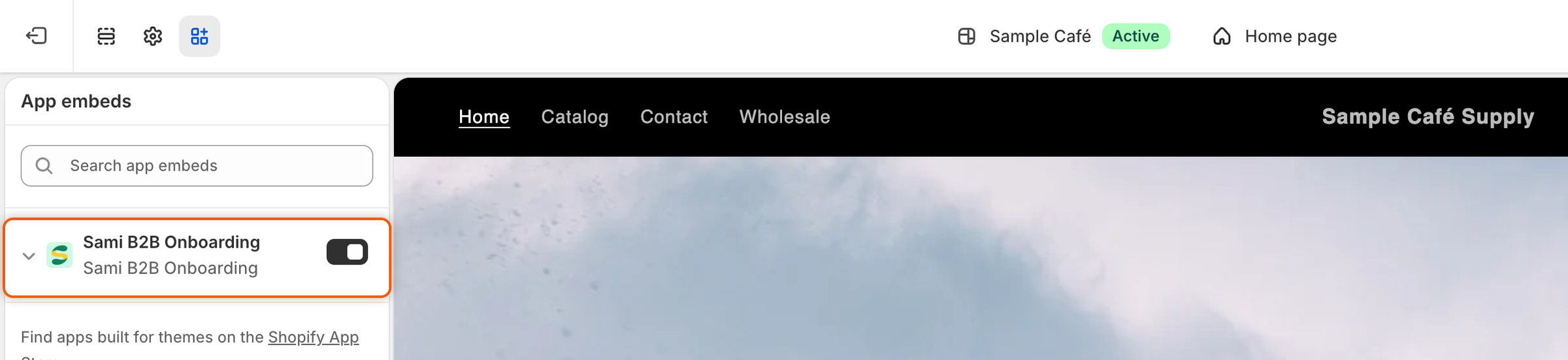
The theme editor opens in a new tab, on your published theme. The **Sami B2B Onboarding** app embed is already switched on.
{% endstep %}

{% step %}

### Save

In the theme editor, click **Save**. Then close the tab.

<figure><img src="https://3844812229-files.gitbook.io/~/files/v0/b/gitbook-x-prod.appspot.com/o/spaces%2FRrf4pQPgjvb3GW7IN3Ci%2Fuploads%2Fgit-blob-cb202eb674307a646118272fcfc8baaeb5bf57a5%2Fscreenshot-shopify-embed-app-embeds-panel.png?alt=media" alt="The theme editor&#x27;s App embeds panel with the Sami B2B Onboarding embed switched on."><figcaption><p>Sami B2B Onboarding is already switched on in App embeds, so all that's left is to click Save.</p></figcaption></figure>
{% endstep %}

{% step %}

### Check the status

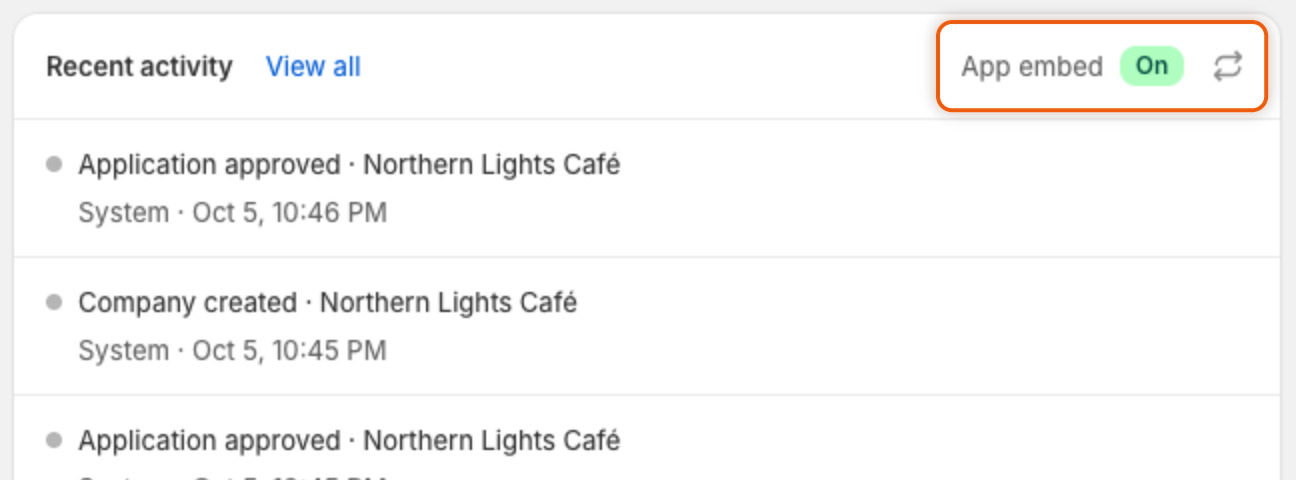
Go back to the app's tab. Home checks the embed again when you return. The **Turn on the app embed** card shows **Done**, and **App embed** in **Recent activity** reads **On**.
{% endstep %}
{% endstepper %}

## Turn it on in the theme editor

You can also switch the embed on without going through the app.

{% stepper %}
{% step %}

### Open your theme

In Shopify admin, go to **Online Store › Themes**. Next to your current theme, click **Edit theme**.
{% endstep %}

{% step %}

### Switch on the embed

In the theme editor's sidebar, click **App embeds**. Find **Sami B2B Onboarding** and switch it on.
{% endstep %}

{% step %}

### Save and check

Click **Save**. Then open the app again. Home checks the embed each time the app opens, and **App embed** reads **On**.
{% endstep %}
{% endstepper %}

## Check that it worked

* **In the app.** On **Home**, the **Recent activity** card shows **App embed** with **On** or **Off**. It reads **Checking…** while it looks. When the embed is on, click the refresh button beside the status to check again.
* **On your storefront.** In the app, go to **Forms** and click **Copy link** beside your form. Open the link in a private browser window. The form appears on the page. With the embed off, the page shows no form.

Your access rules never apply inside the theme editor, so you always see prices and buy buttons there. Test them on your live storefront, in a private window.

<figure><img src="https://3844812229-files.gitbook.io/~/files/v0/b/gitbook-x-prod.appspot.com/o/spaces%2FRrf4pQPgjvb3GW7IN3Ci%2Fuploads%2Fgit-blob-1f3e4fb58ba8fd4df1258691d7bf49b7cc76352c%2Fscreenshot-home-embed-status-on.png?alt=media" alt="The Recent activity card header showing App embed with an On badge."><figcaption><p>Home shows whether the app embed is on in your published theme.</p></figcaption></figure>

## Turn it off

{% stepper %}
{% step %}

### Go to your theme

In Shopify admin, go to **Online Store › Themes**. Next to your current theme, click **Edit theme**.
{% endstep %}

{% step %}

### Switch off the embed

Click **App embeds**, switch off **Sami B2B Onboarding**, and click **Save**.
{% endstep %}
{% endstepper %}

With the embed off, the form pages the app creates show no form, and **Settings › Access** stops working on the storefront, except for the checkout block.

{% hint style="warning" %}
Turning off the embed opens a locked or private store to every visitor and shows prices you had hidden. **Block checkout while pending** still stops buyers who aren't approved at checkout.
{% endhint %}

## When you change themes

Each theme keeps its own app embed setting. Before you publish a different theme, open it in the theme editor, switch on **Sami B2B Onboarding** under **App embeds**, and save. Home reports the embed on your published theme.

## Next steps

* [Quickstart](/sami-b2b-onboarding/getting-started/quickstart.md) — finish setting up and approve a test application.
* [Use the form page the app creates](/sami-b2b-onboarding/add-a-form-to-your-store/use-the-form-page.md) — share the page that shows your form.
* [Store access](/sami-b2b-onboarding/store-access/store-access.md) — choose what visitors who aren't approved can see and do.
* [Troubleshooting](/sami-b2b-onboarding/help/troubleshooting.md) — what to check when the form or your rules don't show.


---

# Agent Instructions
This documentation is published with GitBook. GitBook is the documentation platform designed so that both humans and AI agents can read, navigate, and reason over technical content effectively. Learn more at gitbook.com.

## Querying This Documentation
If you need additional information that is not directly available in this page, you can query the documentation dynamically by asking a question.

Perform an HTTP GET request on the current page URL with the `ask` query parameter, and the optional `goal` query parameter:

```
GET https://docs.samita.io/sami-b2b-onboarding/getting-started/turn-on-the-app-embed.md?ask=<question>&goal=<endgoal>
```

`ask` is the immediate question: it should be specific, self-contained, and written in natural language.
`goal` is optional and describes the broader end goal you are ultimately trying to accomplish on behalf of the user. GitBook uses it to tailor the answer towards what is most useful for that goal.

The response will contain a direct answer to the question and relevant excerpts and sources from the documentation.

Use this mechanism when the answer is not explicitly present in the current page, you need clarification or additional context, or you want to retrieve related documentation sections.