> For the complete documentation index, see [llms.txt](https://docs.samita.io/llms.txt). Markdown versions of documentation pages are available by appending `.md` to page URLs; this page is available as [Markdown](https://docs.samita.io/sami-b2b-onboarding/settings/team-and-roles.md).
# Team and roles
Add people to your team, choose who is an admin and who is a reviewer, remove or restore access and pick a default reviewer.
Your team in Sami B2B Onboarding is the staff of your Shopify store who have opened the app. Each person is either an **Admin**, who can change everything, or a **Reviewer**, who works through applications and companies. You manage the team in **Settings › Reviewers**.
## What each role can do
| Task | Admin | Reviewer |
| -------------------------------------------------------------------- | ----- | -------- |
| Review applications, and approve, reject or ask for more information | Yes | Yes |
| Edit answers and approval terms, assign applications, add notes | Yes | Yes |
| Add a buyer to an existing company from a possible duplicate | Yes | Yes |
| Change companies and their notes | Yes | Yes |
| Approve or reject account change requests | Yes | Yes |
| View and download documents | Yes | Yes |
| See the activity log and who is on the team | Yes | Yes |
| Choose the app's language for themselves | Yes | Yes |
| Create and edit forms, and translate them | Yes | No |
| Use **Automation**: presets, rules and automations | Yes | No |
| Import or sync companies | Yes | No |
| Change settings, integrations, roles and access | Yes | No |
A reviewer who opens **Settings** sees only **Activity log** and **Reviewers**, and reads the team list without being able to change it.
Some rules always apply:
* **The store owner is always an admin** and always has access.
* **The team always keeps at least one admin.** To change the last admin to a reviewer, or remove their access, make someone else an admin first.
* **You can't remove your own access.**
## Add someone to your team
The app can't invite people. A person joins by opening the app once, after Shopify gives them access to it.
{% stepper %}
{% step %}
### Give them the app in Shopify
In the app, go to **Settings › Reviewers** and click **Manage users in Shopify** on the **Add people to your team** card. Shopify's **Settings › Users** opens. Give the person access to this app: open their role and turn the app on under **Apps**. If they are new to your store, invite them there first.
So they can approve applications, their Shopify permissions also need to include **Companies** and **Customers**.
{% endstep %}
{% step %}
### Ask them to open the app
Ask the person to open Sami B2B Onboarding from **Apps** in their Shopify admin.
{% endstep %}
{% step %}
### Find them on your team
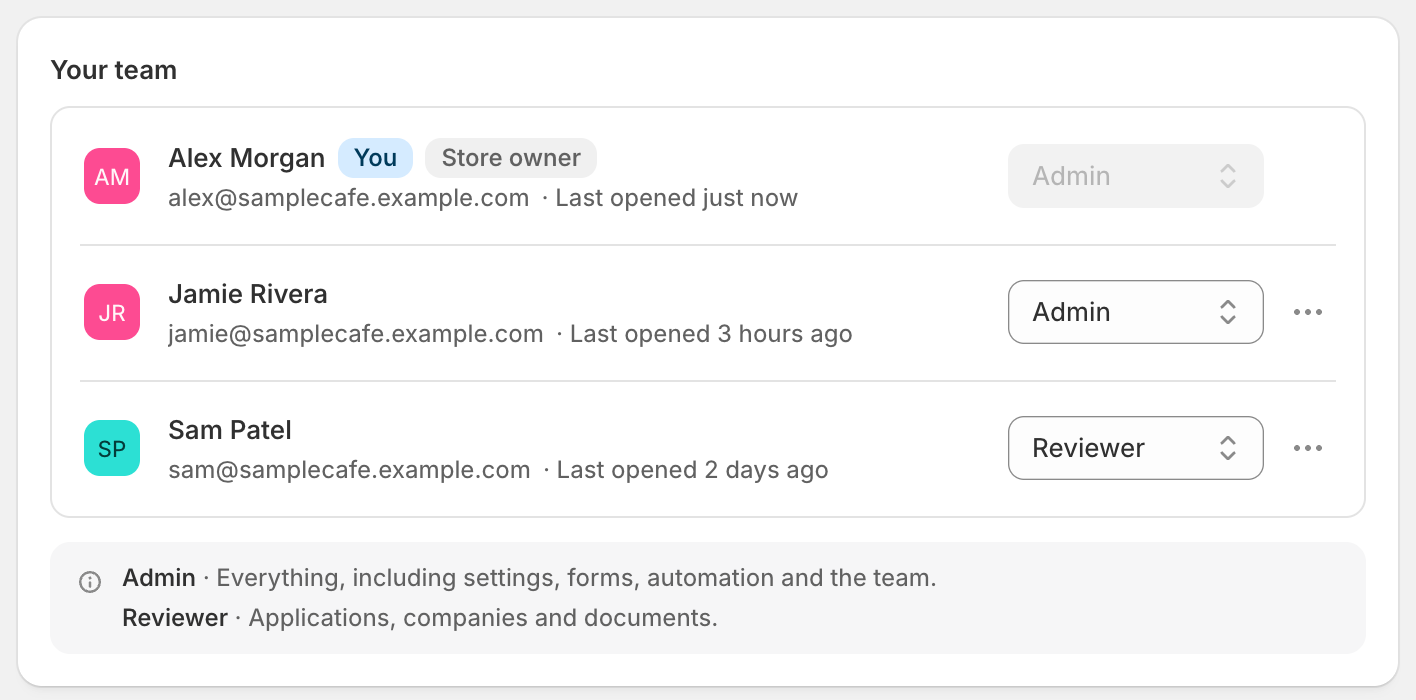
Back in **Settings › Reviewers**, they appear in **Your team** with their name, email and when they last opened the app, such as "Last opened just now". New people join as reviewers. The exceptions are the store owner, who always joins as an admin, and the first person to open the app while the team has no admin yet.
Everyone who has opened the app is listed, with their role on the right.
{% endstep %}
{% endstepper %}
The badges beside a name tell you more:
| Badge | Meaning |
| ---------------- | ---------------------------------------------------------------------------------------------------------------------------------------------------------------- |
| **You** | The person signed in now. |
| **Store owner** | The owner of the Shopify store. Their role can't be changed. |
| **Collaborator** | A collaborator account, such as an agency. Collaborators can use the app, but they aren't offered as the default reviewer or in the email recipient suggestions. |
| **No access** | Their access was removed. |
## Change someone's role
{% stepper %}
{% step %}
### Pick the role
In **Settings › Reviewers**, open the role list beside the person and pick **Admin** or **Reviewer**. The store owner's role list is greyed out.
{% endstep %}
{% step %}
### Save
Click **Save** in the save bar.
{% endstep %}
{% endstepper %}
The new role applies as soon as you save. If you change your own role to **Reviewer**, you lose access to the admin sections as soon as it saves.
## Remove someone's access
{% stepper %}
{% step %}
### Open the person's menu
In **Your team**, click **…** beside the person and choose **Remove access**. On the owner's row and your own, the **…** button is greyed out.
{% endstep %}
{% step %}
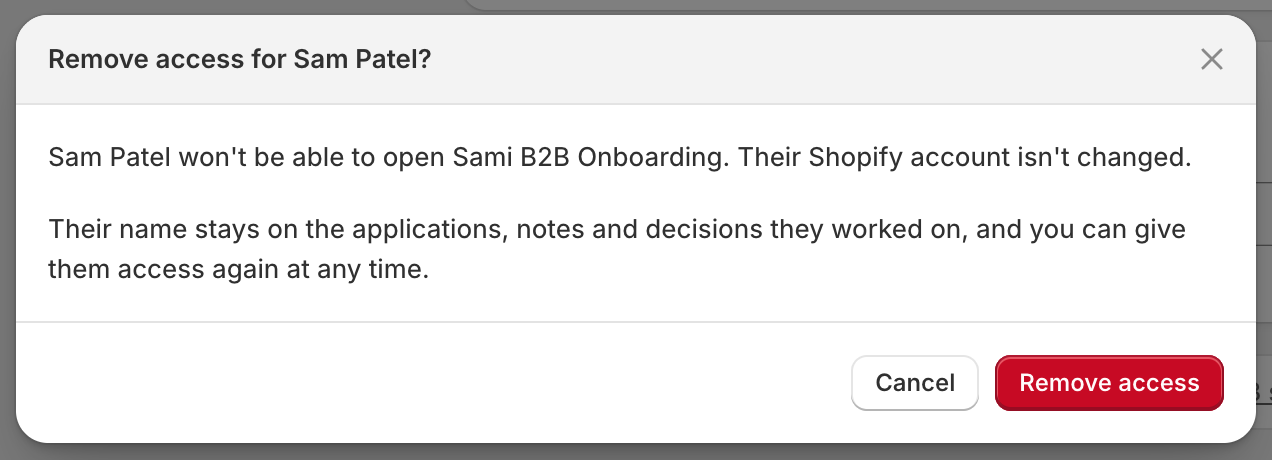
### Confirm
A dialog explains that they won't be able to open the app, and that their Shopify account isn't changed. Their name stays on the applications, notes and decisions they worked on. Click **Remove access**.
Removing access takes effect at once, and you can give it back later.
{% endstep %}
{% endstepper %}
This happens at once, without the save bar. An "Access removed" message appears, the person moves to the bottom of the list with a **No access** badge, and if they open the app, they see a **No access** screen. If they were the default reviewer, new applications are no longer assigned to them.
To give access back, click **…** beside them and choose **Give access again**. They return with the role they had.
## Check Shopify permissions
Approving an application, and changing a company's status, also write to Shopify. For that, the person's own Shopify permissions must include **Companies** and **Customers**. When someone is missing them, their row shows a warning, for example "Can't approve applications: needs the Companies and Customers permissions in Shopify."
To fix it, the store owner or a Shopify admin adds those permissions to the person's role in Shopify's **Settings › Users**. The app picks up the change the next time the person uses it, which can take up to an hour.
## Pick a default reviewer
New applications can be assigned to one person as they arrive.
{% stepper %}
{% step %}
### Find the Assigned reviewer card
In **Settings › Reviewers**, find the **Assigned reviewer** card.
{% endstep %}
{% step %}
### Pick a person
In **Default reviewer**, pick a person, or **No default reviewer**.
{% endstep %}
{% step %}
### Save
Click **Save** in the save bar.
{% endstep %}
{% endstepper %}
Only people who have opened the app and aren't collaborators are offered. If the person later loses access, the setting goes back to **No default reviewer**.
## Next steps
* [Review an application](/sami-b2b-onboarding/reviewing-applications/review-an-application.md) — what reviewers do with an application.
* [Choose who gets notified](/sami-b2b-onboarding/settings/notification-recipients.md) — send new-application emails to your team.
* [Rules that decide applications](/sami-b2b-onboarding/automation/rules.md) — assign applications to someone with a rule.
* [Activity log](/sami-b2b-onboarding/settings/activity-log.md) — see what each person did.
---
# Agent Instructions
This documentation is published with GitBook. GitBook is the documentation platform designed so that both humans and AI agents can read, navigate, and reason over technical content effectively. Learn more at gitbook.com.
## Querying This Documentation
If you need additional information that is not directly available in this page, you can query the documentation dynamically by asking a question.
Perform an HTTP GET request on the current page URL with the `ask` query parameter, and the optional `goal` query parameter:
```
GET https://docs.samita.io/sami-b2b-onboarding/settings/team-and-roles.md?ask=&goal=
```
`ask` is the immediate question: it should be specific, self-contained, and written in natural language.
`goal` is optional and describes the broader end goal you are ultimately trying to accomplish on behalf of the user. GitBook uses it to tailor the answer towards what is most useful for that goal.
The response will contain a direct answer to the question and relevant excerpts and sources from the documentation.
Use this mechanism when the answer is not explicitly present in the current page, you need clarification or additional context, or you want to retrieve related documentation sections.