> For the complete documentation index, see [llms.txt](https://docs.samita.io/llms.txt). Markdown versions of documentation pages are available by appending `.md` to page URLs; this page is available as [Markdown](https://docs.samita.io/sami-b2b-onboarding/automation/automations-and-shopify-flow.md).

# Automations and Shopify Flow

Choose which application events send emails and Shopify Flow triggers, and build Flow workflows that approve, reject or question applications.

Every time an application moves, Sami B2B Onboarding fires an event: received, revised, approved, rejected, and so on. On the **Automations** tab, each event has one switch. The switch controls the emails the app sends for that event and the Shopify Flow trigger it publishes. In Shopify Flow, you can start your own workflows from those triggers, and use the app's actions to approve, reject or ask for more information.

## The events

| Event                    | When it fires                                                         | Emails it sends                                                             |
| ------------------------ | --------------------------------------------------------------------- | --------------------------------------------------------------------------- |
| **Application received** | When a buyer submits an application                                   | **Application received** (to the buyer), **New application** (to your team) |
| **Application revised**  | When a buyer answers a request for information                        | **Buyer resubmitted** (to your team)                                        |
| **Application approved** | When an application is approved, by a person, a rule or a Flow action | **Account approved** (to the buyer)                                         |
| **Revision requested**   | When you ask a buyer for more information                             | **More information needed** (to the buyer)                                  |
| **Application rejected** | When an application is rejected                                       | **Application declined** (to the buyer)                                     |
| **Company created**      | When an approval creates the Shopify company                          | None. It only publishes a Shopify Flow trigger.                             |

All six events are on when you install the app.

## Turn an event on or off

{% stepper %}
{% step %}

### Open the Automations tab

In the Shopify admin, open **Sami B2B Onboarding**, click **Automation** in the app menu, then click the **Automations** tab.

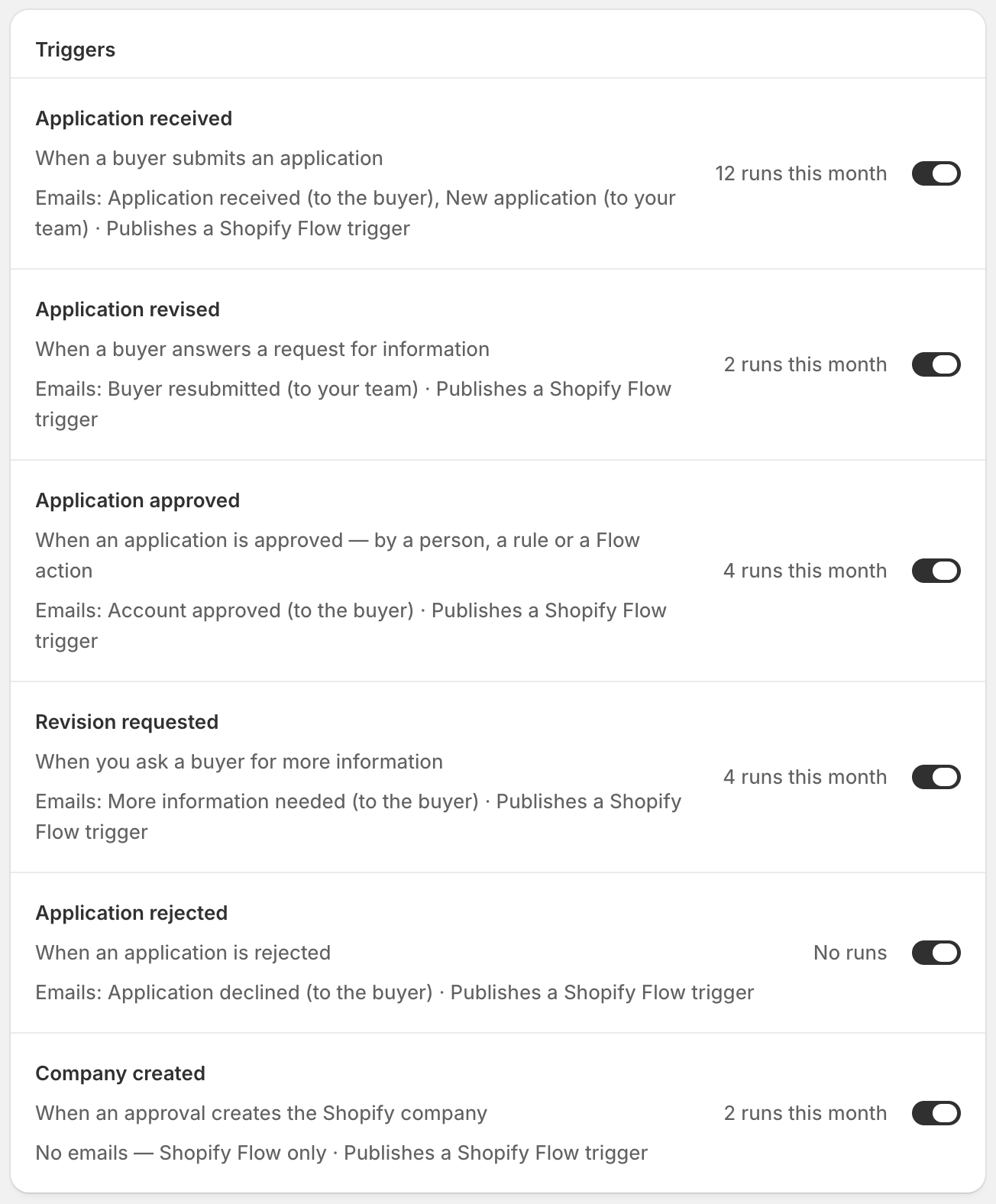
The **Triggers** card lists the six events. Each row shows:

* The event's name and when it fires.
* What it does, for example "Emails: Application received (to the buyer), New application (to your team) · Publishes a Shopify Flow trigger".
* How often it ran this month: **No runs**, **1 run this month** or "12 runs this month". Each email and each Flow trigger the event sent, or tried to send, counts as a run.
  {% endstep %}

{% step %}

### Flip the switch

Turn the switch at the end of the row off or on. The tab's count shows how many events are on.
{% endstep %}

{% step %}

### Save

Click **Save** in the save bar. You see **Automation saved**.
{% endstep %}
{% endstepper %}

<figure><img src="https://3844812229-files.gitbook.io/~/files/v0/b/gitbook-x-prod.appspot.com/o/spaces%2FRrf4pQPgjvb3GW7IN3Ci%2Fuploads%2Fgit-blob-b9dc8ed10ef433664857611691418d7ee4db402d%2Fscreenshot-automation-automations-triggers.png?alt=media" alt="The Triggers card listing six events, all switched on, each with when it fires, the emails it sends and its runs this month, from 12 runs this month to No runs."><figcaption><p>Each row says which emails the event sends and how often it ran this month.</p></figcaption></figure>

{% hint style="warning" %}
An event that's switched off does nothing at all. It sends none of its emails, to the buyer or to your team, and publishes no Flow trigger. For example, turning off **Application rejected** stops every decline email. The decision itself still happens: an approved application still gets its Shopify company and preset terms.
{% endhint %}

An email goes out only when its event is on **and** the email itself is turned on. Each application email has its own switch in the form builder's **Email** section, so you turn it on or off one form at a time. The **Application declined** email starts turned off, so buyers aren't told about a rejection until you turn it on. See [Edit email templates](/sami-b2b-onboarding/settings/email-templates.md). The "to your team" emails go to the people in [Choose who gets notified](/sami-b2b-onboarding/settings/notification-recipients.md).

## See what ran

The **Recent runs** card on the right of the **Automations** tab shows the last five things the app sent or wrote, newest first: emails, Shopify Flow triggers, and updates to the buyer's Shopify customer and company. Each line gives the event and the company, then the result and the time, for example "Application received · Acme Supply Co." and "Email sent". The dot is green when it worked and red when it failed.

Click **View all** to open **Settings › Activity log** on its **Emails** view, with the full history. See [Activity log](/sami-b2b-onboarding/settings/activity-log.md).

## The Shopify Flow card

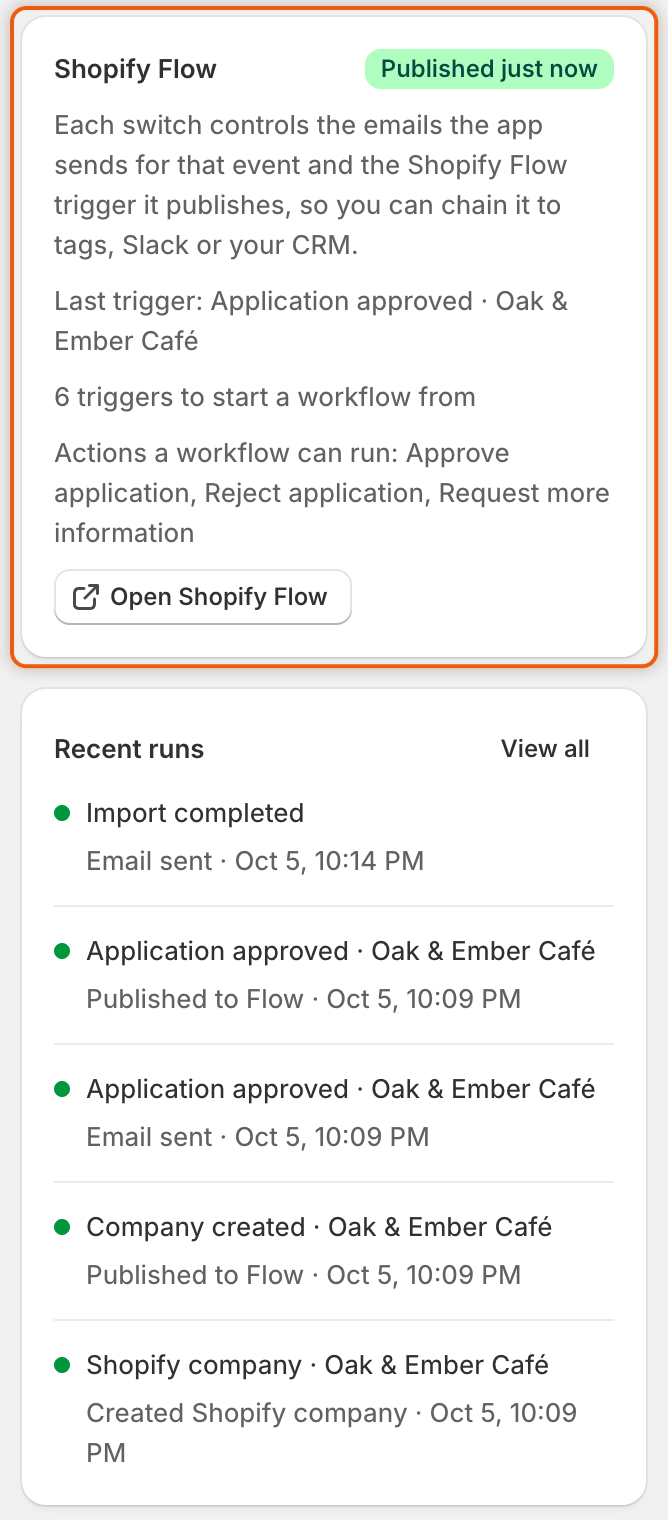
The **Shopify Flow** card sits above **Recent runs**. Its badge tells you how the last trigger went:

| Badge                                                         | What it means                                                                                                                                |
| ------------------------------------------------------------- | -------------------------------------------------------------------------------------------------------------------------------------------- |
| **Triggers available**                                        | The triggers are ready, and nothing has been published yet. The first application event will send one.                                       |
| **Published** and a time, for example "Published 2 hours ago" | The last trigger reached Shopify Flow. The card names it and the company, for example "Last trigger: Application received · Acme Supply Co." |
| **Publish failed** and a time                                 | Shopify Flow didn't take the last trigger. The card shows the reason.                                                                        |
| **Not connected**                                             | Shopify Flow triggers aren't connected to this store yet. The switches control emails only.                                                  |

Unless the badge reads **Not connected**, the card also lists the actions a workflow can run, and has an **Open Shopify Flow** button that opens Shopify Flow in a new tab.

<figure><img src="https://3844812229-files.gitbook.io/~/files/v0/b/gitbook-x-prod.appspot.com/o/spaces%2FRrf4pQPgjvb3GW7IN3Ci%2Fuploads%2Fgit-blob-629b3a6804e0bff46f086fd54d02bbf487d5f6b8%2Fscreenshot-automation-shopify-flow-card.png?alt=media" alt="The Shopify Flow card with a green Published just now badge, the last trigger Application approved · Oak &#x26; Ember Café, the actions list and the Open Shopify Flow button, above the Recent runs card."><figcaption><p>The badge shows how the last trigger went, and Open Shopify Flow takes you straight to Flow.</p></figcaption></figure>

## What the app gives Shopify Flow

In Shopify Flow, the app's triggers and actions are listed under **Sami B2B Onboarding**.

**Triggers.** There's one trigger for each event above, with the same name. Each trigger carries these details about the application:

| Detail                                                | What it holds                                                          |
| ----------------------------------------------------- | ---------------------------------------------------------------------- |
| **Application ID**                                    | The application's number in the app. Use it in the app's Flow actions. |
| **Reference**                                         | The application reference your team sees on the application.           |
| **Company name**, **Contact name**, **Contact email** | From the buyer's answers.                                              |
| **Country**                                           | The buyer's two-letter country code, for example `US`.                 |
| **Status**                                            | The application's status.                                              |
| **Admin URL**                                         | A link to the application in the app, for messages to your team.       |

The **Company created** trigger also carries the Shopify company, so a workflow can read it and use Shopify Flow's own company actions on it. It's published only when the approval created a company in Shopify.

**Actions.** A workflow can decide an application the way a reviewer does. The same emails and events follow.

| Action                       | Fields                                               | What it does                                                                                                  |
| ---------------------------- | ---------------------------------------------------- | ------------------------------------------------------------------------------------------------------------- |
| **Approve application**      | **Application** (required), **Preset name**          | Approves the application, creates the Shopify company with the preset's terms and emails the buyer.           |
| **Reject application**       | **Application** (required), **Reason**               | Rejects the application. The reason is shown to the buyer in the decline email.                               |
| **Request more information** | **Application** (required), **Message to the buyer** | Asks the buyer for more information, with your message in the email. The application waits until they answer. |

In **Application**, use the trigger's Application ID (the `applicationId` variable), or paste the reference shown on the application. Type **Preset name** exactly as the preset is named in the app. If you leave it empty, the application is approved without a preset's terms. The default preset isn't used.

## Build a workflow: approve US applications

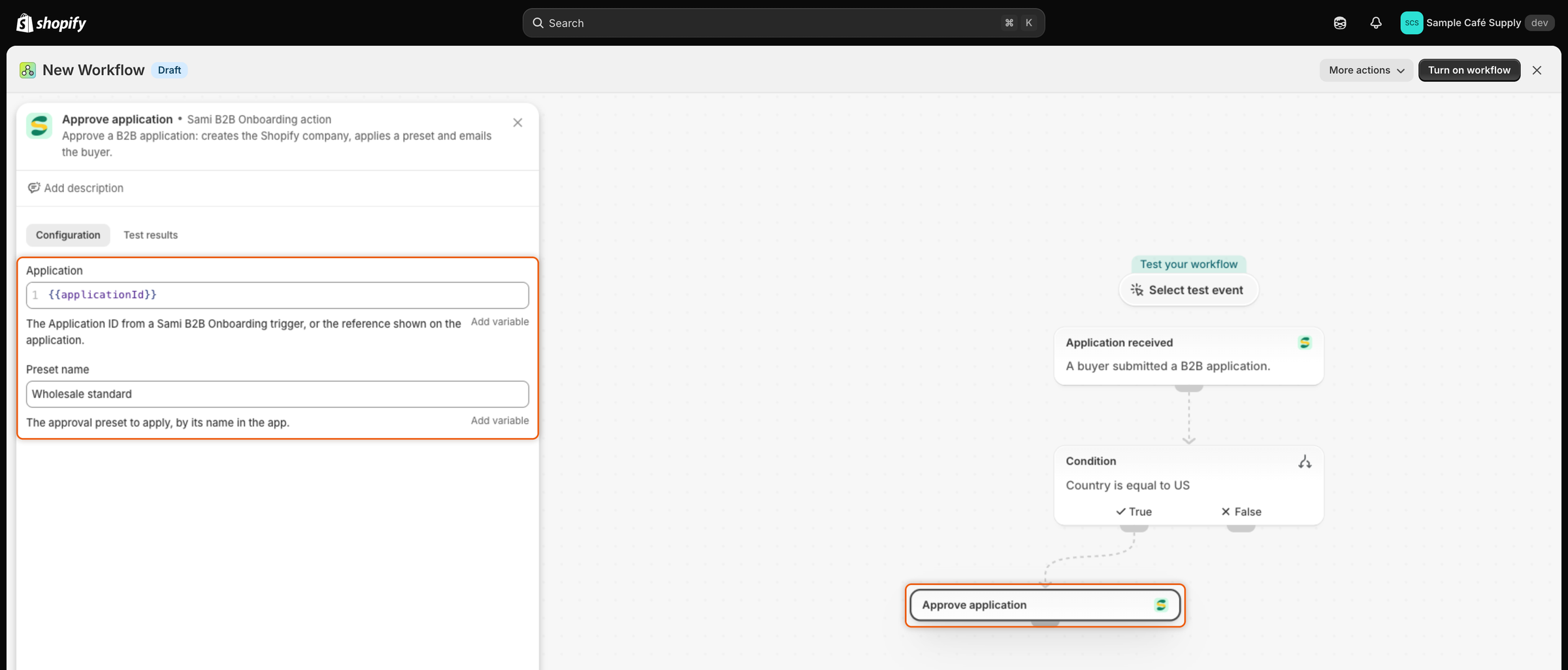
This workflow approves every application from the United States with the `Wholesale standard` preset.

{% stepper %}
{% step %}

### Check the event is on

On **Automation › Automations**, make sure **Application received** is on. The **Shopify Flow** card's badge shouldn't read **Not connected**. If you don't have Shopify Flow yet, install it from Shopify first. See [Shopify Flow](https://help.shopify.com/en/manual/shopify-flow) in the Shopify Help Center.
{% endstep %}

{% step %}

### Start a workflow from the app's trigger

Click **Open Shopify Flow** on the card. In Shopify Flow, click **Create workflow**, then **Select a trigger**. Search for `Application received` and pick the one from **Sami B2B Onboarding**.
{% endstep %}

{% step %}

### Add a condition

After the trigger, add a condition. Click **Add a variable** and choose `country`, leave **Equal to**, and type `US`. Shopify Flow saves the workflow as you go.
{% endstep %}

{% step %}

### Add the Approve application action

On the condition's true branch, add an action. Search for `Approve application` and pick the one from **Sami B2B Onboarding**. Then fill in its fields:

* **Application**: click **Add variable** under the field and choose `applicationId`. The field then reads `{{applicationId}}`.
* **Preset name**: type `Wholesale standard`.
  {% endstep %}

{% step %}

### Turn on the workflow

Click **Turn on workflow**. Shopify Flow now runs it for every new application.
{% endstep %}

{% step %}

### Test it

Submit an application from your storefront as Acme Supply Co., with **United States** as the country. Once the workflow has run, the application's status on **Companies › Applications** reads **Approved**, and Jordan Lee gets the **Account approved** email. The workflow's run appears in Shopify Flow's run history.
{% endstep %}
{% endstepper %}

<figure><img src="https://3844812229-files.gitbook.io/~/files/v0/b/gitbook-x-prod.appspot.com/o/spaces%2FRrf4pQPgjvb3GW7IN3Ci%2Fuploads%2Fgit-blob-b1d569f8027031ba9aaf28d922888548ae18c542%2Fscreenshot-shopify-flow-approve-us-workflow.png?alt=media" alt="A Shopify Flow workflow that starts with Application received, checks that Country equals US, then runs Approve application with the Wholesale standard preset."><figcaption><p>The workflow passes the trigger's Application ID to the Approve application action.</p></figcaption></figure>

{% hint style="info" %}
The app sends **Application received** to Shopify Flow and then runs your rules straight away, so a rule usually decides the application before the workflow's action reaches the app. If a rule has already approved or rejected the application, the Flow step reports that it was already decided, or **Already done.** when it asks for the same decision. Use either a rule or a Flow workflow for each kind of application, not both.
{% endhint %}

## When a Flow action can't run

A step that can't run fails on the workflow's run in Shopify Flow, with one of these messages:

| Message                                            | Why                                                      | What to do                                              |
| -------------------------------------------------- | -------------------------------------------------------- | ------------------------------------------------------- |
| No application matches that ID or reference.       | The **Application** field is empty or wrong.             | Use the trigger's `applicationId` variable.             |
| This application was already decided (…).          | It was approved, rejected or closed before the step ran. | Nothing, or check which rule decided it.                |
| Can't approve until these answers are filled in: … | A required answer that's mapped to Shopify is empty.     | Ask the buyer for it, or fill it in on the application. |
| No preset is named "…".                            | **Preset name** doesn't match a preset.                  | Correct the name, or rename the preset.                 |

If the step asks for the decision the application already has, for example approving an approved application, it reports **Already done.** and doesn't fail.

## Next steps

* [Edit email templates](/sami-b2b-onboarding/settings/email-templates.md) — turn emails on and change what they say.
* [Rules that decide applications](/sami-b2b-onboarding/automation/rules.md) — decide applications inside the app, without Flow.
* [Webhooks (Zapier, Make, n8n)](/sami-b2b-onboarding/integrations/webhooks.md) — send application events to other tools.
* [Activity log](/sami-b2b-onboarding/settings/activity-log.md) — see every email and trigger the app sent.


---

# Agent Instructions
This documentation is published with GitBook. GitBook is the documentation platform designed so that both humans and AI agents can read, navigate, and reason over technical content effectively. Learn more at gitbook.com.

## Querying This Documentation
If you need additional information that is not directly available in this page, you can query the documentation dynamically by asking a question.

Perform an HTTP GET request on the current page URL with the `ask` query parameter, and the optional `goal` query parameter:

```
GET https://docs.samita.io/sami-b2b-onboarding/automation/automations-and-shopify-flow.md?ask=<question>&goal=<endgoal>
```

`ask` is the immediate question: it should be specific, self-contained, and written in natural language.
`goal` is optional and describes the broader end goal you are ultimately trying to accomplish on behalf of the user. GitBook uses it to tailor the answer towards what is most useful for that goal.

The response will contain a direct answer to the question and relevant excerpts and sources from the documentation.

Use this mechanism when the answer is not explicitly present in the current page, you need clarification or additional context, or you want to retrieve related documentation sections.