> For the complete documentation index, see [llms.txt](https://docs.samita.io/llms.txt). Markdown versions of documentation pages are available by appending `.md` to page URLs; this page is available as [Markdown](https://docs.samita.io/sami-b2b-onboarding/settings/translate.md).

# Translate

Translate your forms, buyer emails and storefront messages into every language your store sells in, and reword the default English.

**Settings › Translate** is where you translate everything a buyer reads from Sami B2B Onboarding: each form's questions, buttons and thank-you screen, its buyer emails, and the messages the store shows around them. You work one language at a time, across every form at once. Only admins can open it.

{% hint style="info" %}
Before you start, add the language to your store in Shopify (**Settings › Languages**) and publish it there. Buyers only see a language once it's published in Shopify.
{% endhint %}

## Your languages

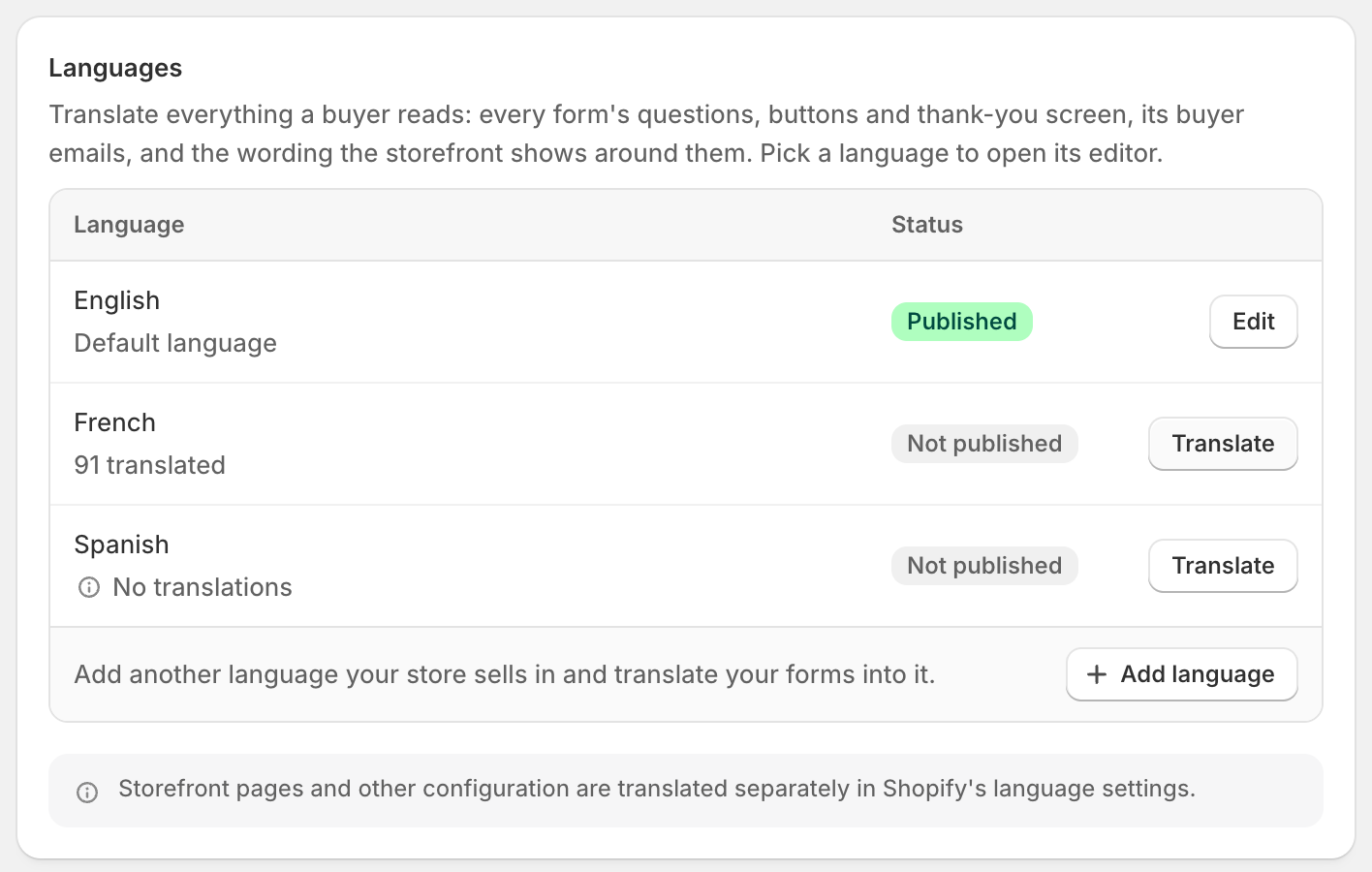
Go to **Settings** and click **Translate**. The **Languages** card lists:

* **Your default language** first, marked **Default language**, with an **Edit** button. This is where you reword the app's standard English. See [Change the default wording](#change-the-default-wording).
* **Each language you've added**, with how many strings are written, for example "86 translated", or **No translations**, and a **Translate** button.

The **Status** column shows **Published** or **Not published**, as in your Shopify language settings.

<figure><img src="https://3844812229-files.gitbook.io/~/files/v0/b/gitbook-x-prod.appspot.com/o/spaces%2FRrf4pQPgjvb3GW7IN3Ci%2Fuploads%2Fgit-blob-aa6f1ffeef5367cc28adb92152bfb695012151ed%2Fscreenshot-translate-languages-table.png?alt=media" alt="The Languages card listing English as the published default language, French with 91 translated and Spanish with No translations, both Not published, each with a Translate button."><figcaption><p>Each language shows how much is translated and whether it's published in Shopify.</p></figcaption></figure>

## Add a language

{% stepper %}
{% step %}

### Open the dialog

In **Settings › Translate**, click **Add language** under the table.
{% endstep %}

{% step %}

### Pick the language

In the dialog, pick the language from **Language**. Only languages added to your store in Shopify are offered.
{% endstep %}

{% step %}

### Add it

Click **Add**. A "Language added" message appears and the language joins the table.
{% endstep %}
{% endstepper %}

If every language your store sells in is already in the table, the button is replaced by "Every language your store sells in has been added."

## Translate a language

{% stepper %}
{% step %}

### Open the language

Click **Translate** beside the language. Its editor opens over Settings, titled for example **French translation**.
{% endstep %}

{% step %}

### Pick what to translate

The list on the left has three groups:

* **Storefront**: **Storefront messages**, the wording no single form owns.
* **Application forms**: one item per form, such as **Wholesale application**.
* **Account forms**: the forms buyers fill in from their customer account.

Each item shows its progress, such as **Not translated** or "12 of 87". Use **Search items** to find one by name. To switch to another language, click **Translating French** at the top of the list and pick it.
{% endstep %}

{% step %}

### Type your translations

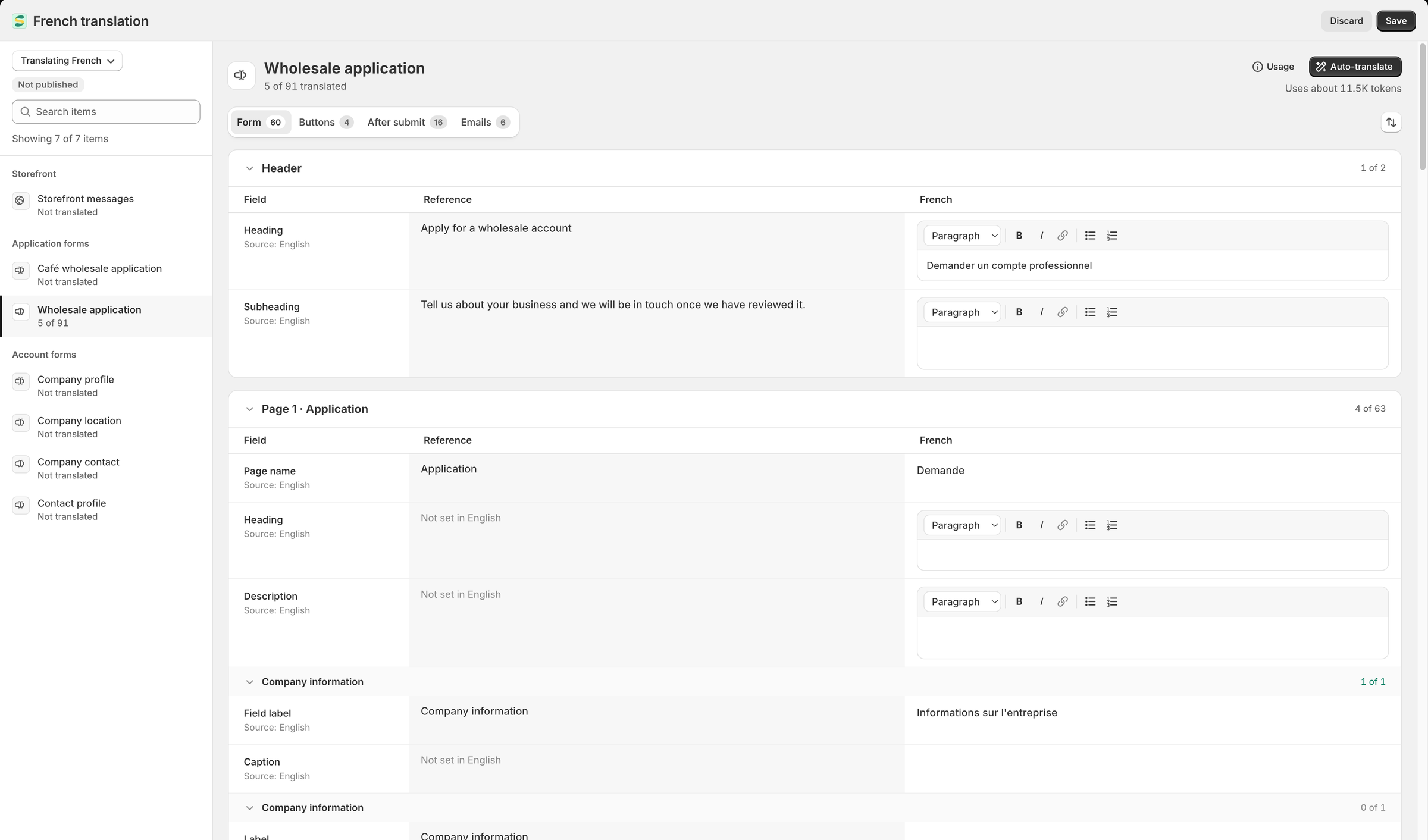
Each card has three columns: **Field** names the string, **Reference** shows its text in your default language, and the last column is where you type the translation. Leave a box empty and buyers see the reference text.

For a form, the strings are split into tabs. The number on a tab is how many are left to do.

| Tab              | What's in it                                                                                                                                                                      |
| ---------------- | --------------------------------------------------------------------------------------------------------------------------------------------------------------------------------- |
| **Form**         | The header, each page's name, heading and description, and every field's label, placeholder, help text, options and required message.                                             |
| **Buttons**      | **Continue**, **Submit**, **Back** and **Reset**, and the note under the buttons.                                                                                                 |
| **After submit** | The thank-you heading and message, and the form's error messages.                                                                                                                 |
| **Emails**       | Each buyer email that is turned on for this form: its subject and body. Click **Start from the original** under an empty body to copy the design, then translate the words in it. |

<figure><img src="https://3844812229-files.gitbook.io/~/files/v0/b/gitbook-x-prod.appspot.com/o/spaces%2FRrf4pQPgjvb3GW7IN3Ci%2Fuploads%2Fgit-blob-c0758640c300563c4fd7fade3fa29acadb2f3527%2Fscreenshot-translate-editor-form-strings.png?alt=media" alt="The French translation editor with Wholesale application selected and its Form tab open, showing each field&#x27;s English reference text beside the French translation."><figcaption><p>Type each translation beside its reference text. Empty rows show buyers your default wording.</p></figcaption></figure>
{% endstep %}

{% step %}

### Save

Click **Save** in the save bar. One save covers every item you changed in this language. A "Translations saved" message appears. If you switch language with unsaved changes, the app asks first.
{% endstep %}
{% endstepper %}

To see what still needs doing, click the sort button beside the tabs and choose **Untranslated first**. Pages, fields and rows with work left move to the top. **Translated first** and **Form order** are the other choices.

## Storefront messages

**Storefront messages** holds the wording buyers read that no one form owns. If a form has its own translation of the same string, buyers see the form's one.

| Card                       | What's in it                                                                                                                                                                     |
| -------------------------- | -------------------------------------------------------------------------------------------------------------------------------------------------------------------------------- |
| **Form**                   | Words around every form, such as the loading message, file upload buttons, the log-in prompt and the notices signed-in customers see, like **Application under review heading**. |
| **Error messages**         | The messages buyers see when an answer is missing or doesn't fit, for any form that keeps the standard wording.                                                                  |
| **Store access**           | The text shown in place of hidden prices, the store lock prompt and the awaiting-approval message.                                                                               |
| **Server messages**        | Messages sent when a submit or upload is refused, such as **Company already has an account** or **Upload too large**.                                                            |
| **Emails**                 | Words the app puts inside buyer emails, such as the names of requested items and the reasons rules and tax ID checks give.                                                       |
| **Customer account pages** | The application page, company page and banners in the customer account.                                                                                                          |
| **Checkout**               | **Checkout blocked** and **Company on hold**, the messages that stop checkout.                                                                                                   |

The reference text of **Hidden price text** is the **Replacement text** you set in **Settings › Access**.

## Translate with Auto-translate

**Auto-translate** drafts translations for the item on screen with AI. It fills rows that are empty or marked **Outdated**, across all of a form's tabs, and leaves rows you've already translated alone.

{% stepper %}
{% step %}

### Check the estimate

Open the item. Under **Auto-translate**, the editor estimates the cost, for example "Uses about 3,200 tokens". Text you've already translated elsewhere in this language is reused without using tokens: "Reuses earlier translations, no tokens needed".
{% endstep %}

{% step %}

### Start it

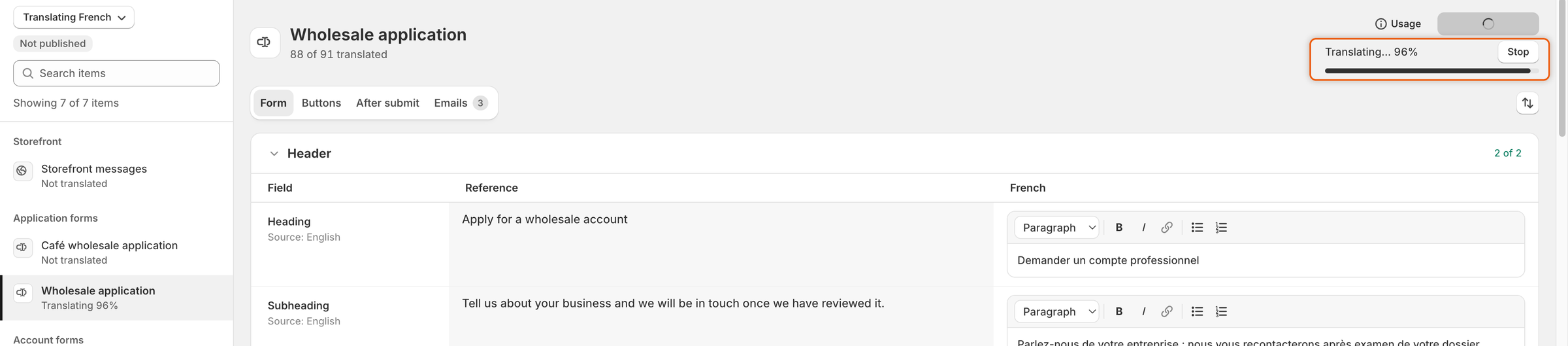
Click **Auto-translate**. A bar shows the progress, for example "Translating… 40%". Click **Stop** to end it early. Rows already done stay. You can keep working while it runs, and anything you type in the meantime is kept. If you close the editor, the run continues, and its drafts appear the next time you open this language.

<figure><img src="https://3844812229-files.gitbook.io/~/files/v0/b/gitbook-x-prod.appspot.com/o/spaces%2FRrf4pQPgjvb3GW7IN3Ci%2Fuploads%2Fgit-blob-d7ed57fe9025ec7098a928f8f59d24f534581431%2Fscreenshot-translate-auto-translate-progress.png?alt=media" alt="The top of the translation pane with the Usage button and a progress bar reading Translating… 96% beside a Stop button."><figcaption><p>Auto-translate fills empty rows as drafts while you watch; Stop ends it early.</p></figcaption></figure>
{% endstep %}

{% step %}

### Review and save

The drafts land in the boxes like typed text, and a "Translations added" message appears. Read them, change what you need, then click **Save**. Click **Discard** in the save bar to throw them away.
{% endstep %}
{% endstepper %}

Merge tags and placeholders, such as `{{ company }}`, are kept as they are. A draft that drops one isn't used, and the editor says how many rows weren't translated: "Try again, or write them in."

**Usage**, beside the button, shows your store's **Monthly AI tokens**: how many are used, and the date the allowance resets at the start of next month. When the allowance runs out, the editor says so, for example "No AI tokens left this month", and you can keep translating by hand.

## Outdated translations

When the reference text changes after you translated it, for example because you reworded a field label in the builder, the row shows an **Outdated** badge. The item's heading counts them, for example "40 of 87 translated · 3 outdated". Update the translation, or run **Auto-translate**, which sends outdated rows again, then click **Save**.

## Change the default wording

You can rewrite the app's standard English, such as "Log in to apply" or "Your application is being reviewed".

{% stepper %}
{% step %}

### Open the default wording

In **Settings › Translate**, click **Edit** beside your default language. The **Default wording** editor opens with **Storefront messages** only.
{% endstep %}

{% step %}

### Change the rows you want

Each row starts with the app's wording. Change the rows you want. Rows you don't change keep the app's wording.
{% endstep %}

{% step %}

### Save

Click **Save** in the save bar.
{% endstep %}
{% endstepper %}

Your wording then shows to every buyer who reads your default language, and to anyone whose language has no translation for that row. The table shows how many rows you changed, for example "Default language · 4 changed". Rewording a row marks its translations in other languages as **Outdated**.

A form's own questions, buttons and thank-you screen aren't here: edit them in the form builder. **Hidden price text** is set in **Settings › Access**.

## What buyers see

| Where                             | Which language                                      |
| --------------------------------- | --------------------------------------------------- |
| Forms and messages on your store  | The language the visitor is browsing your store in. |
| Customer account pages            | The language of the customer account.               |
| Checkout messages                 | The language of the checkout.                       |
| Buyer emails about an application | The language the buyer applied in.                  |
| Team emails                       | Always your default language.                       |

Wherever a translation is missing, buyers see your default wording. Your store's own pages, theme and other settings are translated in Shopify's language settings, not here.

## The app's own language

**Settings › Translate** changes what buyers see, not the app's own screens. Each person on your team picks the app's language from the picker at the bottom of Home. It offers 19 languages. See [Your Home page](/sami-b2b-onboarding/getting-started/your-home-page.md#change-the-apps-language).

## Next steps

* [Build your form](/sami-b2b-onboarding/application-forms/build-your-form.md) — write the wording you're translating.
* [Edit email templates](/sami-b2b-onboarding/settings/email-templates.md) — change the buyer emails before you translate them.
* [After the buyer submits](/sami-b2b-onboarding/application-forms/after-the-buyer-submits.md) — see the messages signed-in customers get.
* [Team and roles](/sami-b2b-onboarding/settings/team-and-roles.md) — let another admin help with translations.


---

# Agent Instructions
This documentation is published with GitBook. GitBook is the documentation platform designed so that both humans and AI agents can read, navigate, and reason over technical content effectively. Learn more at gitbook.com.

## Querying This Documentation
If you need additional information that is not directly available in this page, you can query the documentation dynamically by asking a question.

Perform an HTTP GET request on the current page URL with the `ask` query parameter, and the optional `goal` query parameter:

```
GET https://docs.samita.io/sami-b2b-onboarding/settings/translate.md?ask=<question>&goal=<endgoal>
```

`ask` is the immediate question: it should be specific, self-contained, and written in natural language.
`goal` is optional and describes the broader end goal you are ultimately trying to accomplish on behalf of the user. GitBook uses it to tailor the answer towards what is most useful for that goal.

The response will contain a direct answer to the question and relevant excerpts and sources from the documentation.

Use this mechanism when the answer is not explicitly present in the current page, you need clarification or additional context, or you want to retrieve related documentation sections.