
Translate PDF invoices and customer emails
Keep a copy of each PDF invoice template and customer notification in other languages, edit the wording without touching code, and translate with AI.
Every PDF invoice template and every Customer notification email can carry copies in other languages. The app picks the copy that matches the customer’s language when it creates the PDF or sends the email.
This is available on:
- Settings > PDF templates — all templates, including the retail ones.
- Settings > Notifications — Customer notification under Payment terms and under Invoice payments. Merchant notifications are sent in one language only.
Add a language
Section titled “Add a language”Open a template and find the Languages card.
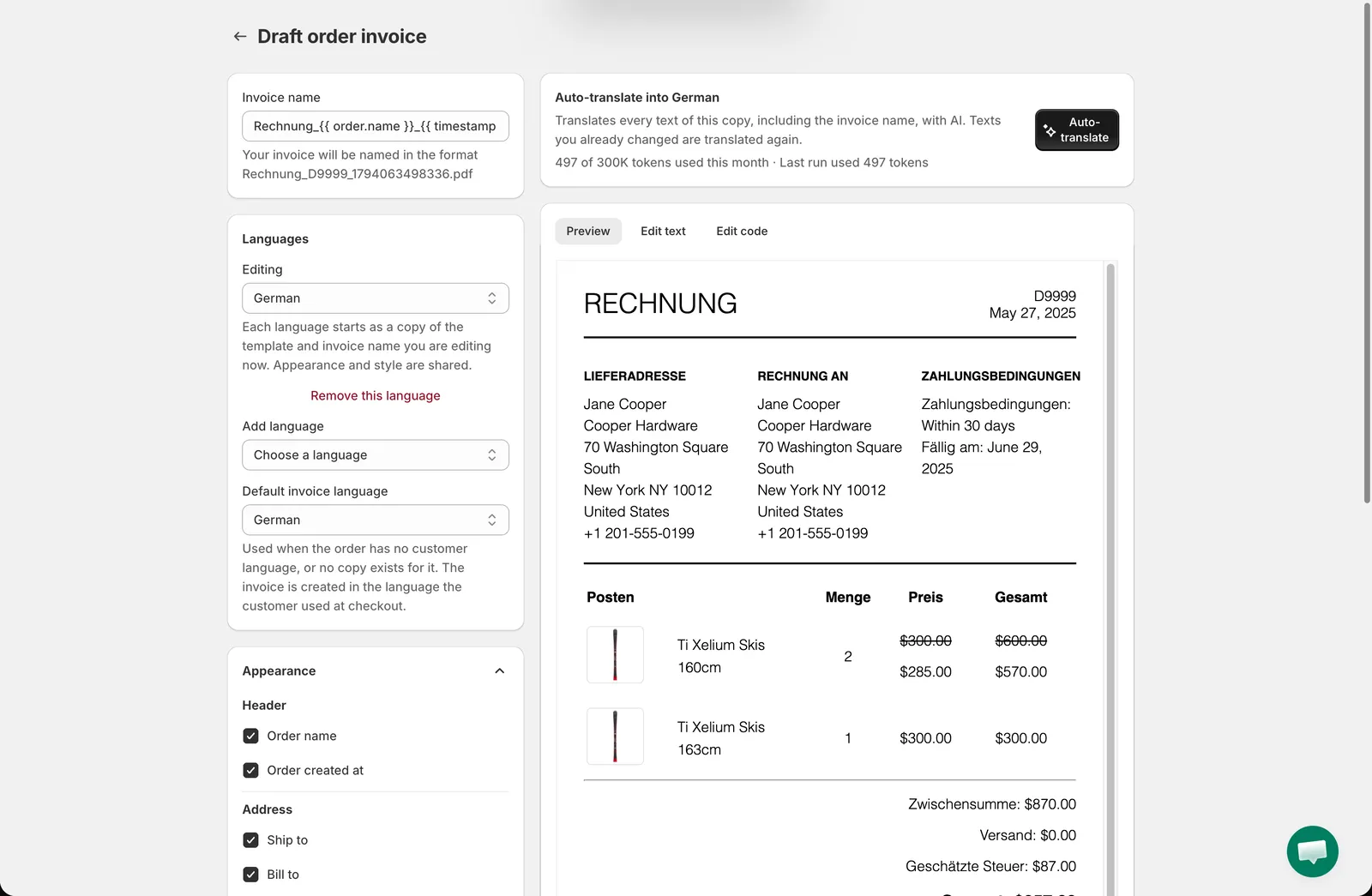
- Editing — which copy you are looking at. Default (English) is the base template.
- Add language — pick a language from the list. The app creates a copy of the template as you have it right now, together with its Invoice name (PDF) or Subject (email), and switches Editing to it. The preview, Edit text and Edit code now work on that copy. Only the words are separate: the Appearance toggles and style colors of a PDF, and the Status and Attach PDF file setting of an email, are shared by all copies.
- Remove this language — deletes the copy you are editing.
- Default invoice language / Default email language — the copy to use for a customer whose language has no copy of its own (see below).
Click Save when you are done. Changes to a copy are not kept until the template is saved.
Which copy the customer gets
Section titled “Which copy the customer gets”The app looks, in this order, for a language it can match to one of your copies:
- The storefront language the customer was browsing in when they clicked Pay Later (saved on the draft order).
- For Shopify orders, the language the customer used at checkout.
- The language of the customer’s account.
- For a PDF the customer downloads, the language of the page they download it from.
A language matches a copy by its exact code (for example pt-BR) or by the language alone (pt). English always uses Default (English). Any other language with no copy uses the template’s Default invoice language / Default email language; when that is Default (English), the base template is used.
The PDF attached to a customer email follows the same rule with the PDF template’s own copies, so when both templates have a copy for that language, email and attachment arrive in the same language.
Edit the wording without code
Section titled “Edit the wording without code”The Edit text tab lists every piece of text in the template, one field per text. Change a field and the same text is replaced everywhere it appears in the template; the layout, prices and variables are left untouched. For emails the Subject sits at the top of the same tab.
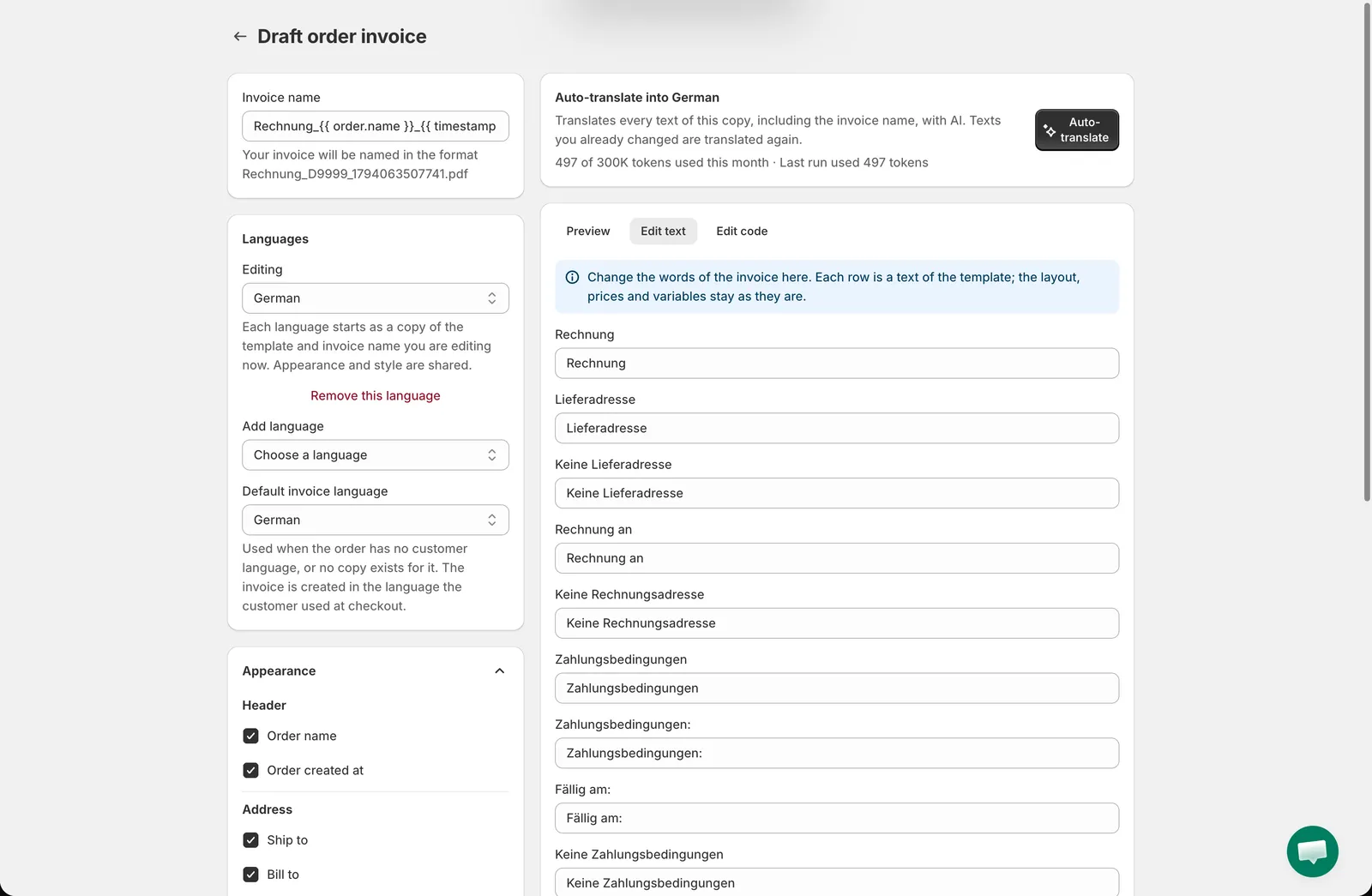
This works on the base template too, not only on language copies.
Auto-translate with AI
Section titled “Auto-translate with AI”While a language copy is selected, an Auto-translate into … card appears above the editor. Click Auto-translate and the app translates every text of that copy — including the invoice name or email subject — into the language of the copy. Texts you already changed by hand are translated again, so run it first and fine-tune afterwards in Edit text. Check the preview, then Save.
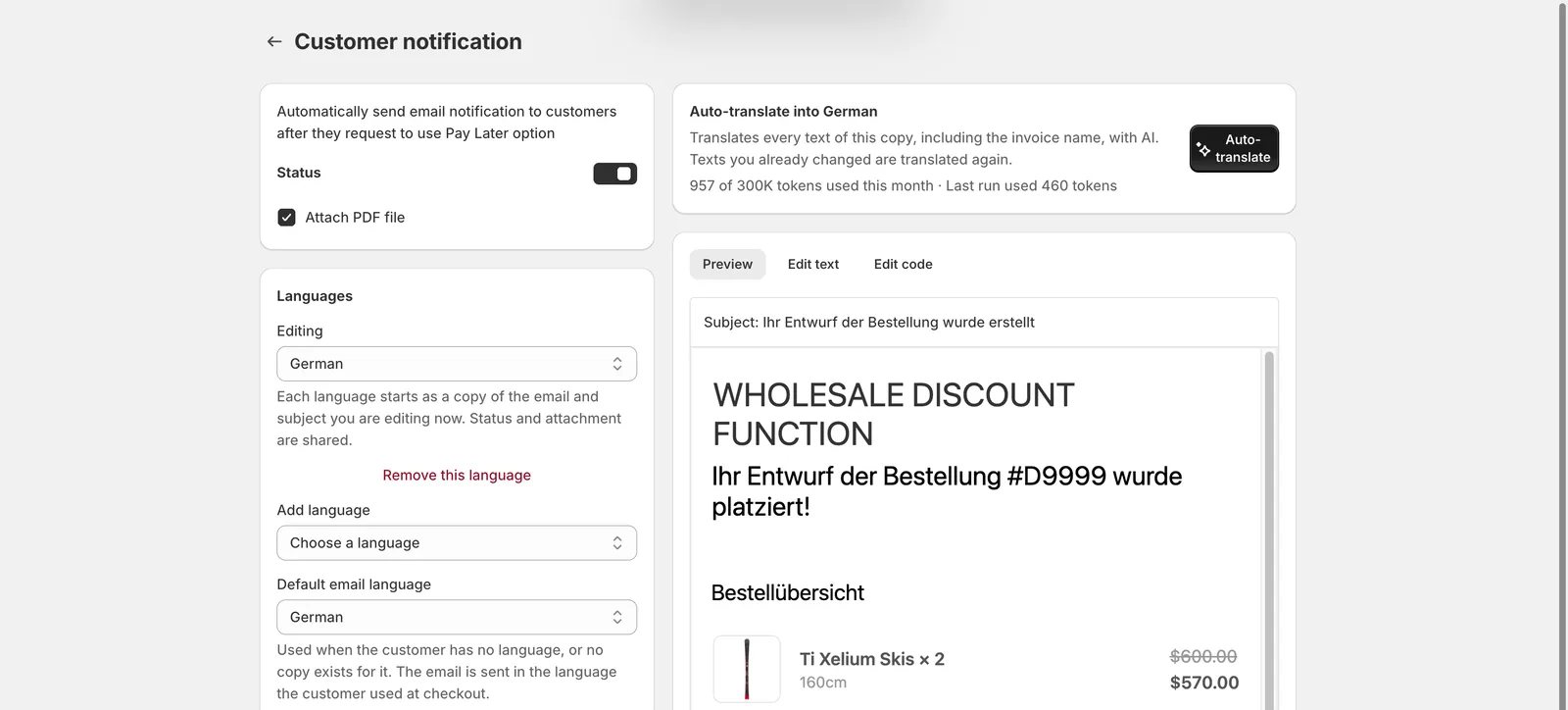
Auto-translate uses AI and has a monthly token budget that depends on your plan. The card shows how much of the budget you have used this month and how many tokens the last run took. When the budget is used up the button is disabled until the next month; on plans without Auto-translate the card says so, and you can still translate by hand in Edit text or Edit code.
Editing the code
Section titled “Editing the code”The Edit code tab shows the full Liquid template of the copy. Only change the words between the tags; keep everything inside {{ }} and {% %} as it is — those print the order data. Every template and copy is checked when you click Save: if one cannot be rendered, an error banner names the template and language and the save is stopped until it is fixed.
Need support?
Section titled “Need support?”If you do encounter any difficulty while proceeding these steps, don’t show any hesitation to contact us promptly via the email address [email protected].