> For the complete documentation index, see [llms.txt](https://docs.samita.io/llms.txt). Markdown versions of documentation pages are available by appending `.md` to page URLs; this page is available as [Markdown](https://docs.samita.io/sami-b2b-onboarding/companies/hold-or-remove-a-company.md).
# Put a company on hold or remove it from B2B
Stop a company's buyers at checkout by putting the company on hold or removing it from B2B, and let them order again later.
In Sami B2B Onboarding, you can stop a company's buyers from placing orders without deleting anything. Put the company **On hold** for a pause, for example while an invoice is overdue. Choose **Remove from B2B** when you've stopped working with it.
Both stop the company's buyers at checkout:
| | **On hold** | **Removed from B2B** |
| ------------------------------------------------ | ----------- | -------------------- |
| Buyers can check out | No | No |
| Included in duplicate checks on new applications | Yes | No |
| Included in the yearly tax ID re-check | Yes | No |
| Deleted in the app or in Shopify | No | No |
{% hint style="info" %}
**Before you start**
* Checkout is held for companies the app can find at checkout. For a company in Shopify, that's every buyer who orders for it. For a company kept only in the app, it's the buyer who applied. A company imported from a CSV file has neither, so checkout can't be held for it.
* The app's checkout rule must be installed in your store. It installs itself; the **Account status** card warns you when it isn't.
* Your own Shopify account needs the **Companies** and **Customers** permissions. Ask the store owner to add them in Shopify under **Settings › Users**.
{% endhint %}
## Put a company on hold
{% stepper %}
{% step %}
### Open the company
In the Shopify admin, open **Sami B2B Onboarding**, click **Companies** in the app menu, then click the **Companies** tab. Click the company's name, for example **Acme Supply Co.**
{% endstep %}
{% step %}
### Turn off ordering
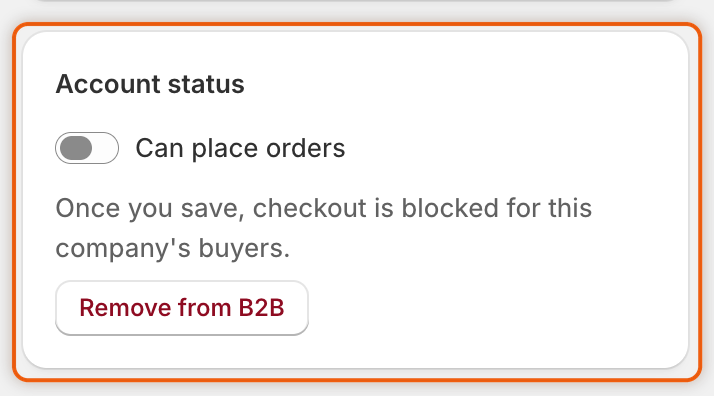
In the **Account status** card on the right, turn off **Can place orders**. The note under the switch now reads "Once you save, checkout is blocked for this company's buyers." The save bar appears at the top of the admin.
{% endstep %}
{% step %}
### Save
Click **Save**. The badge beside the company's name changes to **On hold**, and the change appears on the company's timeline with your name.
{% endstep %}
{% endstepper %}
Nothing changes for the buyers until you click Save in the save bar.
## What the company's buyers see
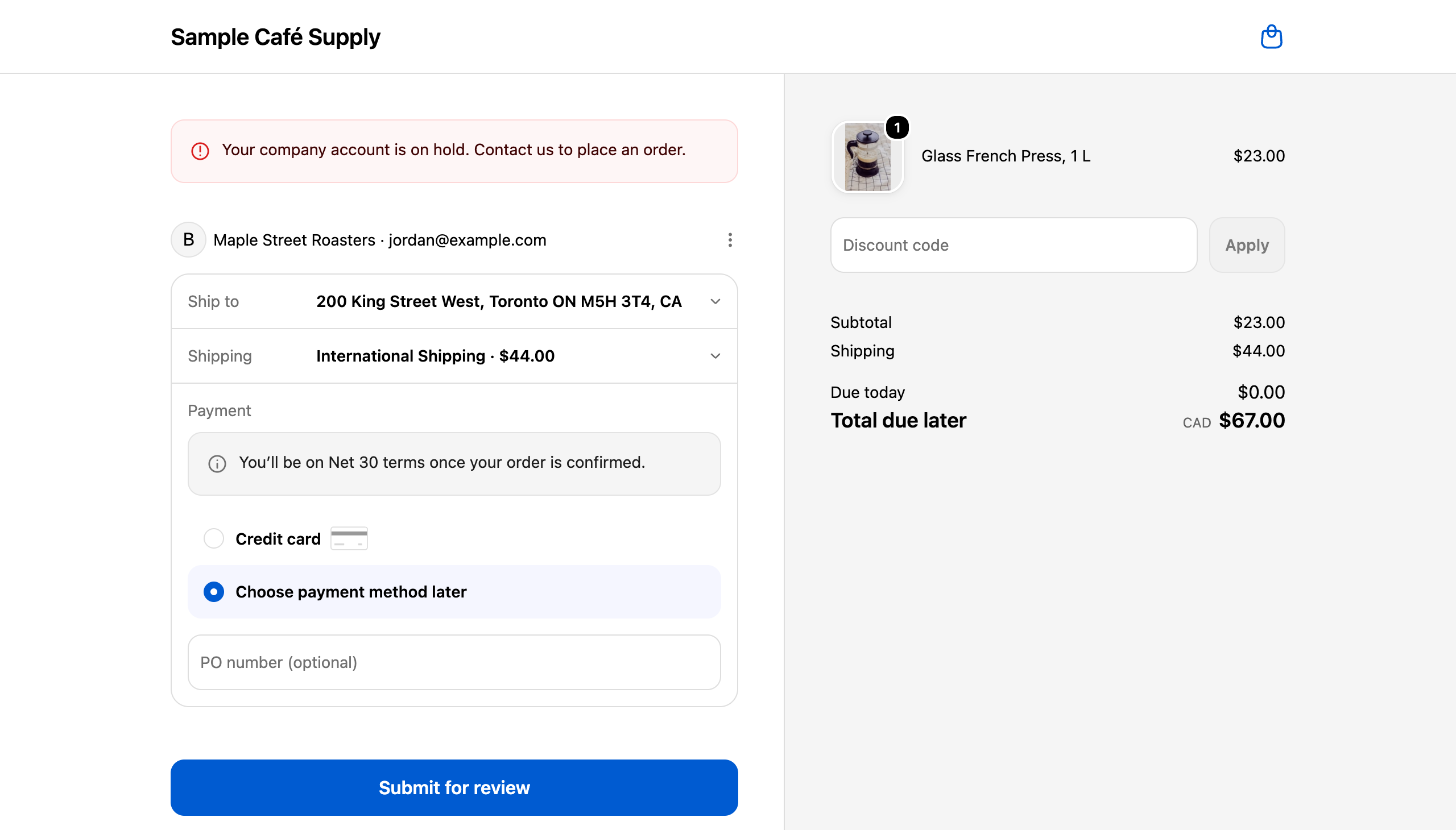
Buyers can still browse your store and add products to their cart. When they reach checkout, Shopify shows a message and won't let them complete the order:
> Your company account is on hold. Contact us to place an order.
A buyer from a company on hold sees this message at checkout and can't place the order.
The pause holds even if **Block checkout while pending** is off in **Settings › Access**. It applies to this company only. Your other buyers aren't affected.
To change the message, or translate it, open **Settings › Translate**, choose a language, and edit the **Company on hold** row under **Checkout** in **Storefront messages**. See [Translate](/sami-b2b-onboarding/settings/translate.md).
{% hint style="info" %}
For a company kept only in the app, the app adds the tag `b2b-paused` to the buyer's customer in Shopify while the company is paused, and removes it when the company can order again. Don't remove the tag by hand.
{% endhint %}
## Remove a company from B2B
{% stepper %}
{% step %}
### Click Remove from B2B
Open the company and find the **Account status** card. Click **Remove from B2B**. The note reads "Once you save, the company is removed from B2B and checkout is blocked for its buyers."
{% endstep %}
{% step %}
### Save
Click **Save** in the save bar. The badge changes to **Removed from B2B**.
{% endstep %}
{% endstepper %}
Changed your mind before saving? Click **Restore to B2B**, or **Discard** in the save bar.
## Let the company order again
* **On hold**: turn on **Can place orders** in the **Account status** card, then click **Save**.
* **Removed from B2B**: click **Restore to B2B**, then click **Save**. The company becomes **Active**.
The note under the switch reads "This company's buyers can check out." once it's saved. Buyers can check out again right away.
## If the card shows a warning
| Message on the card | What it means and what to do |
| ---------------------------------------------------------------------------------------------------- | --------------------------------------------------------------------------------------------------------------------------------------------------------------------------------------------------------------------------------------------------------- |
| "This company has no Shopify company or customer, so checkout can't be held for it." | The company only exists in the app, usually because it was imported from a CSV file. You can still change its status, but its buyers aren't stopped at checkout. |
| "The checkout lock isn't installed on this store, so a pause isn't enforced. See Settings > Access." | The app's checkout rule isn't in your store yet, so the pause isn't enforced. The rule installs itself. Open **Settings › Access** to see whether it's installed yet. If it still isn't, [contact support](/sami-b2b-onboarding/help/contact-support.md). |
| "Your Shopify account needs the … permission to change a company's status." | Your staff account is missing a Shopify permission. Ask the store owner to add it under **Settings › Users** in Shopify. |
If Shopify refuses the change when you save, a red banner says so and nothing is saved. The company keeps the status it had. Click **Save** again.
## Next steps
* [Manage a company](/sami-b2b-onboarding/companies/manage-a-company.md) — everything else on the company page.
* [Block checkout until approved](/sami-b2b-onboarding/store-access/block-checkout-until-approved.md) — stop buyers who aren't approved yet, for the whole store.
* [Translate](/sami-b2b-onboarding/settings/translate.md) — change the on-hold message buyers see.
---
# Agent Instructions
This documentation is published with GitBook. GitBook is the documentation platform designed so that both humans and AI agents can read, navigate, and reason over technical content effectively. Learn more at gitbook.com.
## Querying This Documentation
If you need additional information that is not directly available in this page, you can query the documentation dynamically by asking a question.
Perform an HTTP GET request on the current page URL with the `ask` query parameter, and the optional `goal` query parameter:
```
GET https://docs.samita.io/sami-b2b-onboarding/companies/hold-or-remove-a-company.md?ask=&goal=
```
`ask` is the immediate question: it should be specific, self-contained, and written in natural language.
`goal` is optional and describes the broader end goal you are ultimately trying to accomplish on behalf of the user. GitBook uses it to tailor the answer towards what is most useful for that goal.
The response will contain a direct answer to the question and relevant excerpts and sources from the documentation.
Use this mechanism when the answer is not explicitly present in the current page, you need clarification or additional context, or you want to retrieve related documentation sections.