
配置编辑
为任务命名,选择编辑方式并输入新值。
选择字段后,会打开 Create task 页面,并已填好该字段。
输入一个简短的名称,最多 100 个字符。默认名称为 New task。该名称会显示在任务列表、任务详情页面和通知邮件中。
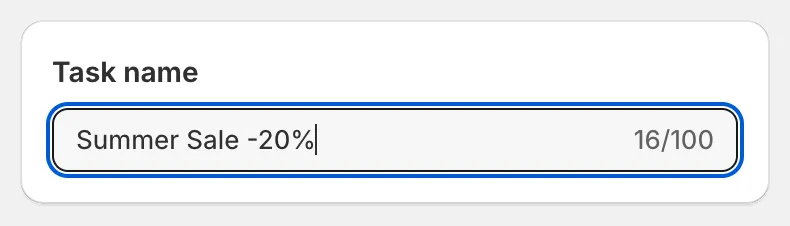
任务名称
要编辑的字段
Section titled “要编辑的字段”Field to edit 卡片显示所选的 Field 和 Edit method 列表。列表下方的选项会随您选择的方式而变化。
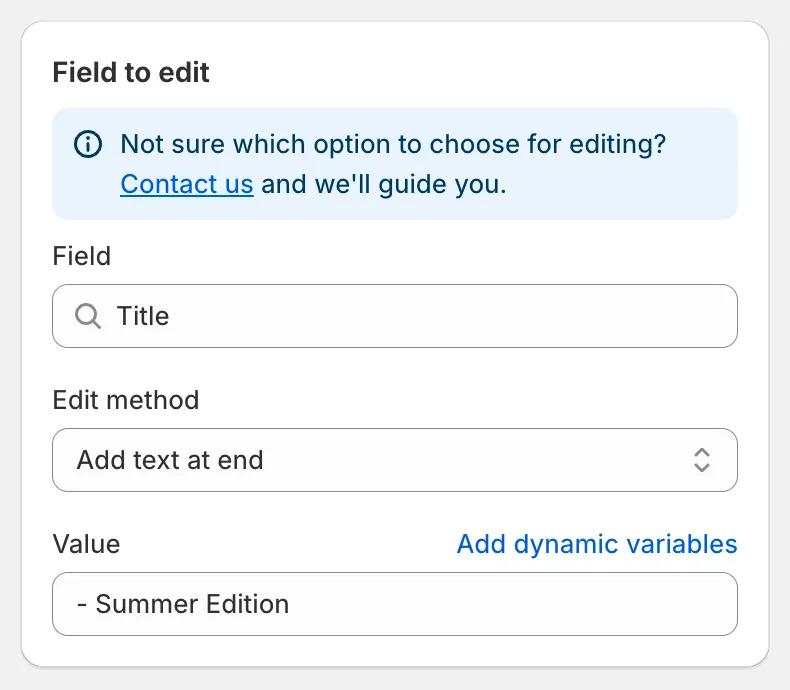
Title 的 Field to edit
文本字段的编辑方式
Section titled “文本字段的编辑方式”Title、Handle、Vendor、Product type、SEO title、SEO description、SKU、Barcode、HS code、Google Shopping 文本字段和自定义元字段使用相同的文本编辑方式。
| 编辑方式 | 作用 |
|---|---|
| Find and replace | 将 Find value 的每一处出现都替换为 Replace value。匹配是精确的,且区分大小写。将 Replace value 留空即可删除找到的文本。 |
| Replace entire text | 用 Value 覆盖整个字段。 |
| Add text at beginning | 在当前文本前加上 Value 和一个空格。 |
| Add text at end | 在当前文本后加上一个空格和 Value。 |
| Remove from beginning | 当字段以 Value 开头时,将其移除。 |
| Remove from end | 当 Value 是字段的最后一个词时,将其移除。 |
| Remove up to (and including) word | 删除从开头到 Value 第一次出现的位置(含该词)之间的所有内容。 |
| Remove from word to end | 删除 Value 最后一次出现的位置及其之后的所有内容。 |
| Set to null/blank | 清空字段。适用于 SKU、Barcode、HS code、原产国/地区和原产省/州、Weight、Cost price、Compare at price 和元字段。 |
Description 的方式列表较短:Find and replace、Replace entire text、Add text at beginning、Add text at end。请参阅描述。
价格和数字的编辑方式
Section titled “价格和数字的编辑方式”Price、Compare at price、Cost price 和 Weight 使用数值方式,例如 Increase by percentage、Decrease by amount 或 Set to fixed value,另外还有 Rounding 规则。请参阅价格和原价和舍入规则。
Status、Search engine visibility、Inventory tracked、Continue selling when out of stock、Charge tax、Is physical product 以及若干 Google Shopping 字段没有编辑方式,您只需从单选按钮列表中选择新值。
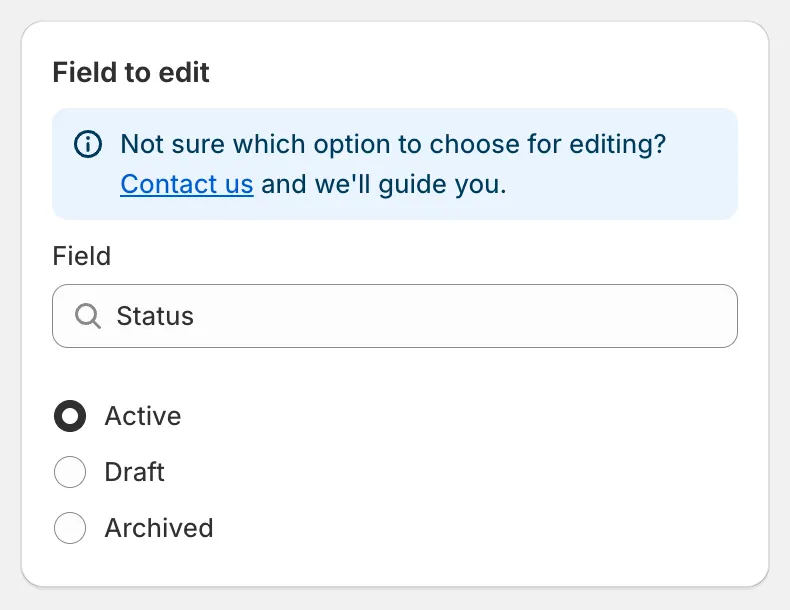
选择类字段
显示 Add dynamic variables 链接的文本输入框支持 {{ product.vendor }} 这样的占位符。任务运行时,占位符会被替换为每个产品自己的值。请参阅动态变量。
卡片上的警告
Section titled “卡片上的警告”部分字段会在输入框上方显示警告:
- SKU 和 Barcode 警告此编辑可能会在多属性之间产生重复值。
- Handle 警告 handle 必须唯一,并且 Shopify 会自动创建从旧网址到新网址的重定向。
- Custom metafield 警告编辑方式必须与元字段类型匹配。
- Delete product、Delete variants by option value 和 Remove product options 警告此更改是永久性的,无法撤销。
选择任务适用的产品。请参阅选择产品和多属性。