
設定編輯內容
為任務命名、選擇編輯方式並輸入新的值。
選擇欄位後,會開啟 Create task 頁面,並已填入該欄位。
輸入簡短的名稱,最多 100 個字元。預設為 New task。名稱會顯示在任務清單、任務詳細頁面和通知電子郵件中。
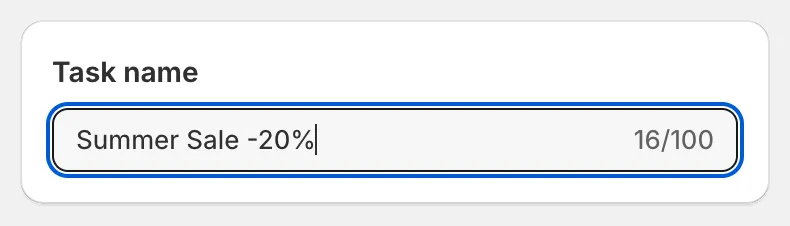
Task name
要編輯的欄位
Section titled “要編輯的欄位”Field to edit 卡片會顯示所選的 Field 和 Edit method 清單。清單下方的選項會隨您選擇的方式而改變。
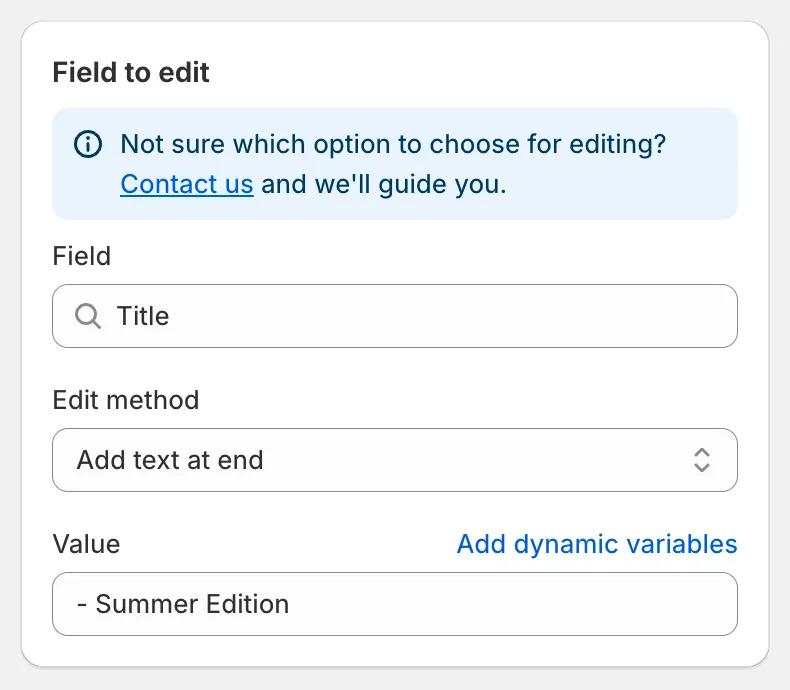
Title 的 Field to edit
文字欄位的編輯方式
Section titled “文字欄位的編輯方式”Title、Handle、Vendor、Product type、SEO title、SEO description、SKU、Barcode、HS code、Google Shopping 文字欄位和自訂中繼欄位使用相同的文字編輯方式。
| 編輯方式 | 功能 |
|---|---|
| Find and replace | 將每一處 Find value 取代為 Replace value。比對時須完全相符,且區分大小寫。將 Replace value 留空即可刪除找到的文字。 |
| Replace entire text | 以 Value 覆寫整個欄位。 |
| Add text at beginning | 在目前文字前加上 Value 和一個空格。 |
| Add text at end | 在目前文字後加上一個空格和 Value。 |
| Remove from beginning | 當欄位以 Value 開頭時,將其移除。 |
| Remove from end | 當 Value 是欄位的最後一個字詞時,將其移除。 |
| Remove up to (and including) word | 刪除從開頭到第一個 Value(含)之間的所有內容。 |
| Remove from word to end | 刪除最後一個 Value 及其後的所有內容。 |
| Set to null/blank | 清除欄位。適用於 SKU、Barcode、HS code、原產國家和省份、Weight、Cost price、Compare at price 和中繼欄位。 |
Description 的清單較短:Find and replace、Replace entire text、Add text at beginning、Add text at end。請參閱描述。
價格和數字的編輯方式
Section titled “價格和數字的編輯方式”Price、Compare at price、Cost price 和 Weight 使用數值編輯方式,例如 Increase by percentage、Decrease by amount 或 Set to fixed value,並搭配 Rounding 規則。請參閱價格與原價和四捨五入規則。
Status、Search engine visibility、Inventory tracked、Continue selling when out of stock、Charge tax、Is physical product 和部分 Google Shopping 欄位沒有編輯方式,您只需從單選按鈕清單中挑選新的值。
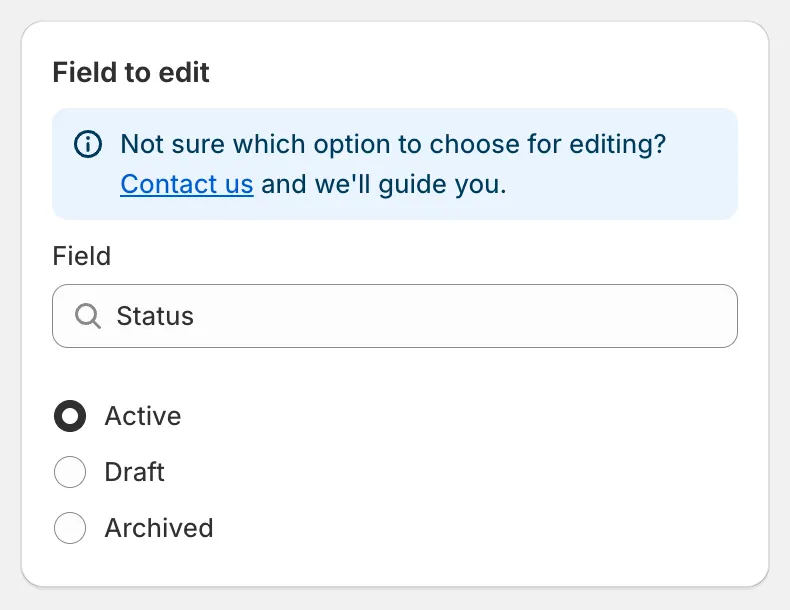
選擇型欄位
顯示 Add dynamic variables 連結的文字輸入框可接受 {{ product.vendor }} 這類預留位置。任務執行時,預留位置會被替換為每項商品自己的值。請參閱動態變數。
卡片上的警告
Section titled “卡片上的警告”部分欄位會在輸入框上方顯示警告:
- SKU 和 Barcode 警告編輯可能會讓各款式之間出現重複的值。
- Handle 警告 handle 必須是唯一的,且 Shopify 會自動建立從舊網址的重新導向。
- Custom metafield 警告編輯方式必須與中繼欄位類型相符。
- Delete product、Delete variants by option value 和 Remove product options 警告該變更是永久性的,無法還原。
選擇任務要套用的商品。請參閱選擇商品與款式。