
Quote button on collection pages
Show the quote button on every product card in your collection pages so customers can request several items quickly.
A quote button on each product card lets customers add several products without opening every product page. It suits stores where buyers order a list of items at a time.
Like the product page button, this is a single dropdown with a handful of positions.
Set the position
Section titled “Set the position”-
Open the button settings
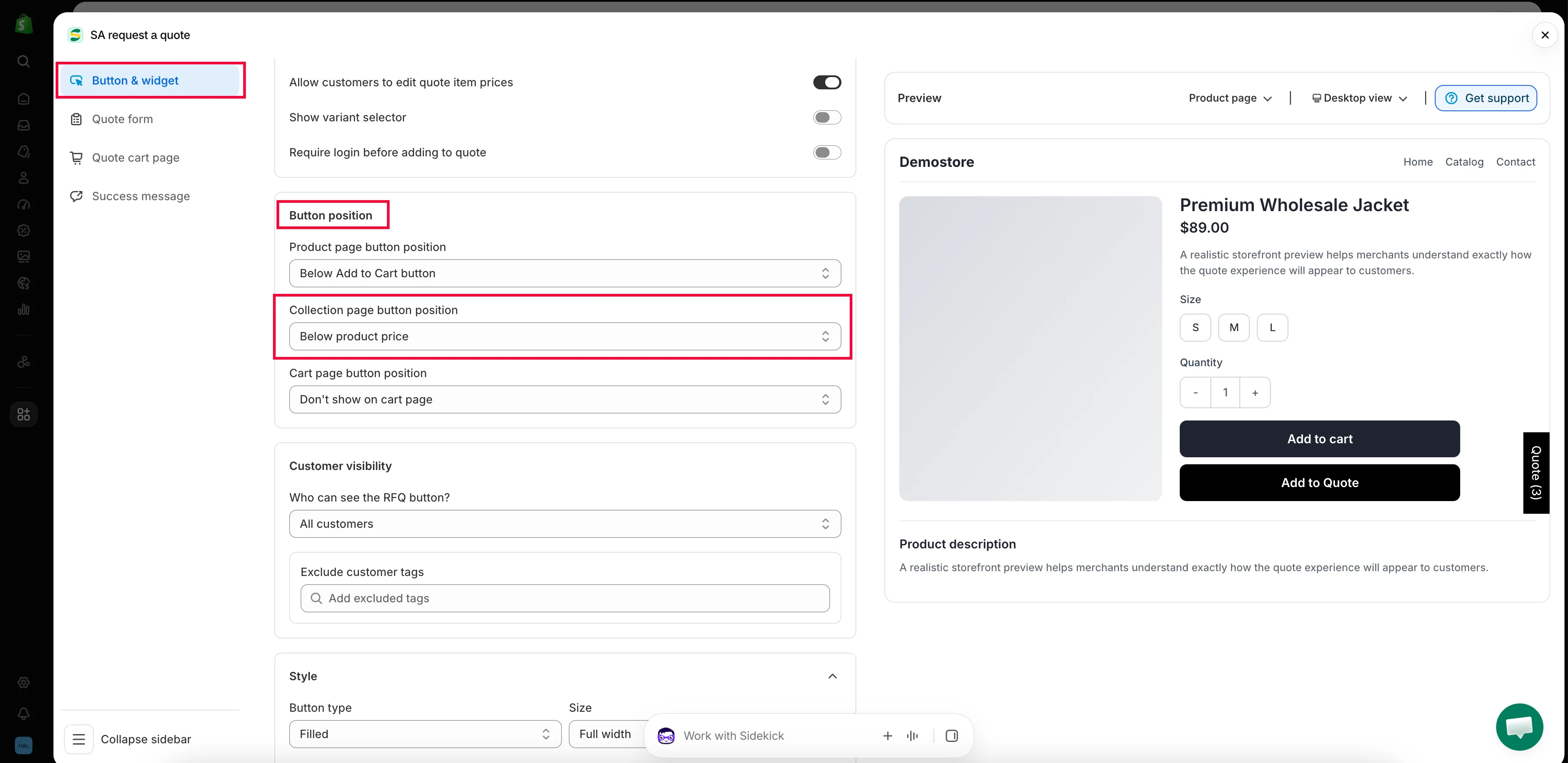
Section titled “Open the button settings”In the app, go to Quote settings and click Customize, then open the Button & widget tab.
-
Find Button position
Section titled “Find Button position”Scroll to Button position and open the Collection page button position dropdown.
-
Choose where the button goes
Section titled “Choose where the button goes”Pick the option that fits your product cards — see the table below.
-
Check the preview, then save
Section titled “Check the preview, then save”Use the desktop and mobile toggle in the Preview panel, because product cards are tight on a phone. Save your changes, then open a collection on your storefront.
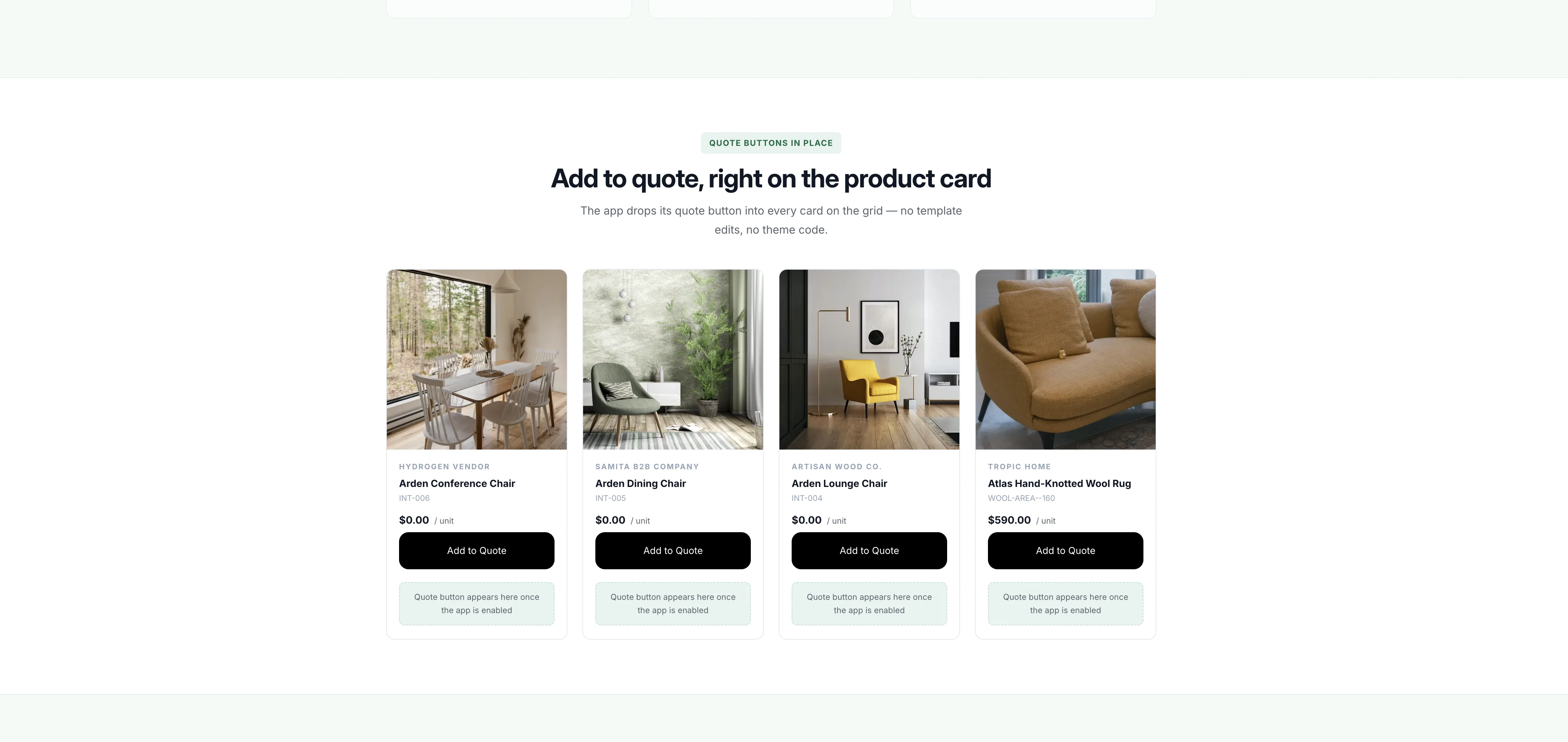
The button on a live collection page, under every product card.
What each position does
Section titled “What each position does”| Option | What customers see |
|---|---|
| Below product card button | The quote button sits under whatever button your theme already puts on the card. |
| Below product price | The quote button sits directly under the price, higher up the card. |
| Replace product card button | The quote button takes the place of the card's own button, so quoting is the only action. |
| Don't show on collection pages | No quote button on collection pages. Customers open a product page to quote. |
Your theme may only show the button on hover
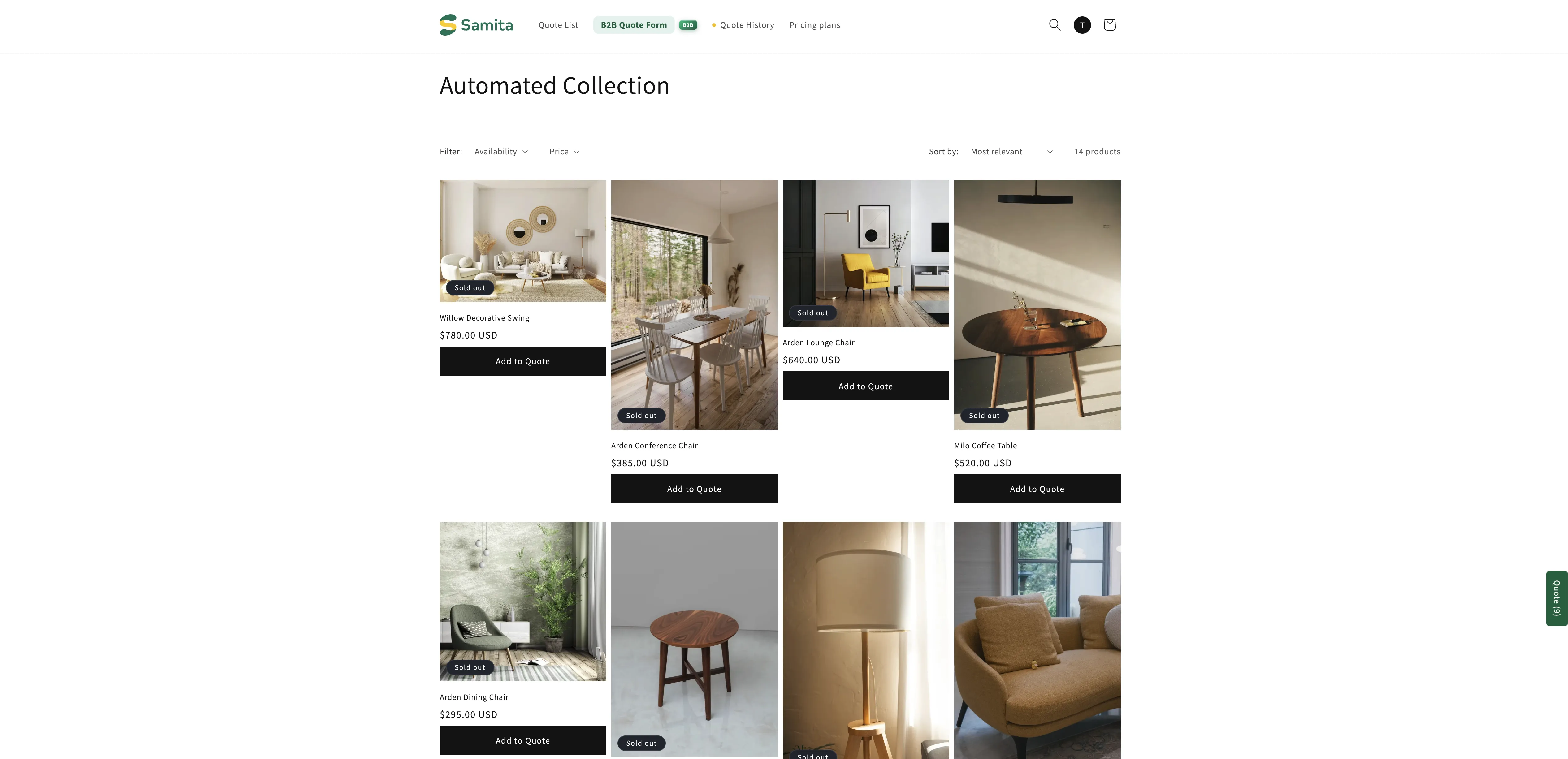
Section titled “Your theme may only show the button on hover”Where the button lands on a product card is partly up to your theme. A theme can attach it to its own quick-add control, and when it does, the button sits invisible until the shopper hovers over the product card — and it appears as a small icon rather than as your Button text.
So if you set a position, save, open a collection page and see nothing at all, hover a product card before you decide something is broken.
This is a separate setting
Section titled “This is a separate setting”Product page button position and Collection page button position are independent. Setting one does nothing to the other.
If the button shows on product pages but not in your collection grid, this dropdown is usually the one you haven’t set. If it is already set, check whether your theme is only showing the button on hover, as above.
Next steps
Section titled “Next steps”- Show a variant selector — let customers pick a variant from the card
- Set the after-click behavior — what customers see after clicking
- Floating quote widget — let customers see everything they have collected