
Download a quote as PDF
Download any quote as a PDF document for customers who need something formal to file or approve.
Business buyers often need a document they can file, or take to a manager for sign-off. Any quote in your list can be downloaded as a PDF.
There are two routes to the same file, and both finish in the same popup:
- From the list — the download PDF action on the quote’s row. Quickest when you are working through the Quotes page.
- From inside the quote — More actions > Download as PDF. Use this when you want to check the prices before the document goes anywhere.
Download from the list
Section titled “Download from the list”-
Open Quote list
Section titled “Open Quote list”Go to Quote list in the app navigation to reach the Quotes page.
-
Use the download PDF action
Section titled “Use the download PDF action”Find the quote’s row and use the download PDF action in the Actions column. It is the first of the four actions on every row — hovering the row is not needed, they are always there — and its tooltip reads Download PDF.
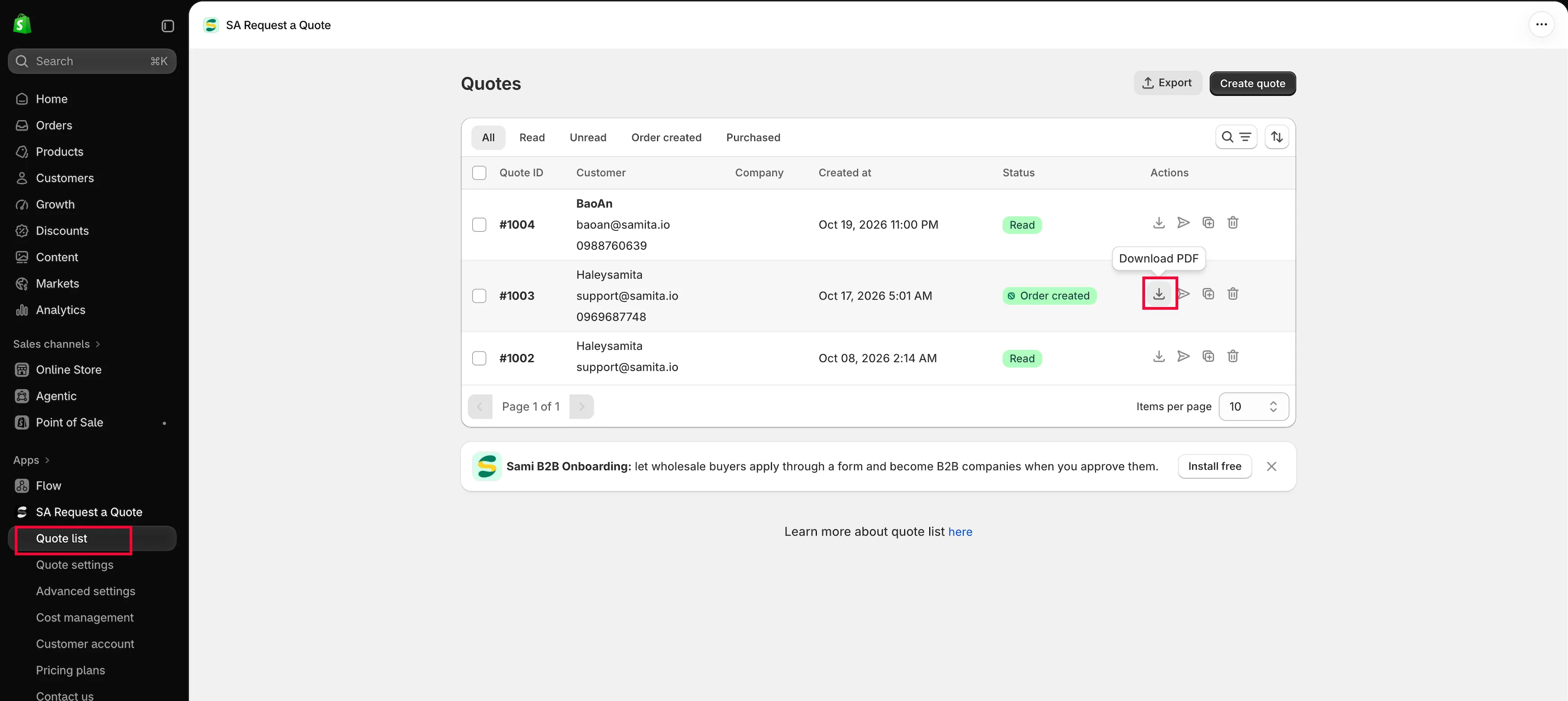
Each row carries its own actions.
-
Choose the language, then Download PDF
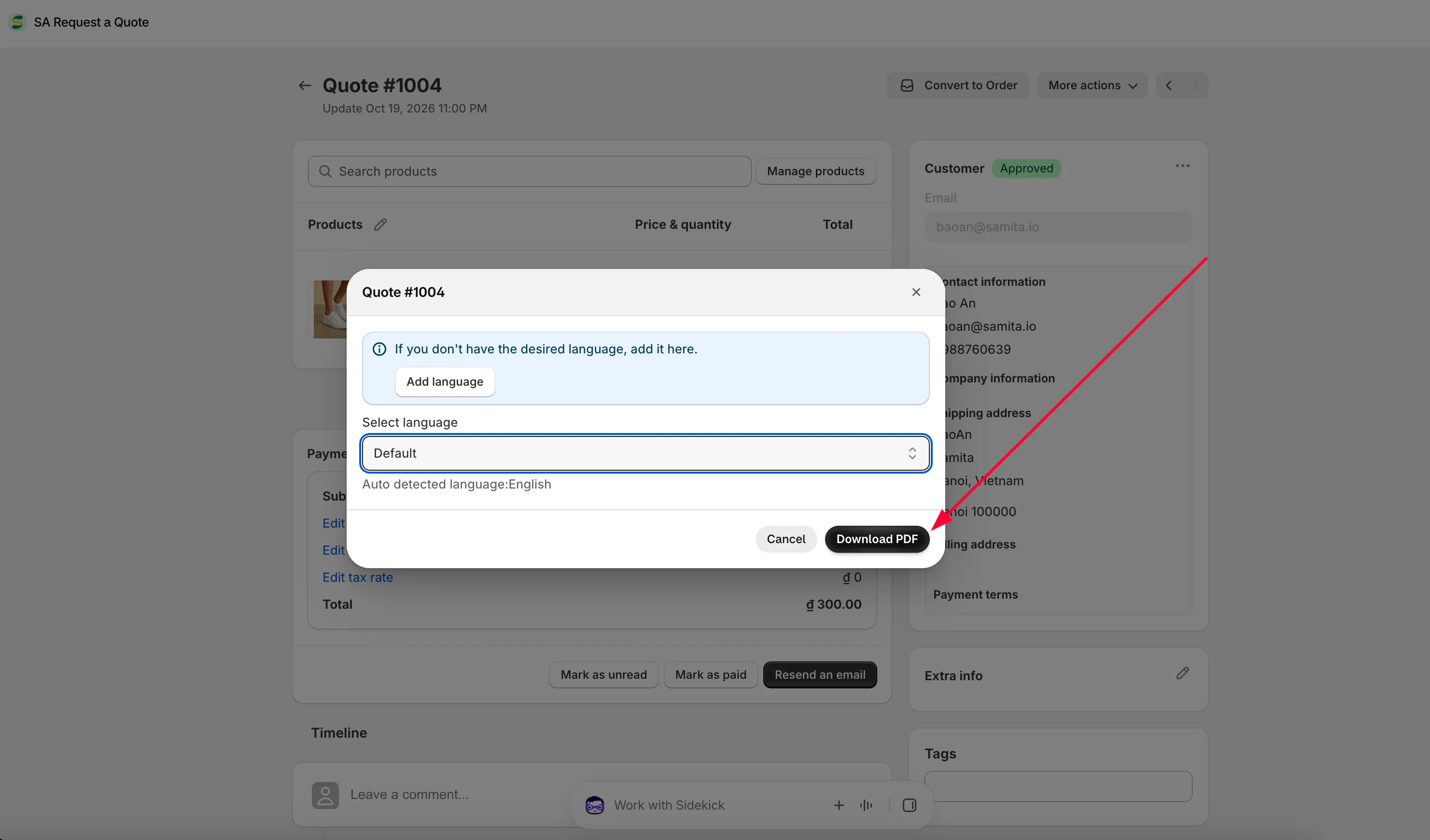
Section titled “Choose the language, then Download PDF”A popup opens, headed Quote # and the quote’s number. Pick the language you want from Select language, then click Download PDF. Cancel closes it without downloading anything.
The file then downloads to your computer, ready to attach to an email or print.
Download from inside the quote
Section titled “Download from inside the quote”-
Open the quote
Section titled “Open the quote”Click the quote’s row on the Quotes page. The detail page opens, headed Quote # and its number.
-
Check the document is worth sending
Section titled “Check the document is worth sending”The PDF prints what the quote currently says, so check it first: the Price & quantity boxes on every line, and Subtotal, the discount, shipping and tax rate links, and Total in the Payment panel.
If you change anything here, save it — the next PDF you download reflects it.
-
More actions > Download as PDF
Section titled “More actions > Download as PDF”More actions is at the top right of the quote. Open it and choose Download as PDF. The same two other entries live in that menu — Duplicate quote and Delete quote.
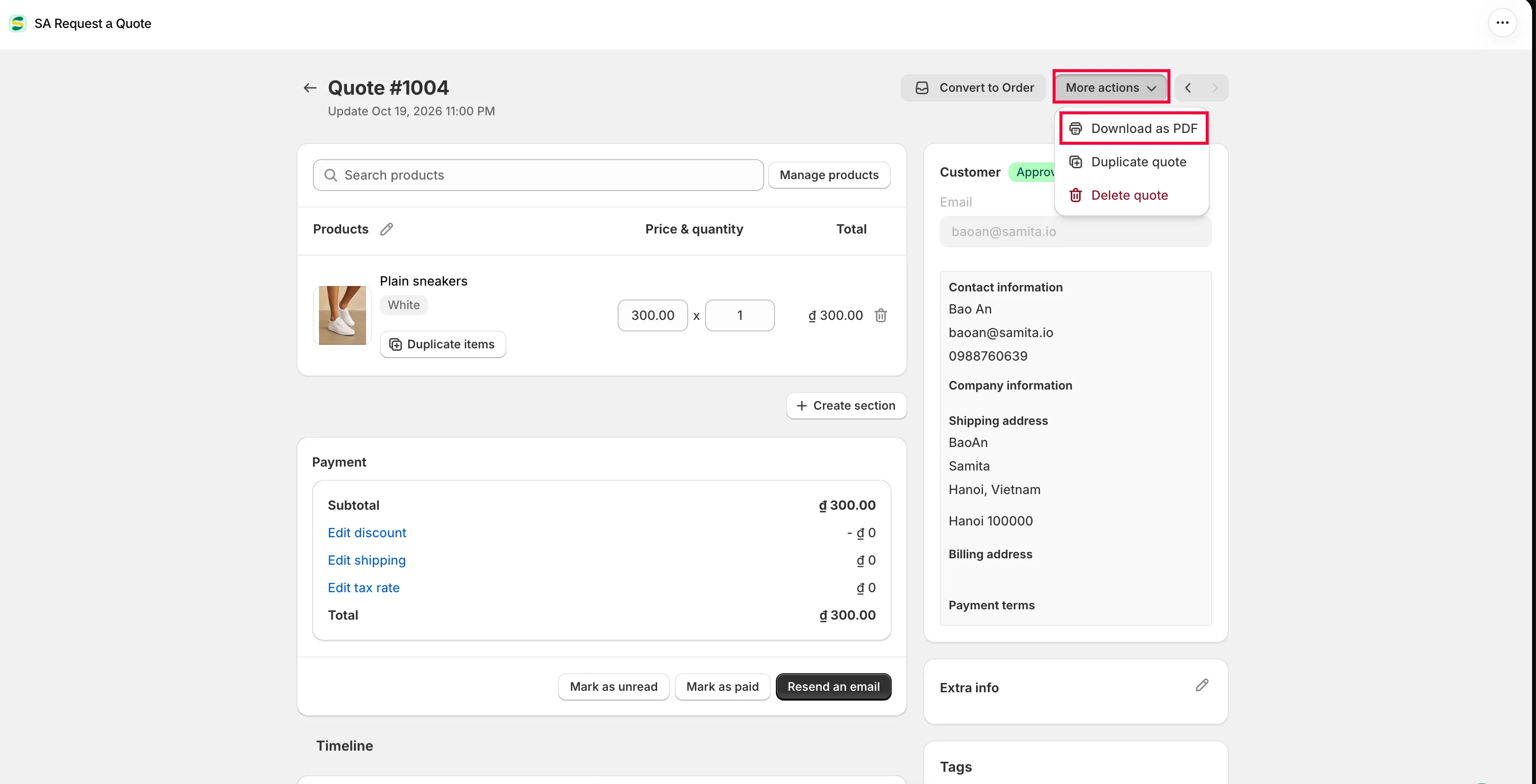
Everything you can do to a quote is in More actions.
-
Choose the language, then Download PDF
Section titled “Choose the language, then Download PDF”The same popup opens. Pick a language in Select language and click Download PDF.
The download popup
Section titled “The download popup”Whichever route you took, the popup is the same one, and it is where the language is decided.
| Control | What it does |
|---|---|
| Select language | Which language the document is written in. The list holds Default plus every language your Quote PDF template has a translation for. Underneath it, the app names your store's own language after "Auto detected language:". |
| Add language | On the blue banner reading "If you don't have the desired language, add it here." It leaves the popup and takes you to the Quote PDF template editor, where languages are added. |
| Download PDF | Starts the download. |
| Cancel | Closes the popup, downloads nothing. |
Set your template up first
Section titled “Set your template up first”What appears on the document comes from a template, so it is worth checking before you send one to a customer.
Go to Advanced settings and open the PDF template tab. There are two templates:
| Template | What it is for |
|---|---|
| Quote PDF | "Template used to convert a quote to a PDF file." |
| Invoice PDF | "Template used to convert a draft order to a PDF file." |
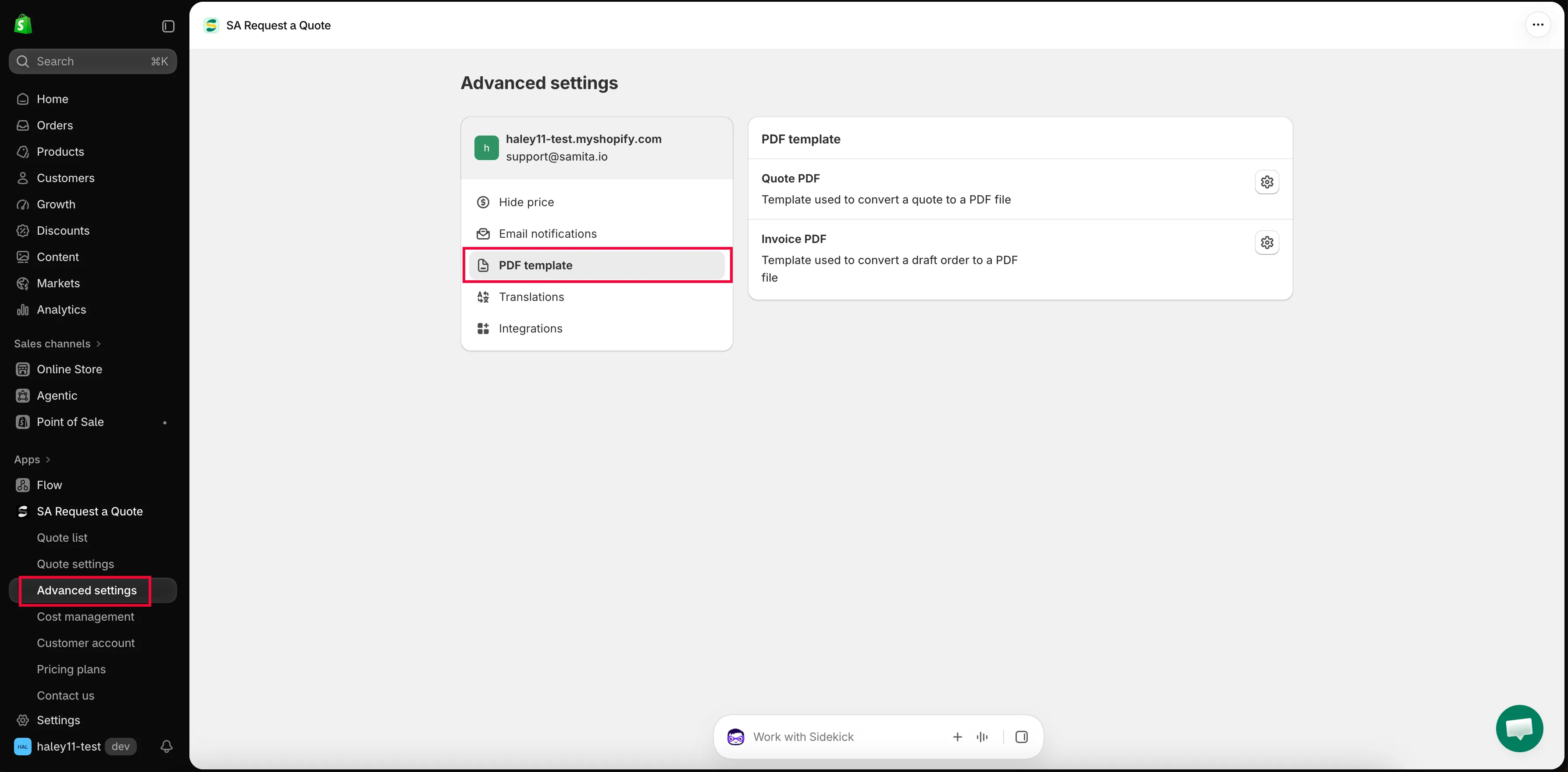
Advanced settings > PDF template.
Opening Quote PDF gives you the Quote PDF template editor: three tabs — Design, Content and Translations — plus a Note and a Preview. The short version of each is below; Customize the quote PDF walks through the whole editor.
Design — how it looks
Section titled “Design — how it looks”Header size and Font size are both in px. Logo holds Use a logo image, Logo size in px and Upload images — the app’s own note is “Click here to upload an image. For the best quality, use a 512 × 512 px image.” Color & Background sets Primary color, Background color, Table header color, Table header background, Table border color, Border color and Text color.
Putting your logo on before the first quote goes out is the single change most worth making. It is what turns the file from an app export into something that looks like it came from your business.
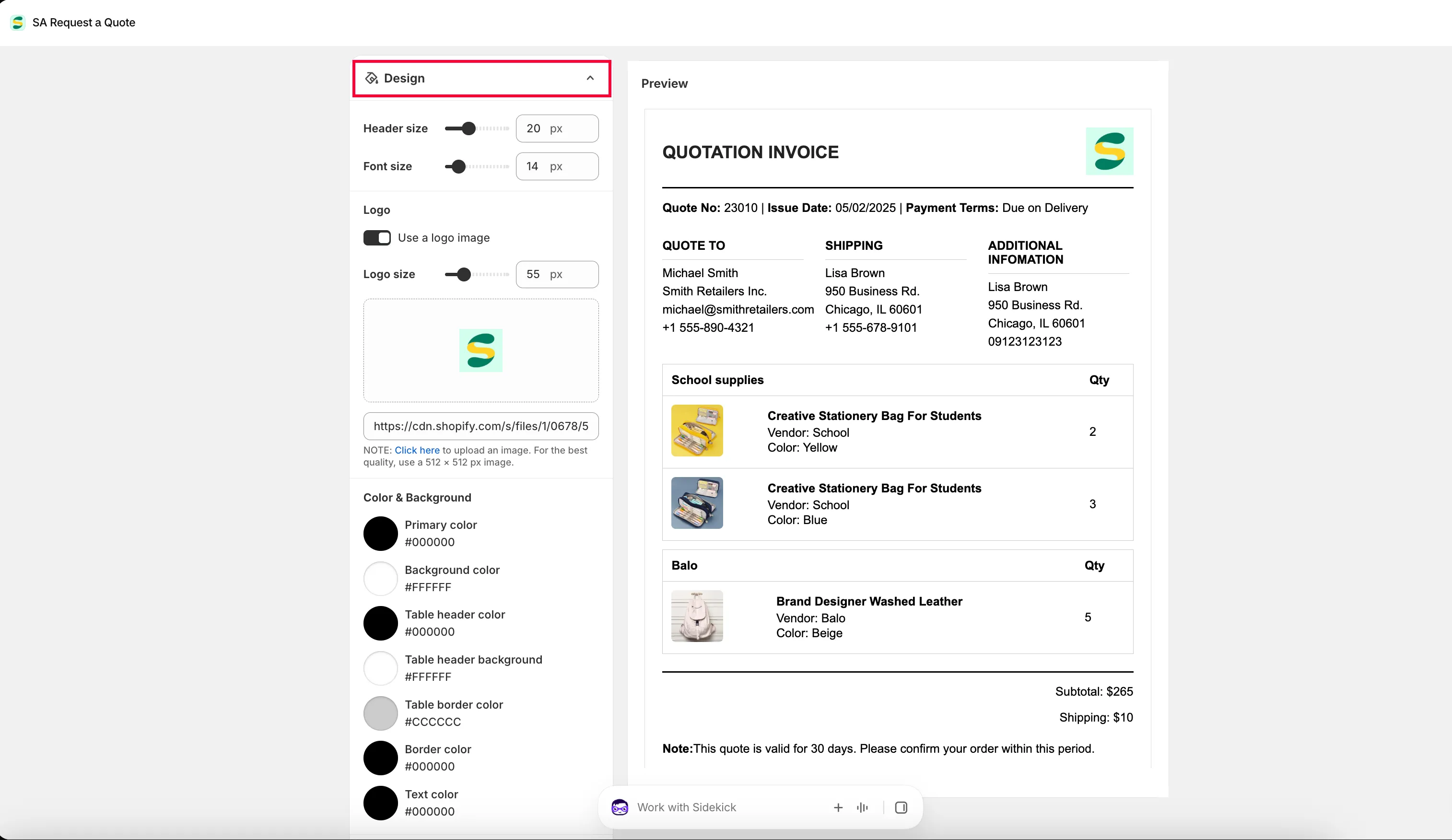
Design sets the logo, sizes and colors of the finished document.
Content — what is on it
Section titled “Content — what is on it”The Content tab is a builder made of switches: you turn a piece of information on or off rather than writing the document yourself. Quote info covers Quote ID, Issue date, Payment terms, Discount, Tax, Shipping, Subtotal and Grand total, with Choose date format set to DD/MM/YYYY, MM/DD/YYYY or YYYY/MM/DD. Quote products covers Show product image, Show vendor, Show SKU, Show variants and options, Show quantity, Show price and Show total. Other information covers Quote from, Customer information, Shipping address and Additional information. Column width switches the layout between 33% and 100%.
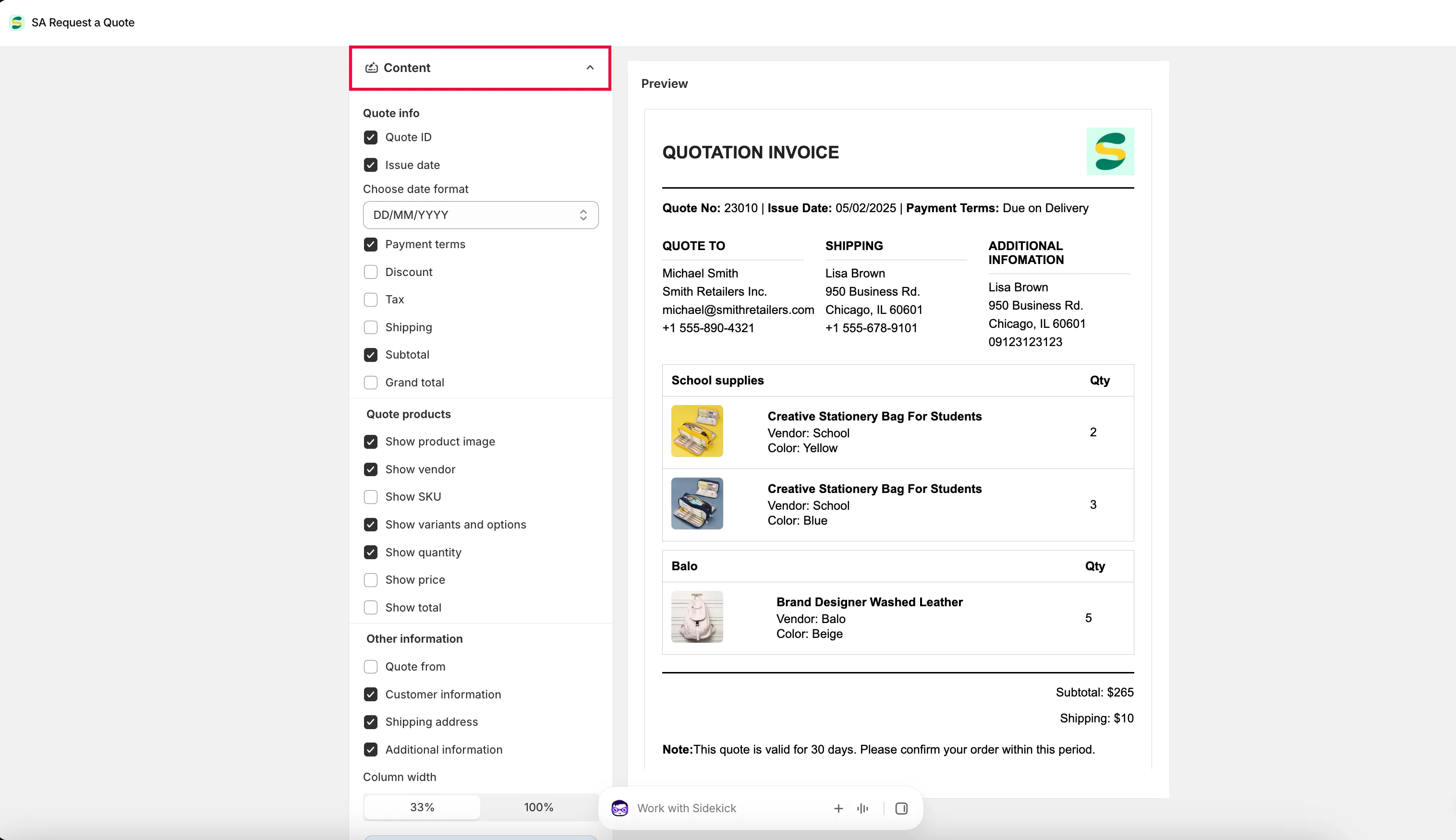
Translations — the document in another language
Section titled “Translations — the document in another language”Translations is the editor’s third tab. Every language you add here becomes an option in the Select language dropdown of the download popup, so this tab is what fills that list. Add the language first, then download — see Customize the quote PDF.
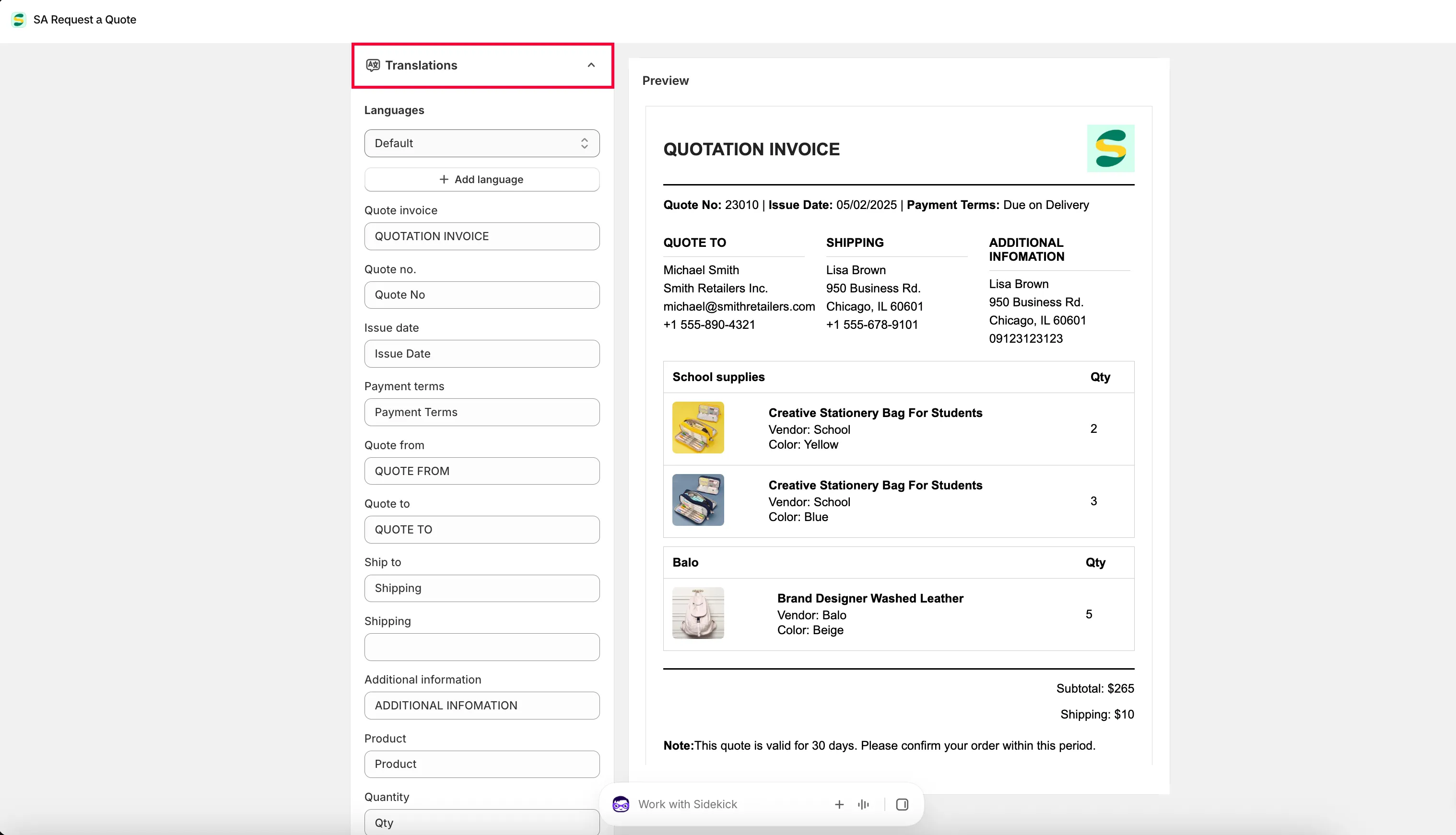
Customers in another language
Section titled “Customers in another language”Every plan, including FREE, includes Multi-language (PDF & email). The languages available come from Settings > Languages in your Shopify admin — the app mirrors whatever you have published there.
Two places carry the word Translations, and they do different jobs. The one inside the Quote PDF template editor is for the document itself, and it is the one the download popup reads. The Translations tab under Advanced settings covers the rest of what customers see — Translations AI translates the quote form, your storefront text and both quote emails. See Translate quote emails.
To add or remove a language, go to Settings > Languages in your Shopify admin. The app’s list mirrors the languages published there, so there is nothing to add by hand in the app.
Next steps
Section titled “Next steps”- Customize the quote PDF — set up the quote document
- Send a quotation — email the quote to the customer
- Customize the invoice PDF — the document for draft orders