
General settings
How the app is laid out — what sits in each part of the navigation, and what the dashboard tells you at a glance.
There is no single settings screen in this app. Settings are grouped by what they do, and once you know the layout everything is two clicks away. This page is the map.
The app’s navigation
Section titled “The app’s navigation”| Where | What's in it |
|---|---|
| Quote list | Every request you've received, with Export and Create quote. |
| Quote settings | The Customize editor, a Preview, and Select quote products. |
| Advanced settings | Five tabs: Hide price, Email notifications, PDF template, Translations, Integrations. |
| Cost management | Three tabs: Discount, Shipping, Tax. |
| Customer account | New customer account settings, Translation and Permission setting. |
| Pricing plans | Your plan and the billing options. |
| Contact us | How to reach the support team. |
Quote settings also carries a Preview, with tabs for Online store, Cart and Quote list. The app sets expectations for it plainly: “Preview is only for quick checking. Full settings and detailed preview are inside Customize.”
The dashboard
Section titled “The dashboard”The app’s landing page is the dashboard, which greets you with “Welcome to SA request a quote by Samita”.
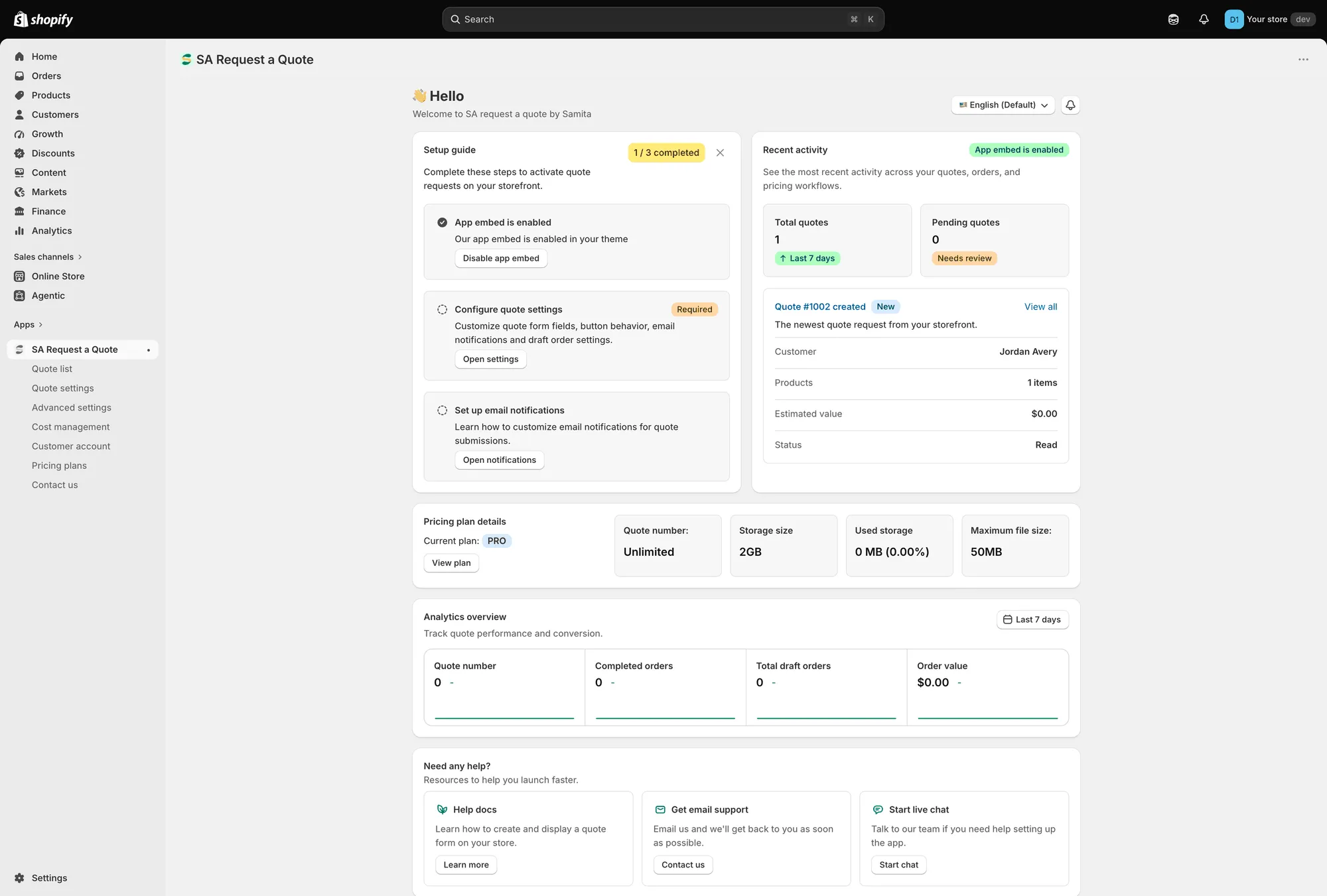
The dashboard is the app’s landing page.
Setup guide
Section titled “Setup guide”Complete these steps to activate quote requests on your storefront. A badge tracks how many of the three you’ve done.
| Step | What it does |
|---|---|
| App embed is enabled / App embed is disabled | "Enable app embed in your theme so quote buttons and request forms can appear on the storefront." Use Enable app embed or Disable app embed. |
| Configure quote settings (Required) | "Customize quote form fields, button behavior, email notifications and draft order settings." Open settings takes you there. |
| Set up email notifications | "Learn how to customize email notifications for quote submissions." Open notifications takes you there. |
The app embed step also carries Mark as done, for when you’ve already handled it your own way.
Recent activity
Section titled “Recent activity”Total quotes for the last 7 days, Pending quotes that need review, and a card for the newest quote showing its Customer, Products, Estimated value and Status. View all opens the full quote list.
Pricing plan details
Section titled “Pricing plan details”Your Current plan, with Quote number, Storage size, Used storage and Maximum file size. View plan opens Pricing plans.
Worth a glance now and then if you accept file uploads — see Allow file uploads.
Analytics overview
Section titled “Analytics overview”“Track quote performance and conversion.” Pick a period with the date range picker and the card reports Quote number, Completed orders, Total draft orders and Order value — quote requests at one end, money at the other.
Need any help?
Section titled “Need any help?”Three routes out: Help docs with Learn more, Get email support with Contact us, and Start live chat with Start chat.
Two controls in the top right
Section titled “Two controls in the top right”Language switch and What news sit above the dashboard.
Saving on the Hide price tab
Section titled “Saving on the Hide price tab”The Hide price tab under Advanced settings has its own Save and Discard changes — so make a change there, save it, then move on.
Where common settings live
Section titled “Where common settings live”| If you want to… | Go to |
|---|---|
| Change the quote button wording or colours | Quote settings > Customize > Button & widget |
| Choose which products show the button | Quote settings > Select quote products |
| Change the fields on the quote form | Quote settings > Customize > Quote form |
| Hide prices or buy buttons | Advanced settings > Hide price |
| Change who gets notified, or send from your own address | Advanced settings > Email notifications |
| Edit the quote or invoice PDF | Advanced settings > PDF template |
| Translate what customers see | Advanced settings > Translations |
| Connect an email platform, or Google reCAPTCHA | Advanced settings > Integrations |
| Add discounts, shipping or tax to quotes | Cost management |
| Show quotes in customer accounts | Customer account |
A greyed-out control means your plan
Section titled “A greyed-out control means your plan”Features that aren’t on your plan don’t vanish from these pages. The control stays where it is, disabled, with a padlock line reading “🔐 This feature is available on …” and a link to the plan that includes it.
That is worth knowing before you go looking for a fault in your theme. On a FREE store you meet it most often on the Hide price tab and on the Hide Add To Cart button and Hide Buy Now button switches.
Follow the link in the padlock line, or see Pricing plans and Plan comparison.
Next steps
Section titled “Next steps”- Translate storefront text — change what customers see
- Pricing plans — what your plan includes
- Quickstart — the shortest route to a working quote button