
Install the app
Install SA Request a Quote from the Shopify App Store, find your way around the app, and pick the plan that fits how much you quote.
Before you start
Section titled “Before you start”- You are the store owner, or staff with permission to install apps.
- You can edit your theme — the app embed is switched on from inside the app, but the change is saved in the theme editor.
- You know roughly which products you want to sell by quote.
Nothing is charged when you install. The app starts on the FREE plan, and you only move to a paid plan by choosing one yourself and approving the charge in your Shopify admin.
Install
Section titled “Install”-
Open the listing
Section titled “Open the listing”Go to SA Request a Quote on the Shopify App Store.
-
Start the install and confirm
Section titled “Start the install and confirm”Shopify shows you exactly what the app can access before anything happens. You can read what each permission is for in Permissions and data.
Confirm to continue.
-
The app opens in your admin
Section titled “The app opens in your admin”When the install finishes, the app opens inside your Shopify admin on its dashboard. You’ll find it again any time under Apps in the left sidebar.
What you’ll see first
Section titled “What you’ll see first”The dashboard is the app’s landing page. It opens with 👋 Hello and “Welcome to SA request a quote by Samita”, and the two controls in the top right are a Language switch and What news.
Alongside the Setup guide, the dashboard shows Recent activity with your latest quotes, Pricing plan details for your current plan and storage, an Analytics overview, and a Need any help? section with Learn more, Contact us and Start chat.
Everything else sits in the app navigation:
| Where | What it's for |
|---|---|
| Quote list | Every request customers send, and the quotes you create yourself. |
| Quote settings | The quote button, quote form, quote cart page and which products can be quoted. |
| Advanced settings | Hide price, email notifications, PDF templates, translations and integrations. |
| Cost management | Discount, shipping and tax applied to quotes. |
| Customer account | Quotes shown in your customers' Shopify account pages. |
| Pricing plans | Your plan, and what each one includes. |
| Contact us | Reach the support team. |
Choosing a plan
Section titled “Choosing a plan”The app installs on the FREE plan, which covers 5 quotes per month — enough to collect real requests before you decide on anything.
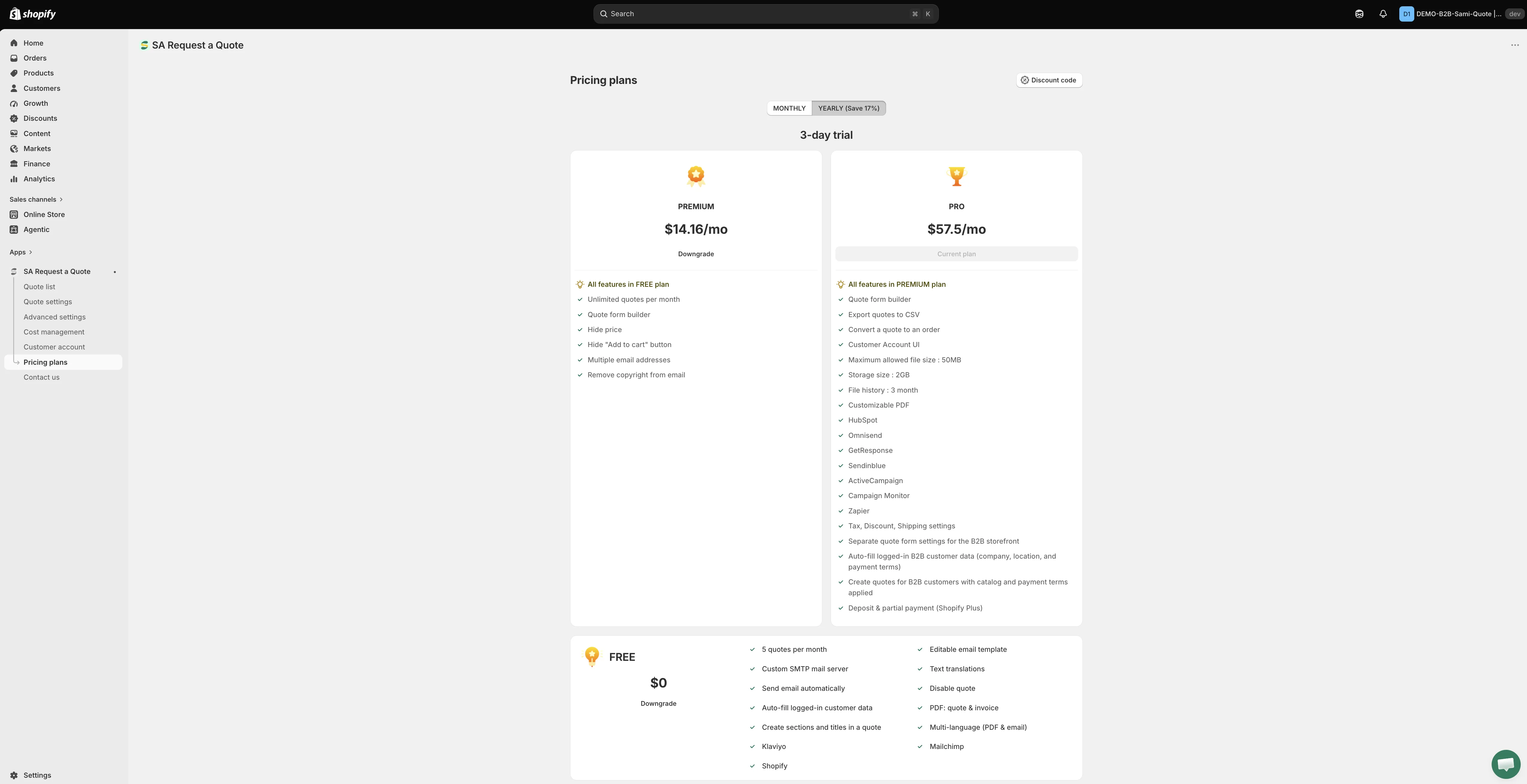
Compare the plans in the app — the Pricing plans page always shows what your store is on now.
| Plan | What it adds |
|---|---|
| FREE | 5 quotes per month, editable email template, custom SMTP mail server, text translations, PDF: quote & invoice, and the Klaviyo, Mailchimp and Shopify integrations. |
| PREMIUM | All features in FREE plan, plus unlimited quotes per month, hide price, hide "Add to cart" button, multiple email addresses and remove copyright from email. |
| PRO | All features in PREMIUM plan, plus export quotes to CSV, convert a quote to an order, Customer Account UI, customizable PDF, the tax, discount and shipping settings, and the remaining integrations. |
Prices and trial length
Section titled “Prices and trial length”This documentation doesn’t print prices or trial lengths, because both change with the billing period and with your store. Pricing plans in the app menu always shows the figures that apply to you:
- The billing toggle switches between MONTHLY and YEARLY (Save 17%), and the plan cards change with it — including the trial shown on the paid plans.
- Pricing details opens the full feature list.
- Discount code applies a code, if you have been given one.
- A Frequently asked questions section answers the usual billing questions.
Shopify handles the billing, so you approve any charge in your Shopify admin before it happens. The App Store listing is the other place to check current pricing.
Start free and upgrade when you reach something you want — see Plan comparison to work out which plan that is.
If a control is greyed out
Section titled “If a control is greyed out”A setting that is disabled and shows a padlock line reading “🔐 This feature is available on …” is not a fault. It means the feature belongs to a higher plan, and the link in that line takes you to the plan that includes it. Merchants on FREE meet this most often on Hide price and on the buy-button switches.
Next steps
Section titled “Next steps”- Enable the app in your theme — the step that makes the app appear on your storefront
- Quickstart — the full setup, end to end
- Plan comparison — what each plan includes