
Allow file uploads
What the app accepts when customers attach drawings, specifications or artwork to a quote request, and how uploads use your plan's storage.
For custom work, a file is often worth more than a paragraph of description. A drawing, a spec sheet or a piece of artwork sent with the request is usually the difference between quoting accurately and quoting twice.
This page covers the two things that are fixed whatever your form looks like: which file types the app accepts, and how uploads eat into your plan’s storage. What your own form offers is decided in the Form builder, so check there before you promise customers anything.
What the app accepts
Section titled “What the app accepts”These file types are allowed on uploads:
| Kind of file | Types |
|---|---|
| Documents and data | pdf, doc, docx, txt, csv |
| Images and artwork | jpg, jpeg, png, psd, ai, eps |
| CAD and manufacturing | stl, stp, step, dxf, gbr, ex2 |
Anything outside that list won’t go through, so a customer sending a format you didn’t expect is the most likely reason an attachment never arrives.
Where to check in your form
Section titled “Where to check in your form”Your form’s questions live in the Form builder, on the Quote form tab of the Customize editor — open Quote settings, click Customize, then Quote form.
The builder is organised into sections, and which sections you get depends on your Form template. The Detailed quote form arrives with Contact information, Shipping address and Extra info; the B2B customer form also brings Company information, Billing address and Payment terms. Each section expands, with Add element for one more question inside it and Add section for a whole new group.
Open Add element in the section where an attachment would belong — usually the free-text one, Extra info — and read the list of elements it offers. That list is the authority on what your form can ask for, and it is worth checking before you write “send us your drawing” anywhere a customer will see it.
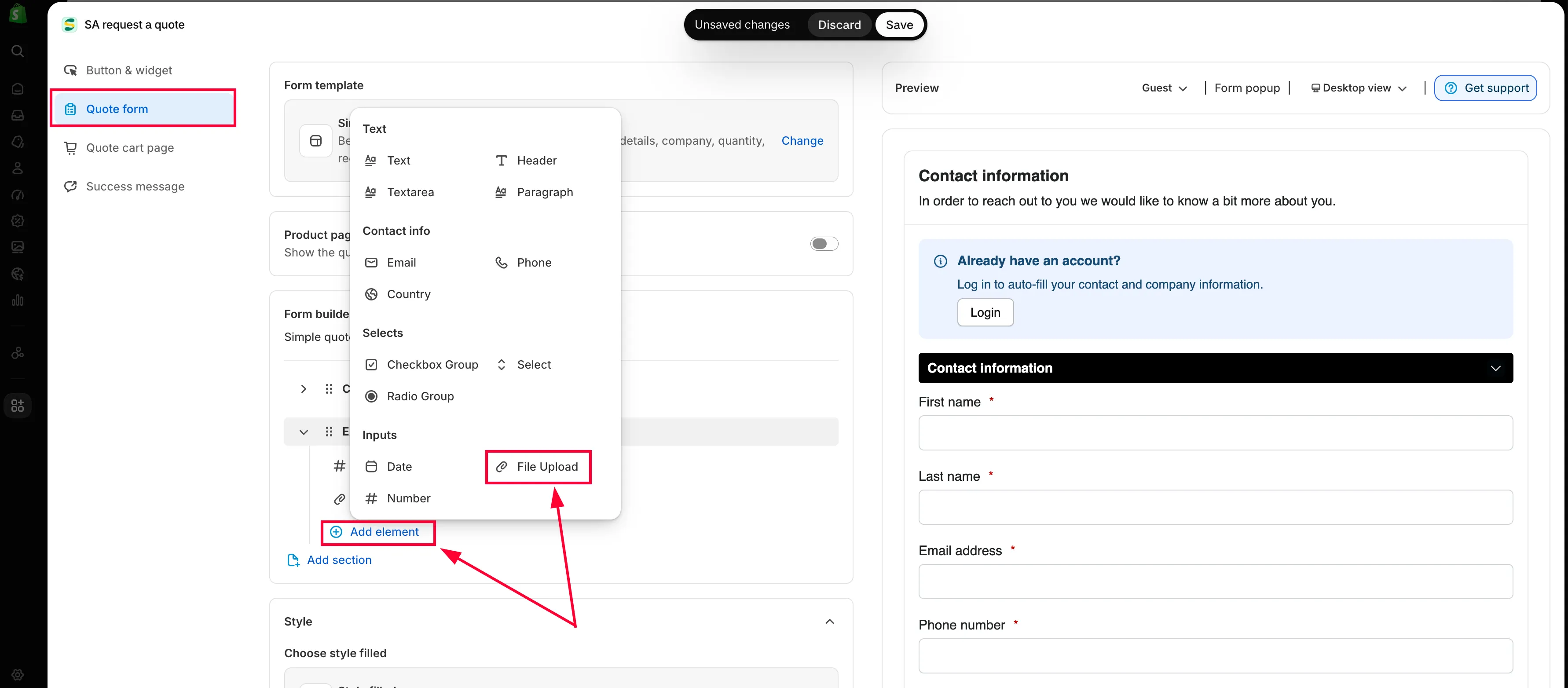
A file field is added like any other element.
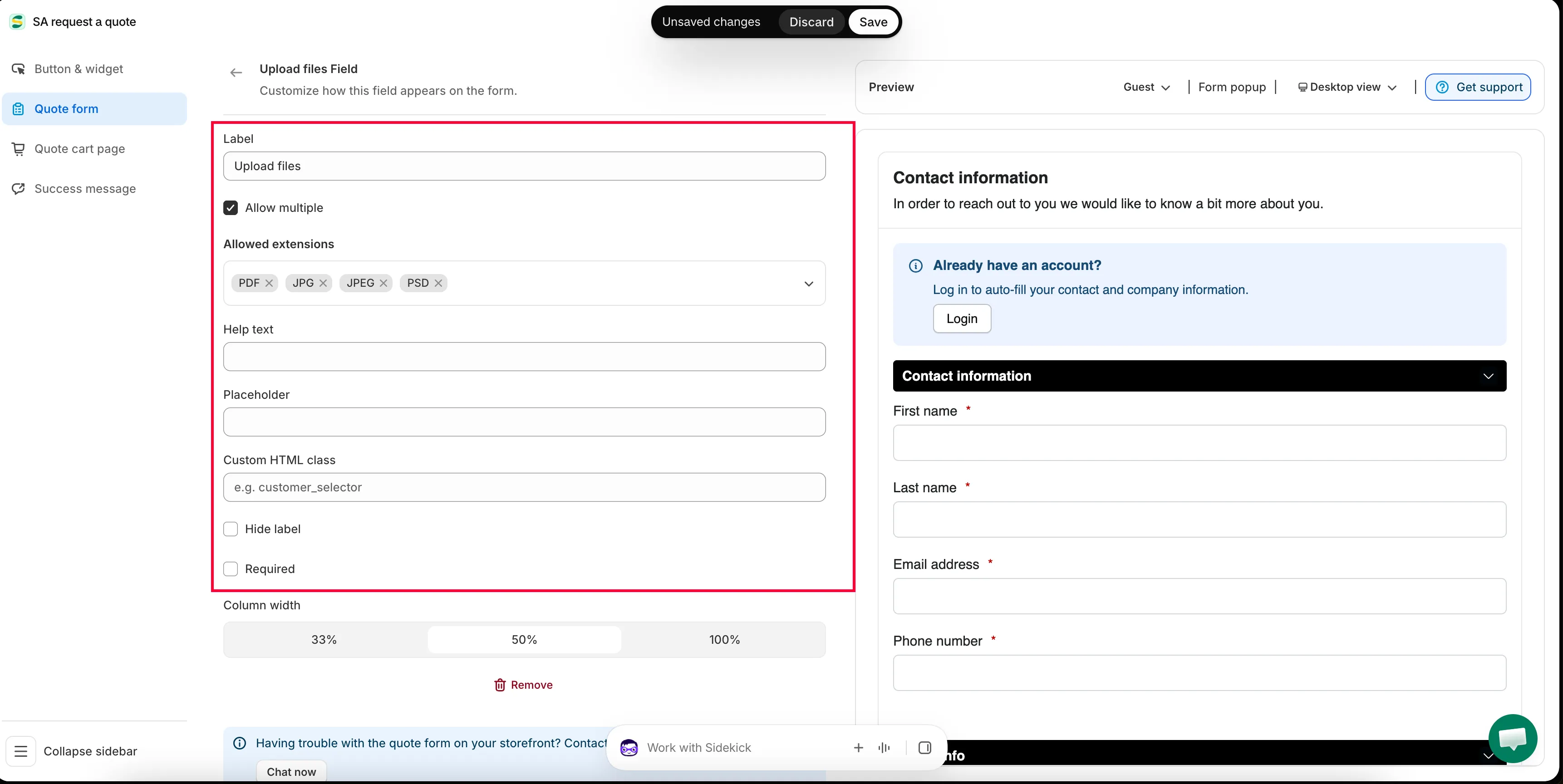
Set what the field accepts before customers meet it.
File size and storage
Section titled “File size and storage”Uploads use your plan’s storage. Your current allowance is on the app dashboard, in the Pricing plan details card — it shows your Current plan alongside Storage size, Used storage and Maximum file size.
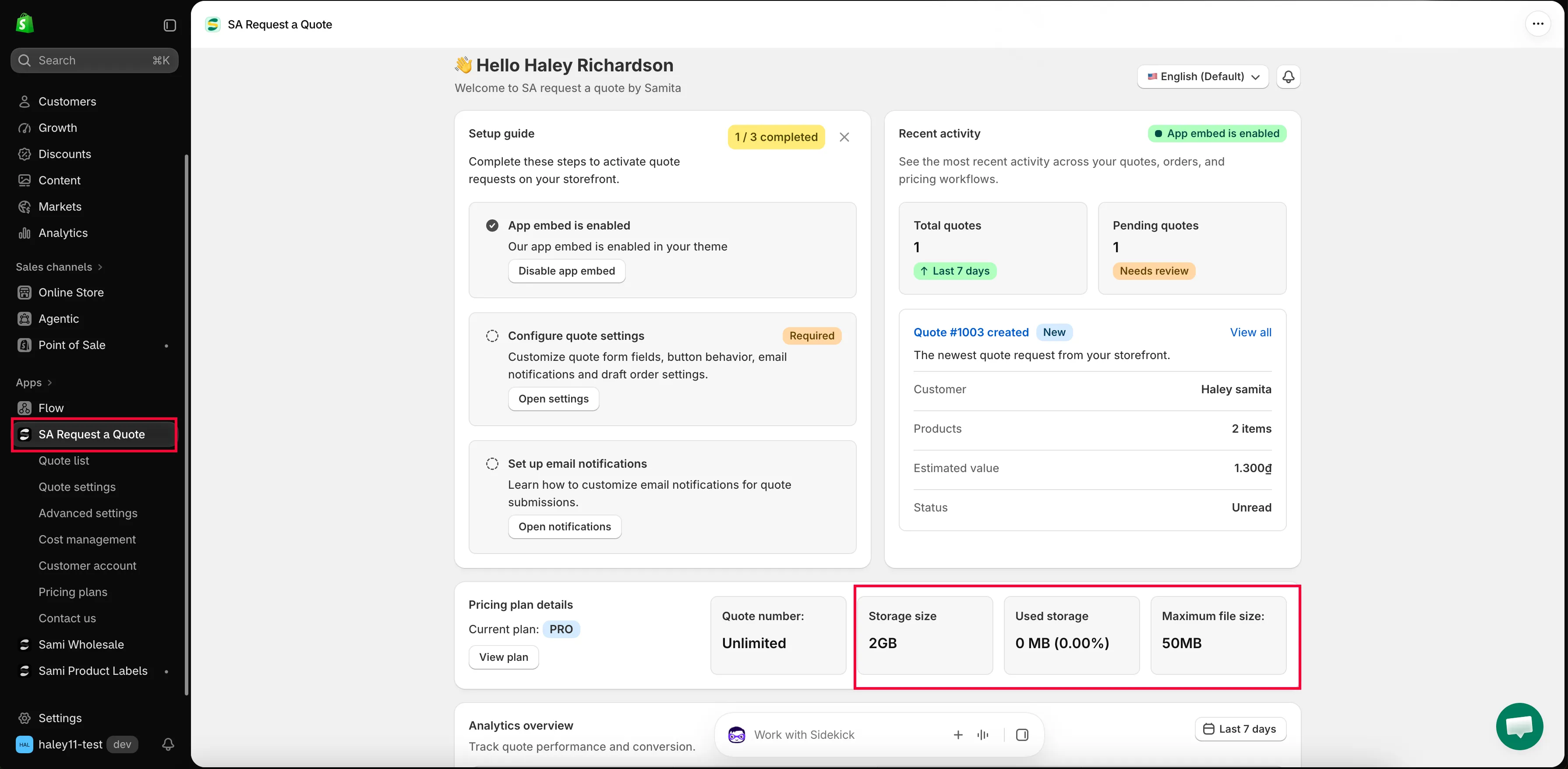
The PRO plan lists a maximum allowed file size of 50MB, a storage size of 2GB, and file history of 3 month. Compare the plans in Plan comparison.
Next steps
Section titled “Next steps”- View and edit a quote — where to find what a customer sent
- Add reCAPTCHA — keep spam out of a form that accepts uploads
- Build a standard form — the rest of the form