
Hide prices by tag
Use the condition builder on the Hide price tab to cover products by tag, type, vendor, price, stock or collection.
Conditions are the lowest-maintenance way to hide prices. You describe which products qualify once, and any product that matches is covered — including ones you add next month.
Set it up
Section titled “Set it up”-
Open the Hide price tab
Section titled “Open the Hide price tab”In the app menu, open Advanced settings and select the Hide price tab.
-
Choose the conditions option
Section titled “Choose the conditions option”Select Yes, hide prices for products that match conditions. A Conditions section appears.
The Login to show price section on the same tab is separate — this option does not bring it up. See Require login to show price.
-
Choose how the conditions combine
Section titled “Choose how the conditions combine”Pick a match mode:
- All conditions — “Must satisfy all conditions”
- Any condition — “Must satisfy at least one condition”
With one condition the two behave the same. The choice only matters once you add a second.
-
Build the condition
Section titled “Build the condition”Each condition is a field, an operator and a value. To hide prices on everything you tag for trade, choose Product tag, then is equal to, then type your tag.
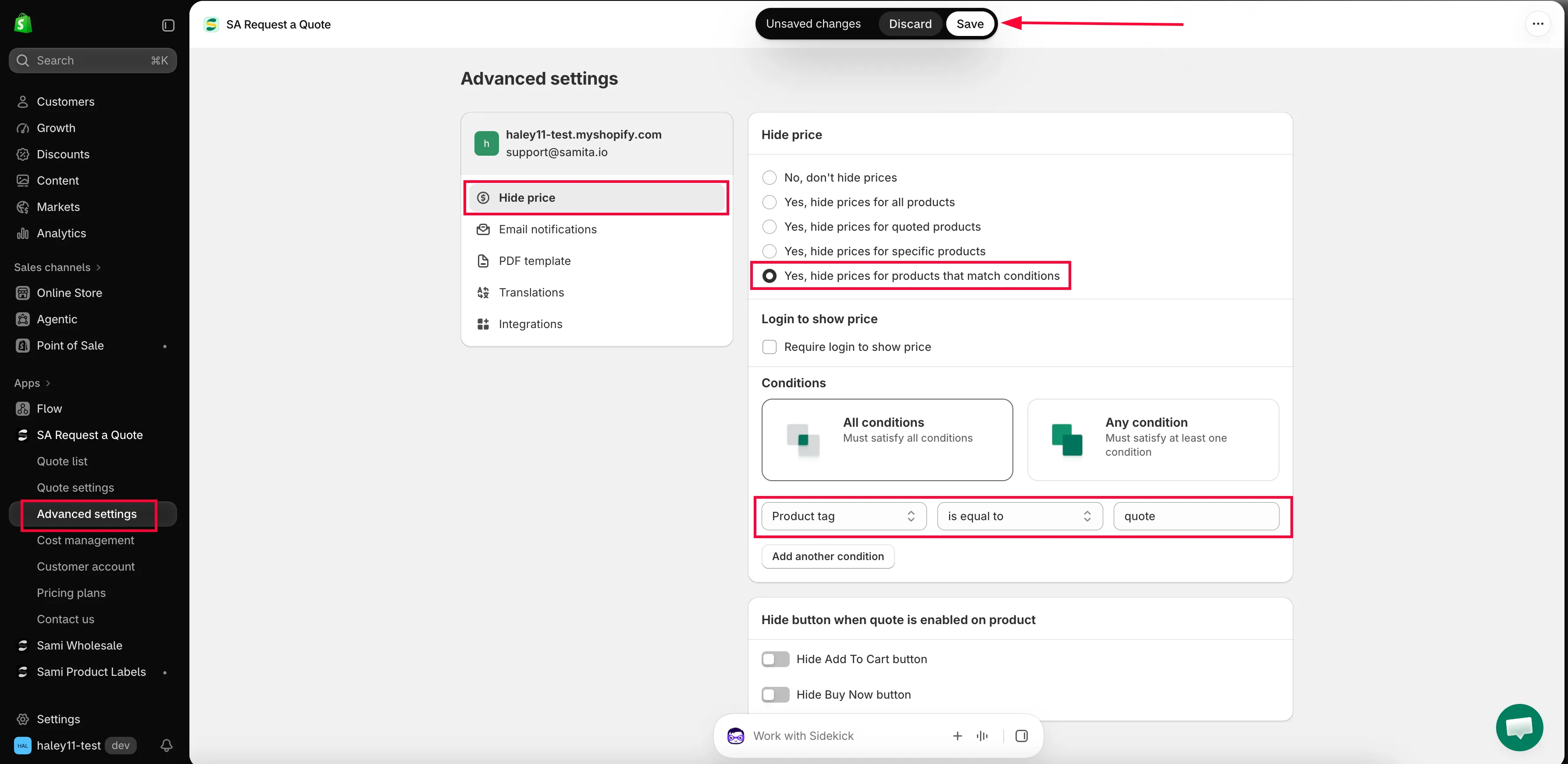
Conditions pick the products by rule instead of one by one.
-
Add more conditions if you need them
Section titled “Add more conditions if you need them”Select Add another condition and build the next one. Remember that All conditions narrows the set with every rule you add, while Any condition widens it.
-
Save and check
Section titled “Save and check”Select Save — or Discard changes if you want to back out. Then tag one of your products in Shopify and confirm its price disappears on your storefront, in a private browser window.
What you can match on
Section titled “What you can match on”| Field | Use it for |
|---|---|
| Product tag | The usual choice. You control it yourself, product by product, in Shopify. |
| Product title | Ranges with a shared word in the name. |
| Product type | A whole category, if your product types are tidy. |
| Product vendor | One supplier's range — handy when a brand forbids showing prices publicly. |
| Product price | Everything above or below a figure, such as high-value goods you would rather quote. |
| Product in stock | Stock-dependent pricing. |
| Collection | A collection you already maintain. |
The operators
Section titled “The operators”is equal to · is not equal to · starts with · ends with · contains · does not contain
Two worked examples
Section titled “Two worked examples”By tag. Tag the products you sell on trade terms with hideprice in Shopify, then set the condition to Product tag — is equal to — hideprice. Every product carrying that tag loses its price; everything else is untouched. Tagging one more product later is all it takes to cover it.
By collection. If you already keep the range in a collection, set the condition to Collection — is equal to — the collection name. Every product in that collection shows no price, on its product page and in the collection listing alike.
What your customers see
Section titled “What your customers see”Matched products keep everything except the number: the title, the photos, the description and the variant choices all stay. Unmatched products carry on showing their price as normal, on the same page, side by side — which is exactly why conditions suit a store that sells to both trade and the public.
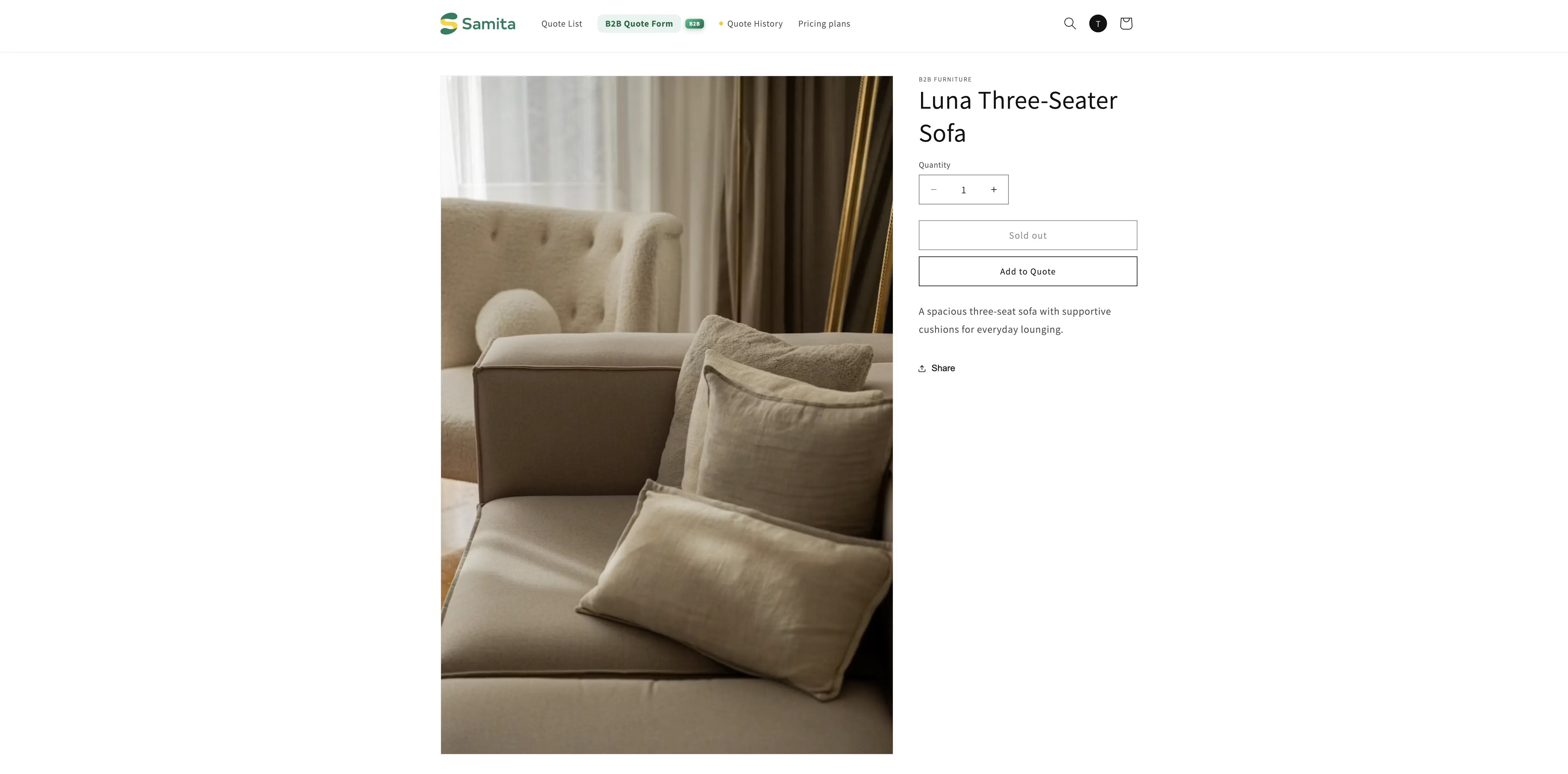
Tagging your products
Section titled “Tagging your products”The tag lives in Shopify, not in this app. Open a product in your Shopify admin, add the tag, and save — the product is covered the next time your storefront loads it.
Why this beats a hand-picked list
Section titled “Why this beats a hand-picked list”| What happens | With a hand-picked list | With a condition |
|---|---|---|
| You add a new trade product | Its price shows until somebody opens the app and adds it. | It is covered as soon as it matches. |
| A colleague creates products | They need access to the app. | They only need to tag the product in Shopify. |
| You stop quoting a product | Remove it from the list in the app. | Remove the tag in Shopify. |
Next steps
Section titled “Next steps”- Require login to show price — show the price once a customer signs in
- Hide Add to Cart and Buy now — also take away Add to cart and Buy it now
- Hide prices for selected products — pick a fixed list by hand instead