
Collecting quote requests overview
The ways customers can start a quote in your store, and where every one of those settings now lives.
Before a customer can ask you for a price, they need somewhere to ask from. Nearly everything that decides where and how they can ask sits in one place: Quote settings.
Where these settings live
Section titled “Where these settings live”In the app, open Quote settings. The page is headed Request a Quote — “Customize the quote experience and choose which products will show the RFQ button.” It has three parts:
| Section | What it is for |
|---|---|
| Customize | "Design how your request a quote experience will look to customers. Set button behavior, quote form, quote cart, widget, colors and messages." The Customize button opens a full-screen editor. |
| Preview | A quick look at the result, with Online store, Cart and Quote list tabs. |
| Select quote products | "Select products or collections that should show the Request a Quote button." |
The Customize section also shows the state you are currently in at a glance: Active now, Visibility, Product page, Collection page and Cart page.
The four tabs inside Customize
Section titled “The four tabs inside Customize”Click Customize and you get an editor with four tabs:
- Button & widget — the quote button’s text, what clicking it does, where it appears, who can see it, and how it looks.
- Quote form — the fields customers fill in.
- Quote cart page — the customer’s quote cart, the storefront pages, and the floating quote widget.
- Success message — what customers see once a request has been sent.
Most of the pages in this section are about the Button & widget tab.
Choose your entry points
Section titled “Choose your entry points”| Entry point | Best when | Set it up |
|---|---|---|
| Button on product pages | Customers decide product by product. The most common choice. | Quote button on product pages |
| Button on collection pages | Customers order several items at once and shouldn't have to open each product. | Quote button on collection pages |
| Button on the cart page | Customers fill a cart first, then decide they would rather ask for a price. | Add cart items to a quote |
| Form on the product page | You sell one custom item at a time and want the fewest possible clicks. | Quote form on product pages |
| Floating quote cart widget | Customers build a list while browsing and need to reach it from any page. | Floating quote widget |
Each of the three button positions is its own dropdown, so you can show the button in one place, all three, or none.
Then decide the details
Section titled “Then decide the details”- Choose quotable products — which products show the button at all
- Set the after-click behavior — what happens the moment a customer clicks
- Change button text and colors — the wording and the look of the button
- Require login to quote — who is allowed to see and use it
- Show a variant selector — letting customers pick a variant before adding
- Let customers propose a price — letting customers name the price they want
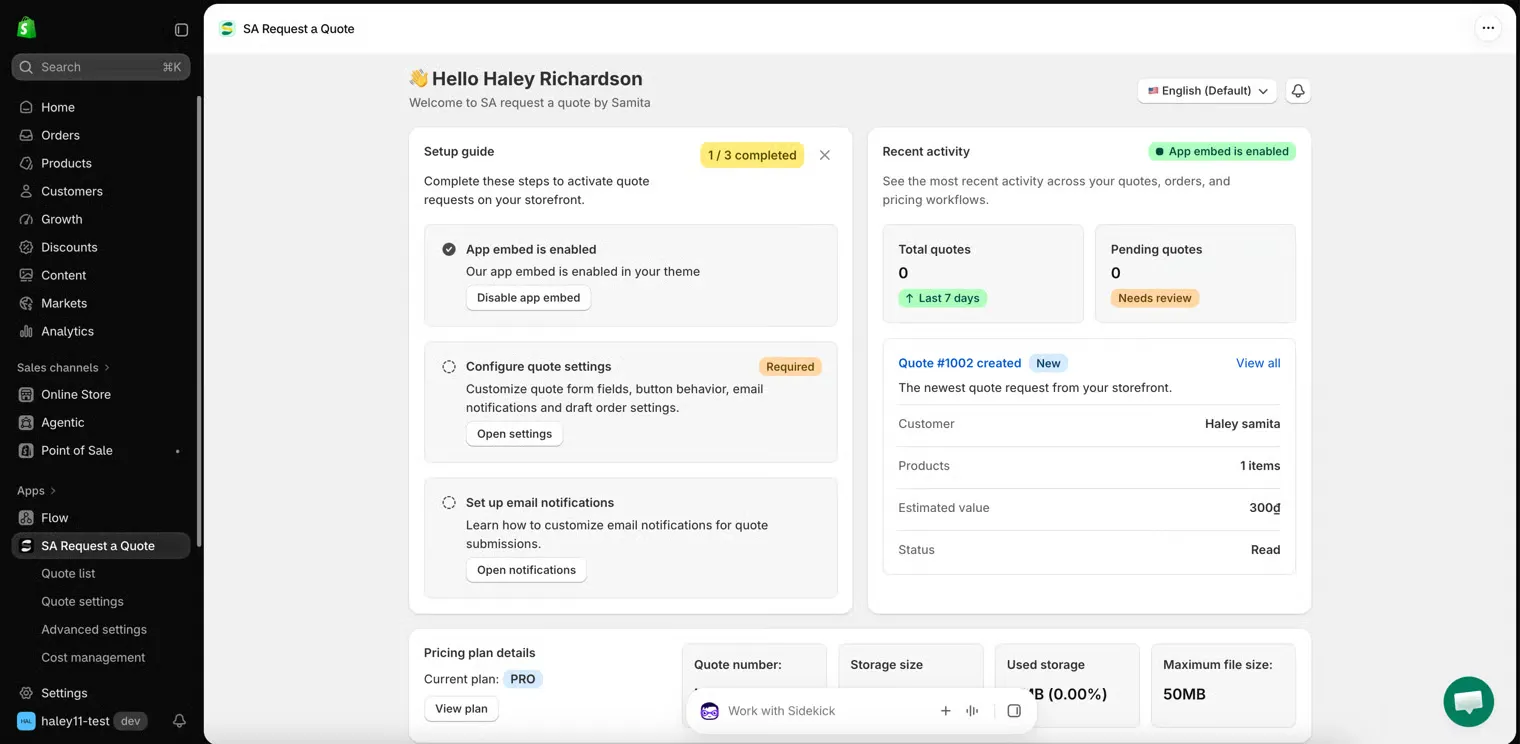
The Setup guide on the dashboard links straight to Quote settings with Open settings.
Next steps
Section titled “Next steps”- Quote button on product pages — the usual place to start
- Choose quotable products — decide which products can be quoted
- Quote form overview — design what customers fill in