
Klaviyo
Send quote requesters into a Klaviyo list so you can trigger flows from quote activity.
Connecting Klaviyo means every quote request also becomes a contact you can follow up with, without anyone copying details by hand.
Step 1 — Get your API key
Section titled “Step 1 — Get your API key”In your Klaviyo account, generate an API key. Klaviyo’s own guide walks through it: How to manage API keys.
Keep the key somewhere safe while you finish the setup.
Step 2 — Connect it in the app
Section titled “Step 2 — Connect it in the app”-
Open the Integrations tab
Section titled “Open the Integrations tab”In your Shopify admin, open SA Request a Quote, select Advanced settings, then open the Integrations tab.
-
Select Klaviyo
Section titled “Select Klaviyo”Under Third-party integration, select Klaviyo — described in the app as “Unified customer platform for email, SMS, and more”.
The Klaviyo page opens, with a Third-party breadcrumb to take you back to the list.
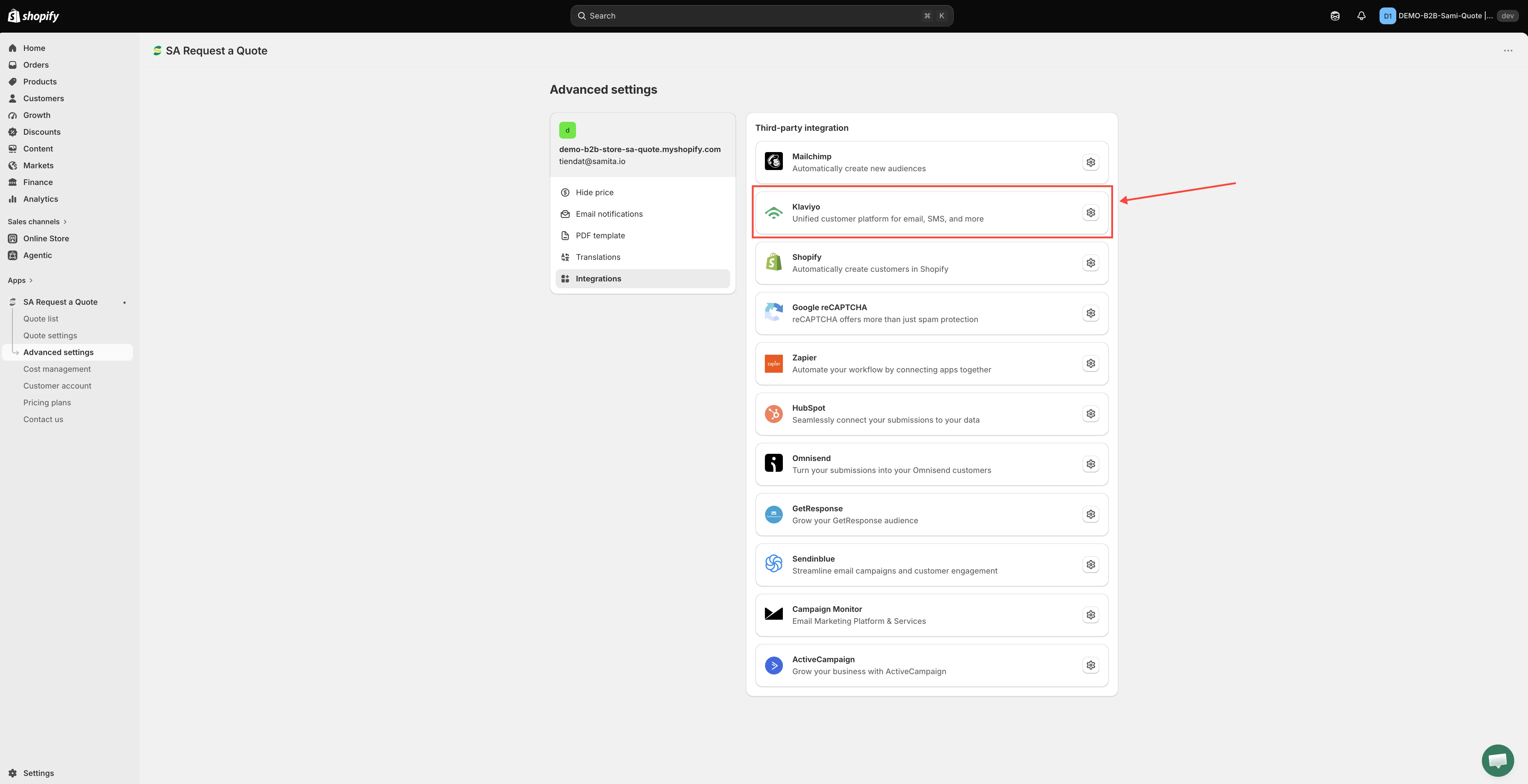
Pick the service, then open its settings.
-
Turn on Enable
Section titled “Turn on Enable”Switch on Enable. Nothing is sent to Klaviyo until you do.
-
Paste your API key
Section titled “Paste your API key”Paste the key from Step 1 into the API key field.
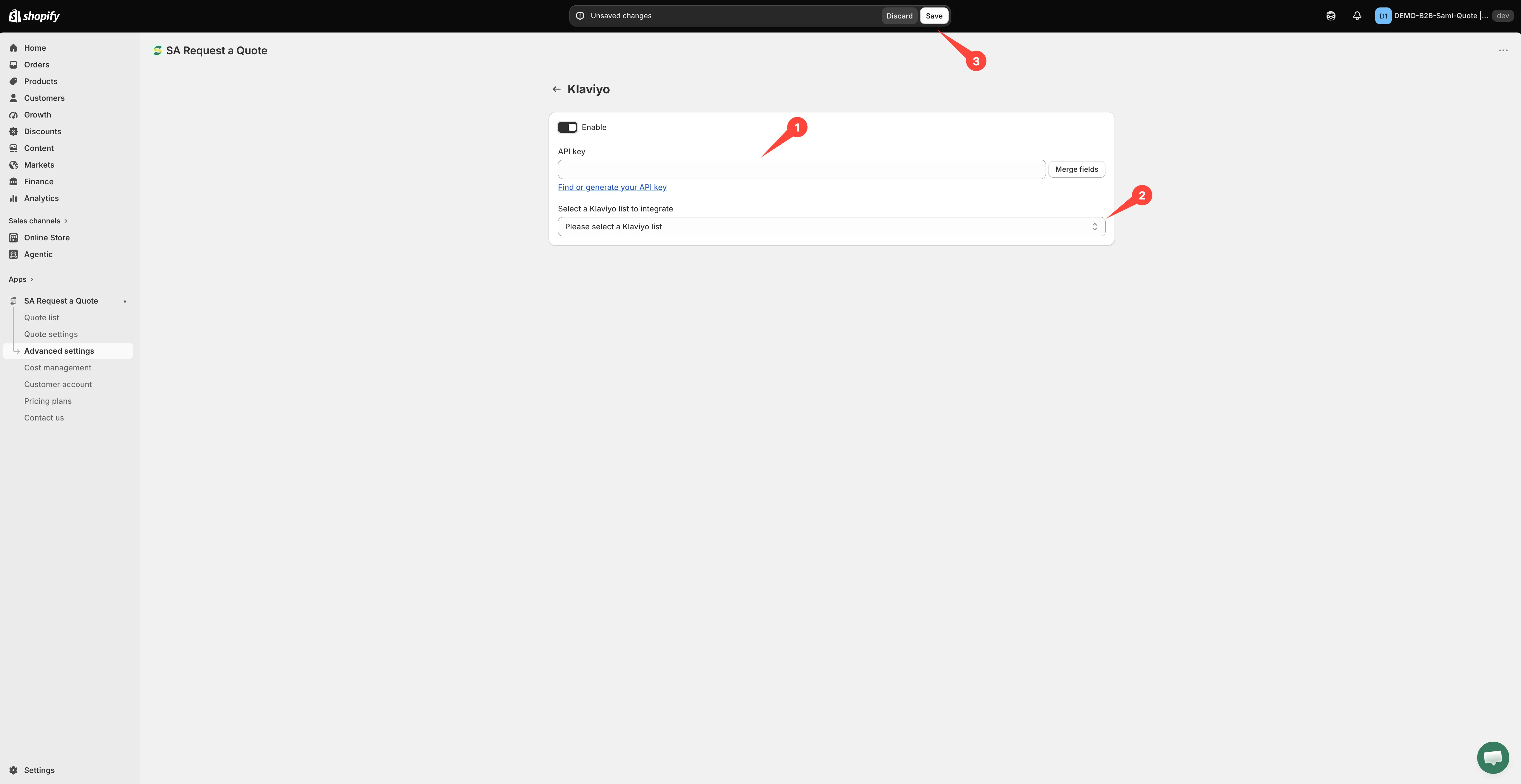
One key connects the app to your Klaviyo account.
-
Choose the list and match your fields
Section titled “Choose the list and match your fields”Pick the Klaviyo list new contacts should join, and the mapping rows appear beneath it on their own. Line up your quote form fields — the Contact information fields such as Email address, First name and Last name — with the matching fields in Klaviyo.
Create the list in Klaviyo first — the app can only offer lists that already exist. Email address is the one mapping you cannot skip: without it there is no contact to create. The rest are optional.
-
Select Save. Nothing is stored until you do, and an unsaved page sends nothing.
Step 3 — Test it
Section titled “Step 3 — Test it”Submit a real quote request from your storefront, then check Klaviyo for the new contact. Confirm the fields you matched actually arrived — not just the email address.
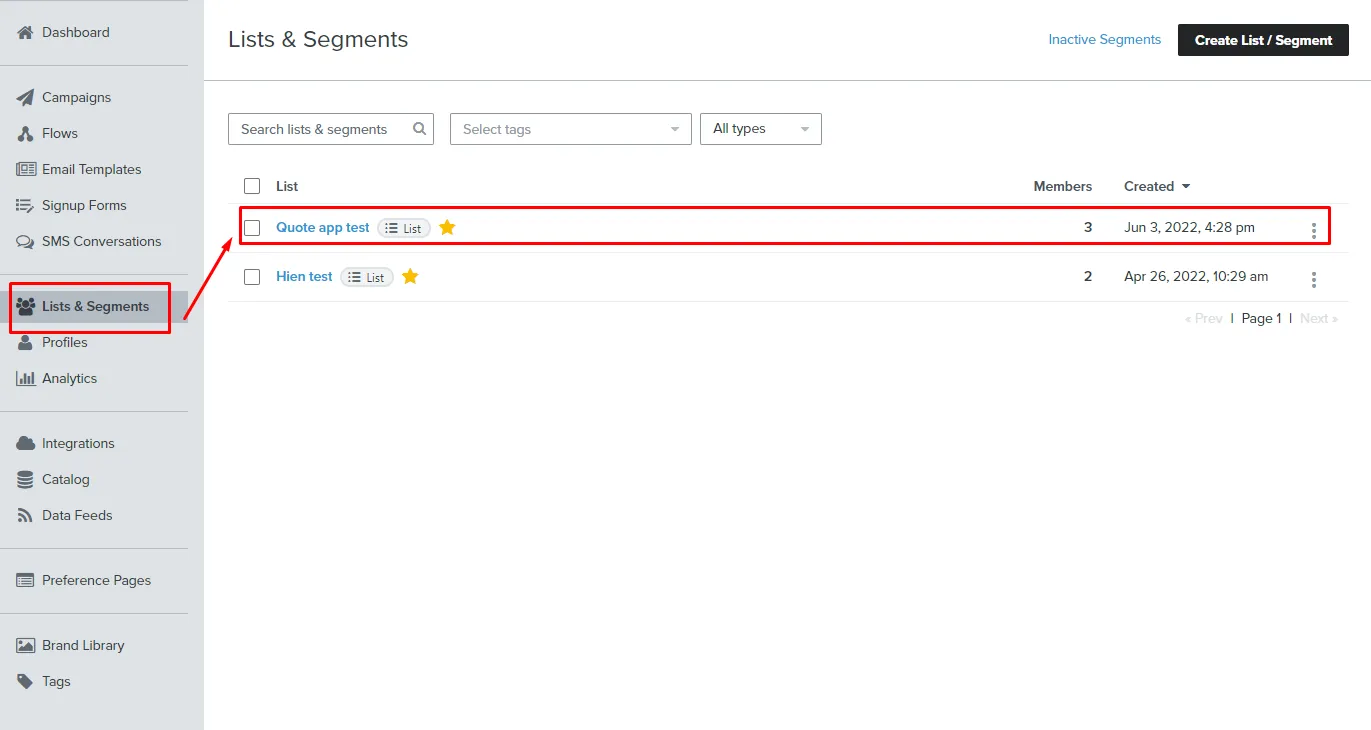
The proof is in Klaviyo: the list’s member count rises with each request.
Is this the right tool?
Section titled “Is this the right tool?”Best when you want automated follow-up rather than one-off campaigns.
If you do not already use Klaviyo, do not adopt it just for this — Zapier connects quote data to almost anything, and Create a Shopify customer after submit keeps everything inside Shopify.
If contacts are not arriving
Section titled “If contacts are not arriving”- Check Enable is still on. Nothing is sent while it is off.
- Check the key is still valid. Regenerating a key in Klaviyo breaks the connection until you paste the new one in. Saved keys are shown masked, so you cannot compare them by reading them — paste a fresh one if in doubt.
- Check you picked the right list. Contacts may be arriving somewhere you are not looking.
- Check the email field is matched. Without it there is no contact to create.
Still stuck? Email [email protected].
Next steps
Section titled “Next steps”- Integrations overview — the other tools you can connect
- Mailchimp — the other marketing tool on the FREE plan
- Build a standard form — make sure your form collects what you are matching