
Pricing plans
Compare the FREE, PREMIUM and PRO plans, switch between monthly and yearly billing, and see what a downgrade would change on your storefront.
Your plan decides which features are available. If something described in this documentation isn’t in your app, check here first.
Pricing plans is a top-level item in the app’s navigation, alongside Quote list, Quote settings, Advanced settings, Cost management, Customer account and Contact us.
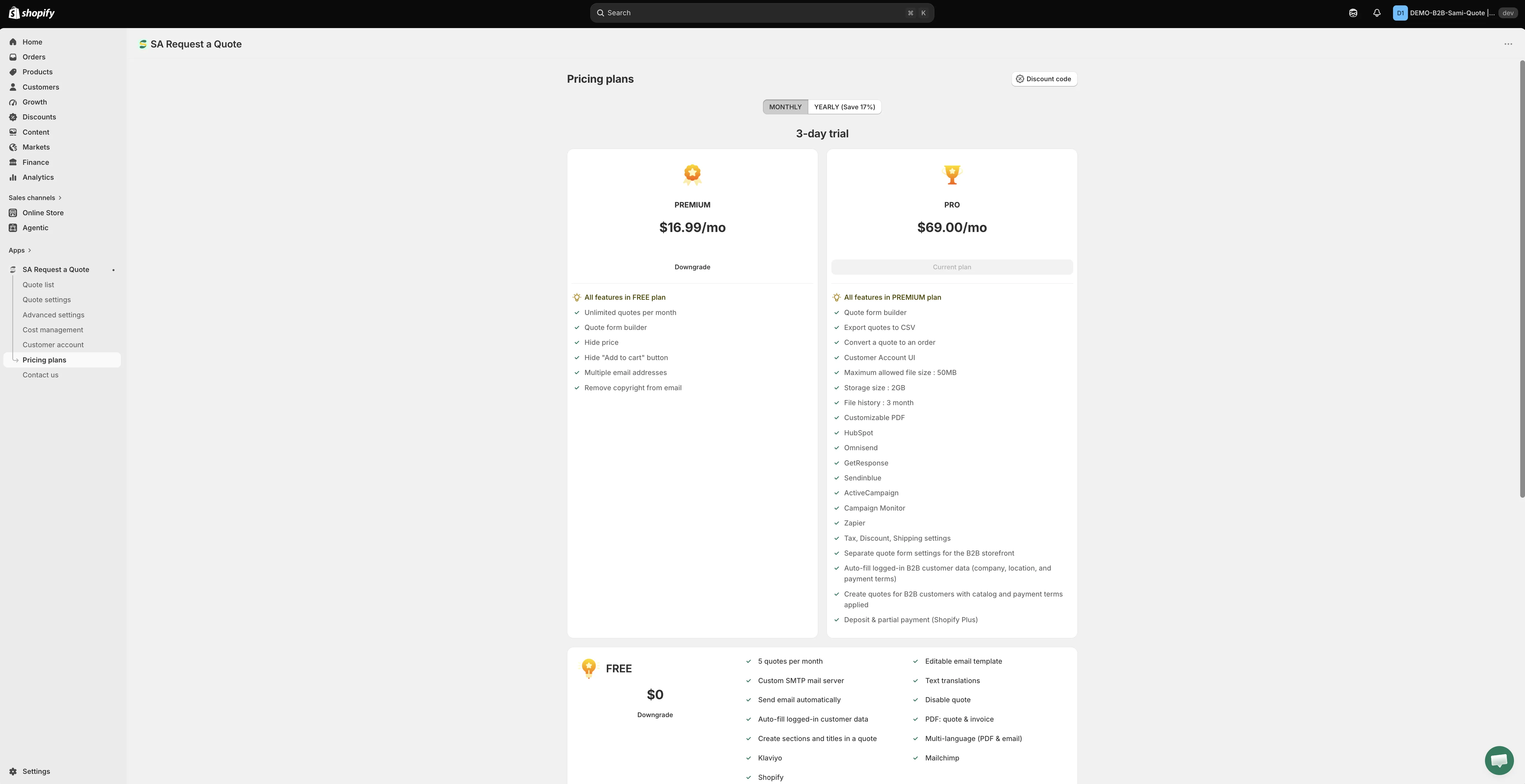
Read the current prices and trial from this page — it is always up to date.
Choose a plan
Section titled “Choose a plan”-
Open Pricing plans
Section titled “Open Pricing plans”In the app, go to Pricing plans. You can also reach it from Pricing plan details on the dashboard, using View plan.
-
Pick monthly or yearly
Section titled “Pick monthly or yearly”The billing toggle at the top switches between MONTHLY and YEARLY (Save 17%). The plan cards change with it, so compare like for like before you decide.
-
Check the trial on the card
Section titled “Check the trial on the card”Paid plans are offered with a free trial. The length is shown on the plan card and it is not the same for both billing periods, so read it with the toggle set the way you intend to pay.
-
Choose the plan you want
Section titled “Choose the plan you want”Compare the feature lists below against what you actually need — the storefront-facing ones, Hide price and Hide “Add to cart” button, are the ones customers notice.
The three plans
Section titled “The three plans”| Plan | Who it suits |
|---|---|
| FREE | Stores testing quote requests, or handling a handful a month. |
| PREMIUM | Stores taking quotes regularly, or hiding prices. |
| PRO | B2B stores converting quotes to orders, using the wider integrations, or handling larger files. |
- 5 quotes per month
- Editable email template
- Custom SMTP mail server
- Text translations
- Send email automatically
- Disable quote
- Auto-fill logged-in customer data
- PDF: quote & invoice
- Create sections and titles in a quote
- Multi-language (PDF & email)
- Klaviyo
- Mailchimp
- Shopify
PREMIUM
Section titled “PREMIUM”- All features in FREE plan
- Unlimited quotes per month
- Quote form builder
- Hide price
- Hide “Add to cart” button
- Multiple email addresses
- Remove copyright from email
The two that change your storefront most are Hide price and Hide “Add to cart” button — see Hiding prices overview.
- All features in PREMIUM plan
- Quote form builder
- Export quotes to CSV
- Convert a quote to an order
- Customer Account UI
- Maximum allowed file size: 50MB
- Storage size: 2GB
- File history: 3 month
- Customizable PDF
- HubSpot
- Omnisend
- GetResponse
- Sendinblue
- ActiveCampaign
- Campaign Monitor
- Zapier
- Tax, Discount, Shipping settings
- Separate quote form settings for the B2B storefront
- Auto-fill logged-in B2B customer data (company, location, and payment terms)
- Create quotes for B2B customers with catalog and payment terms applied
- Deposit & partial payment (Shopify Plus)
What every plan gets you
Section titled “What every plan gets you”- 24/7 email support
- Smart B2B solution
- Help docs
- Customizable style
Greyed out means the plan, not a fault
Section titled “Greyed out means the plan, not a fault”When a feature isn’t on your plan, the app leaves the control where it is, disables it, and shows a padlock line reading “🔐 This feature is available on …” with a link to the plan that includes it.
So a switch you can’t move or a radio you can’t select is usually the plan talking, not a broken app or a broken theme. On the FREE plan you meet this most often on the Hide price tab and on the Hide Add To Cart button and Hide Buy Now button switches.
Questions about billing
Section titled “Questions about billing”The Pricing plans page carries a Frequently asked questions section below the plan cards. Read it there rather than here — it answers billing questions against the figures your store is actually being offered.
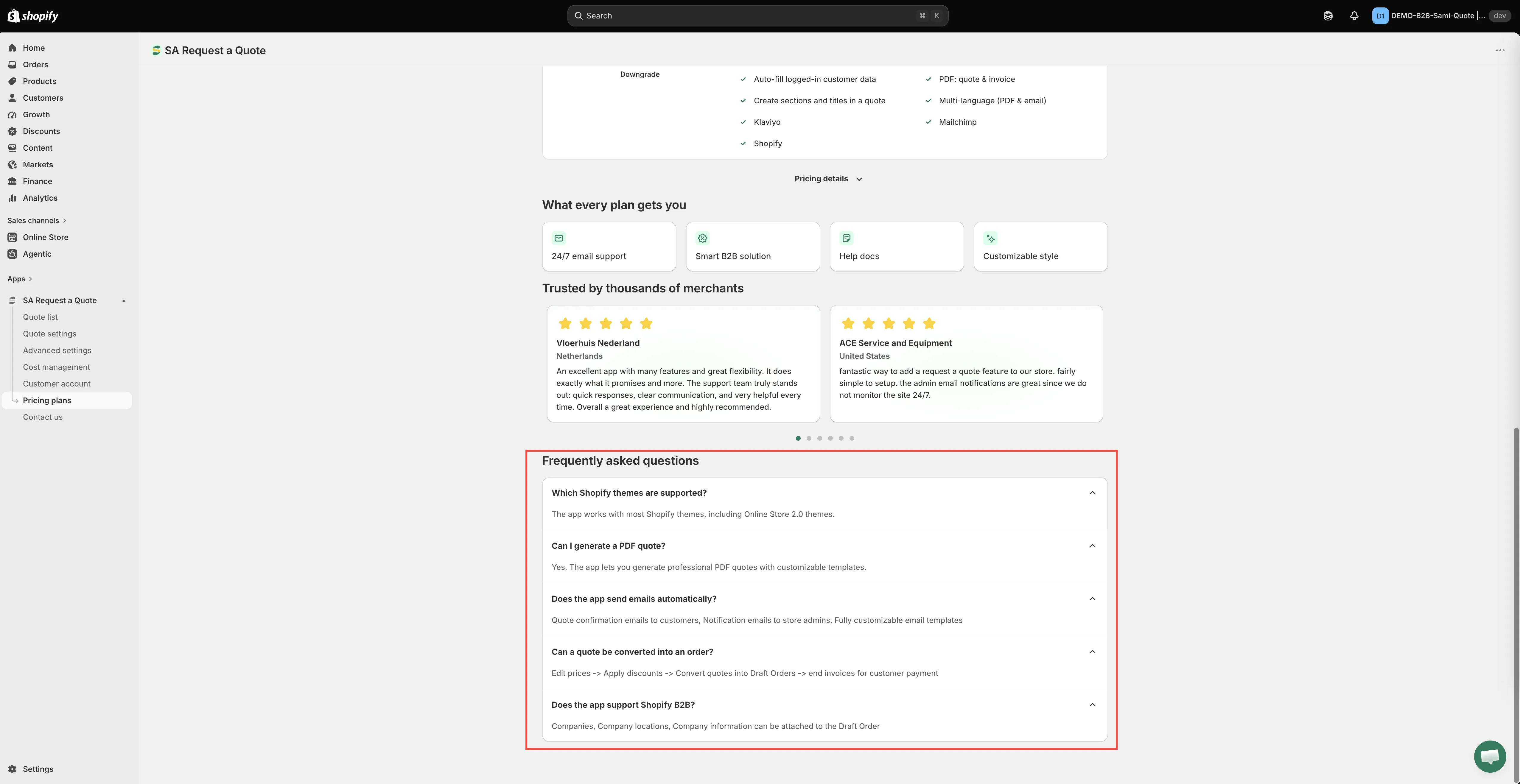
If it doesn’t cover your case, ask before you switch — see Contact support.
Checking your usage
Section titled “Checking your usage”You don’t have to open Pricing plans to see where you stand. The Pricing plan details card on the dashboard shows your Current plan together with Quote number, Storage size, Used storage and Maximum file size, and View plan takes you to the full page.
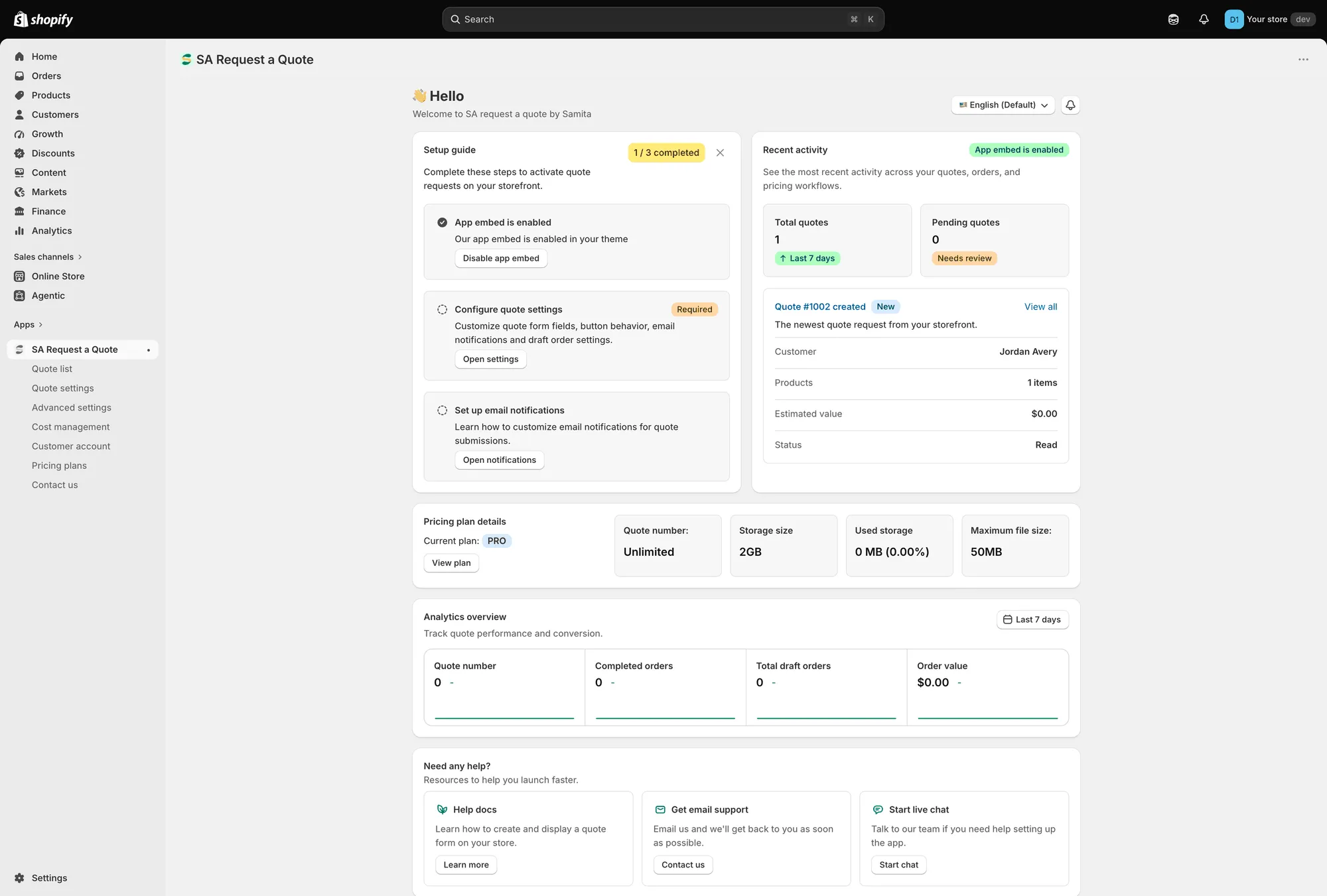
Pricing plan details on the dashboard, with View plan.
Storage matters if you accept file uploads with quote requests — see Allow file uploads.
Before you downgrade
Section titled “Before you downgrade”Worth doing first:
- Export your quotes if you rely on the history — Export quotes to CSV is a PRO feature, so do it while you still have it. See Export quotes to CSV.
- Check what else is PRO — Convert a quote to an order and Customer Account UI are on that plan too, so the workflows built on them stop being available.
- Check your storefront afterwards, logged out, to confirm it still behaves the way you intend.
After a downgrade, the controls for features your new plan doesn’t include are disabled and carry the padlock line described above.
Next steps
Section titled “Next steps”- Plan comparison — the feature-by-feature breakdown
- General settings — where each setting lives in the app
- Contact support — ask which plan fits your setup