
Change notification recipients
Set the Admin email field so quote notifications reach the right people — up to five addresses, separated by commas.
Quote notifications are only useful if they land in front of whoever prices quotes. The addresses that get them are set in Admin email, inside the Mail notifications editor.
Change the addresses
Section titled “Change the addresses”-
Open Advanced settings
Section titled “Open Advanced settings”In the app sidebar, click Advanced settings.
-
Go to the Email notifications tab
Section titled “Go to the Email notifications tab”Choose Email notifications from the list of tabs.
-
Open the Mail notifications editor
Section titled “Open the Mail notifications editor”Click the icon button at the end of the Mail notifications row.
-
Fill in Admin email
Section titled “Fill in Admin email”On the Basic/Advance tab, the General section holds Email, and under it the Admin email field. Type the address that should receive the notification.
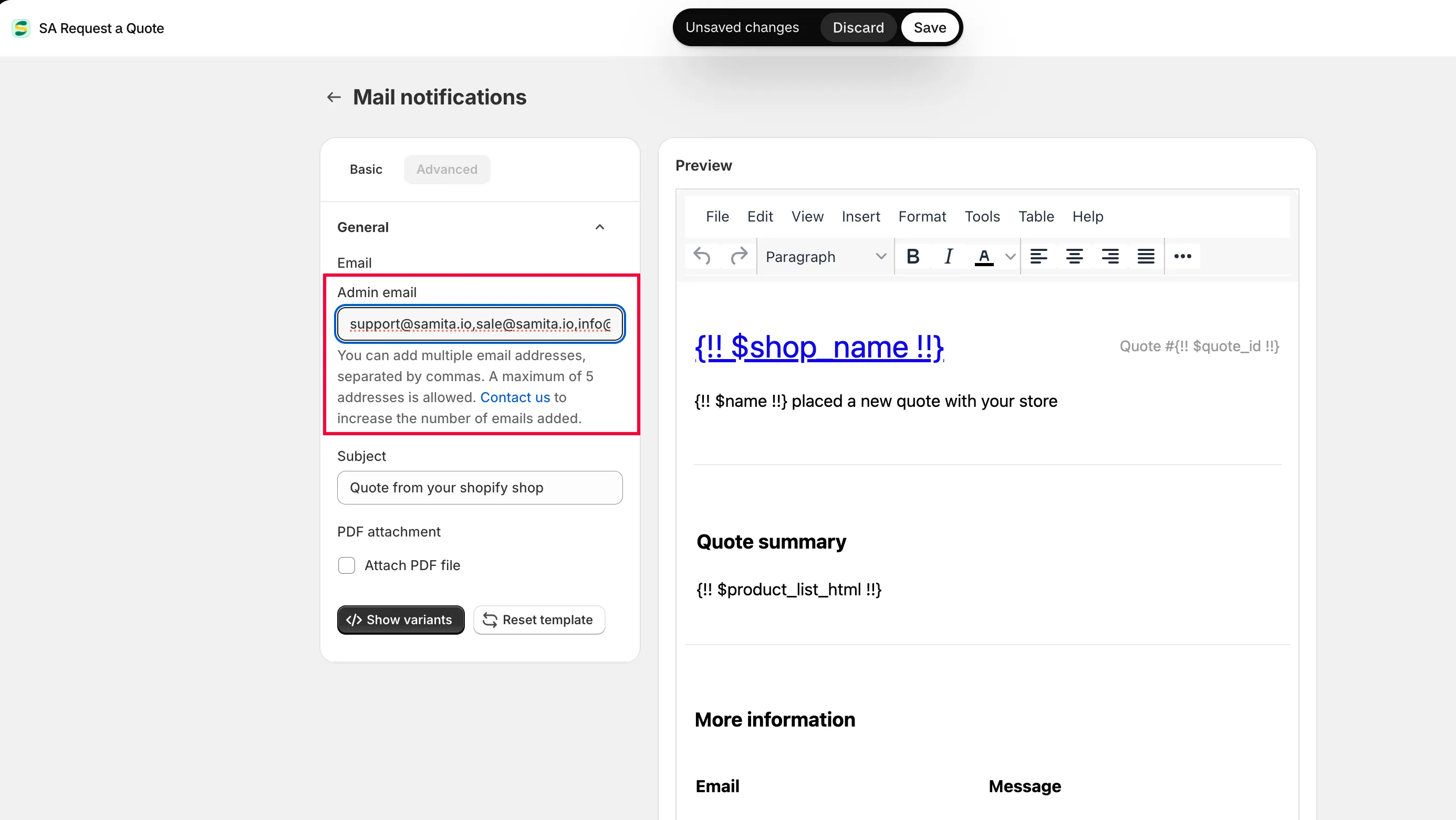
This is the address the app notifies when a quote arrives.
-
Add more people, then save
Section titled “Add more people, then save”Separate additional addresses with commas, then save.
-
Test it
Section titled “Test it”Submit a test quote request from your storefront and confirm everyone on the list receives it.
How many addresses you can add
Section titled “How many addresses you can add”The field’s own help text spells out the limit:
Contact us is a page in the app sidebar, and you can email [email protected] directly.
Who should be on the list
Section titled “Who should be on the list”Five slots go quickly, so spend them well.
| Include | Why |
|---|---|
| A shared team inbox | The best use of a single slot. Cover for holidays and staff changes without editing this field again. |
| Whoever prices quotes | They need to see the request to act on it. |
| A manager, if approvals are needed | Only if they genuinely approve pricing — otherwise it is noise they will start ignoring. |
Next steps
Section titled “Next steps”- Emails sent to admin — make the notification more useful at a glance
- Send from your own address (SMTP) — send from your own mail server
- Troubleshooting — if notifications are not arriving