
Managing quotes overview
Where quote requests arrive, what the Quotes page shows you, and how a request becomes a paid order.
Every request your customers send arrives in Quote list, the first item under SA Request a Quote in your Shopify admin. The page itself is headed Quotes, and it is your working queue: you open a request, price it, send it back, and create an order from it when the customer agrees.
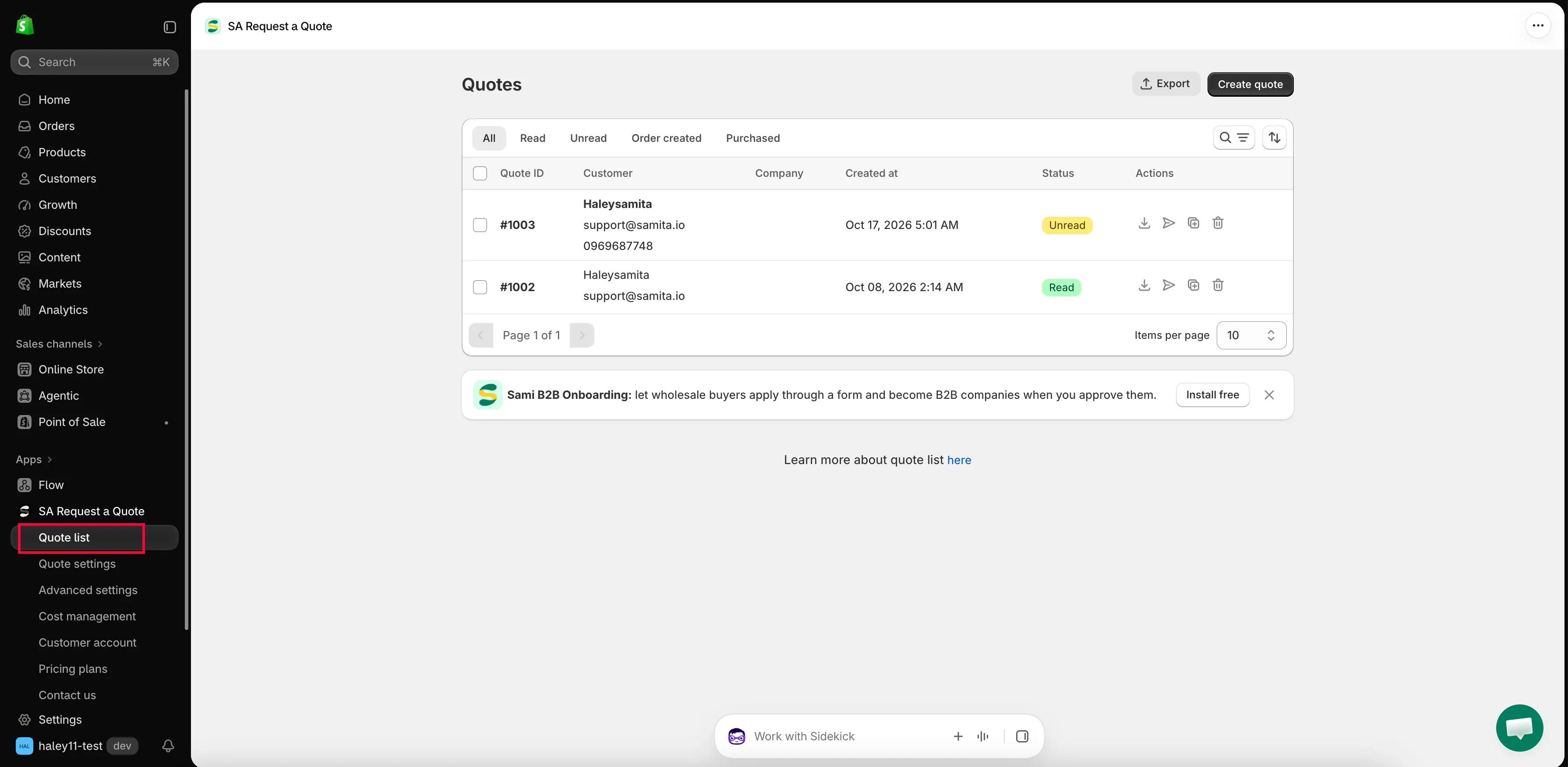
The Quotes page is where every request lands.
What is on the page
Section titled “What is on the page”Two buttons sit at the top right: Export and Create quote.
Below them are the status tabs, which split the queue up for you.
| Tab | What it shows |
|---|---|
| All | Every quote, whatever state it is in. |
| Read | Requests someone has already looked at. |
| Unread | New requests still waiting on you — check this one first each morning. |
| Order created | Quotes an order has already been created from. |
| Purchased | Quotes the customer has paid for. |
Next to the tabs are a search and filter control and a sort control, for when the queue gets long.
The table itself has six columns: Quote ID, Customer, Company, Created at, Status and Actions.
Each row has four actions in the Actions column: download PDF, send email, duplicate and delete. At the bottom of the table there is pagination with Items per page, which you can set to 10, 20, 30 or 50. Under the table, “Learn more about quote list” links to here.
Inside a quote
Section titled “Inside a quote”Clicking a row opens the quote detail page, headed Quote # and its number. Almost all the real work happens here.
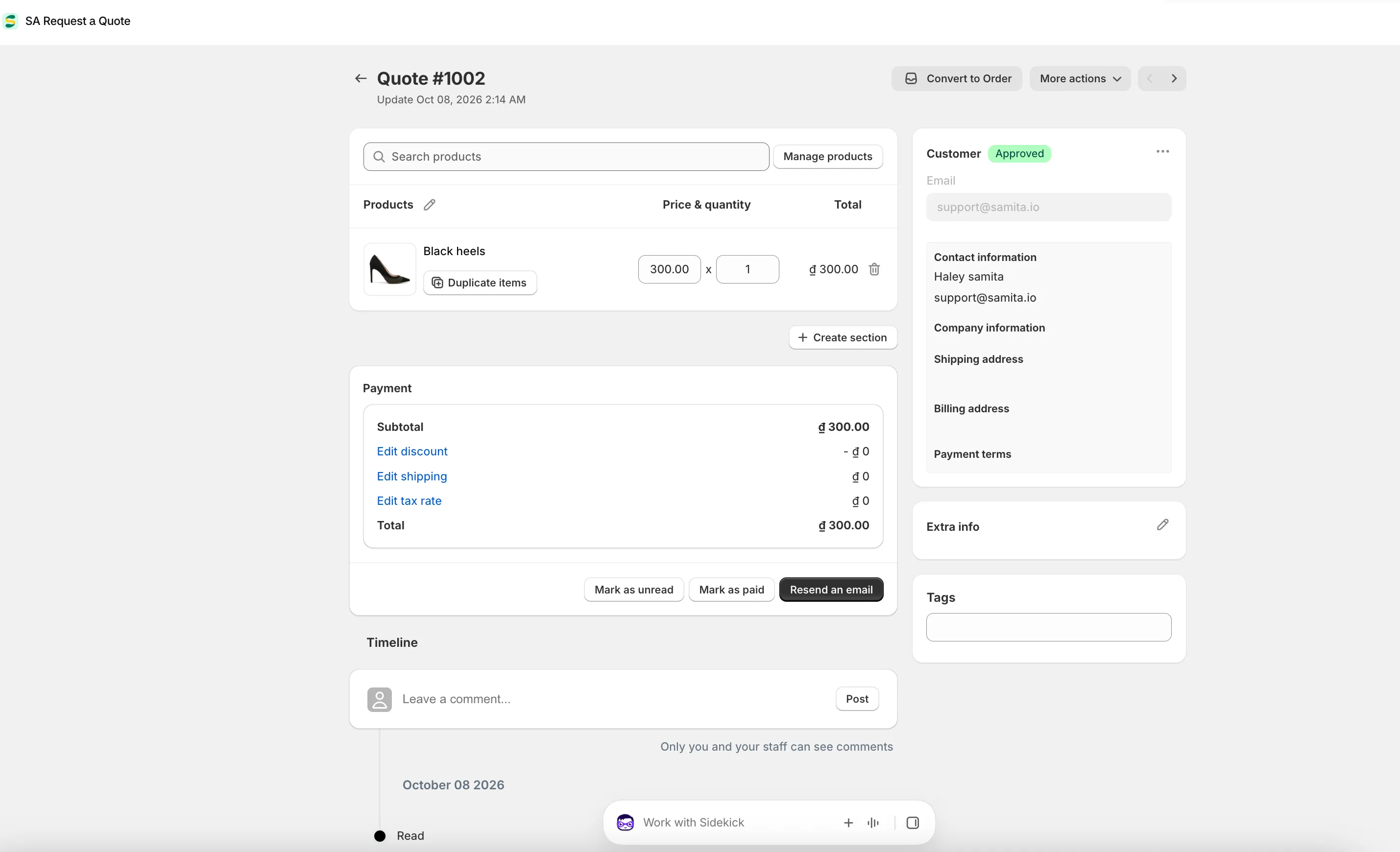
The quote detail page: price it, adjust the money, then convert it.
| Area | What it is for |
|---|---|
| Convert to Order and More actions | The top-right buttons. Converting turns an agreed quote into a sale. |
| Search products, Browse products, Manage products | Change what is on the quote. |
| Products / Price & quantity / Total | The line items, each with its SKU, editable boxes and a Duplicate items button. Create section groups them. |
| Payment | Subtotal, Edit discount, Edit shipping, Edit tax rate and Total. |
| Mark as unread, Mark as paid, Resend an email | The three buttons under the Payment panel. |
| Timeline | The history, plus a comment box and Post. "Only you and your staff can see comments." |
| The right-hand column | Customer and Email, then Contact information, Company information, Shipping address, Billing address, Payment terms, Extra info and Tags. |
What you can do with a quote
Section titled “What you can do with a quote”| Action | When you would use it | How |
|---|---|---|
| View and edit | Read what the customer asked for and set your price. | View and edit a quote |
| Send a quotation | Email your priced quote back to the customer. | Send a quotation |
| Convert to a draft order | The customer accepted — turn the quote into an order and invoice them. | Convert to a draft order |
| Create manually | A request that came in by phone, email or in person. | Create a quote manually |
| Download a PDF | The buyer wants a formal document to file or approve. | Download a quote as PDF |
| Export to CSV | Reporting, or moving the data into another system. | Export quotes to CSV |
| Duplicate or delete | Reuse a similar quote, or clear out a test. | Duplicate or delete a quote |
Where new requests show up first
Section titled “Where new requests show up first”You do not have to live on the Quotes page. The app dashboard has a Recent activity section with Total quotes for the last 7 days, Pending quotes that need review, and a card for the newest request showing its Customer, Products, Estimated value and Status. View all takes you straight to the full list.
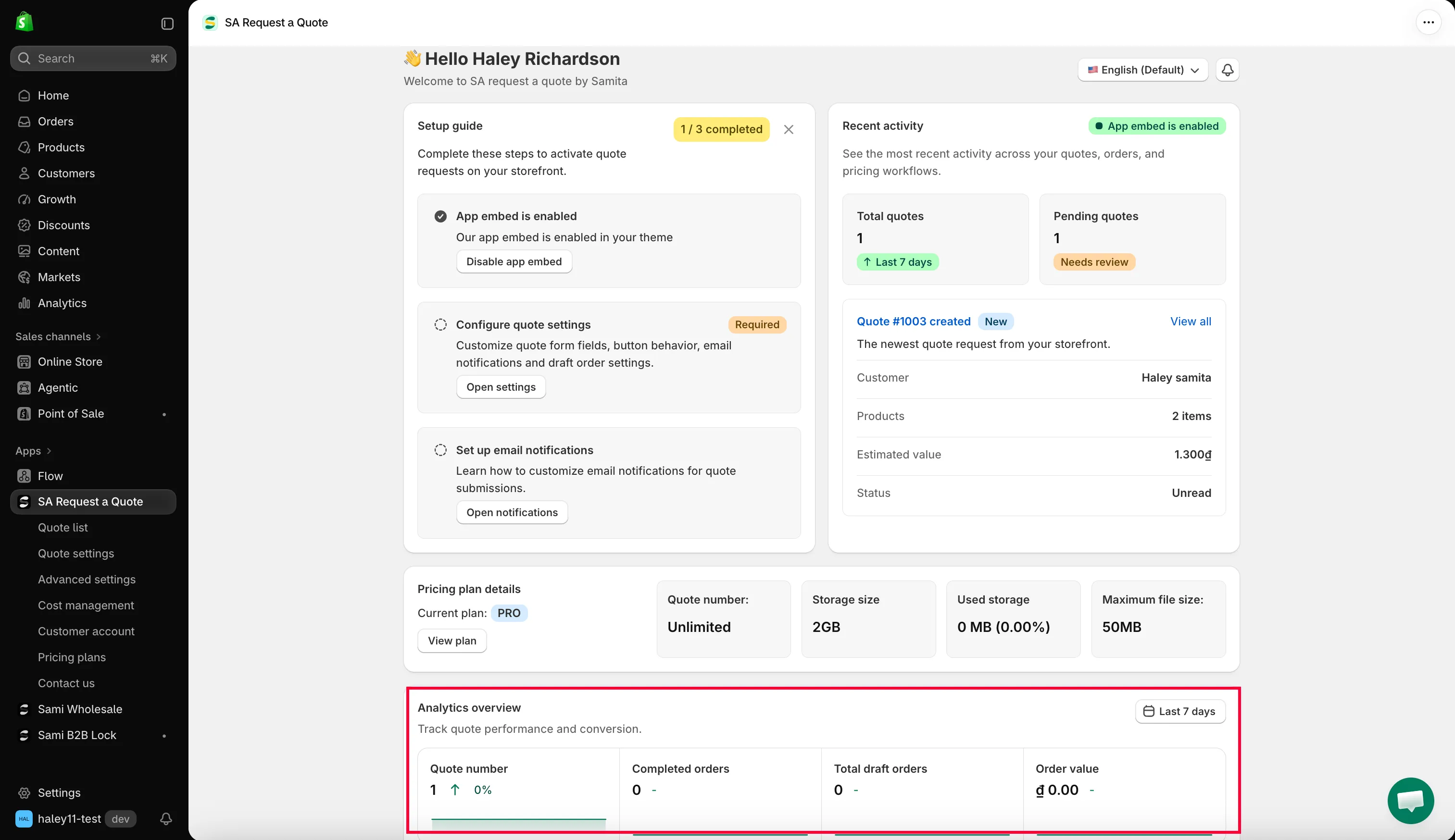
Recent activity on the dashboard, with View all through to the queue.
You can also be emailed whenever a request comes in. Mail notifications under Advanced settings does that — see Emails sent to admin.
A typical working pattern
Section titled “A typical working pattern”-
A request arrives
Section titled “A request arrives”It appears under Unread, and you get an email if Mail notifications is switched on.
-
You price it
Section titled “You price it”Open the request. Check the Extra info message, set the numbers in Price & quantity, and look over the Payment panel.
-
You send it back
Section titled “You send it back”Use Resend an email on the quote, or the send email action on its row. Download the PDF too if the buyer needs a document.
-
They accept
Section titled “They accept”Click Convert to Order and invoice it. The quote moves to Order created, and then to Purchased once it is paid.
Next steps
Section titled “Next steps”- View and edit a quote — open your first request
- Send a quotation — get your price back to the customer
- How it works — the whole flow, end to end