
Buy one get one
Let shoppers buy a product and get more of the same product free or at a percentage off, with one or several deals to choose from.
Bu içerik henüz dilinizde mevcut değil.
Buy one get one (BOGO) gives extra units of the same product free or at a discount: buy 1 get 1 free, or buy 2 get 1 at 50% off. Use it to move stock of a product or to make a multi-pack feel like a bargain. For a deal where the shopper buys one product and gets a different one, use Buy X get Y.
What shoppers see
Section titled “What shoppers see”- On the product page, an offer block with one ticket per deal, such as “Buy 1, get 1 free”. The deal you star carries a “Most popular” badge.
- Picking a deal sets the quantity for your theme’s Add to cart button: “Buy 1, get 1 free” adds two.
- In the cart and at checkout, the Get items are free or discounted. Shopify may show the free unit on its own line.
Templates that start a BOGO
Section titled “Templates that start a BOGO”| Template | Starts with |
|---|---|
| Buy one get one (Gifts & BOGO tab) | One deal: buy 1, get 1 at 100% off, labelled “Buy 1, get 1 free” and marked Most popular |
You can also click Start from blank in the Gifts & BOGO category and pick Buy one get one (BOGO). See Create an offer.
Set up a buy one get one
Section titled “Set up a buy one get one”-
Choose the products
Section titled “Choose the products”In the offer editor, open the Offer tab. In Products, click Change and pick Specific products, Collections, Product tags, or All products. Use Exclude products, Exclude collections, or Exclude tags to leave items out.
Every product in the offer gets its own deal: a shopper buying one shirt and one hat doesn’t get the hat free.
-
Set up the deals
Section titled “Set up the deals”In the Rules section, each row is one deal the shopper can choose in the block:
Field What it does Buy How many the shopper pays for Get How many more they get % off Get The discount on the Get items. 100% means free. Label shoppers see The deal’s name in the block. Left empty, it reads like “Buy 1, get 1 free” or “Buy 2, get 1 at 50% off”. Click the star (Most popular) on one deal to give it the badge. The ⋯ menu on a row has Duplicate and Delete. Click Add deal for another row, for example Buy 2 get 3.
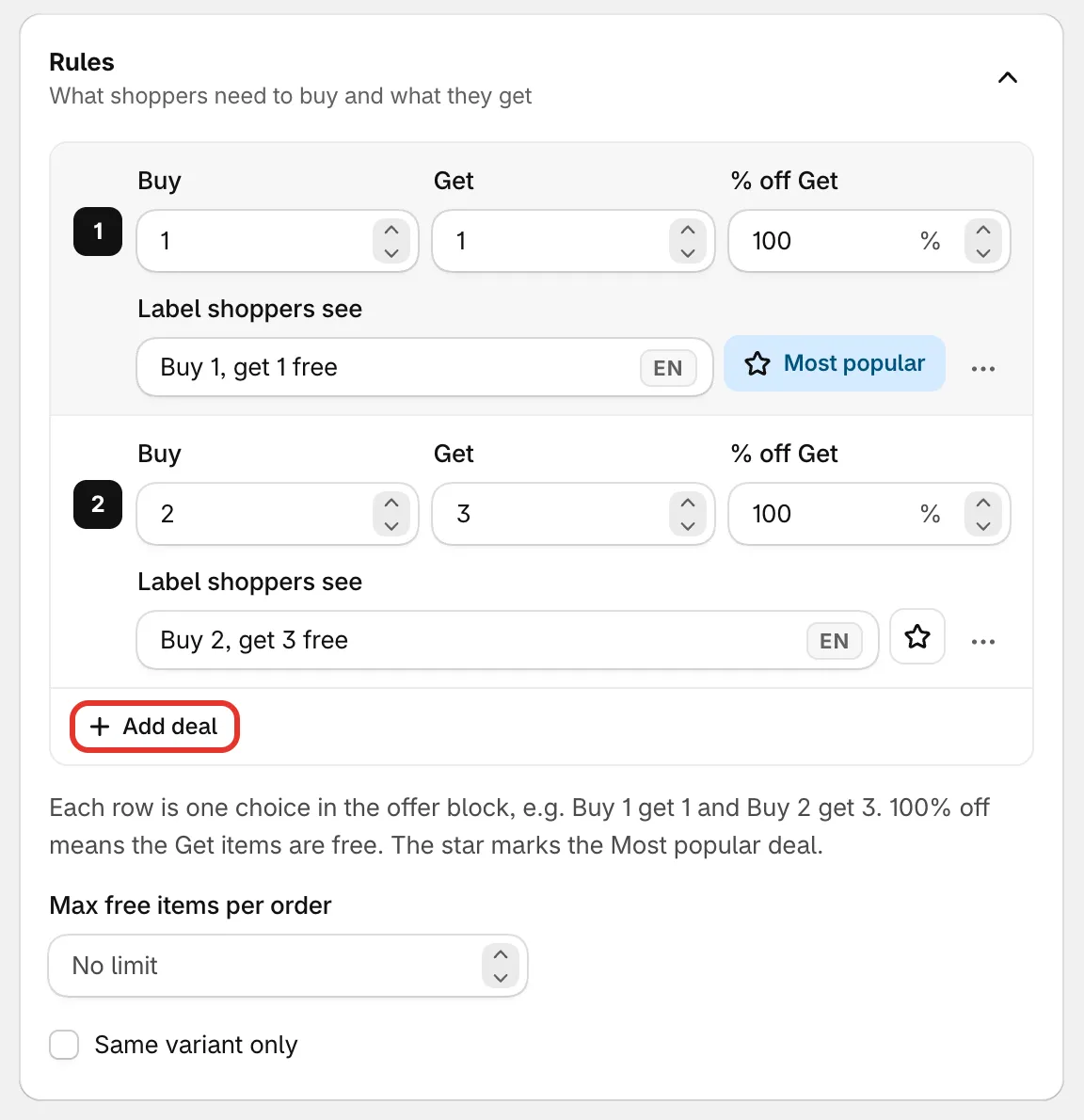
Each row is one deal in the block.
-
Set the limits
Section titled “Set the limits”- Max free items per order — the most Get items one order can have discounted, across all products. Leave it empty for No limit.
- Same variant only — counts each variant on its own, so one red shirt and one blue shirt don’t make a pair. Leave it off to let different variants of a product count together.
-
Save and check your store
Section titled “Save and check your store”Set the status to Active and click Save. Open one of the products, pick a deal, and add it to the cart.
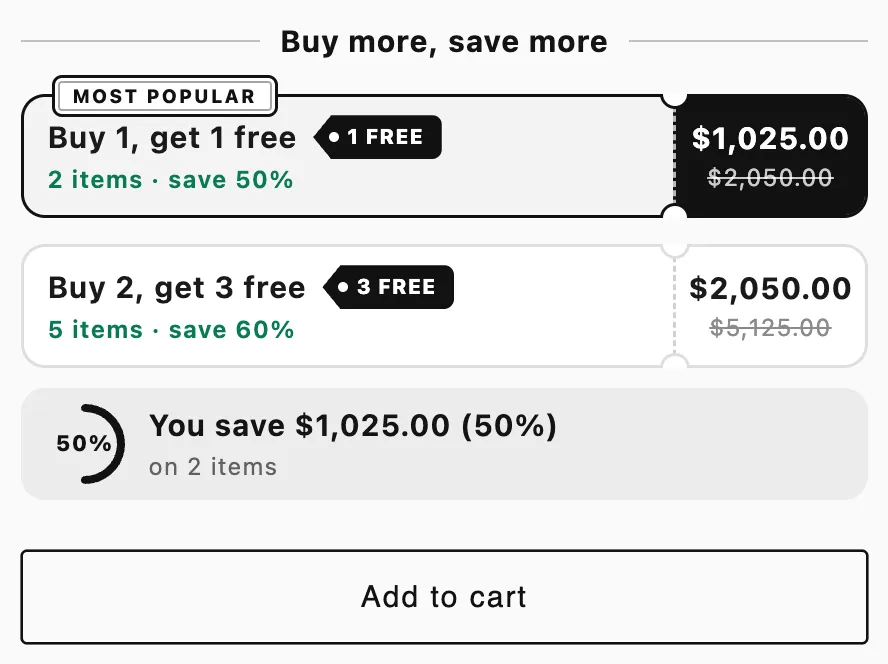
The deals on a product page. Picking one sets the quantity.
Good to know
Section titled “Good to know”- The deal repeats. Every full set in the cart counts. With Buy 1 get 1 free, four of the same shirt means two free. Use Max free items per order to cap it.
- Which units are free. When the units of a product have different prices (different variants), the cheapest ones are the Get items.
- Several deals. When you offer more than one deal, checkout gives each product the deal that saves the shopper the most for what’s in the cart.
- Quantities count however items were added. To give the deal only to items added from the offer block, turn on Apply only when bought through the offer block under Settings › Advanced › Discount name and method. See Discount method.
- Round prices. Design › Variants and pricing › Round prices rounds the deal’s price down, and checkout charges the same rounded price.
- A/B tests. You can test the block style, the block title, or, with two or more deals, which deal is Most popular. See A/B test an offer.