
Placement
Choose where an offer shows on your store, customize each spot, and place the offer block yourself with the Sami offer app block.
Bu içerik henüz dilinizde mevcut değil.
An offer can show in several places: a block on the product page, a badge on collection pages, a progress bar in the cart, and more. The Placement tab lists the places your offer type can use, with a switch for each one and a Customize button to change where and how it shows.
Where it shows
Section titled “Where it shows”Open the editor’s Placement tab. Where it shows lists the places for this offer type. Turn each one on or off with its switch.
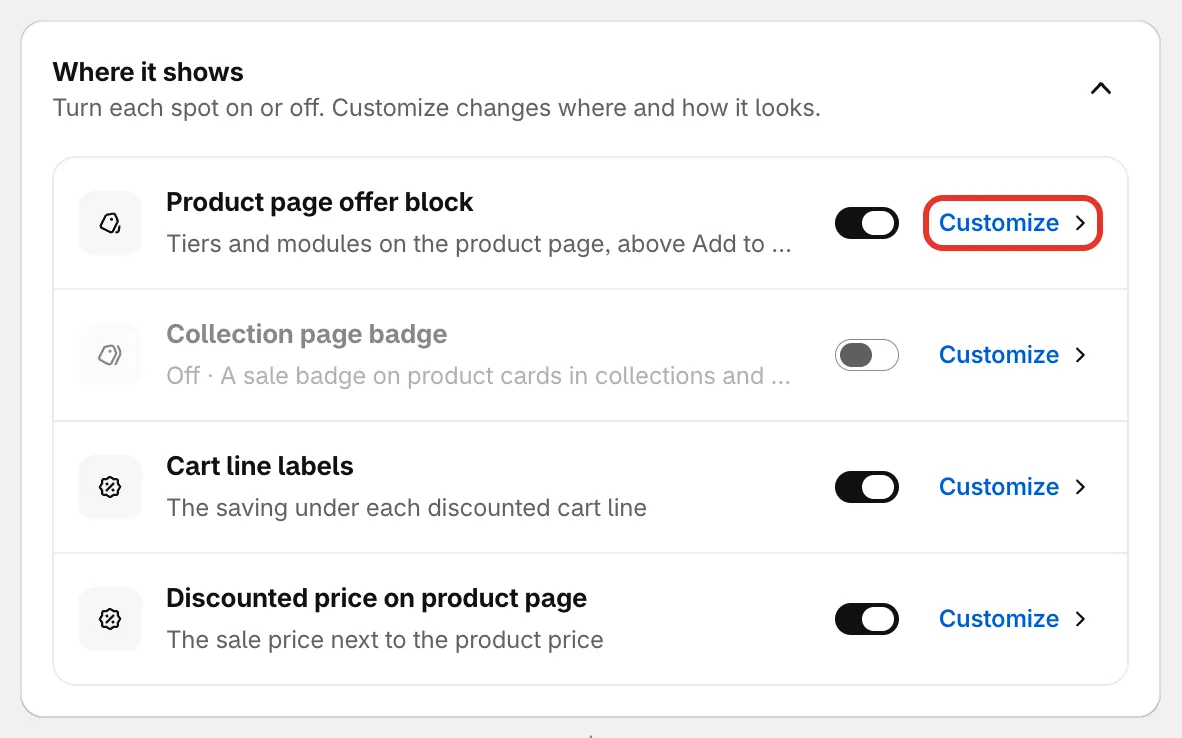
The places a flash sale can show.
| Place | What shoppers see | Offer types | On for a new offer |
|---|---|---|---|
| Product page offer block | The offer’s tiers and modules on the product page. | Flash sale, Tiered discount, Buy one get one, Buy X get Y, Cheapest item free, Complete the bundle, Custom offer | Yes |
| Collection page badge | A sale badge on product cards in collections, search and recommendations. | Flash sale | No |
| Cart drawer progress bar | The goal bar in the cart drawer. | Order discount, Free shipping, Spending goals, Cheapest item free, Free gift | Yes |
| Cart page progress bar | The goal bar on the cart page. | Same as the cart drawer bar | Yes |
| Gift picker popup | A popup where shoppers pick their free gift. | Free gift, Spending goals | Free gift only |
| Cart line labels | The saving under each discounted line in the cart. | Flash sale, Tiered discount, Cheapest item free, Buy one get one, Buy X get Y, Free gift, Complete the bundle | Yes |
| Discounted price on product page | The sale price in place of the product price. | Flash sale | Yes |
If every place is off, the offer doesn’t show anywhere, and its details page says so. The discount itself still works at checkout for shoppers who qualify.
Customize a place
Section titled “Customize a place”Click Customize on a row (or anywhere on the row). A panel opens over the settings with the options for that place, and the preview jumps to the page where it shows, with the part you’re editing highlighted. Click Placements at the top of the panel to go back.
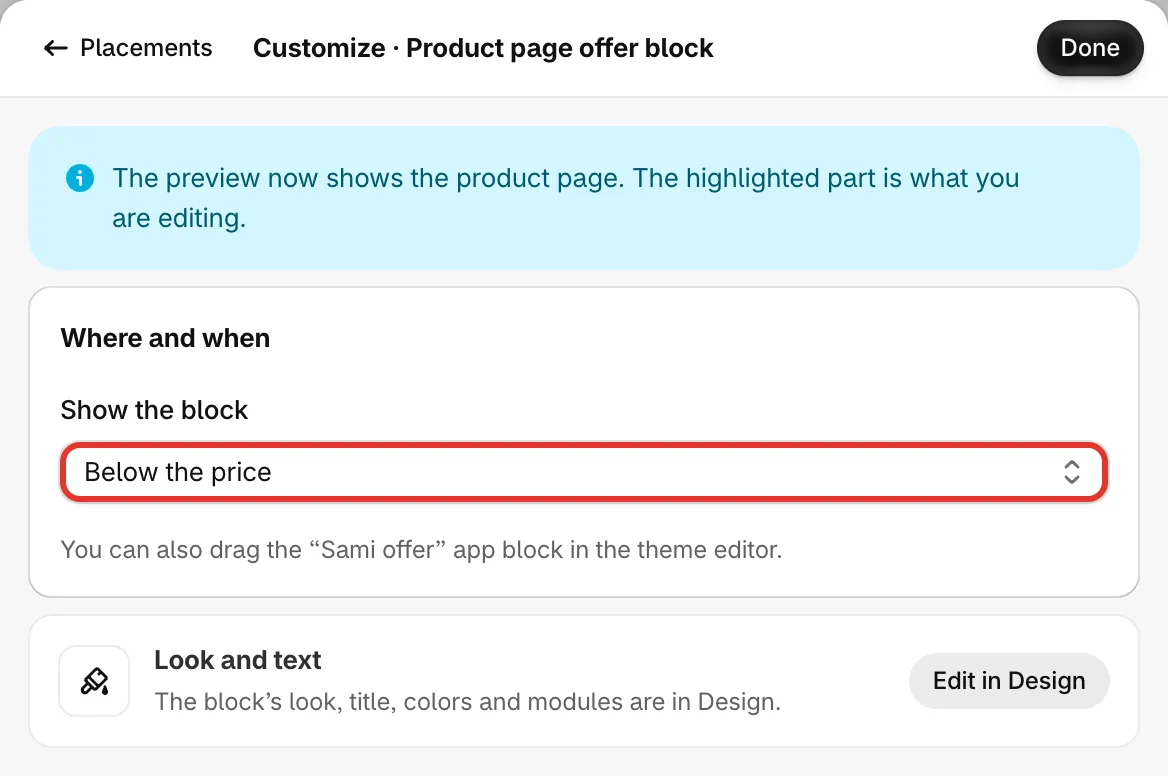
Customize: where the product page block goes.
Product page offer block
Section titled “Product page offer block”Show the block sets where the block goes on the product page:
- Below the price — the default.
- Above Add to cart
- Below Add to cart
- Where I place the app block — only where you add the Sami offer app block in your theme. See Place the block yourself.
The block’s look, title, colors and modules are on the Design tab; Edit in Design takes you there.
Collection page badge
Section titled “Collection page badge”- Badge position on the product image — Top left, Top right or Bottom left.
- A look: Corner tag, Countdown strip or Offer line.
- Badge text — for the Corner tag.
{discount}is the percent off, like 20%. - Shape — Rounded, Pill or Square.
- Show the sale price on product cards and Show the compare-at price.
Cart drawer and cart page progress bars
Section titled “Cart drawer and cart page progress bars”- Show the bar — in the drawer: Top of the cart drawer or Above the checkout button. On the cart page: Above the line items or Below the subtotal.
- A look for the bar, unless the offer is itself a cart offer; then The bar’s look is the offer look. Change it in Design › Look.
- The messages: Before unlock, Progress and Unlocked. Use variables such as
{amount_left}and{discount}for the live amounts. - Show reward icons on the bar and Celebrate when a reward unlocks, a short confetti burst.
The cart drawer bar and the cart page bar share the same look and messages.
Gift picker popup
Section titled “Gift picker popup”- Open the gift picker — Automatically when the gift unlocks, or From a button in the cart.
- Title, Button text and Layout (Grid or List).
- Show out-of-stock gifts as unavailable.
Cart line labels
Section titled “Cart line labels”- A look: Tag per line, Saved pill or Grouped set.
- Label text — for example
{offer_title} applied.{offer_title}is the offer’s discount name. - Label color and Icon (Tag, Gift or No icon).
Discounted price on product page
Section titled “Discounted price on product page”For flash sales. It Replaces the product price under the title while the offer runs.
- Show the compare-at price — the original price, crossed out.
- Show the sale badge next to the price — the badge only shows once the Badges module is on in Design › Modules. It’s off by default on flash sales.
- Savings text — “Save 20%”, “Save $8.00”, or No savings text.
Place the block yourself
Section titled “Place the block yourself”Automatic placement works on most themes. If the block lands in the wrong spot on yours, or you want it somewhere specific, add the Sami offer app block to your product template.
-
Open the theme editor
Section titled “Open the theme editor”In your Shopify admin, go to Online Store › Themes and click Customize on your live theme. Open a product page template from the page menu at the top.
-
Add the Sami offer block
Section titled “Add the Sami offer block”In the product information section, click Add block, open the Apps tab and choose Sami offer. Drag it to where you want the offer.
In the theme editor, the block shows a dashed placeholder: Sami offer · the offer block shows here when an active offer applies to this product. On your store, it stays empty on products with no offer.
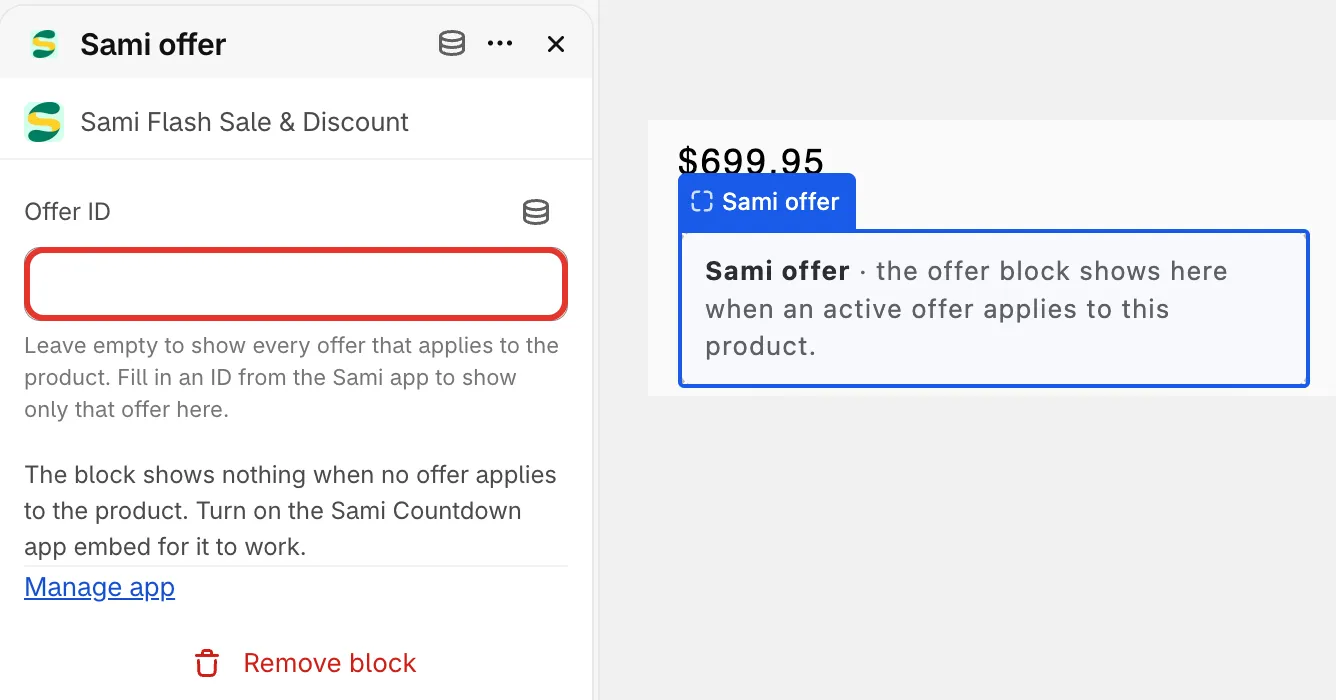
The Sami offer app block in the theme editor.
-
Leave Offer ID empty
Section titled “Leave Offer ID empty”The block has an Offer ID field. Leave it empty: the block then shows every offer that applies to the product. Only fill it in if our support team asks you to.
-
Save the theme
Section titled “Save the theme”Click Save in the theme editor.
Once a product template has the Sami offer block, offers on that template always show inside it, whatever Show the block says. With Where I place the app block, products whose template has no app block don’t show the offer block at all.
Display conditions
Section titled “Display conditions”Under the placements, Display conditions can show or hide the offer for certain pages, shoppers or visits, for example mobile only. See Display conditions.