
Spending goals
Show one progress bar in the cart with several milestones, each unlocking a reward such as free shipping, money off, or a free gift.
此内容尚不支持你的语言。
Spending goals put several rewards on one progress bar: free shipping at $50, 10% off at $100, a free gift at $150. Each milestone the cart passes unlocks its reward. Use it to give shoppers a reason to add one more item, again and again.
What shoppers see
Section titled “What shoppers see”- In the cart drawer and on the cart page, a progress bar with a mark for each milestone, labelled with your message (“Free shipping”, “10% off your order”). Above it, a line such as “Spend $20.00 more to unlock 10% off”.
- When the cart passes a gift milestone, the gift is added to the cart by itself, at no charge.
- At checkout, the rewards of every milestone reached.
Templates that start spending goals
Section titled “Templates that start spending goals”| Template | Starts with |
|---|---|
| Spending goals (Goals tab) | Three milestones: free shipping at $50, 10% off the order at $100, and a free gift at $150. You pick the gift. |
You can also click Start from blank in the Goals category and pick Spending goals. See Create an offer.
Set up spending goals
Section titled “Set up spending goals”-
Choose how progress is measured
Section titled “Choose how progress is measured”In the offer editor, open the Offer tab. At the top of the Rules section:
- Based on — which subtotal the progress bar counts: Subtotal before discounts or Subtotal after discounts.
- Progress bar — Line with icons (a truck, a gift, or a % sign on each mark) or Steps (numbered marks). Only bar looks that show a mark icon use it; the template’s look shows each milestone’s label instead.
-
Set up the milestones
Section titled “Set up the milestones”Each row is one milestone:
Field What it does At The subtotal that unlocks it. Two milestones can’t share an amount. Reward Free shipping, % off order, Fixed off, Free gift, or Product discount Value The percentage or amount, for the rewards that need one Free gift For Free gift: click Pick a gift and choose the product Message The milestone’s label on the progress bar Click Add milestone for another row, or the remove button to delete one (an offer keeps at least one).
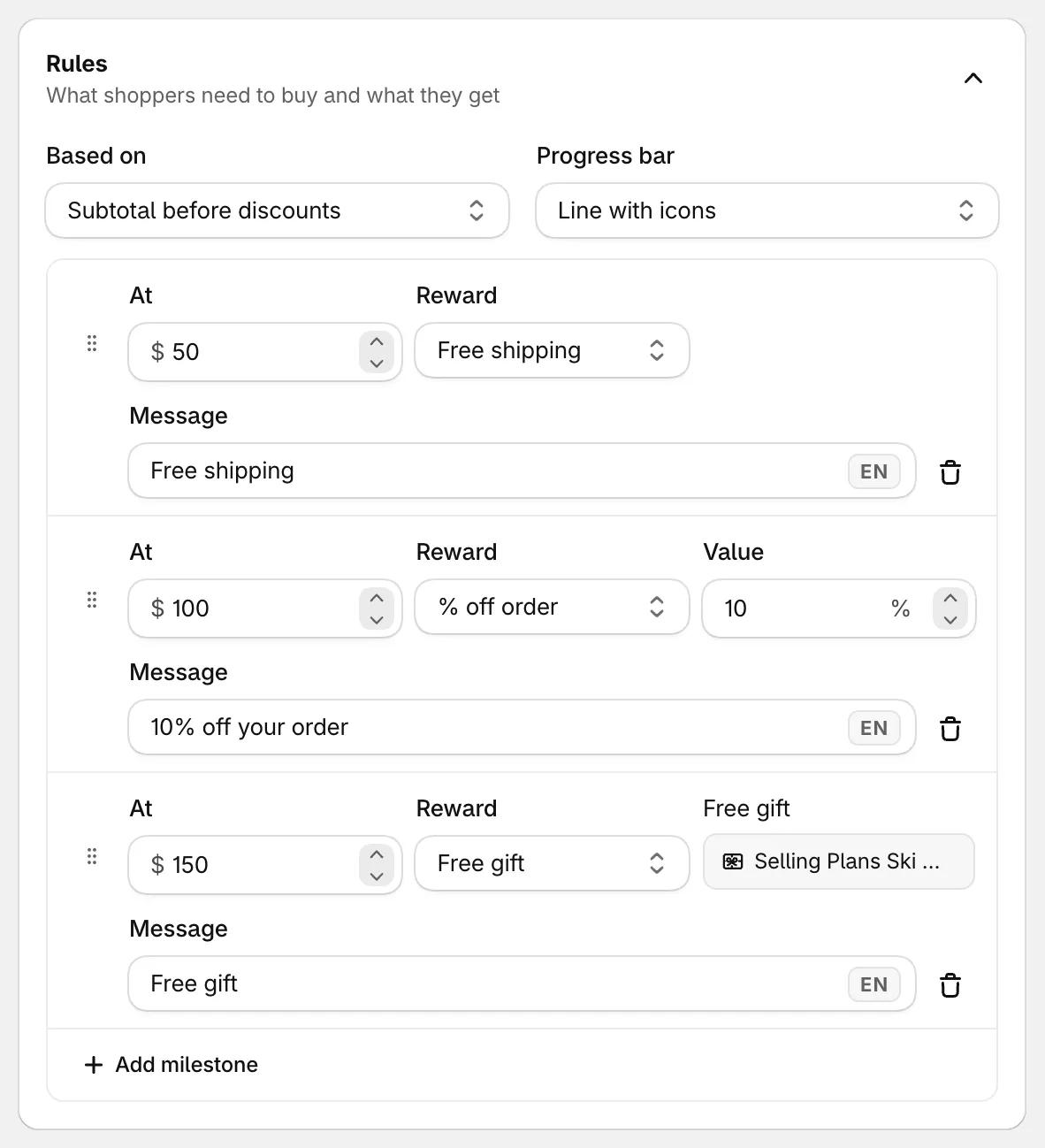
Three milestones, each with its own reward and message.
-
Save and check your store
Section titled “Save and check your store”Set the status to Active and click Save. Add items to your cart and watch the bar fill as you pass each milestone.
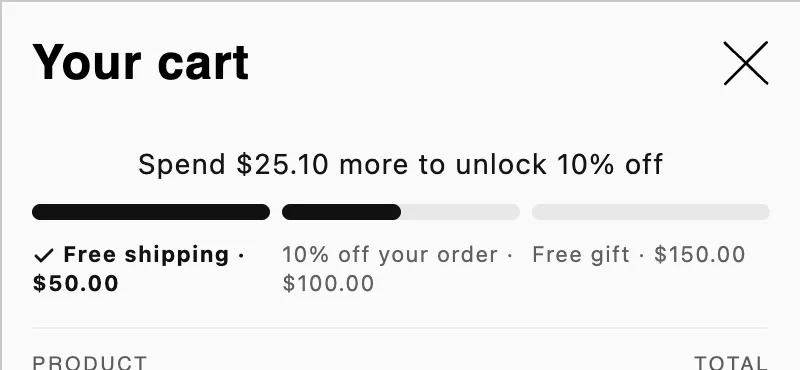
The bar after the first milestone.
How the rewards add up
Section titled “How the rewards add up”Every milestone the cart reaches counts, but money off doesn’t stack:
| Reward | At checkout |
|---|---|
| Free shipping | Free shipping |
| % off order and Fixed off | One discount on the order: the biggest saving among the milestones reached |
| Product discount | That percentage off each item in the cart. The highest one reached applies. |
| Free gift | One unit of the gift, free. Each gift milestone reached adds its own gift. |
So with 10% off at $100 and $20 off at $150, a $160 cart gets $20 off, not both.
Good to know
Section titled “Good to know”- Gifts come and go with the cart. The app adds a milestone’s gift once the cart reaches it, and takes it out if the cart drops below. If the shopper removes the gift, the app doesn’t put it back. Only the gift the app added is free.
- The whole cart counts. Spending goals have no Products section. Gifts added by the app don’t count toward the subtotal.
- Other currencies. Milestone amounts convert to the shopper’s market currency at the market’s exchange rate.
- Bar text, look and position. Change the line above the bar, its look, and where it sits in Placement.
- No A/B test. Spending goals don’t have a product page block, so they can’t be A/B tested.