
Display conditions
Show or hide an offer's block for certain pages, products, shoppers, visits, carts, times or markets.
此内容尚不支持你的语言。
Display conditions decide where and when the offer’s block shows, for example only on mobile, only for returning visitors, or only at weekends. They’re on the editor’s Placement tab, under Display conditions.
With no conditions, a product page offer Shows everywhere the offer applies, and a cart offer Shows in every cart.
Add a condition
Section titled “Add a condition”-
Open Display conditions
Section titled “Open Display conditions”In the editor, open Placement and scroll to Display conditions. The text at the top explains what the conditions control for this offer type.
-
Start from a quick start, or add your own
Section titled “Start from a quick start, or add your own”When the list is empty, Try: offers ready-made conditions. Click one to add it:
- Product page offers: Mobile shoppers, New visitors, VIP customers, Items on sale, Low stock, Social ads. Flash sales don’t have Items on sale.
- Cart offers: Returning customers, First-time buyers, VIP customers, 2+ items in cart, Social ads, Weekends.
Or click Add condition and pick a field. The list is grouped and has a search box.
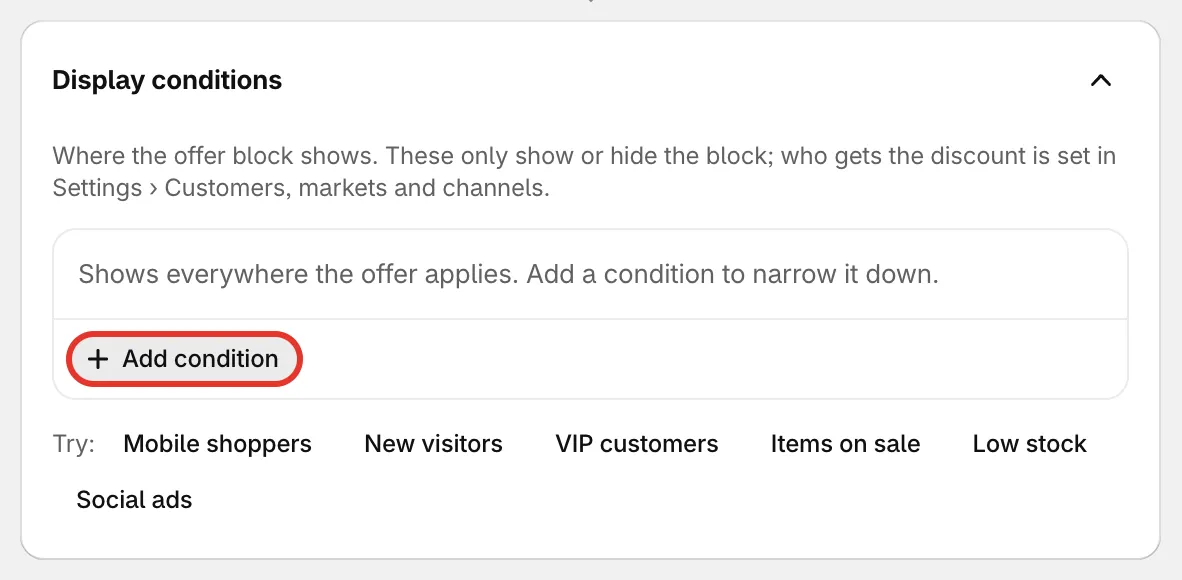
Quick starts, or Add condition.
-
Set the rule
Section titled “Set the rule”Pick how to compare and the value, for example Device is Mobile, or Cart item count is at least 2. Many fields let you pick several values, such as several countries. With is, the rule is true when any of them matches; with is not, when none of them match.
A condition without a value can’t be saved: Add a value, or remove this condition.
-
Combine several conditions
Section titled “Combine several conditions”With two or more conditions, the line above them reads Show the block when all of these are true. Click all to switch to any:
- all — every condition must match.
- any — one matching condition is enough.
Cart offers read Show the cart message when instead.
-
Save the offer. The preview’s summary shows how many conditions apply, for example “Shows only where all of 2 conditions match”.
What you can check
Section titled “What you can check”| Group | Examples |
|---|---|
| Page and product | Page type, Page URL, Product title, Product type, Product vendor, Product tag, Collection, Product price, On sale, SKU, Inventory stock, Days since published |
| Customer | Customer account (logged in or guest), Customer tag, First-time buyer, Orders placed, Total spent, Email subscriber, B2B customer, Customer country, Shopper language |
| Visit | Visitor (new or returning), Visits so far, Pages viewed this visit, Time on site (seconds), Device, Operating system, Browser, UTM source, UTM medium, UTM campaign, Referrer, Landing page |
| Cart | Cart subtotal, Cart item count, Different products in cart, Product in cart, Discount code used |
| Date and time | Day of the week, Time of day — both in your shop’s time zone |
| Market | Market, Currency |
The comparisons depend on the field: is / is not for lists, includes / does not include for tags, contains, starts with, is empty and similar for text, and is greater than, is less than, is equal to or is at least for numbers.
Some fields don’t fit every offer type, so the list leaves them out:
- Cart offers (Order discount, Free shipping, Spending goals, Free gift and Cheapest item free) live in the cart, so page and product fields aren’t offered. Cart subtotal is only offered for Cheapest item free, because the other cart offers already work from the cart value.
- Flash sales set the sale price themselves, so On sale and Compare-at price aren’t offered.