
Translate an offer
Translate an offer's shopper-facing text into your store's other languages, by hand or with Auto-translate.
此内容尚不支持你的语言。
If your store sells in more than one language, you can translate each offer’s text so shoppers see it in their language. The Translation tab lists every text of the offer that shoppers see, next to a field for each translation.
The languages come from your Shopify store. If it sells in one language only, the tab says Your store sells in one language: add and publish a language in Shopify Settings › Languages first.
-
Open the Translation tab
Section titled “Open the Translation tab”In the offer editor, click Translation in the left menu. You can also click the small language badge (such as EN) on any text field in the editor to jump straight to that text here.
-
Pick a language
Section titled “Pick a language”Choose the language in Language. A badge shows how many texts are done, for example 3 of 8 translated. The preview switches to that language, so you can check the result as you type.
-
Translate the texts
Section titled “Translate the texts”Each row shows the Original text on the left and a field for the translation on the right. Rows are grouped by where the text appears, such as Offer block, Modules, Badges, Cart messages, and Cart and checkout.
Type a translation in each field. A field left empty shows the original text to shoppers in that language. The same text used in two places is one row, so you translate it once.
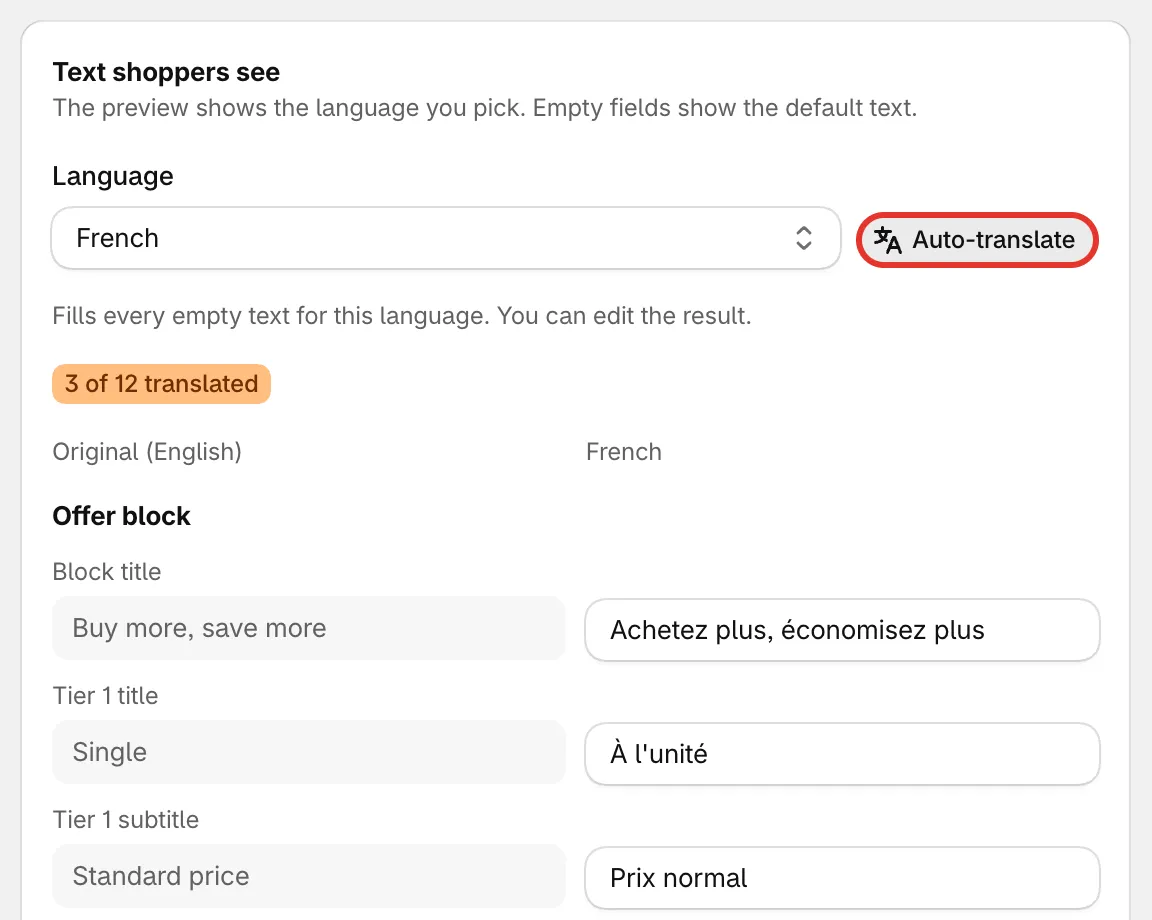
Original text on the left, translation on the right.
-
Or use Auto-translate
Section titled “Or use Auto-translate”Click Auto-translate to fill every empty text for this language. When it’s done, you’ll see how many texts were translated. Review them and change any you like before saving. Texts you already translated are left as they are.
If the button can’t be used, the message under it tells you why, for example that Auto-translate needs to be switched on for your store, or that this month’s translation allowance is used up. Contact us to have it switched on.
-
Save the offer
Section titled “Save the offer”Translations are part of the offer, so click Save to keep them.
Keep variables as they are
Section titled “Keep variables as they are”Some texts contain variables in curly brackets, such as {saved_percentage}, {discount} or {product}. The app replaces them with real values on your store. Keep variables like {saved_percentage} and {product} as they are. Translate the words around them only.
What isn’t translated here
Section titled “What isn’t translated here”- Shared text — words used by every offer, such as Add to cart, Most popular and the cart rewards, are translated once for all offers. See Storefront languages.
- The discount name at checkout — the Discount name row translates the name in the app’s cart labels. Shopify’s checkout shows the discount under one name in every language: the one set in Settings › Advanced › Discount name and method.