
Discount method
Name the discount shoppers see, and choose whether an offer applies automatically or with a discount code.
此内容尚不支持你的语言。
The discount method decides how shoppers get the deal: automatically when their cart qualifies, or with a discount code. You also set here the name shoppers see in the cart and at checkout. Everything on this page is in the editor’s Settings tab, under Advanced › Discount name and method.
Discount name
Section titled “Discount name”Discount name is the name of the offer’s Shopify discount.
- With an automatic offer, Customers see it in the cart and at checkout.
- With a code offer, it Shows in the offer and on cart lines. At checkout shoppers see the code.
A new offer starts with the template or type name here, for example “Flash sale”. Change it to something that reads well to shoppers, like “Summer sale 20% off”. If you leave it empty, the offer’s internal name is used instead.
To show the name in other languages in the cart, see Translate an offer.
Automatic or discount code
Section titled “Automatic or discount code”Pick the method at the top of the row:
| Method | How shoppers get it | Good for |
|---|---|---|
| Automatic | Applies by itself at checkout. No code to enter. | Store-wide sales and offers you want every shopper to get. |
| Discount code | Applies once the code is in the cart. The app can add it for them. | Offers for a newsletter or an ad, limited uses, and evergreen timers. |
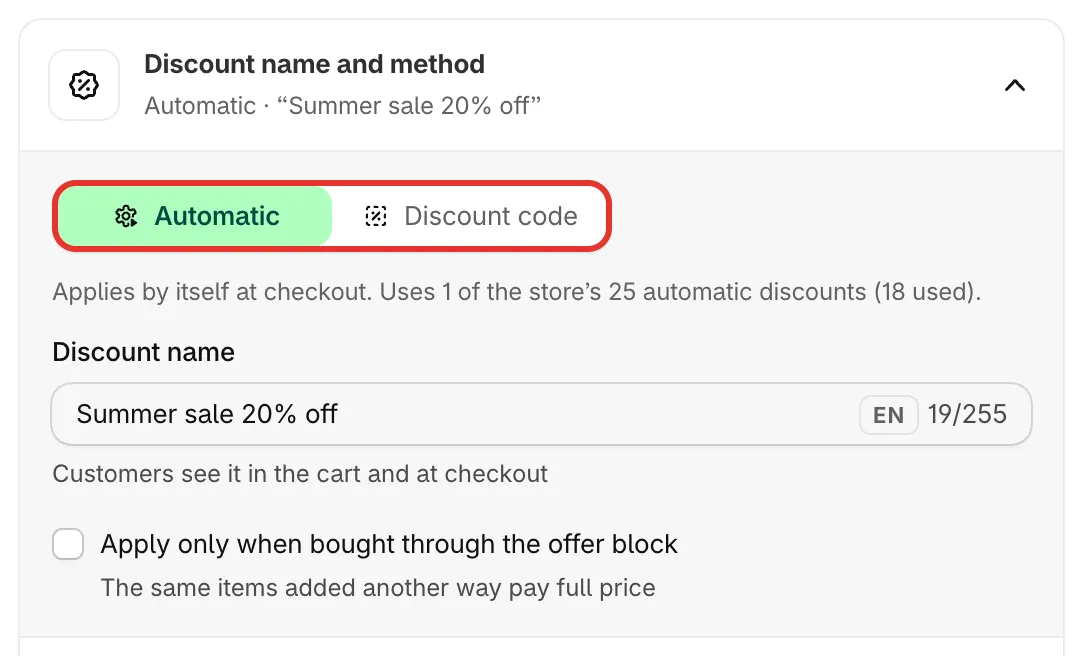
An automatic offer and its discount name.
Use a discount code
Section titled “Use a discount code”-
Switch to Discount code
Section titled “Switch to Discount code”Click Discount code. Then pick the Code type.
-
Choose the code type
Section titled “Choose the code type”- One code for everyone — Shoppers use the same code, e.g. from an email or an ad.
- A unique code for each visitor — Each visitor gets their own code. Use it with evergreen timers.
The two are explained below.
-
Decide how the code works in your store
Section titled “Decide how the code works in your store”Two switches under In your store, both on by default:
- Apply the code for shoppers — The app adds it to the cart when they pick the offer, so nobody types it.
- Show the code in the offer block — shows the code on the block With a Copy button, so shoppers can use it later.
Turn both off if the deal should only work for shoppers who already have the code, for example from your newsletter.
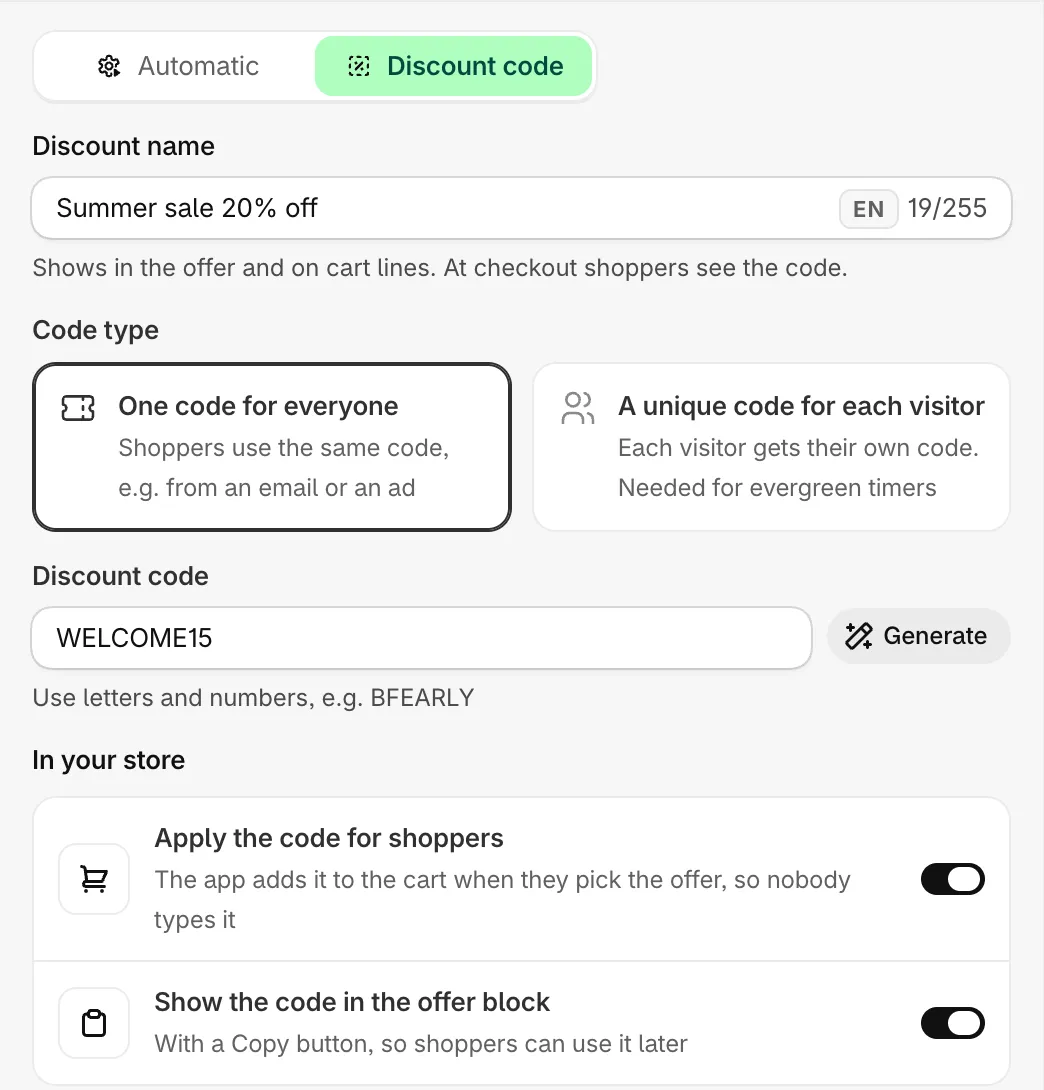
A single code, applied for shoppers and shown in the block.
One code for everyone
Section titled “One code for everyone”Type the code in Discount code, using letters and numbers, for example BFEARLY. Letters turn into capitals, and spaces and other characters are removed as you type. Click Generate for a random code.
A code offer can’t be saved without a code: you’ll see Enter a discount code, or switch to an automatic discount.
A unique code for each visitor
Section titled “A unique code for each visitor”The app makes a new code for each visitor the first time they see the offer, and adds it to the offer’s Shopify discount.
- Code prefix — the start of every code. The hint shows what codes look like, for example
SAMI-7KQ2. - Uses per code — how many uses you allow per code. On the offer’s details page, a code is marked Used once it reaches this number.
- Each code expires after — hours a code stays valid. Leave empty to keep codes until the offer ends. With an evergreen timer, a code also expires when that visitor’s countdown ends.
Codes handed out so far are listed on the offer’s details page.
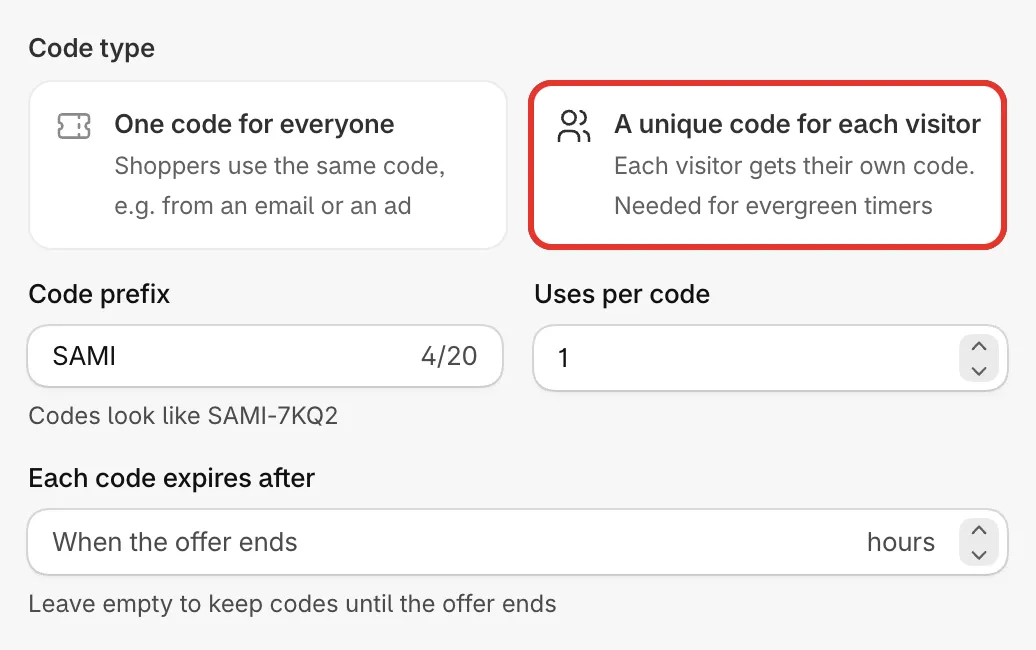
Settings for unique codes.
Apply only through the offer block
Section titled “Apply only through the offer block”Offers with a product page block also have Apply only when bought through the offer block. When it’s ticked, the discount applies only to items added from the offer block. The same items added another way pay full price, for example from a collection page’s quick add.
Switching method later
Section titled “Switching method later”You can change the method of a saved offer. When you change the method or the code type, the app replaces the offer’s Shopify discount with a new one of the right kind the next time you save.