> For the complete documentation index, see [llms.txt](https://docs.samita.io/llms.txt). Markdown versions of documentation pages are available by appending `.md` to page URLs; this page is available as [Markdown](https://docs.samita.io/sami-b2b-onboarding/automation/rules.md).
# Rules that decide applications
Build rules that approve, reject, assign, flag or ask for more information on applications automatically, based on their answers.
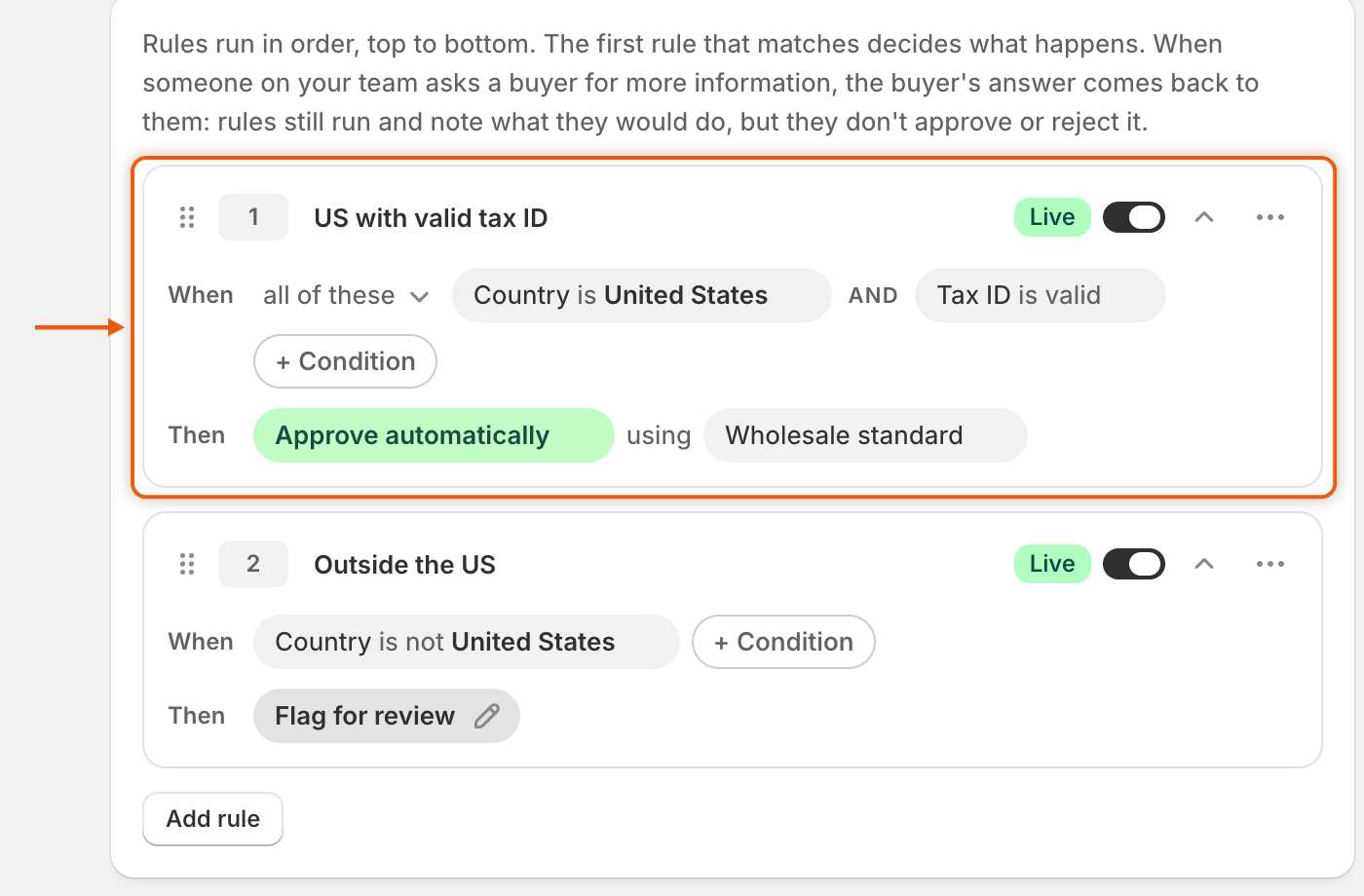
Rules let Sami B2B Onboarding act on an application as soon as it arrives, without anyone opening it. Each rule reads as a sentence: **When** its conditions match, **Then** it takes one action, for example "When Country is United States and Tax ID is valid, then Approve automatically using Wholesale standard".
## How rules run
* Rules run when a buyer submits an application, and again when a buyer sends the information you asked for.
* The app tests your **Live** rules in order, top to bottom. The first rule that matches decides what happens, and the rules below it don't run.
* If no rule matches, nothing changes. The application waits on **Companies › Applications** for your team, as it would with no rules at all.
* When someone on your team asks a buyer for more information, the buyer's answer comes back to that person. Rules still run and note on the timeline what they would do, but they don't approve, reject or ask again.
{% hint style="info" %}
Two other settings act before your rules. If the [tax ID check](/sami-b2b-onboarding/automation/tax-id-checks.md) is set to reject on failure, a failed check rejects the application and rules don't run. If **Settings › Application rules › Duplicate companies** finds a company that looks the same, rules leave the application for a person to decide. See [Application rules](/sami-b2b-onboarding/settings/application-rules.md).
{% endhint %}
## Add a rule
{% stepper %}
{% step %}
### Open the Rules tab
In the Shopify admin, open **Sami B2B Onboarding**, click **Automation** in the app menu, then click the **Rules** tab.
Click **Add rule**. With no rules yet, the button sits under **No rules yet**. Otherwise it's below the last rule. A card called **New rule** appears, open and **Paused**.
{% endstep %}
{% step %}
### Name the rule
Click the name **New rule** and replace it with a name your team will recognize, for example `US with valid tax ID`. Press `Enter` to keep it, or `Escape` to undo. This name appears on the application's timeline when the rule acts.
{% endstep %}
{% step %}
### Set the first condition
On the **When** line, click the dashed condition. The **Edit condition** box opens:
1. Click the field box on the first row (it shows the current field, such as **Country**) and choose what to test. When the list is long, type in **Search fields** to find a question quickly.
2. In the box beside it, choose an operator, such as **is** or **is valid**.
3. Below them, pick a value from the list, or type one in the box. Some operators, such as **is valid** and **is missing**, don't need a value.
4. Click **Done**.
{% endstep %}
{% step %}
### Add more conditions
Click **+ Condition** to add another. Its **Edit condition** box opens straight away. Once a rule has two or more conditions, a choice appears at the start of the **When** line:
* **all of these**: every condition must match. The chips are joined by **AND**.
* **any of these**: one matching condition is enough. The chips are joined by **OR**.
One choice covers every condition in the rule. To mix "and" with "or", make two rules.
To remove a condition, click it, then click **Remove condition**. A rule always keeps at least one condition.
{% endstep %}
{% step %}
### Choose the action
On the **Then** line, click the action and pick one from the list. Some actions need one more choice:
* **Approve automatically**: click the preset after **using** and pick one. **No preset** approves without terms.
* **Assign to a reviewer**: click **Anyone** and pick a person from your team. Left on **Anyone**, the rule assigns no one.
{% endstep %}
{% step %}
### Turn it on and save
Turn on the switch on the rule's card. The badge changes from **Paused** to **Live**. Then click **Save** in the save bar. You see **Automation saved**.
Everything on this tab is a draft until you save: names, conditions, switches, order, new rules and deleted ones. Click **Discard** in the save bar to undo all of it.
{% endstep %}
{% endstepper %}
Each rule reads as a sentence, and you click any chip to change it.
## What a condition can test
The field list starts with **Application details**, the facts the app records on every application. Below them come the questions on your application forms. With one form, its questions are listed under the form's name. With several forms, pick a form under **Form questions** to see its questions.
| Field | What it reads | Operators |
| ----------------------------------------------------------------------------------------------------------------- | ------------------------------------------------------------------------------------------- | ------------------------------------------------- |
| **Country** | The answer to the form's first **Country** question. | **is**, **is not** |
| **Tax ID** | The answer to the form's **Tax ID** question. | **is valid**, **is missing**, **is** |
| **Email domain** | The part of the contact email after the @, for example `example.com`. | **is**, **contains** |
| **Form** | The form the buyer applied through. | **is**, **is not** |
| **Uploaded document** | Whether the buyer uploaded any file. | **is missing** |
| A **Dropdown**, **Radio buttons**, **Checkbox**, **Checkboxes** or **Country** question | The option the buyer chose. A single consent checkbox offers **Ticked** and **Not ticked**. | **is**, **is not**, **is missing** |
| A **Number** question | The number the buyer typed. | **is over**, **is under**, **is**, **is missing** |
| Any other question (**Short text**, **Long text**, **Email**, **Phone**, **State / province**, **Date and time**) | What the buyer typed or picked. | **is**, **is not**, **contains**, **is missing** |
How the operators compare:
| Operator | Matches when |
| -------------------------- | -------------------------------------------------------------------------------------------------------------------------------------------------------------------------------------- |
| **is** / **is not** | The answer equals the value, or doesn't. Capitals and spaces at either end are ignored. On a question with several ticked answers, **is** matches if any of them is the value. |
| **contains** | The value appears anywhere in the answer. |
| **is over** / **is under** | The answer is a number above or below the value. |
| **is missing** | The buyer left it blank. For **Uploaded document**, no file was uploaded. |
| **is valid** | The tax ID passed the tax ID check. With the check off, it has the right number format for the buyer's country. See [Tax ID checks](/sami-b2b-onboarding/automation/tax-id-checks.md). |
File upload questions and layout elements, such as headings and paragraphs, aren't in the list. To test for uploads, use **Uploaded document**.
When you have more than one form, the **Edit condition** box shows which forms ask the question you picked, for example **Asked by Wholesale application**. If the forms offer different options for that question, it adds **with different options on each**.
## Guards that keep rules safe
* **A condition on a form question that the buyer's form never asked doesn't match.** This holds for every operator, **is not** and **is missing** included. To aim a rule at one form, add the condition **Form** **is** and pick that form.
* **A rule with an unfinished condition can't be saved.** If a condition has no value, or points to a question that was deleted from the form, **Save** stops with a message such as "Rule 2, condition 1 has no value to match against." and the condition turns red. A live rule with a deleted question shows **Needs attention**. Click the red chip and pick another field.
* **A rule can't approve past a required answer.** If a form question that's mapped to Shopify is set to **If the answer is empty › Don't allow approval** and the buyer left it blank, an **Approve automatically** rule doesn't approve. The timeline shows that the rule couldn't approve it and lists the missing answers. See [Map answers to Shopify](/sami-b2b-onboarding/application-forms/map-answers-to-shopify.md).
## Actions
| Action | What happens |
| ------------------------- | ----------------------------------------------------------------------------------------------------------------------------------------------------------------------- |
| **Approve automatically** | The application is approved and the Shopify company is created with the chosen preset's terms. Its status reads **Approved**, with the note **Auto-applied**. |
| **Assign to a reviewer** | The application is assigned to the person you chose and stays in the queue. If a buyer answers a request and someone already holds the application, it stays with them. |
| **Request information** | The application moves to **Needs info** and the buyer gets the **More information needed** email, asking them to check their answers and add anything missing. |
| **Reject automatically** | The application is rejected. If the decline email is on, the buyer is told their application didn't meet the criteria for an account. |
| **Flag for review** | Nothing changes except the timeline, which notes that the rule matched. The application waits for your team, and the rules below don't run. |
The emails go out only when the event's switch is on under **Automation › Automations** and the email itself is turned on. The **Application declined** email starts turned off. See [Automations and Shopify Flow](/sami-b2b-onboarding/automation/automations-and-shopify-flow.md).
## Manage your rules
Each rule card has these controls in its top row:
* The number: the rule's place in the order.
* The name: click it to rename the rule.
* The badge and switch: **Live** rules run. **Paused** rules don't. A paused rule folds to one line, such as "2 conditions · Approve automatically".
* The chevron: opens or folds the card.
* The **…** menu: **Move up**, **Move down**, **Duplicate** and **Delete**.
To change the order, drag a card by its grip at the left edge, or use **Move up** and **Move down**. **Duplicate** adds a copy straight below the original, with "copy" after its name, for example "Outside the US copy". The copy is Live or Paused like the original. **Delete** removes the rule from the list. All of these are saved only when you click **Save**.
## Worked example
A café-supply store wants to approve US resellers with a valid tax ID, send everyone outside the US to a reviewer, and look at the rest by hand.
{% stepper %}
{% step %}
### Create the preset
On the **Presets** tab, create a preset called `Wholesale standard` with your wholesale catalog and **Net 30** payment terms. See [Approval presets](/sami-b2b-onboarding/automation/approval-presets.md).
{% endstep %}
{% step %}
### Rule 1: approve US resellers
Add a rule named `US with valid tax ID`:
* **When** **all of these**: **Country** **is** **United States**, and **Tax ID** **is valid**.
* **Then** **Approve automatically** **using** **Wholesale standard**.
{% endstep %}
{% step %}
### Rule 2: assign the rest of the world
Add a second rule named `Outside the US`:
* **When** **Country** **is not** **United States**.
* **Then** **Assign to a reviewer**, and pick the person who handles export accounts.
{% endstep %}
{% step %}
### Turn both on and save
Turn on both switches and click **Save**. The **Rules** tab count shows 2.
{% endstep %}
{% step %}
### See the result
Acme Supply Co. applies from Springfield, United States, with a 9-digit tax registration ID:
* Rule 1 matches. The application is approved straight away with the Wholesale standard terms, and Jordan Lee gets the **Account approved** email.
* An application from Germany fails rule 1 on the country, then matches rule 2. It's assigned to your export reviewer.
* A US application with a 6-digit tax ID fails rule 1 on the tax ID and rule 2 on the country. No rule matches, so it waits on **Companies › Applications** for your team.
{% endstep %}
{% endstepper %}
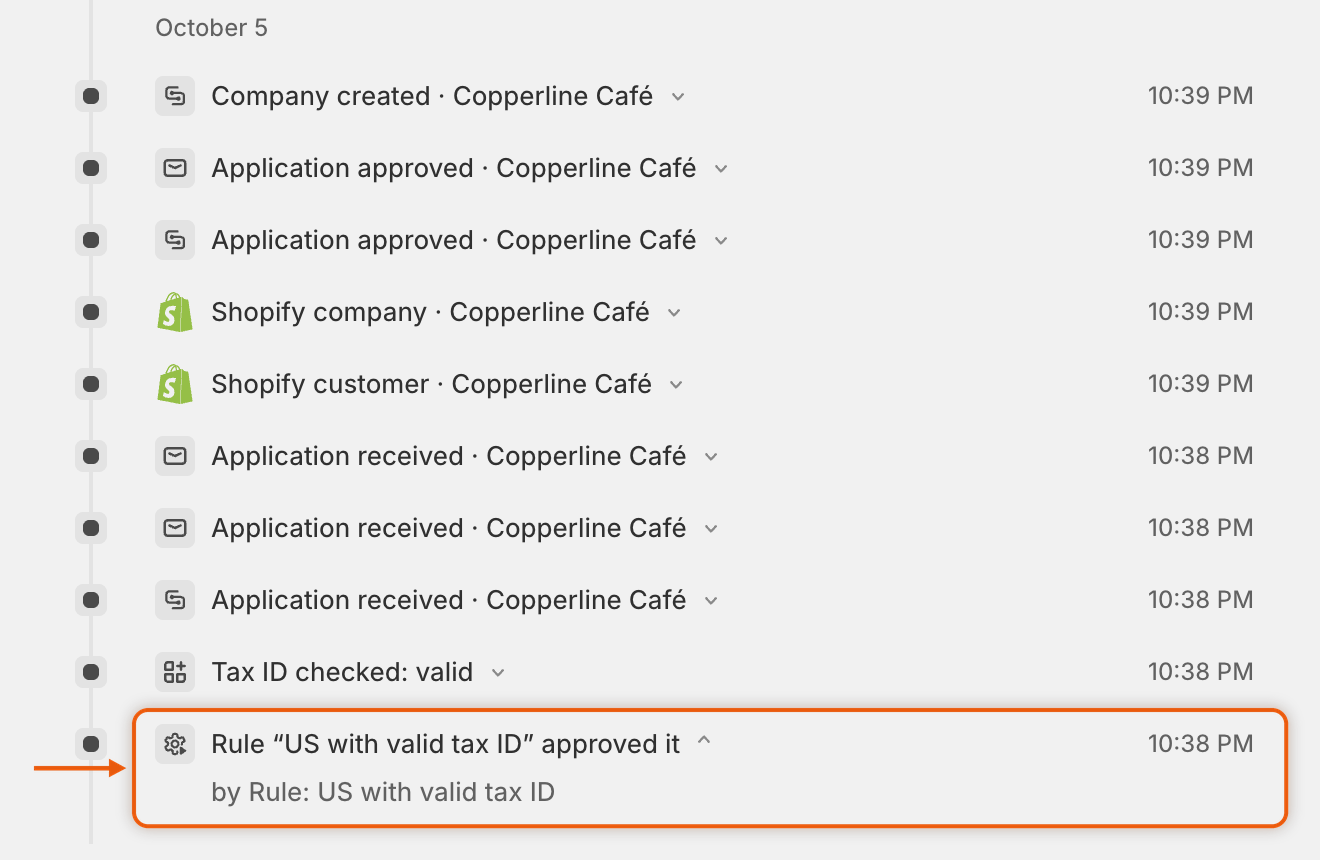
Open an application that a rule acted on to see what happened. Its **Timeline** shows the rule by name, for example "Rule “US with valid tax ID” approved it".
The timeline names the rule that acted, so your team can see why an application was decided.
## Next steps
* [Tax ID checks](/sami-b2b-onboarding/automation/tax-id-checks.md) — decide what **Tax ID is valid** checks for each country.
* [Approval presets](/sami-b2b-onboarding/automation/approval-presets.md) — set the terms your **Approve automatically** rules give.
* [Automations and Shopify Flow](/sami-b2b-onboarding/automation/automations-and-shopify-flow.md) — choose which emails go out when a rule decides.
* [Review an application](/sami-b2b-onboarding/reviewing-applications/review-an-application.md) — handle the applications no rule decided.
---
# Agent Instructions
This documentation is published with GitBook. GitBook is the documentation platform designed so that both humans and AI agents can read, navigate, and reason over technical content effectively. Learn more at gitbook.com.
## Querying This Documentation
If you need additional information that is not directly available in this page, you can query the documentation dynamically by asking a question.
Perform an HTTP GET request on the current page URL with the `ask` query parameter, and the optional `goal` query parameter:
```
GET https://docs.samita.io/sami-b2b-onboarding/automation/rules.md?ask=&goal=
```
`ask` is the immediate question: it should be specific, self-contained, and written in natural language.
`goal` is optional and describes the broader end goal you are ultimately trying to accomplish on behalf of the user. GitBook uses it to tailor the answer towards what is most useful for that goal.
The response will contain a direct answer to the question and relevant excerpts and sources from the documentation.
Use this mechanism when the answer is not explicitly present in the current page, you need clarification or additional context, or you want to retrieve related documentation sections.