> For the complete documentation index, see [llms.txt](https://docs.samita.io/llms.txt). Markdown versions of documentation pages are available by appending `.md` to page URLs; this page is available as [Markdown](https://docs.samita.io/sami-b2b-onboarding/reviewing-applications/review-an-application.md).

# Review an application

Open an application, check what the buyer sent and get it ready for a decision.

Sami B2B Onboarding gives you two ways to look at an application. The quick review drawer lets you work down the list fast. The full application page shows everything the buyer sent and lets you edit it, assign it and comment on it.

## Quick review from the list

{% stepper %}
{% step %}

### Open the list

In the Shopify admin, open **Sami B2B Onboarding** and click **Companies** in the app menu. The **Applications** tab opens. To see only the applications waiting for you, click **All** at the start of the search bar and pick **Needs your action**.
{% endstep %}

{% step %}

### Open the drawer

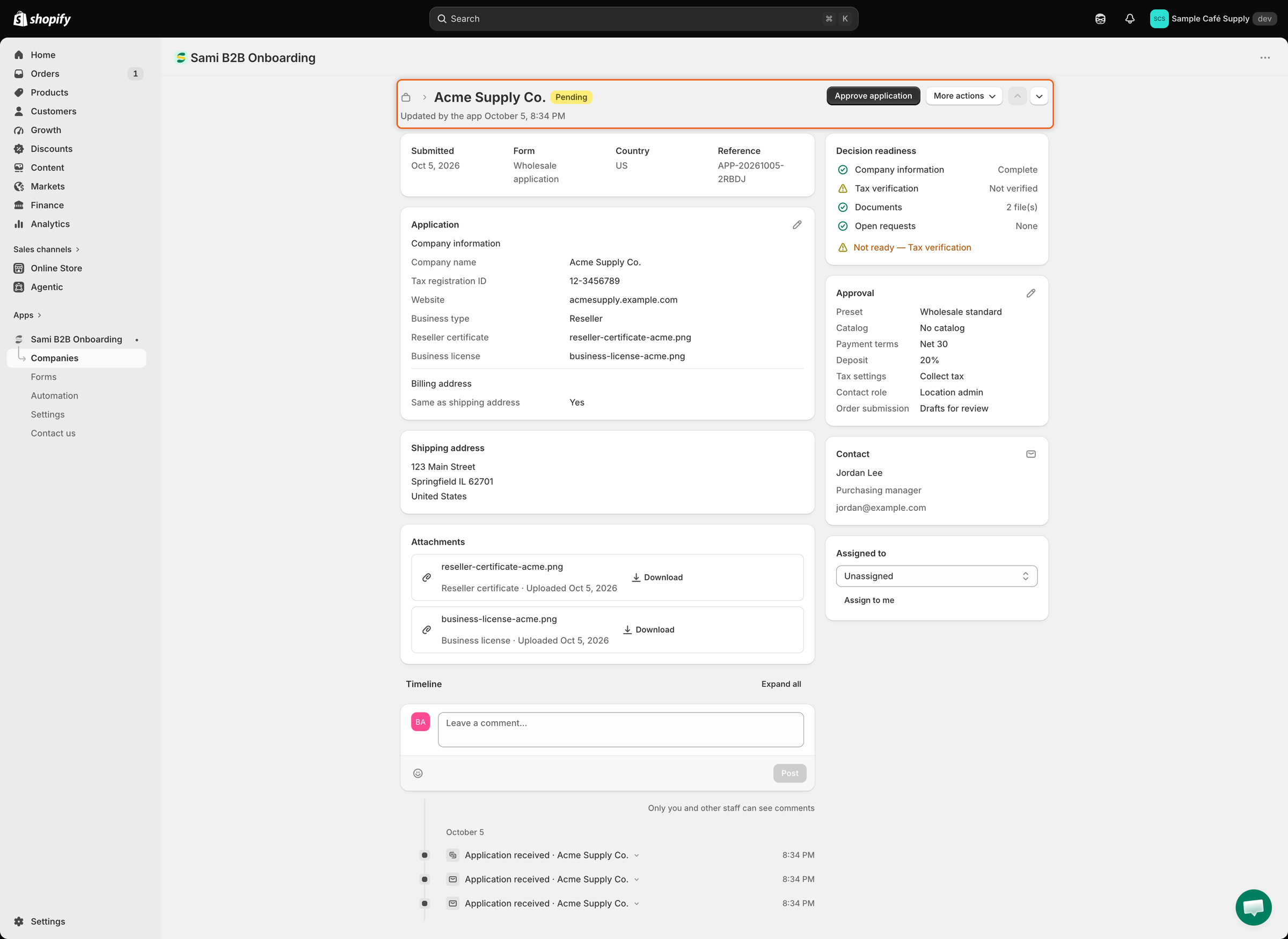
Click the eye icon (**Quick review**) at the end of a row. A panel opens on the right with the company name, its status, the date it was submitted and its place in the list, for example "Submitted Oct 3, 2026 · 2 of 14".
{% endstep %}

{% step %}

### Check the application

The drawer shows:

* **Contact**, **Email**, **Country** and **Form**.
* **Readiness**: the checks described in [Readiness checks](#readiness-checks), with a summary line such as **Ready to approve**.
* A note on what your automation rules did, for example "No rule matches this application, so it needs a person."
* **Open the full application**, a link to the full page.
  {% endstep %}

{% step %}

### Decide or move on

At the bottom, click **Reject**, **Request info** or **Approve**. Use the up and down arrows at the top of the drawer to move to the previous or next application, or the × to close it. A decided application shows "Already decided. Open the full application to change it." instead of the buttons.
{% endstep %}
{% endstepper %}

<figure><img src="https://3844812229-files.gitbook.io/~/files/v0/b/gitbook-x-prod.appspot.com/o/spaces%2FRrf4pQPgjvb3GW7IN3Ci%2Fuploads%2Fgit-blob-8bd518ea4252ab32a35be942b5ad628bde6e1fc3%2Fscreenshot-applications-review-drawer.png?alt=media" alt="The quick review drawer for Acme Supply Co., Pending, with contact details, readiness checks summed up as Not ready — Tax verification, an automation note, and the Reject, Request info and Approve buttons."><figcaption><p>The drawer shows who applied, the readiness checks and the decision buttons, so you can work down the list without leaving it.</p></figcaption></figure>

{% hint style="warning" %}
For a **Pending** or **Resubmitted** application that the list doesn't flag in red as **Overdue**, **Approve** in the drawer (or the `A` key) approves at once, with no dialog. It uses only terms someone saved on the application's **Approval** card. If nothing was saved there, no preset is applied, even when the card shows your default preset. For a **Needs info** or overdue application, **Approve** opens a dialog where you pick a preset. To choose the terms yourself, use the row's **…** menu › **Approve**, or open the full application. See [Approve an application](/sami-b2b-onboarding/reviewing-applications/approve-an-application.md).
{% endhint %}

### Keyboard shortcuts

| Key        | What it does                                  |
| ---------- | --------------------------------------------- |
| `J` or `↓` | Next application.                             |
| `K` or `↑` | Previous application.                         |
| `A`        | **Approve**, the same as the drawer's button. |
| `E`        | **Request info**.                             |
| `R`        | **Reject**.                                   |
| `Esc`      | Close the drawer.                             |

When the drawer is closed, `J` or `K` opens it on the first row. The arrow keys, `A`, `E` and `R` only work once the drawer is open; until then the arrows scroll the page. `A`, `E` and `R` only act on an application that is still undecided. Shortcuts do nothing while you type in a field, while a dialog or menu is open, or while you hold Cmd, Ctrl or Alt.

## Open the full application

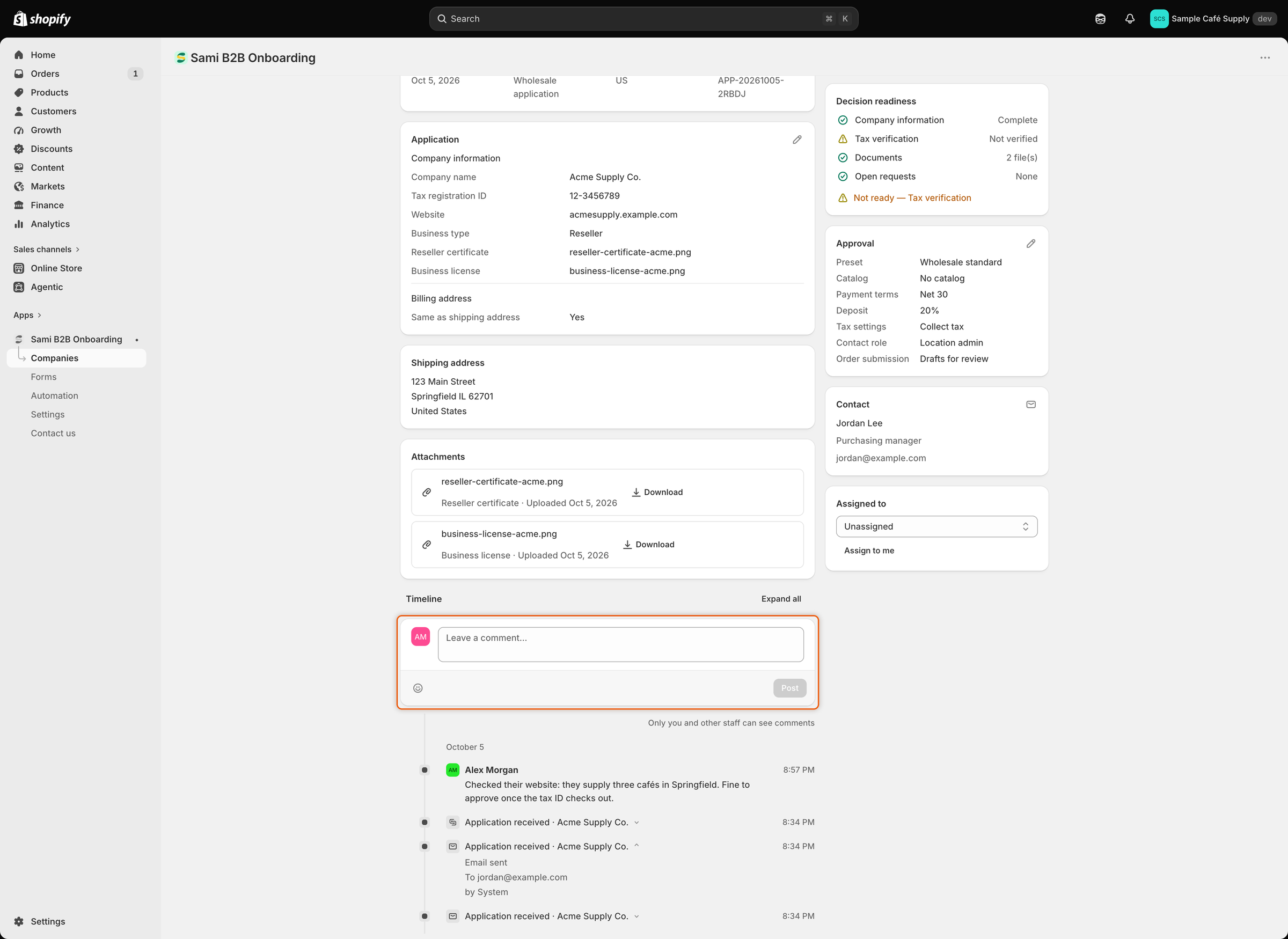
Click the row, or **Open the full application** in the drawer. At the top you see:

* The company name and its status, with a line saying who last changed the application and when.
* **Approve application**, until the application is approved.
* **More actions**, with **Request info** and **Reject** while the application is undecided, and **View customer** once the buyer has a customer in Shopify.
* Up and down arrows to open the previous or next application.

<figure><img src="https://3844812229-files.gitbook.io/~/files/v0/b/gitbook-x-prod.appspot.com/o/spaces%2FRrf4pQPgjvb3GW7IN3Ci%2Fuploads%2Fgit-blob-48c6ed60fce00ca773a6019146e8f4a622036fec%2Fscreenshot-applications-full-page.png?alt=media" alt="The Acme Supply Co. application page with Approve application and More actions in the header, answers, attachments and timeline on the left, and Decision readiness, Approval, Contact and Assigned to on the right."><figcaption><p>The full page holds the answers, files and timeline on the left, and what you need to decide on the right.</p></figcaption></figure>

### What each card shows

| Card                                         | What it shows                                                                                                                                                                                                                                                                                                                                                                |
| -------------------------------------------- | ---------------------------------------------------------------------------------------------------------------------------------------------------------------------------------------------------------------------------------------------------------------------------------------------------------------------------------------------------------------------------- |
| **Possible duplicate**                       | Only while the application is undecided and the duplicate check in **Settings › Application rules** finds a match. Compares **Company name**, **Contact email**, **Tax ID** and **Status** with the existing company or application, and marks the row that matched.                                                                                                         |
| Facts row                                    | **Submitted**, **Form**, **Country** and **Reference**.                                                                                                                                                                                                                                                                                                                      |
| Answers                                      | One card per page of your form, with the form's own headings. Answers shown on the **Contact** and address cards aren't repeated here. Blank answers read **Not provided**. While you wait on the buyer, a required blank answer is flagged **Not submitted yet**. Answers to questions you've since removed from the form appear in a last card, **No longer on the form**. |
| **Shipping address** and **Billing address** | The addresses the buyer entered.                                                                                                                                                                                                                                                                                                                                             |
| **Attachments**                              | Each uploaded file with its type, upload date, expiry date when it has one, and a **Download** button.                                                                                                                                                                                                                                                                       |
| **Timeline**                                 | Everything that happened to the application, newest first, and your team's comments.                                                                                                                                                                                                                                                                                         |
| **Decision readiness**                       | The readiness checks and their summary.                                                                                                                                                                                                                                                                                                                                      |
| **Approval**                                 | The terms an approval will apply. See [Approve an application](/sami-b2b-onboarding/reviewing-applications/approve-an-application.md).                                                                                                                                                                                                                                       |
| **Contact**                                  | The contact's name, job title, email and phone. The name links to the Shopify customer once there is one. The envelope icon starts an email to them.                                                                                                                                                                                                                         |
| **Assigned to**                              | The reviewer who owns the application.                                                                                                                                                                                                                                                                                                                                       |

### Readiness checks

| Check                   | What it tells you                                                                                                                                                                                                                                                                                                                                 |
| ----------------------- | ------------------------------------------------------------------------------------------------------------------------------------------------------------------------------------------------------------------------------------------------------------------------------------------------------------------------------------------------- |
| **Company information** | **Complete**, or **Missing company name**.                                                                                                                                                                                                                                                                                                        |
| **Tax verification**    | Appears when the buyer gave a tax ID. Shows the tax ID check's result, such as **Format looks right**, "Verified with" the registry that checked it, **Not valid**, **Registry unavailable**, "Registered to" another company name, or **Not verified** when no check ran. See [Tax ID checks](/sami-b2b-onboarding/automation/tax-id-checks.md). |
| **Documents**           | How many files were uploaded, or **None uploaded**.                                                                                                                                                                                                                                                                                               |
| **Required answers**    | Appears when answers your form says must be filled in before approval are blank, listed after "Missing:". You can't approve until they are filled in.                                                                                                                                                                                             |
| **Duplicate check**     | The company or application this one looks like.                                                                                                                                                                                                                                                                                                   |
| **Open requests**       | **Waiting on buyer** while a request for information is open, otherwise **None**.                                                                                                                                                                                                                                                                 |

The summary reads **Ready to approve**, or **Not ready —** followed by the checks that failed. Only **Required answers** stops an approval; the others are there to help you judge.

## Edit the buyer's answers

{% stepper %}
{% step %}

### Open the editor

On the first answers card, click the pencil (**Edit answers**). The **Edit answers** dialog lists the questions with their current answers.
{% endstep %}

{% step %}

### Change the answers

Fix what you need, then click **Done**. The save bar appears at the top of the page.
{% endstep %}

{% step %}

### Save

Click **Save** in the save bar. The message "Answers saved" confirms it. A new company name, contact name, email or country also shows in the list.
{% endstep %}
{% endstepper %}

Uploaded files can't be changed here; they stay as the buyer sent them. Answers in **No longer on the form** can't be edited. While the save bar is up, **Approve application**, **Request info** and **Reject** are turned off, so save or discard first.

On an approved application, editing answers needs the **Companies** permission on your Shopify staff account. It updates the company's details in the app. Of those answers, only a changed tax ID is sent to the Shopify company location.

## Assign a reviewer

{% stepper %}
{% step %}

### Pick the person

In the **Assigned to** card, pick someone from the list, or click **Assign to me**. If someone is already assigned, click the pencil (**Change assignee**) first. Pick **Unassigned** to clear it.
{% endstep %}

{% step %}

### Save

Click **Save** in the save bar. "Assignee updated" confirms it, and the timeline records the change.
{% endstep %}
{% endstepper %}

When the application is approved, the person assigned becomes the new company's sales rep. Rules can also assign applications for you; see [Rules that decide applications](/sami-b2b-onboarding/automation/rules.md).

## Leave an internal comment

{% stepper %}
{% step %}

### Write the comment

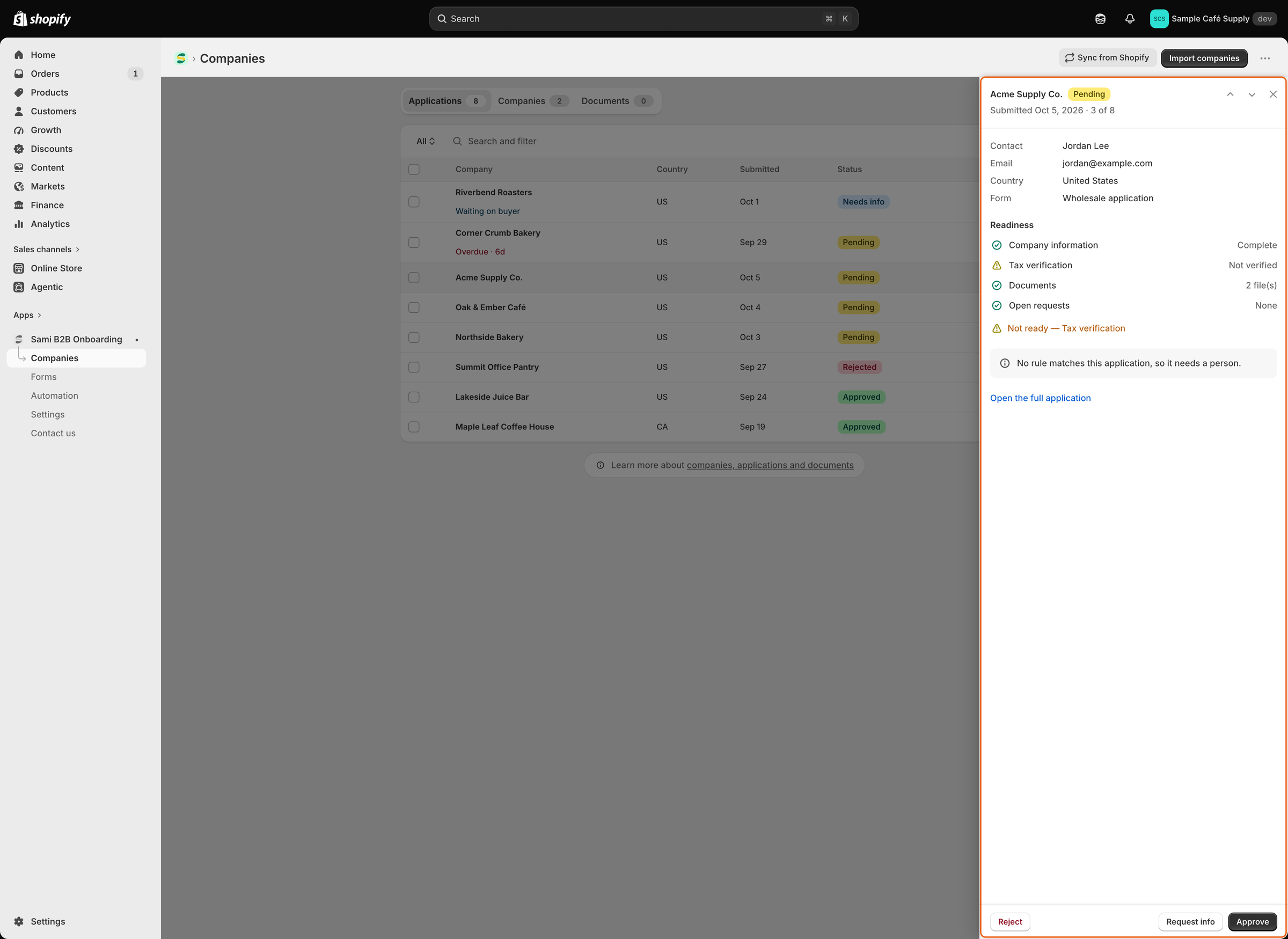
In the **Timeline** card, type in **Leave a comment…**. The smiley button adds an emoji.
{% endstep %}

{% step %}

### Post it

Click **Post**. The comment appears at the top of the timeline with your name and the time.
{% endstep %}
{% endstepper %}

Comments are internal: "Only you and other staff can see comments". The buyer never sees them. Click any event in the timeline to see its details, such as who did it, the email it went to or what Shopify answered. **Expand all** opens every event at once.

<figure><img src="https://3844812229-files.gitbook.io/~/files/v0/b/gitbook-x-prod.appspot.com/o/spaces%2FRrf4pQPgjvb3GW7IN3Ci%2Fuploads%2Fgit-blob-58989ae16cd89402ce66ee44d3faaf663cb4e115%2Fscreenshot-applications-timeline-comment.png?alt=media" alt="The Timeline card with a Leave a comment… box and Post button, a staff comment at the top of October 5, and Application received events, one expanded to show the email it sent."><figcaption><p>Comments sit in the timeline next to the events, and only your staff can see them.</p></figcaption></figure>

## Make the decision

When you've checked the application, use the buttons at the top of the page:

* **Approve application** creates the company and customer in Shopify. See [Approve an application](/sami-b2b-onboarding/reviewing-applications/approve-an-application.md).
* **More actions › Request info** asks the buyer for a missing document or detail. See [Request more information](/sami-b2b-onboarding/reviewing-applications/request-more-information.md).
* **More actions › Reject** turns the application down. See [Reject an application](/sami-b2b-onboarding/reviewing-applications/reject-an-application.md).

## Next steps

* [Approve an application](/sami-b2b-onboarding/reviewing-applications/approve-an-application.md) — set the terms and approve.
* [Request more information](/sami-b2b-onboarding/reviewing-applications/request-more-information.md) — ask the buyer for what's missing.
* [Decide several applications at once](/sami-b2b-onboarding/reviewing-applications/decide-several-at-once.md) — work through a batch from the list.


---

# Agent Instructions
This documentation is published with GitBook. GitBook is the documentation platform designed so that both humans and AI agents can read, navigate, and reason over technical content effectively. Learn more at gitbook.com.

## Querying This Documentation
If you need additional information that is not directly available in this page, you can query the documentation dynamically by asking a question.

Perform an HTTP GET request on the current page URL with the `ask` query parameter, and the optional `goal` query parameter:

```
GET https://docs.samita.io/sami-b2b-onboarding/reviewing-applications/review-an-application.md?ask=<question>&goal=<endgoal>
```

`ask` is the immediate question: it should be specific, self-contained, and written in natural language.
`goal` is optional and describes the broader end goal you are ultimately trying to accomplish on behalf of the user. GitBook uses it to tailor the answer towards what is most useful for that goal.

The response will contain a direct answer to the question and relevant excerpts and sources from the documentation.

Use this mechanism when the answer is not explicitly present in the current page, you need clarification or additional context, or you want to retrieve related documentation sections.