> For the complete documentation index, see [llms.txt](https://docs.samita.io/llms.txt). Markdown versions of documentation pages are available by appending `.md` to page URLs; this page is available as [Markdown](https://docs.samita.io/sami-b2b-onboarding/reviewing-applications/reject-an-application.md).
# Reject an application
Turn an application down with a reason, choose whether the buyer can try again, and decide whether to email them.
Reject an application when you won't open a B2B account for the buyer. Sami B2B Onboarding records your reason, can email the buyer, and lets you choose whether they may update the application and send it again. Nothing is created in Shopify.
If something is only missing, [request more information](/sami-b2b-onboarding/reviewing-applications/request-more-information.md) instead.
## Reject an application
{% stepper %}
{% step %}
### Open the reject dialog
Use any of these:
* On the **Applications** tab, click **…** at the end of the row and pick **Reject**.
* In the quick review drawer, click **Reject**, or press `R`.
* On the full application page, click **More actions › Reject**.
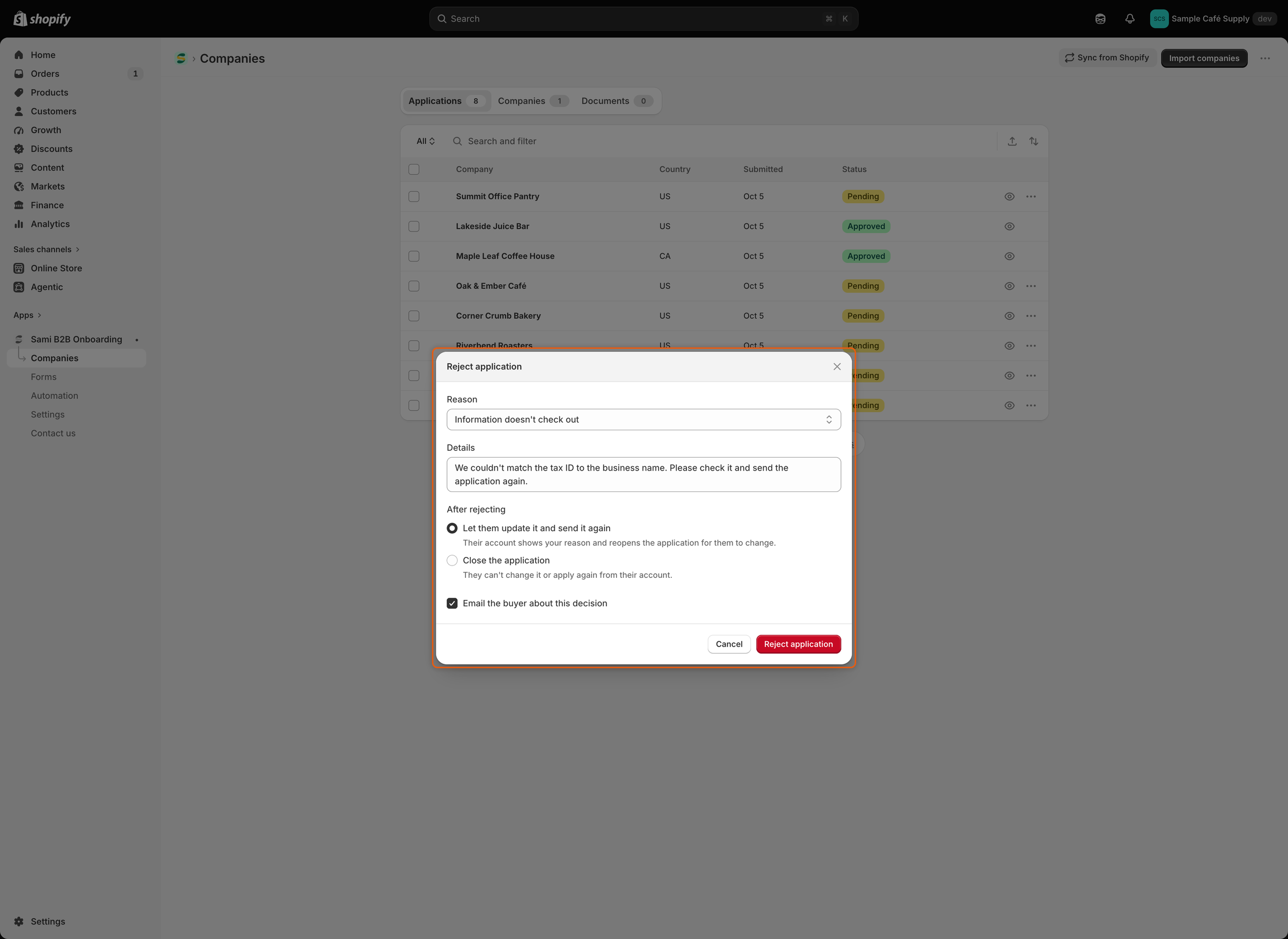
The **Reject application** dialog opens.
{% endstep %}
{% step %}
### Pick a reason
Under **Reason**, pick **Doesn't meet requirements**, **Information doesn't check out**, **Duplicate application** or **Other**.
{% endstep %}
{% step %}
### Add details
Under **Details**, write what the buyer should know. This and the reason are what the declined email quotes.
{% endstep %}
{% step %}
### Choose what happens next
Under **After rejecting**, pick one:
* **Let them update it and send it again** (the default): "Their account shows your reason and reopens the application for them to change."
* **Close the application**: "They can't change it or apply again from their account."
{% endstep %}
{% step %}
### Choose whether to email the buyer
Leave **Email the buyer about this decision** ticked to send the **Application declined** email, or untick it to reject quietly.
{% endstep %}
{% step %}
### Reject
Click **Reject application**. "Application rejected" confirms it. The status changes to **Rejected**, the application moves to the **Decided** view, and the timeline shows "Rejected Acme Supply Co." with the reason.
{% endstep %}
{% endstepper %}
The reason and details go to the buyer; After rejecting decides whether they can send the application again.
{% hint style="warning" %}
The **Application declined** email is turned off by default, so no email goes out until you turn it on for the form. On the full application page the dialog knows this: the tick is off and greyed out, with "The Application declined email is turned off, so none goes out." From the list or the drawer, the tick starts ticked either way. When the email is off, the timeline notes that nothing was sent.
{% endhint %}
## Turn on the declined email
Each application form has its own switch for this email.
{% stepper %}
{% step %}
### Open the form's emails
Go to **Forms** and click **Edit** beside the form, for example **Wholesale application**. In the rail on the left of the builder, click **Email**. **Application declined** is listed under **Sent to buyers**.
{% endstep %}
{% step %}
### Turn it on
Turn on the switch beside **Application declined**, then click **Save** in the builder's save bar.
{% endstep %}
{% endstepper %}
Do this for each form whose rejected buyers should hear from you. **Application rejected** must also be on under **Automation › Automations**. It's on by default. While it's off, the email's row in the builder says "Its automation trigger is off, so this won't send."
The email, "About your application", thanks the buyer, says you can't approve the application at this time, and quotes your reason and details. It tells them they can still shop at regular prices and apply again if their details change, and has a **Visit the store** button. To change its wording, see [Edit email templates](/sami-b2b-onboarding/settings/email-templates.md).
## What the buyer sees
When the buyer is signed in, their customer account and your form page show "Your application wasn't approved". In their account, the line under it is your reason and details. On your form page:
* If you picked **Let them update it and send it again**, they read "You can update your application and send it again." and get an **Update your application** button, which their account shows too. When they send it, the application comes back to you as **Resubmitted**, with the decision left to your team. See [Request more information](/sami-b2b-onboarding/reviewing-applications/request-more-information.md#how-rules-treat-a-resubmitted-application).
* If you picked **Close the application**, they read "Get in touch if you think this was a mistake." and there's no button.
See [Company application page](/sami-b2b-onboarding/customer-accounts/company-application-page.md).
## What happens to the application
A rejected application stays in the **Decided** view. Shopify Flow's **Application rejected** trigger runs while it's on under **Automation › Automations**, and integrations you set to send rejections get it.
Rejected applications are deleted for good, with their files and timeline, after the time set in **Settings › Application rules › Data retention › Rejected applications**: **Keep for 1 year** (the default), **Keep for 90 days** or **Keep indefinitely**. See [Application rules](/sami-b2b-onboarding/settings/application-rules.md).
## Change your mind
You can still approve a rejected application. Open it from the list. The full page keeps the **Approve application** button. Check the **Approval** card first: a rejected application doesn't start from your default preset, so set the terms with the pencil and click **Save**. Then click **Approve application**. When the summary reads **Ready to approve**, it's approved straight away, with no dialog. See [Approve an application](/sami-b2b-onboarding/reviewing-applications/approve-an-application.md).
The application page, the drawer and the row's **…** menu offer **Reject** only while an application is undecided.
## Next steps
* [Edit email templates](/sami-b2b-onboarding/settings/email-templates.md) — reword the Application declined email.
* [Rules that decide applications](/sami-b2b-onboarding/automation/rules.md) — reject applications that match your conditions automatically.
* [Application rules](/sami-b2b-onboarding/settings/application-rules.md) — set how long rejected applications are kept.
---
# Agent Instructions
This documentation is published with GitBook. GitBook is the documentation platform designed so that both humans and AI agents can read, navigate, and reason over technical content effectively. Learn more at gitbook.com.
## Querying This Documentation
If you need additional information that is not directly available in this page, you can query the documentation dynamically by asking a question.
Perform an HTTP GET request on the current page URL with the `ask` query parameter, and the optional `goal` query parameter:
```
GET https://docs.samita.io/sami-b2b-onboarding/reviewing-applications/reject-an-application.md?ask=&goal=
```
`ask` is the immediate question: it should be specific, self-contained, and written in natural language.
`goal` is optional and describes the broader end goal you are ultimately trying to accomplish on behalf of the user. GitBook uses it to tailor the answer towards what is most useful for that goal.
The response will contain a direct answer to the question and relevant excerpts and sources from the documentation.
Use this mechanism when the answer is not explicitly present in the current page, you need clarification or additional context, or you want to retrieve related documentation sections.