
Offer not applying
Common reasons an offer doesn't show on your store or doesn't take the discount off at checkout, and how to fix each one.
Use this page when an offer doesn’t show on your store, or shows but the discount isn’t taken off in the cart or at checkout. Work down the list: each step is a common reason and how to check it.
Start with the offer’s details page. Open the offer from the Offers list and look at its Health check: it flags a discount Shopify didn’t take, markets that no longer exist, and Shopify’s automatic discount limit.
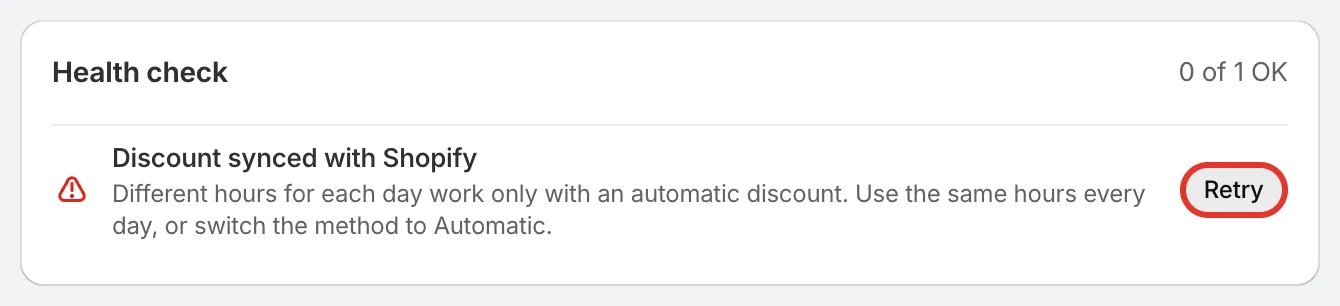
The Health check names what’s wrong and lets you retry.
Find your symptom
Section titled “Find your symptom”| What you see | Check |
|---|---|
| The offer doesn’t show on the product page | Steps 1, 2 and 3 |
| It shows, but there’s no discount in the cart or at checkout | Step 2, then steps 4 to 9 |
| Only some shoppers get the discount | Step 6 |
| Bundle items or a gift are charged at full price | Steps 10 and 11 |
| It worked before and stopped | Steps 2, 4, 7 and 12 |
The checklist
Section titled “The checklist”-
Is the app embed on?
Section titled “Is the app embed on?”Without the app embed, shoppers don’t see the offer block, badges or cart messages. On Home, check that Live and upcoming shows App embed active. See Turn on the app embed.
-
Is the offer Active?
Section titled “Is the offer Active?”Only an Active offer gives a discount. In the Offers list, check its status:
- Draft or Paused: its Shopify discount is off. Turn the offer on.
- Scheduled: its start date hasn’t come yet. Offer dates follow your store’s time zone.
- Expired: its end date has passed.
- Error: Shopify didn’t take the offer’s discount. Open the offer’s details, read the message in Health check, fix what it says and click Retry. A common cause is a Discount name that another automatic discount in your store already uses: Shopify needs each one to have its own name.
-
Is it placed where you’re looking?
Section titled “Is it placed where you’re looking?”Check the offer’s Placement tab. If the product page block is set to Where I place the app block, the block shows only where you’ve added the Sami offer app block in the theme editor. The block also shows only on the products the offer applies to.
Display conditions only decide where the block shows. They don’t change who gets the discount. See Placement and Display conditions.
-
Has Shopify’s automatic discount limit been reached?
Section titled “Has Shopify’s automatic discount limit been reached?”Shopify allows 25 active automatic discounts per store, counting Shopify’s own discounts and other apps’. Discount code offers don’t count. When the limit is reached, a new automatic offer can’t go live.
The Offers list shows how many your store uses when you’re close, and the offer’s Health check shows Automatic discount limit reached. Pause discounts you no longer need, or switch the offer to a discount code. See Discount method.
-
Does it combine with the other discounts in the cart?
Section titled “Does it combine with the other discounts in the cart?”If the cart already has another discount, both discounts must allow combining. Check Combinations in the offer’s settings, and turn on the same kind of combination in the other discount in Shopify.
When two Sami offers apply to the same product, shoppers see one of them. The offer’s setting When another Sami offer also applies to a product decides which.
-
Is the shopper eligible?
Section titled “Is the shopper eligible?”Check Customers, markets and channels in the offer’s settings:
- Logged-in customers only: the shopper must be signed in to their customer account.
- Customer tags: the shopper’s account must have one of the tags.
- Exclude B2B customers: company accounts buying at B2B prices don’t get the offer.
- Markets: the offer runs only in the markets you picked, or everywhere except the ones you excluded. At checkout, the shopper’s country comes from their shipping address once they enter it.
Test in a private window, signed in as a test customer. Being signed in to your Shopify admin doesn’t make you a customer on your store. See Customers and markets.
-
Was the code entered?
Section titled “Was the code entered?”For an offer with the Discount code method, shoppers must enter the code at checkout, unless Apply the code for shoppers is on. Then the app adds the code when they pick the offer.
With unique codes, each shopper gets their own code. A code can stop working when it expires. See Discount method.
-
Does the cart meet the minimum?
Section titled “Does the cart meet the minimum?”A Minimum purchase amount or Minimum quantity of items counts only the items in this offer, not the whole cart. A cart with $100 of other products and $20 of offer products doesn’t meet a $50 minimum. See Purchase requirements.
-
Was it bought through the offer block?
Section titled “Was it bought through the offer block?”If Apply only when bought through the offer block is on, the discount applies only to items added with the offer block’s button. The same items added another way, for example from a collection page, pay full price. See Apply only through the offer block.
-
Bundles: were the items added with the bundle button?
Section titled “Bundles: were the items added with the bundle button?”A Complete the bundle discount applies to items added with the bundle’s button (Add all to cart unless you changed it). Items added one by one don’t get the bundle discount.
-
Gifts: did the app add the gift?
Section titled “Gifts: did the app add the gift?”A Free gift is free only when the app added it, automatically or through the gift picker. The same product added to the cart by hand is charged. Only the number of gifts the offer allows is free.
-
Is it within the offer’s hours and limits?
Section titled “Is it within the offer’s hours and limits?”- Daily window: an offer with a daily window gives the discount only during its hours, in your store’s time zone. See Schedule and timer.
- Total uses or Uses per customer: once a limit is used up, the code stops working, for everyone or for that customer. Raise the limit if you want the offer to keep going.
- Discounted items per order: items over the limit pay full price.
See Usage limits.
Still stuck?
Section titled “Still stuck?”Read How offers apply at checkout for how the discount reaches the cart, then contact support with the offer’s name, the product page address and a screenshot of the cart or checkout.