
Custom offer
Build your own IF / THEN rules, such as a discount for tagged customers on weekends, and choose how matching rules apply.
Det här innehållet är inte tillgängligt på ditt språk än.
A custom offer is a list of your own rules. Each rule says IF the cart, customer or day matches, THEN give a reward: “IF the cart subtotal is at least $120 AND the customer is tagged VIP, THEN 20% off”. Use it when no other type fits, for example a deal only for certain customers, countries, or days of the week.
What shoppers see
Section titled “What shoppers see”- On the product page of the products in the offer, an offer block that lists up to three of your money-off rules, so shoppers see what they can unlock (for example “Spend $120”).
- At checkout, the reward of the rule (or rules) the cart matches, under the offer’s discount name.
Templates that start a custom offer
Section titled “Templates that start a custom offer”| Template | Starts with |
|---|---|
| Custom: VIP weekend (Advanced tab) | Rule 1: cart subtotal at least $120 AND customer tag VIP, then 20% off the order. Rule 2: on weekends, free shipping. Application order: Best reward for the customer. The offer is also limited to customers tagged VIP. |
The template’s limit to VIP customers is set under Settings › Advanced › Customers, markets and channels. It applies to every rule, so change it if a rule, such as weekend free shipping, is meant for everyone. See Customers and markets.
You can also click Start from blank in the Advanced category and pick Custom offer. See Create an offer.
Set up a custom offer
Section titled “Set up a custom offer”-
Choose the products
Section titled “Choose the products”In the offer editor, open the Offer tab. In Products, click Change and pick Specific products, Collections, Product tags, or All products. Use Exclude products, Exclude collections, or Exclude tags to leave items out.
The products decide where the block shows and which items the cart subtotal, item count and money-off rewards count.
-
Open a rule
Section titled “Open a rule”In the Rules section, each rule is a row (Rule 1, Rule 2…) with a one-line summary, like “IF subtotal ≥ $120 AND tag VIP → 20% off”. Click a rule to open it, or click Add rule for a new one. The remove button deletes a rule; an offer keeps at least one.
-
Set the conditions (IF)
Section titled “Set the conditions (IF)”A rule has one or two conditions. Click Add condition for a second one, then choose whether all or any of them have to be true.
Condition Compares Notes Cart subtotal is at least an amount Counts the offer’s products in the cart Cart item count is at least a number Counts the offer’s products in the cart Product in cart is one of the products you pick Any product in the cart Collection in cart is one of the collections you pick Any product in the cart Customer tag includes one of the tags you enter Only logged-in customers have tags Customer country is one of the countries you pick The country the shopper is shopping from on your store Day of the week is Weekend, Weekdays, or a day Your store’s time zone; the weekend is Saturday and Sunday When a condition has several values, any one of them matches.
-
Set the reward (THEN)
Section titled “Set the reward (THEN)”Under THEN, pick the reward and enter its value:
Reward Value % off order A percentage off the offer’s products in the cart (the whole order with All products) Fixed off order An amount off the offer’s products in the cart Free shipping No value needed Free gift Pick a gift: the product to give Buy X get Y Buy and get, like 2:1: buy 2, get 1 more of the same product freeClick Done to close the rule.
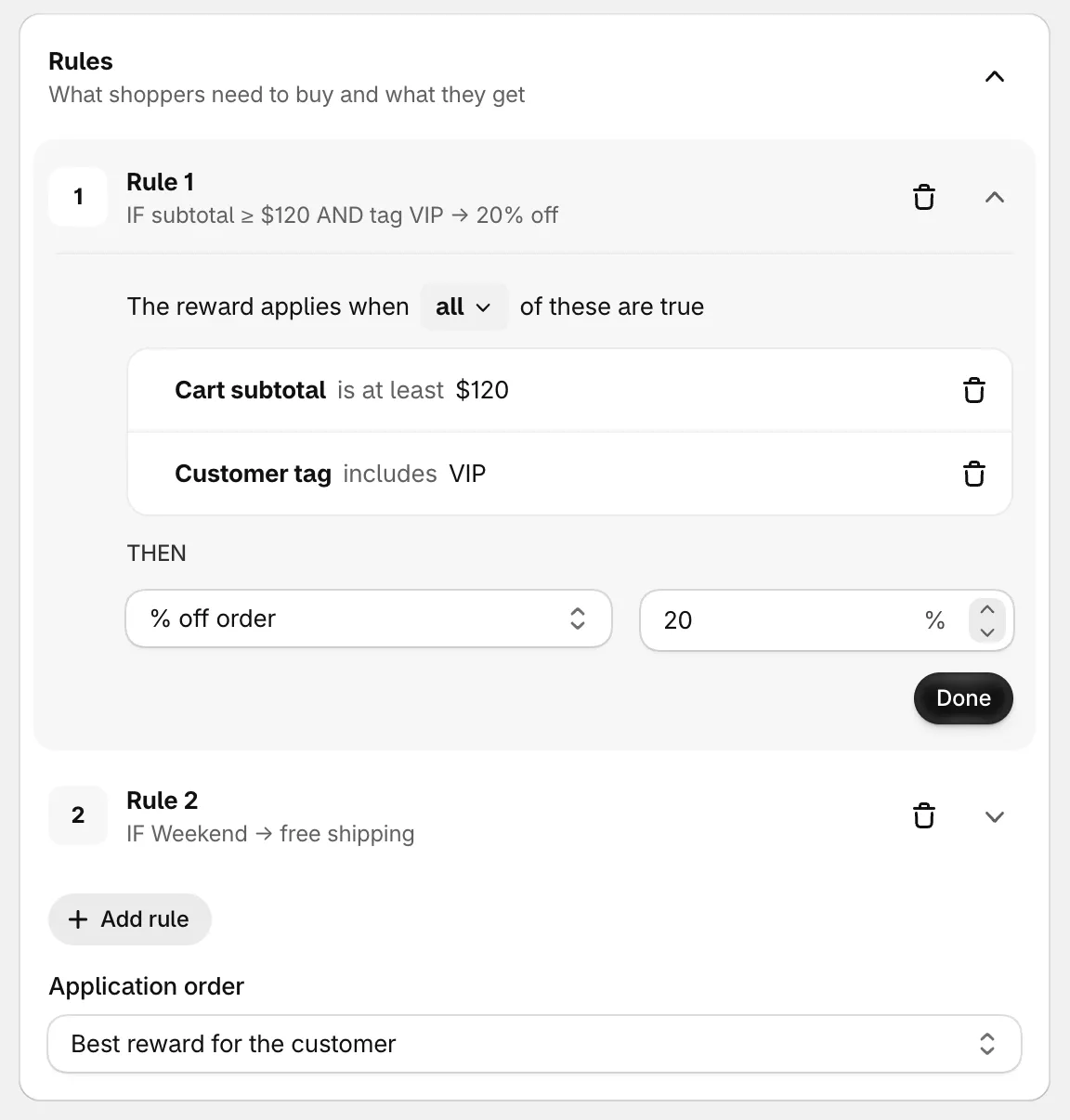
A rule with two conditions and its reward.
-
Choose the application order
Section titled “Choose the application order”When the cart matches more than one rule, Application order decides what happens:
Application order What applies First matching rule only The first matching rule in the list Best reward for the customer The matching rule that saves the shopper the most All matching rules (stack) Every matching rule. Money off the order adds up. -
Save and check your store
Section titled “Save and check your store”Set the status to Active and click Save. Open one of the offer’s products to see the block, then build a cart that matches a rule and go to checkout.
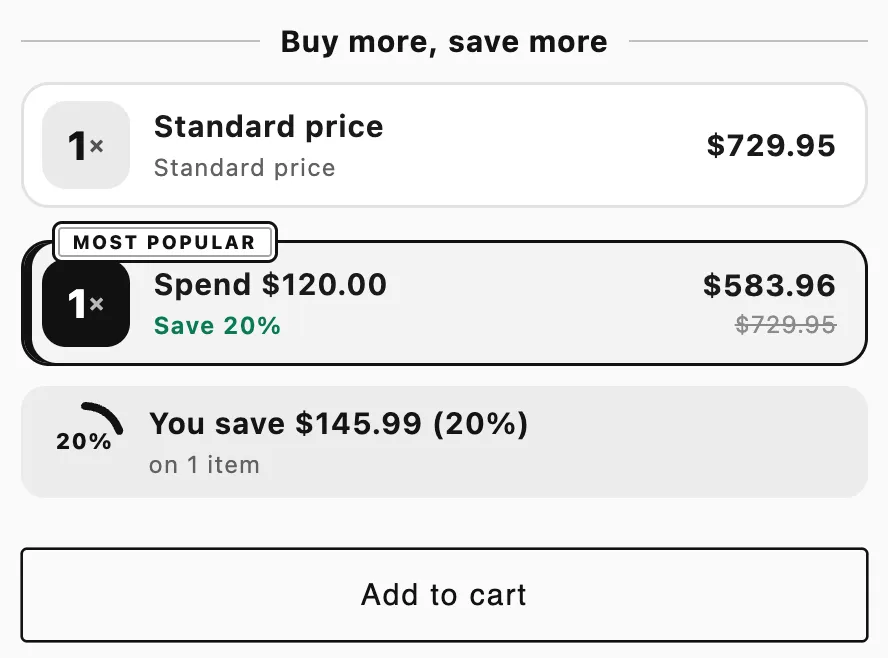
The custom offer block on a product page.
Good to know
Section titled “Good to know”- Rules are checked against the cart at checkout. The block only shows what’s on offer; the reward is decided when the cart matches.
- Settings apply to every rule. Customers, markets, dates, discount method and combinations in Settings come before the rules: a shopper who doesn’t pass them gets no rule at all.
- Buy X get Y in a rule works on the same product, like Buy one get one. Every full set counts.
- A/B tests. You can test the block style or the block title. See A/B test an offer.