
Setup guide
The four-step Setup guide that takes a new install from the app embed to a first live offer, and how to skip it or come back to it.
Det här innehållet är inte tillgängligt på ditt språk än.
The Setup guide takes you from a fresh install to your first offer on your store in four short steps: turn on the app embed, create an offer, choose where shoppers see it, and preview it. This page explains each step, what skipping does, and how to come back to the guide later.
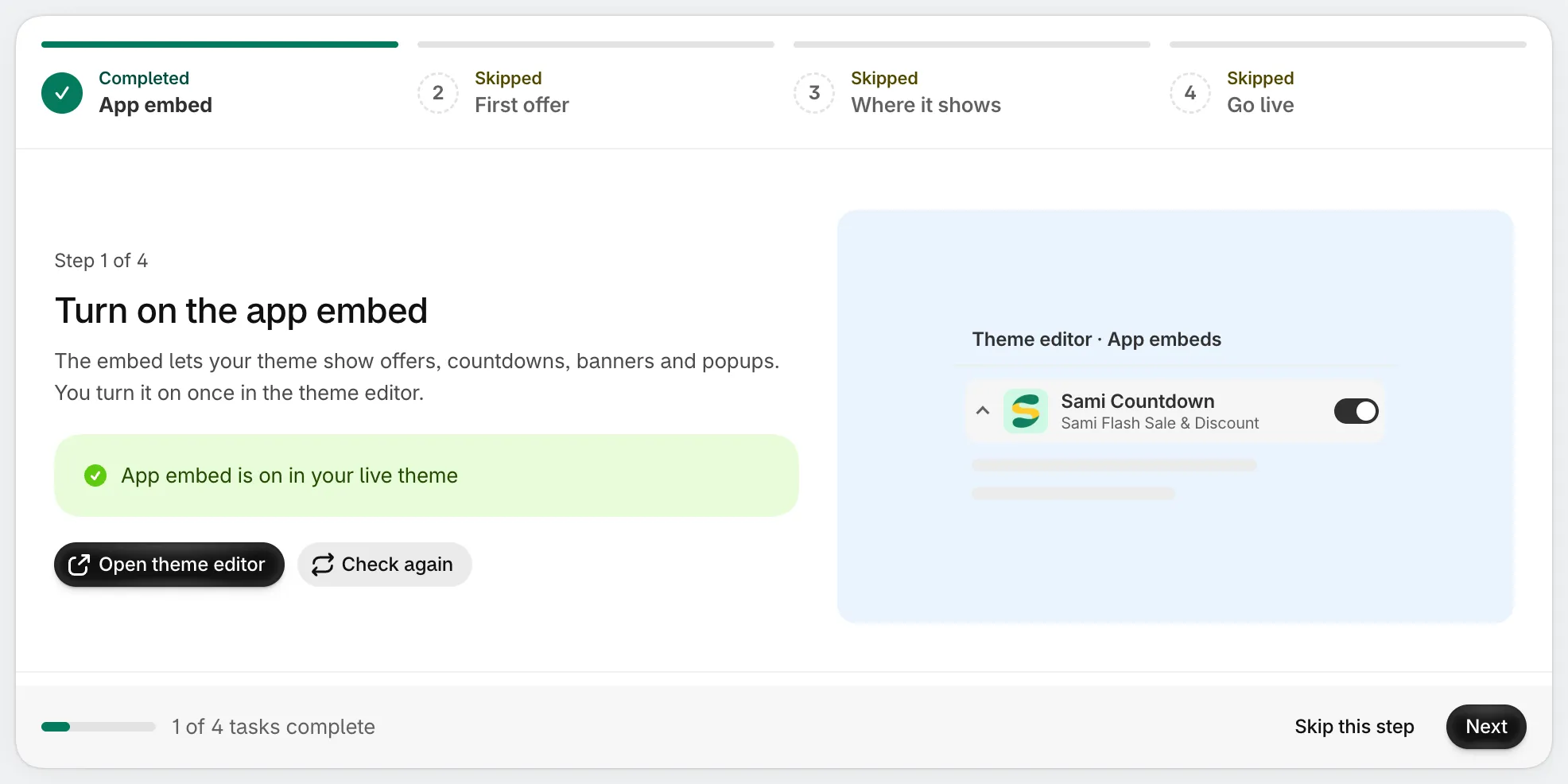
The Setup guide: four steps, with your progress at the bottom.
When the guide opens
Section titled “When the guide opens”When you install the app for the first time, it opens on the Setup guide instead of the Home page. It keeps opening there each time you open the app, at the step you were on, until you finish it. While the guide is open, the app’s menu shows only Home.
The steps run as tabs across the top: App embed, First offer, Where it shows and Go live. Each tab shows its state: Completed, In progress, Skipped or Not started. Click any tab to jump to that step. At the bottom you see how many of the 4 tasks are complete, with Skip this step and Next, plus Back from step 2 on.
The four steps
Section titled “The four steps”-
Turn on the app embed
Section titled “Turn on the app embed”The app embed lets your theme show offers, countdowns, banners and popups. The step reads your live theme and says whether the embed is on or off.
Click Open theme editor. Your theme editor opens in a new tab on the App embeds panel. Switch on Sami Countdown and click Save there. When you come back to the app tab, the guide checks again by itself; you can also click Check again. Once the embed is on, the step is completed and the guide moves on.
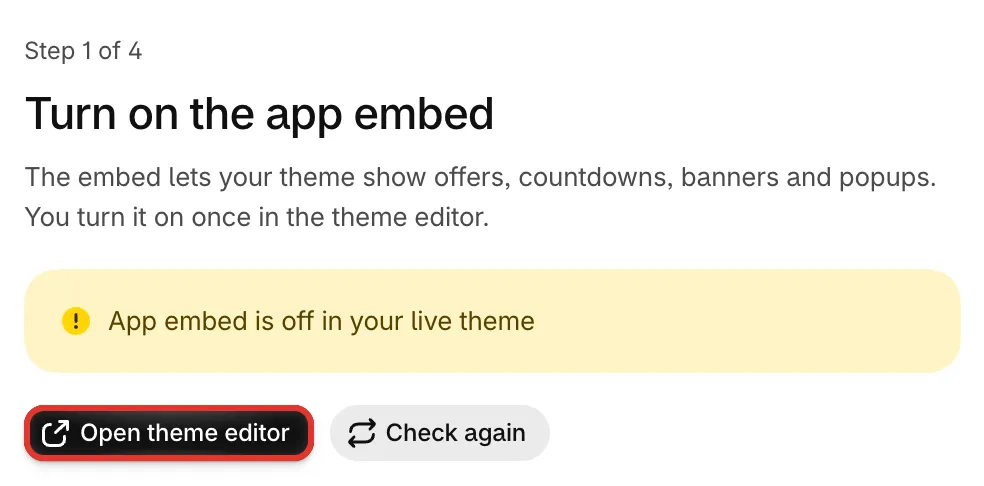
Step 1 checks the app embed on your live theme.
See Turn on the app embed for other ways to do it.
-
Create your first offer
Section titled “Create your first offer”Pick a starting point: Flash sale, Buy one get one, Complete the bundle, Free shipping over $50, Gift with purchase or Spending goals. Then click Use this template. The offer editor opens over the guide, already filled in from the template. Change the products, discount, design and dates, then click Save.
Nothing is created until you save. When you save and close the editor, the guide moves on to step 3. To see every template instead, click See all templates.
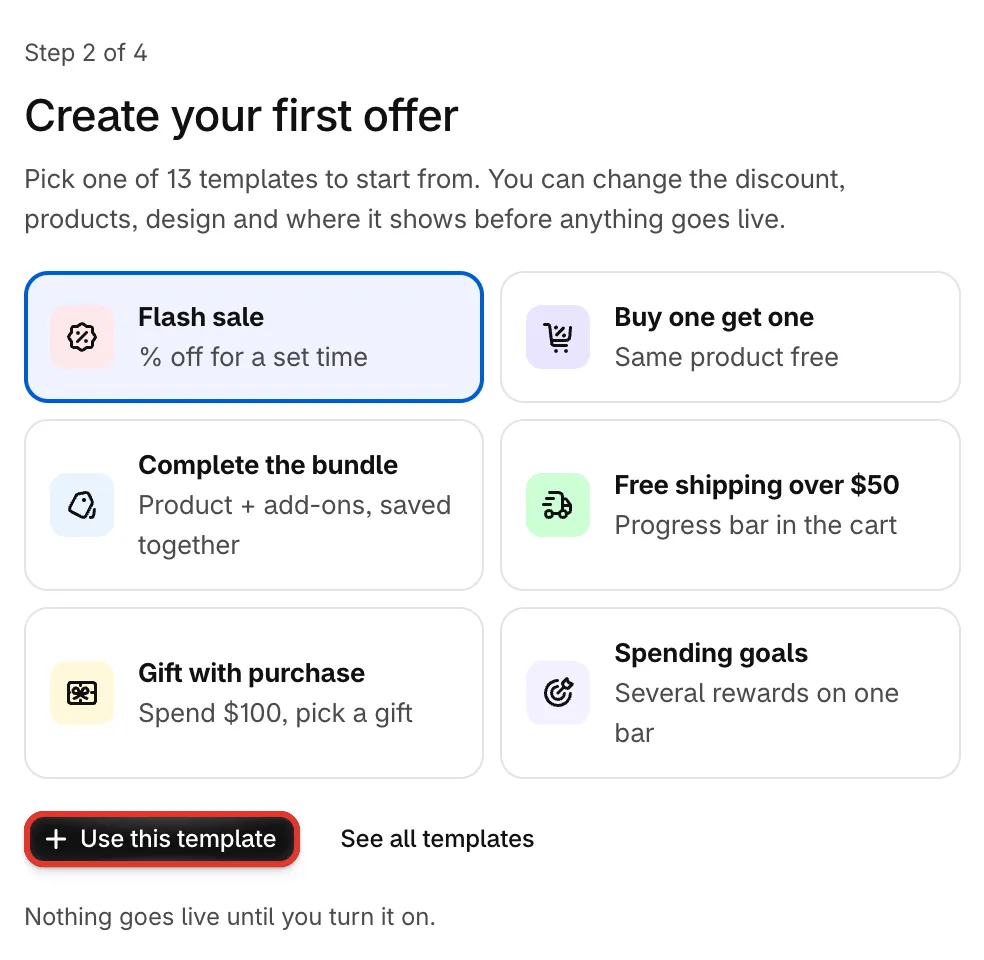
Step 2: pick a starting point and open it in the offer editor.
This step is completed as soon as your store has an offer, so if you already made one, the guide skips ahead.
-
Choose where shoppers see it
Section titled “Choose where shoppers see it”This step lists the places your offer can show, for the offer you just saved (or your newest offer). The list depends on the offer type. For a flash sale, for example: Discounted price on product page, Collection page badge, Product page offer block and Cart line labels.
Click Turn on next to a place to show the offer there. A place that’s on shows an On badge; click the × next to it to turn it off. Each change is saved to the offer straight away. These are the same switches as the offer’s Placement tab, so you can change them later. See Placement.
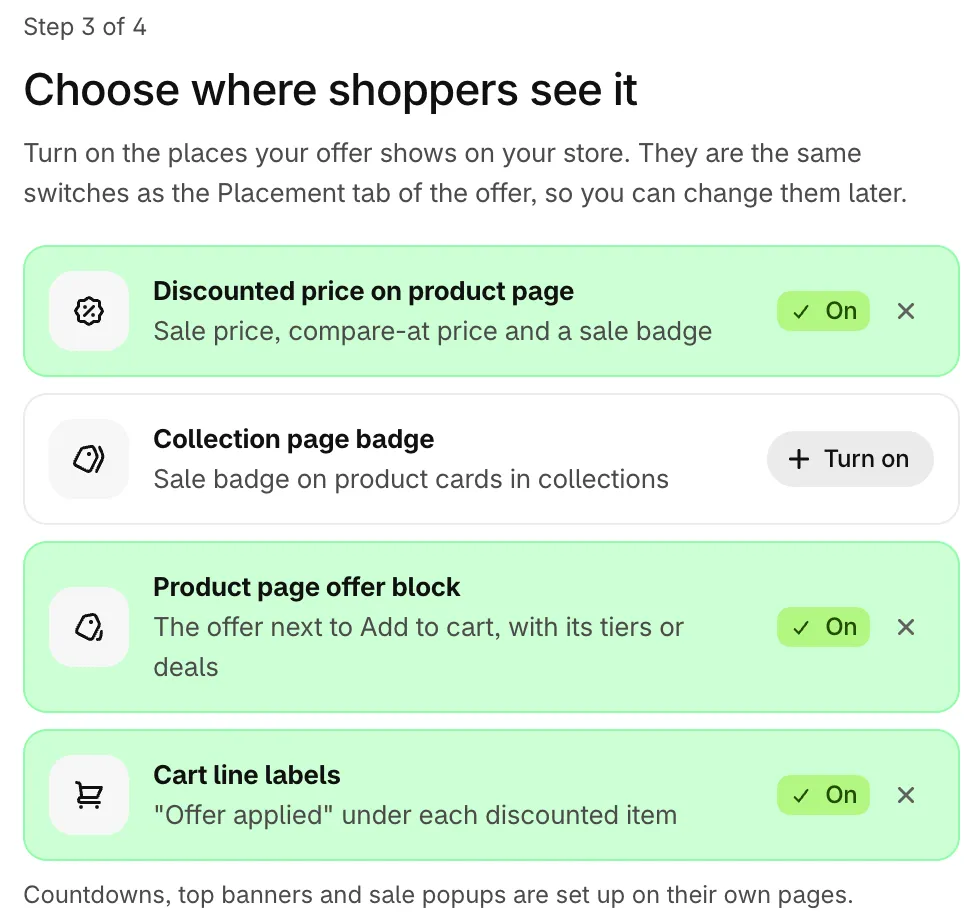
Step 3: turn on the places where shoppers see the offer.
Countdowns, banners and sale popups aren’t set up here. They have their own pages in the app.
-
Preview and go live
Section titled “Preview and go live”The last step sums up what’s done: whether the app embed is on, which offer you created, and where it shows. Anything missing is marked so you can go back to that step.
Click Preview on my store to open your store in a new tab: the page of the first product you picked for the offer, or your home page if you didn’t pick specific products. Check the product page and the cart.
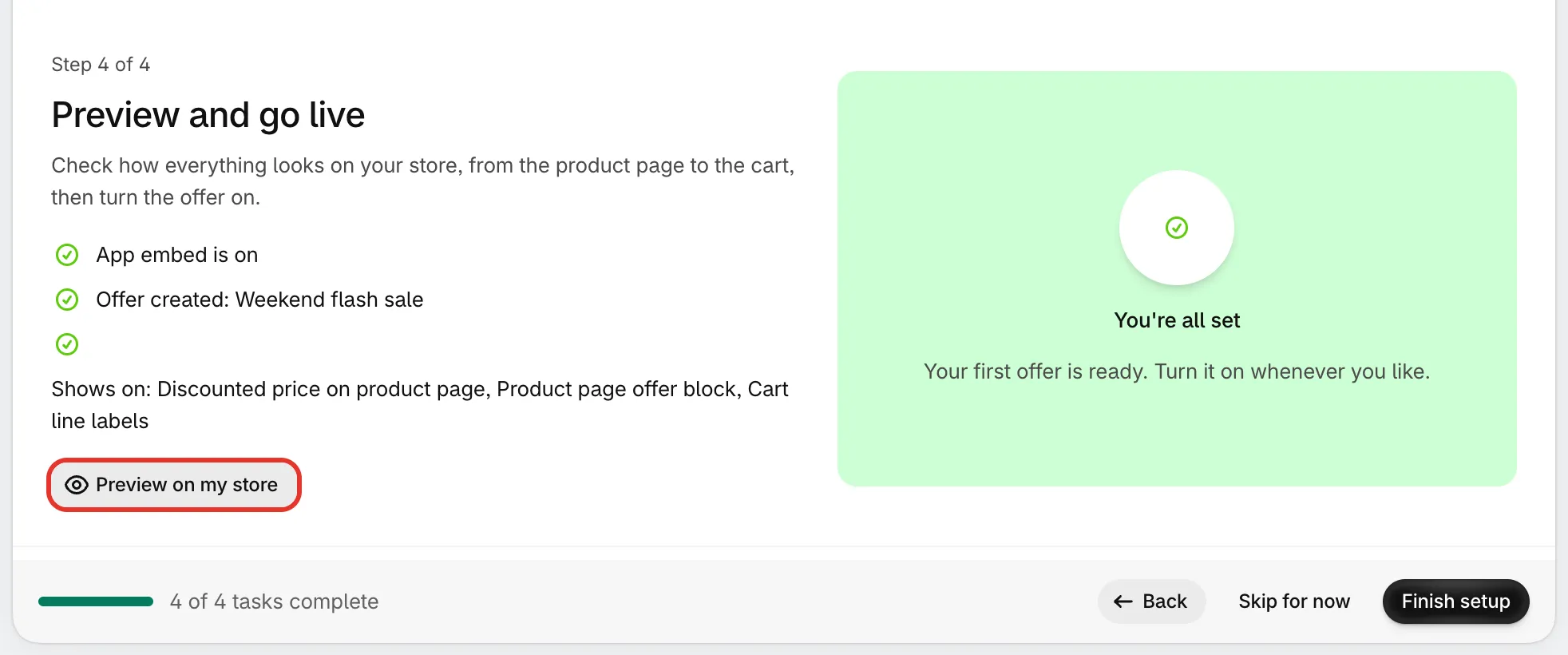
Step 4: check what’s set, then preview it on your store.
When you’re happy, click Finish setup. The guide closes and you land on the Home page.
Skip a step or the whole guide
Section titled “Skip a step or the whole guide”- Skip this step moves to the next step. The step you left shows as Skipped, and you can come back to it from its tab.
- Skip setup, at the top of the page, takes you to the Home page for this visit. The next time you open the app, the guide opens again where you left off. On the last step, Skip for now does the same.
- Finish setup ends the guide, even if some steps are still open. After that the app opens on the Home page.
Come back to the guide
Section titled “Come back to the guide”While the guide isn’t finished, the Home page shows a Setup guide card with your progress and the next step. Click Continue setup to go back to it. Click the × on the card to hide it. The Setup guide link in the Home page footer still opens the guide.
After you finish the guide, or if you installed the app before the guide existed, open it from the Ask Sami box on Home: type setup guide and press Enter.
If you get stuck on a step, click Chat with support under the guide.