
How offers apply at checkout
How each offer becomes a Shopify discount, what shoppers see in the cart and at checkout, and how offer status changes the discount.
Det här innehållet är inte tillgängligt på ditt språk än.
The block on your product page shows the deal. The money comes off through a Shopify discount that the app creates and keeps up to date for each offer. This page explains that link, so you know what shoppers see at checkout and where to check it in your Shopify admin.
One offer, one Shopify discount
Section titled “One offer, one Shopify discount”When you save an Active offer, the app creates a discount for it in your Shopify admin under Discounts. The kind of discount follows the offer’s method:
| Method in the offer | Discount in Shopify |
|---|---|
| Automatic | An automatic discount. It applies by itself when the cart qualifies. |
| Discount code › One code for everyone | A code discount with your code. |
| Discount code › A unique code for each visitor | A code discount that holds every visitor’s personal code. Codes are added to it as visitors get them. |
The discount’s title in Shopify is the offer’s Discount name, set in Settings › Advanced › Discount name and method. If you leave it empty, the offer’s internal name is used, so shoppers would see that.
What shoppers see
Section titled “What shoppers see”- Automatic offers — the discount appears in the cart and at checkout under the Discount name, as soon as the cart qualifies.
- Code offers — the discount applies once the code is in the cart. With Apply the code for shoppers on, the app adds the code when the shopper picks the offer, so nobody has to type it. At checkout, shoppers see the code rather than the discount name.
- Cart line labels — if this placement is on, a short label such as “Summer sale applied” shows the saving under each discounted line in the cart. See Placement.
To see this before going live, open the offer in the editor and set Preview on to Checkout.
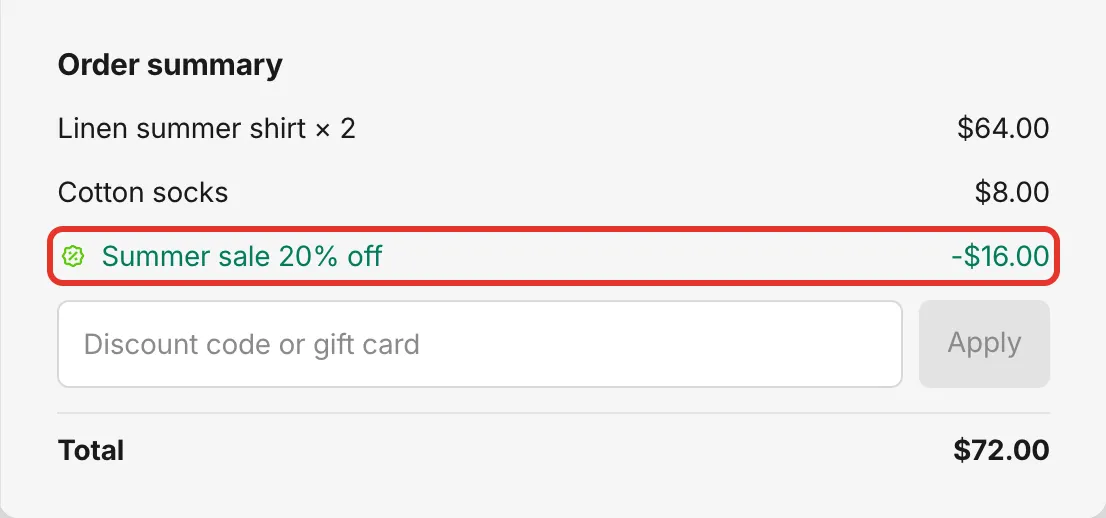
The editor’s Checkout preview shows the discount line shoppers get.
How offer status changes the discount
Section titled “How offer status changes the discount”| In the app | The Shopify discount |
|---|---|
| Active | Active, with the offer’s start and end dates. Until the start date, Shopify lists it as scheduled. |
| Draft or Paused | Switched off, but kept: Shopify lists it as Expired. Its usage history stays, and it comes back when you turn the offer on. |
| Expired | Ends at the offer’s end date, like any Shopify discount with an end date. |
| Deleted | Deleted from Shopify too. |
If Shopify doesn’t accept the discount, for example because your store has reached its automatic discount limit, the offer gets an Error badge and doesn’t run. The offer’s details page shows Shopify’s message and a Retry button.
Combining with other discounts
Section titled “Combining with other discounts”Shopify decides which discounts can apply together. In each offer, Settings › Advanced › Combinations says whether it can combine with other product, order or shipping discounts. A combination only happens when both discounts allow it.
When two Sami offers cover the same product, the offer’s When another Sami offer also applies to a product setting decides which one wins. Both are explained in Combinations and limits.
Check the discount in Shopify
Section titled “Check the discount in Shopify”In your Shopify admin, go to Discounts. Each offer’s discount is listed there under its discount name or code. From the app, the quickest way is the offer’s details page: More actions › View in Shopify Discounts.

An offer’s discount in Shopify admin › Discounts.