
在商品卡片中啟用 Quick Buy 功能
讓顧客直接在商品系列頁面以大量數量將商品加入購物車,無需逐一開啟每個商品。
Quick Buy 會直接在商品系列頁面新增可輸入大量數量的 Add to Cart 選項,讓顧客不必逐一造訪每個商品頁面,加快大量採購的速度。
建立 Quick Buy 商品系列
Section titled “建立 Quick Buy 商品系列”-
開啟應用程式,前往 Quick Order Form,然後在 Collection Quick Buy 下點擊 Create。
-
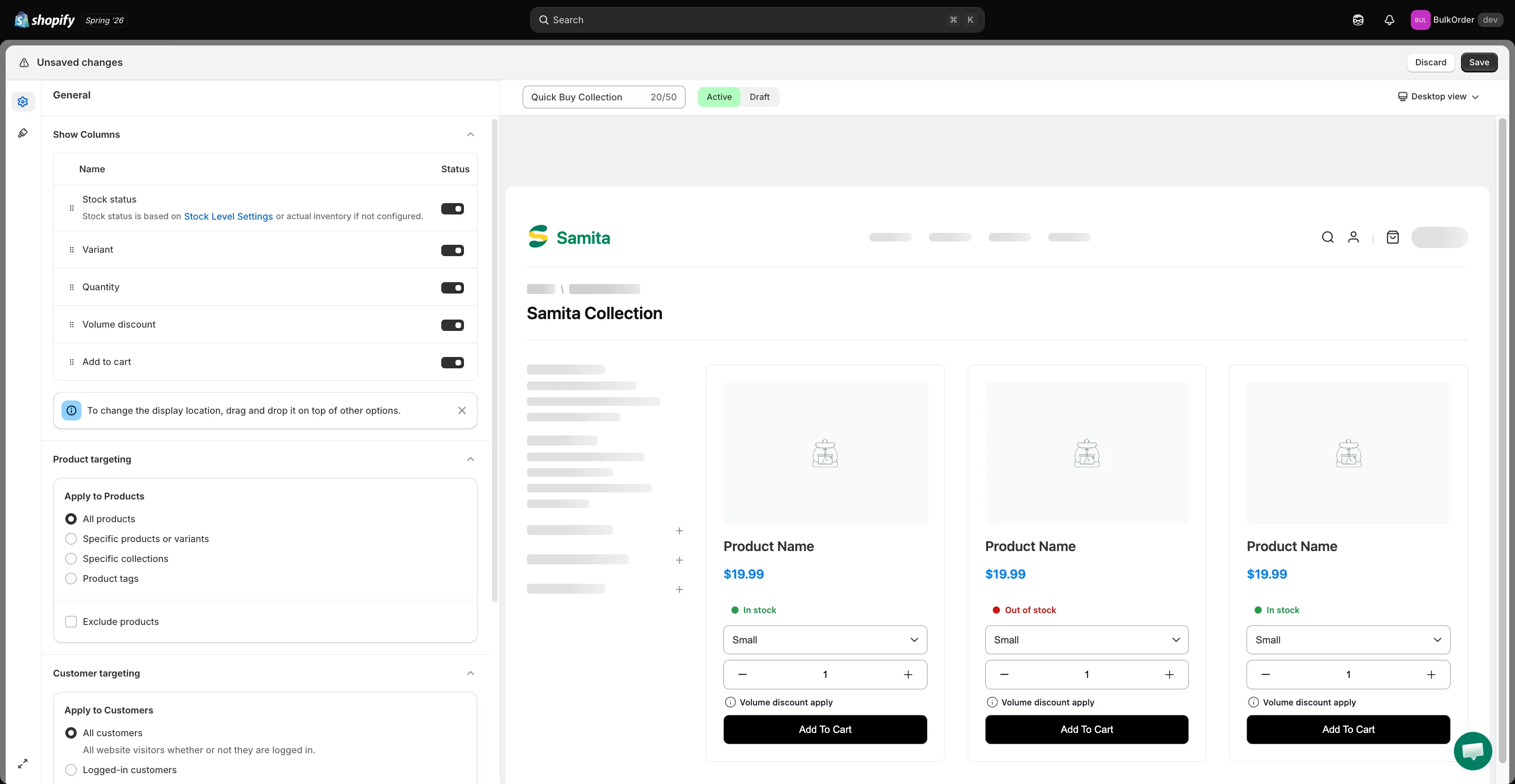
在 General 分頁的 Show Columns 下,有 5 個可顯示的欄位:Stock status、Variant、Quantity、Volume discount 和 Add to cart。
開啟您想要的每個欄位的切換開關,並以拖放方式重新排序。
-
設定顯示的時機與位置
Section titled “設定顯示的時機與位置”- Product targeting:將 Quick Buy 套用至 All products、Specific products or variants、Specific collections 或 Product tags,也可選擇性地使用 Exclude products。
- Customer targeting:對 All customers、Logged-in customers 或 Customer tags 顯示,也可選擇性地使用 Exclude Customers。
- Page targeting:勾選顯示的頁面:Home page、Collection page、Search page,以及/或 Another page (featured products and related products)。
設計 Quick Buy 功能
Section titled “設計 Quick Buy 功能”-
點擊 Design 分頁(滾筒刷圖示),設定 Add to cart button、Variant selector 和 Quantity selector 的樣式,包括顏色、文字大小/字重、邊框寬度與圓角。查看右側的即時預覽來確認您的變更。
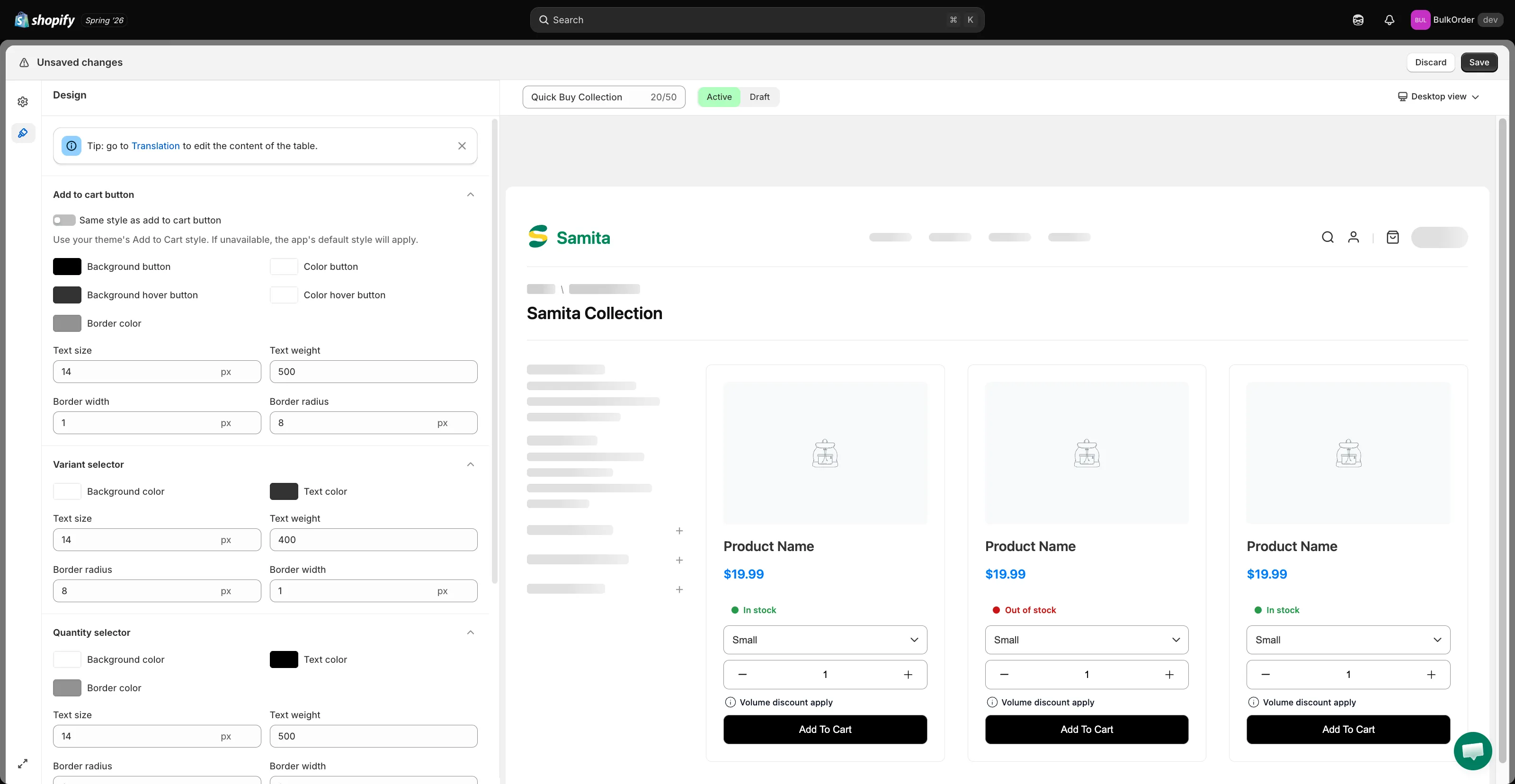
若要讓購物車按鈕與佈景主題預設的 Add to cart 按鈕一致,請啟用 Same style as add to cart button。
-
點擊 Save,然後在商店前台查看結果。
-
翻譯文字(選填)
Section titled “翻譯文字(選填)”點擊 Design 分頁中提示裡的 Translation,然後從清單中選擇 Quick Buy Collection。