
稅金顯示
顯示含稅或未稅的商品價格,必要時可覆寫 Shopify 預設的稅金顯示方式。
Tax Display 用來控制商店前台顯示的是含稅或未稅價格。依預設,應用程式會遵循您的 Shopify 稅金設定,但您可以在這裡覆寫。
啟用後,應用程式會將商店的價格替換為調整後的版本(依您的設定為含稅或未稅)。若您同時使用批發價,這些價格也會遵循相同的稅金顯示規則。
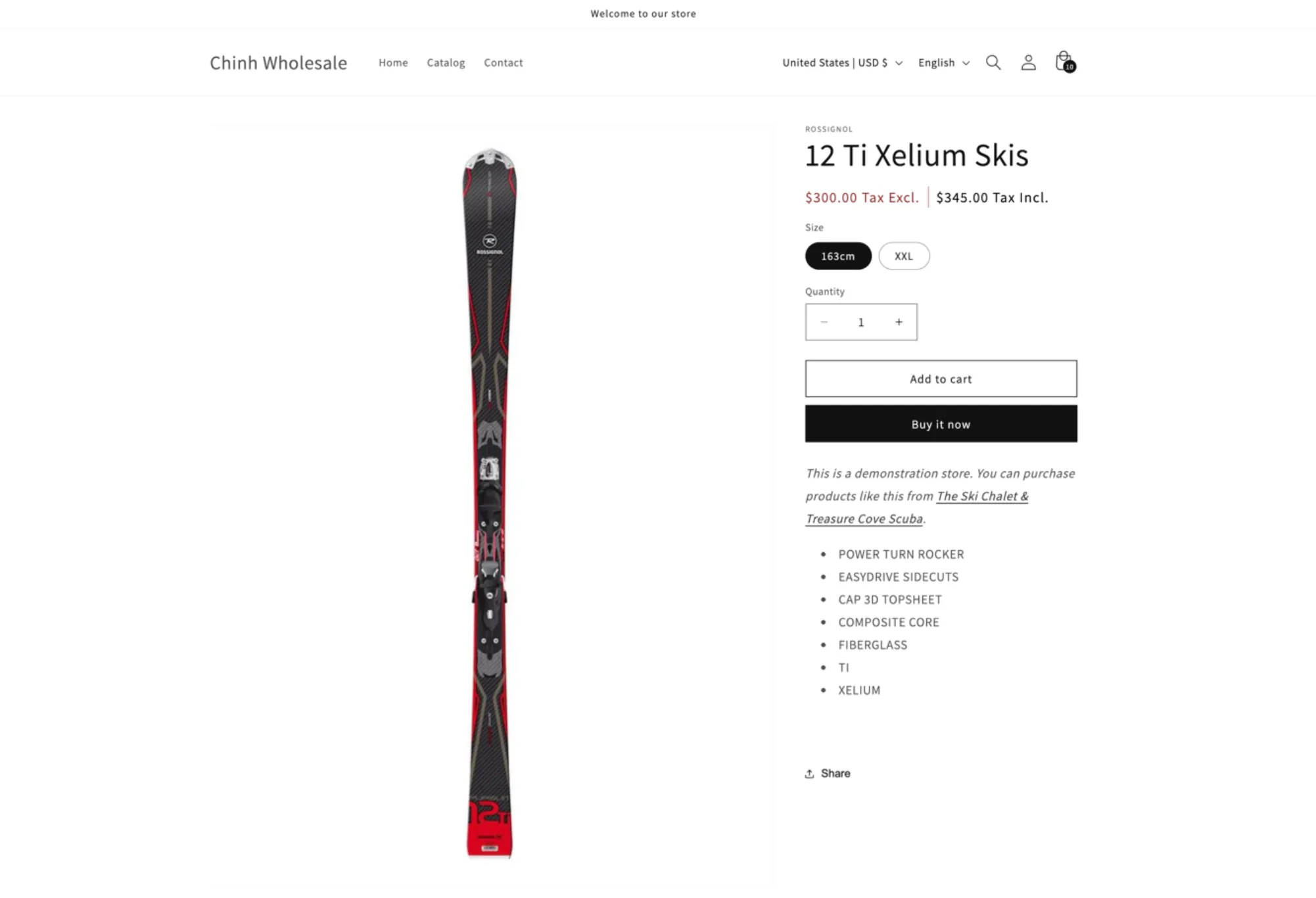
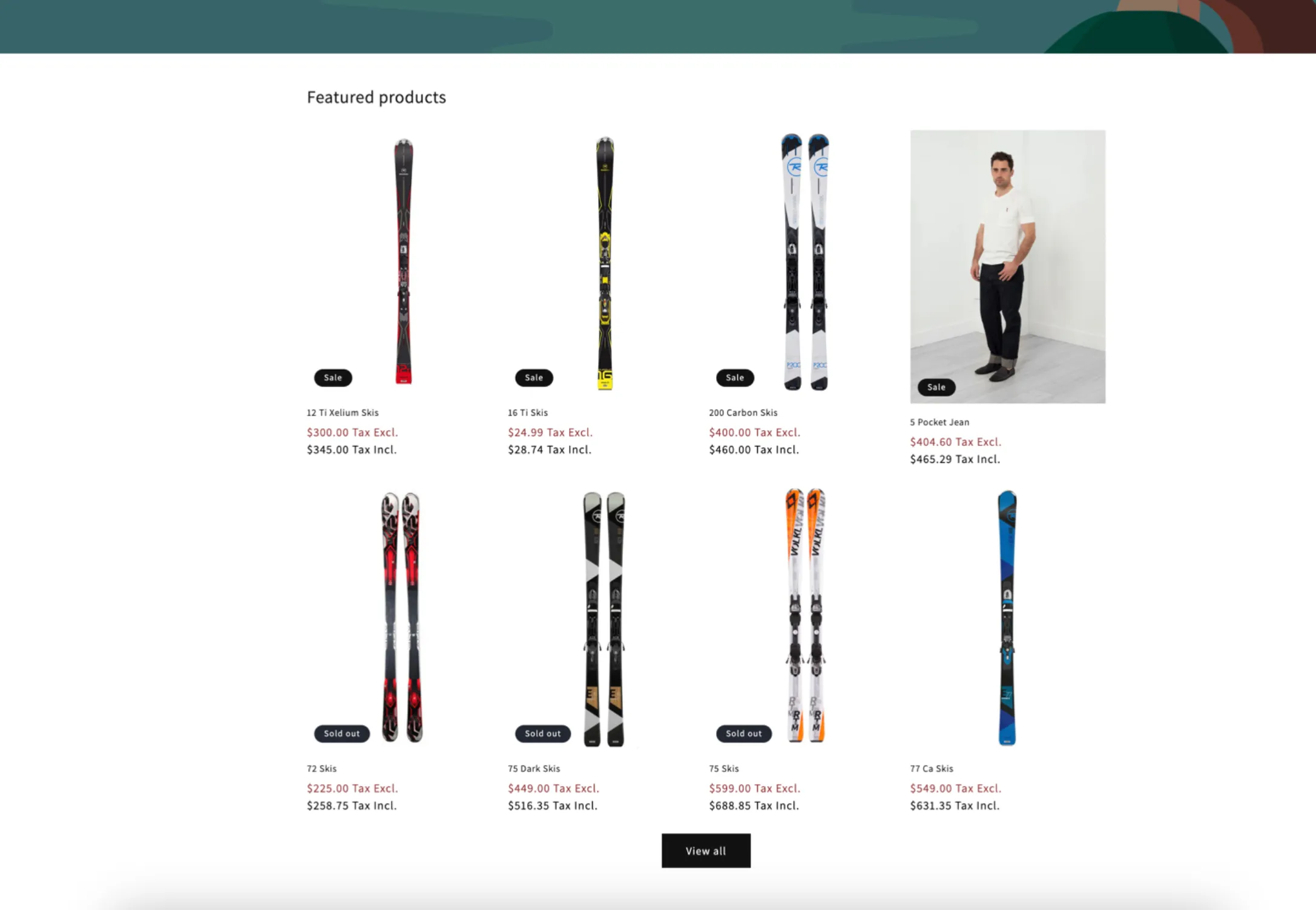
-
開啟 Tax display
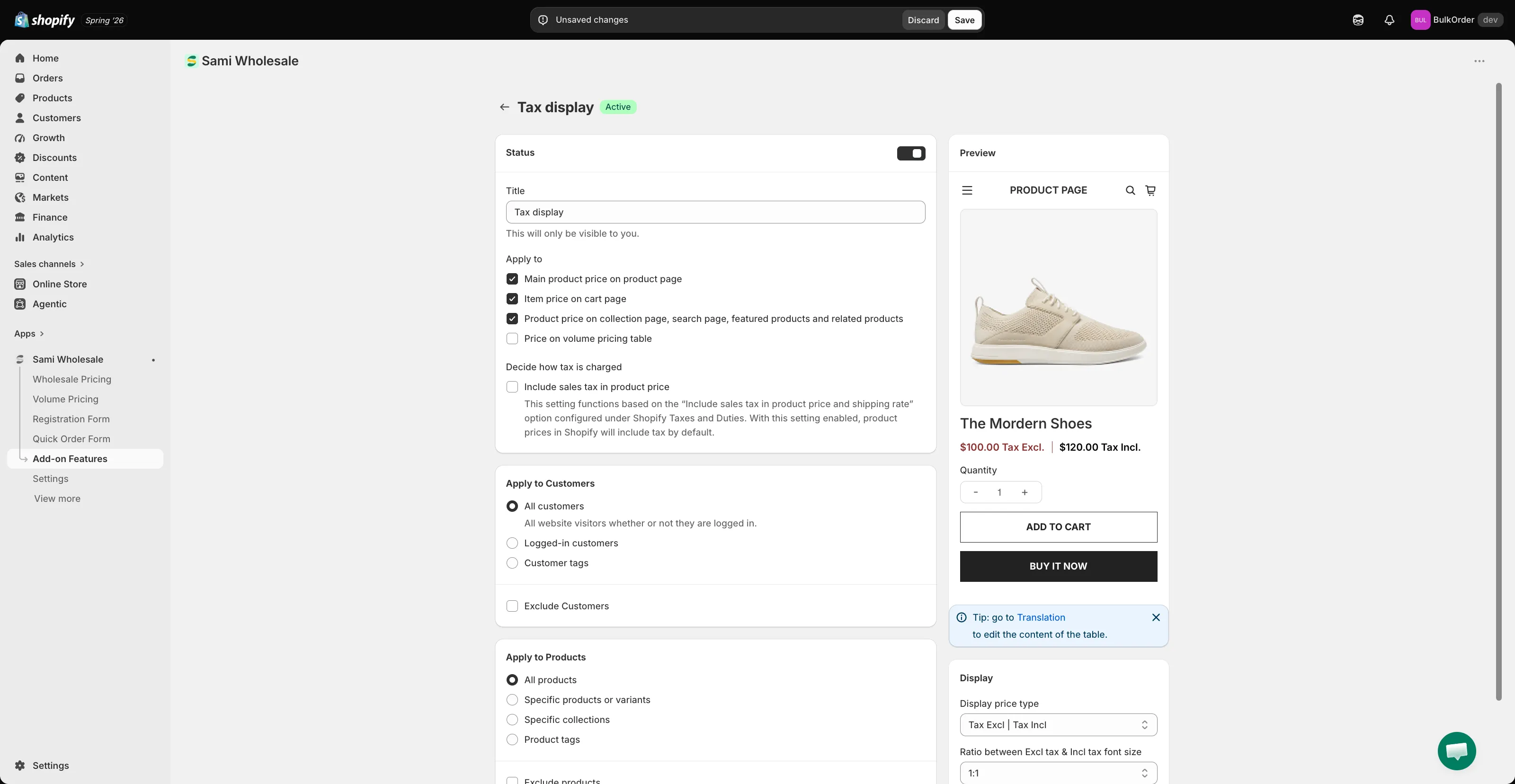
Section titled “開啟 Tax display”開啟應用程式,前往 Add-on Features,點擊 Tax display > Setup tax display,然後點擊 Create new tax display。
-
選擇顯示位置
Section titled “選擇顯示位置”在 Title 中為其命名,設定 Status,然後在 Apply to 下勾選要顯示此稅金顯示的頁面:Main product price on product page、Item price on cart page、Product price on collection page, search page, featured products and related products,以及/或 Price on volume pricing table。
-
了解稅金的計算方式
Section titled “了解稅金的計算方式”這取決於 Decide how tax is charged,也就是 Include sales tax in product price 核取方塊,它對應 Shopify 稅金與關稅中的 Include sales tax in product price and shipping rate 設定。
- **當該 Shopify 選項關閉時(預設):**基本價格視為未稅。含稅價格 = 基本價格 + 稅金。範例:基本價格 $100,稅率 10% → 未稅 $100,含稅 $110。
- **當該 Shopify 選項開啟時:**基本價格視為含稅。未稅價格 = 基本價格 − 稅金。範例:基本價格 $100,稅率 10% → 含稅 $100,未稅 ~$90。
-
選擇可看到的顧客
Section titled “選擇可看到的顧客”在 Apply to Customers 下,選擇 All customers、Logged-in customers 或 Customer tags。勾選 Exclude Customers 可對特定顧客隱藏。
-
選擇適用的商品
Section titled “選擇適用的商品”在 Apply to Products 下,選擇 All products、Specific products or variants、Specific collections 或 Product tags。
-
選擇顯示格式
Section titled “選擇顯示格式”向下捲動至 Display,然後選擇 Display price type(例如選擇 Tax Excl | Tax Incl 即可同時顯示兩者),並設定 Ratio between Excl tax & Incl tax font size。查看 Preview 面板,確認顯示效果。
-
點擊 Save。