
建立依訂單金額計算的數量定價
當訂單總金額達到您設定的門檻時給予折扣,而不是計算商品數量。
除了依數量給予折扣外,Samita Wholesale Pricing 也可以在訂單總金額(而非商品件數)達到您設定的門檻時給予折扣。
-
開始建立新規則
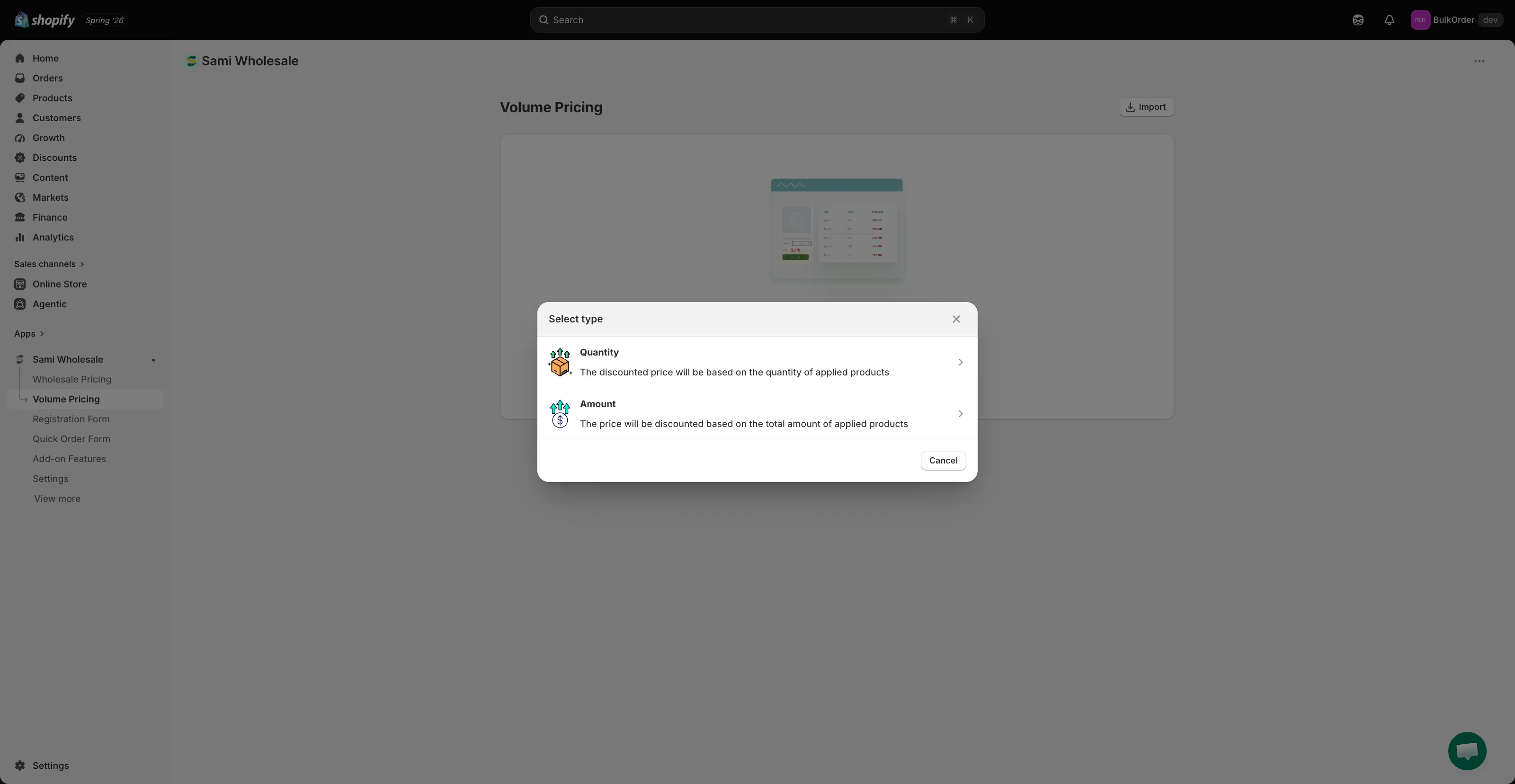
Section titled “開始建立新規則”開啟應用程式,點擊 Volume Pricing,點擊 Add new volume pricing(如果已有規則,則點擊 Create new volume pricing),然後在 Select type 對話框中選擇 Amount。
-
為規則命名並設定狀態
Section titled “為規則命名並設定狀態”在 Volume Pricing 標籤頂端,於 Rule name 中為規則命名,然後使用 Status 下拉選單選擇 Active、Draft 或 Schedule。選擇 Schedule 後會顯示 Start date 和 End date 欄位。
-
在 Markets 中選擇 All markets,或點擊 Add specific markets 並選取所需的市場。
-
設定折扣方式和定價來源
Section titled “設定折扣方式和定價來源”在 Discount 區段的 Discount Methods 下,選擇 Same Variant、Mix Variants 或 Mix Products。詳細說明請參閱 數量定價的折扣方式。
在其旁邊,使用 Pricing source 選擇折扣以商品的售價還是原價計算。請參閱 選擇定價來源。
-
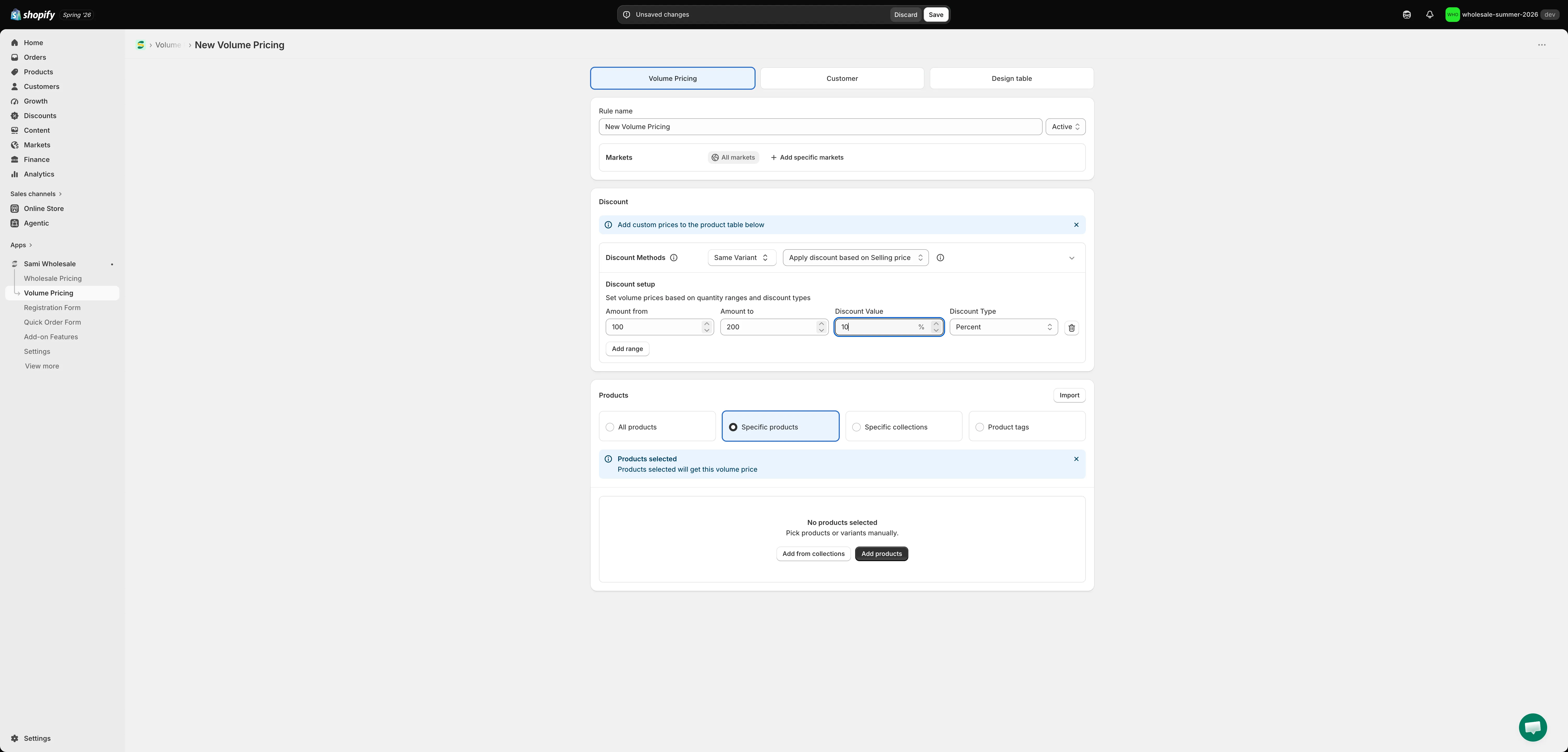
設定金額級距
Section titled “設定金額級距”同樣在 Discount 區段的 Discount setup 下,新增您的級距,包括 Amount from、Amount to、Discount Value 和 Discount Type(Percent、Amount 或 New price)。點擊 Add range 可新增更多級距。例如:
- 訂單達到 $100 → 折扣 10%
- 訂單達到 $200 → 折扣 20%
訂單金額越高,顧客獲得的價格越優惠。
-
選擇適用的商品
Section titled “選擇適用的商品”在 Products 中,選擇 All products、Specific products、Specific collections 或 Product tags。如果選擇 All products 以外的選項,下方會出現一張表格,列出每個符合條件的商品,您可以選擇性地為每個商品或款式設定自訂的金額範圍和價格。
注意:如果您新增特定商品,每個規則最多請新增 500 個商品,以確保中繼欄位能成功更新。
-
設定顧客資格
Section titled “設定顧客資格”點擊 Customer 標籤。選擇 All customers、Logged-in customers、Customer tags 或 Specific customers。如果想排除特定顧客,請勾選 Excluded customer tags 或 Exclude specific customers。
-
設計並預覽定價表,然後儲存
Section titled “設計並預覽定價表,然後儲存”點擊 Design table 標籤,控制表格的顏色、邊框和文字大小,並即時預覽。然後點擊頁面頂端出現的列中的 Save。