
Looks
Choose the look each new offer starts with, for offer blocks, modules and cart and collection placements.
이 콘텐츠는 아직 번역되지 않았습니다.
A look is a ready-made style for part of an offer: the offer block on the product page, a module inside it such as the timer, or a badge or label in a collection or cart. In Settings › Looks you choose the look every new offer starts with, so your offers match without picking the same look each time.
Change a starting look
Section titled “Change a starting look”-
Open Looks
Section titled “Open Looks”Click Settings in the app menu, then the Looks tab. The Starting looks list opens on Offer blocks. The tabs above it switch to Modules and Placements.
Each row shows the part of the offer, the offer types it’s used for, and the look it starts with now. Recommended marks the look the app suggests.
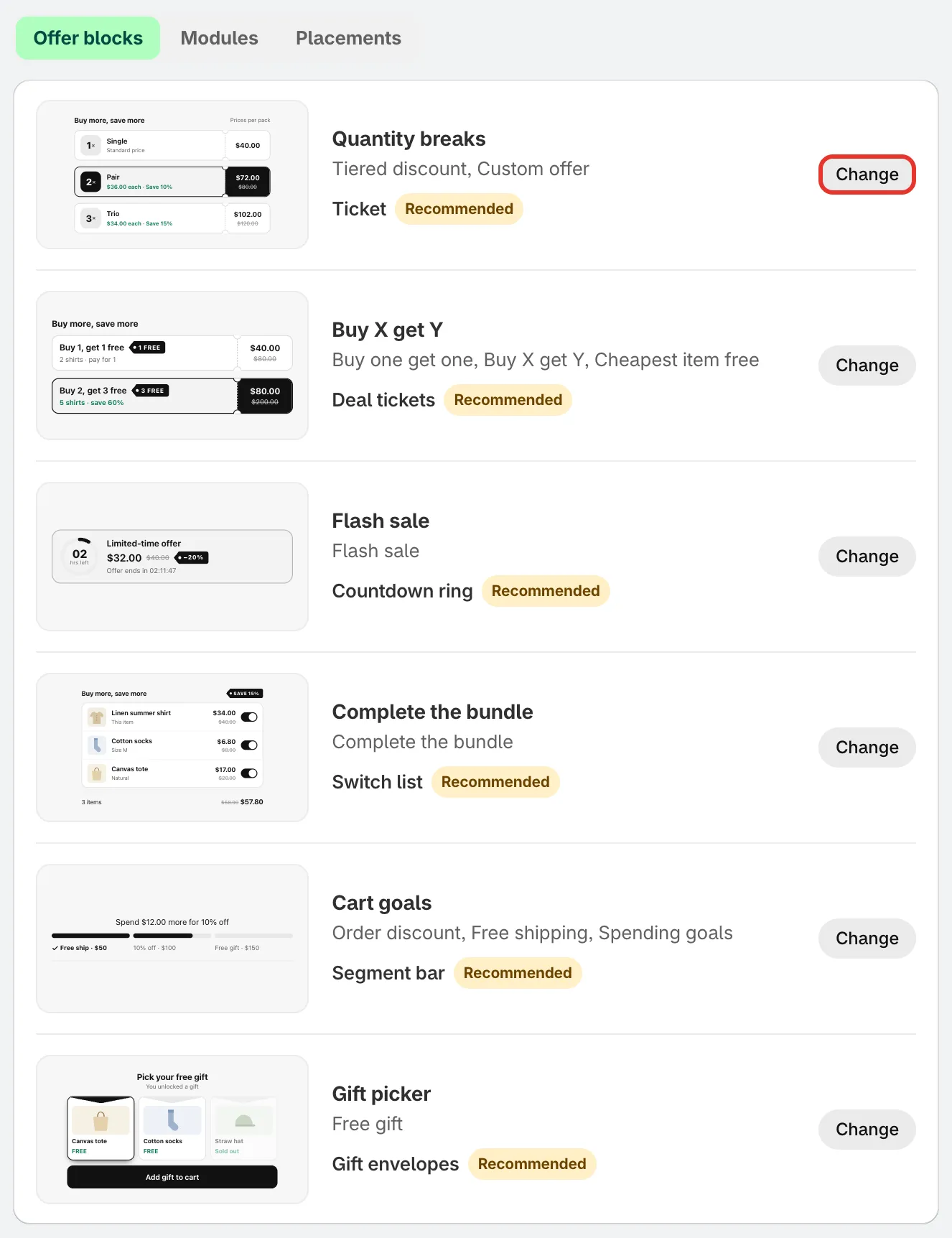
One row per part of an offer, each with its starting look.
-
Pick another look
Section titled “Pick another look”Click Change on a row. The looks for that part open below it, each with a name and a short description. A star marks the looks the app recommends.
Click the look you want, then click Done. The previews use your brand colors.
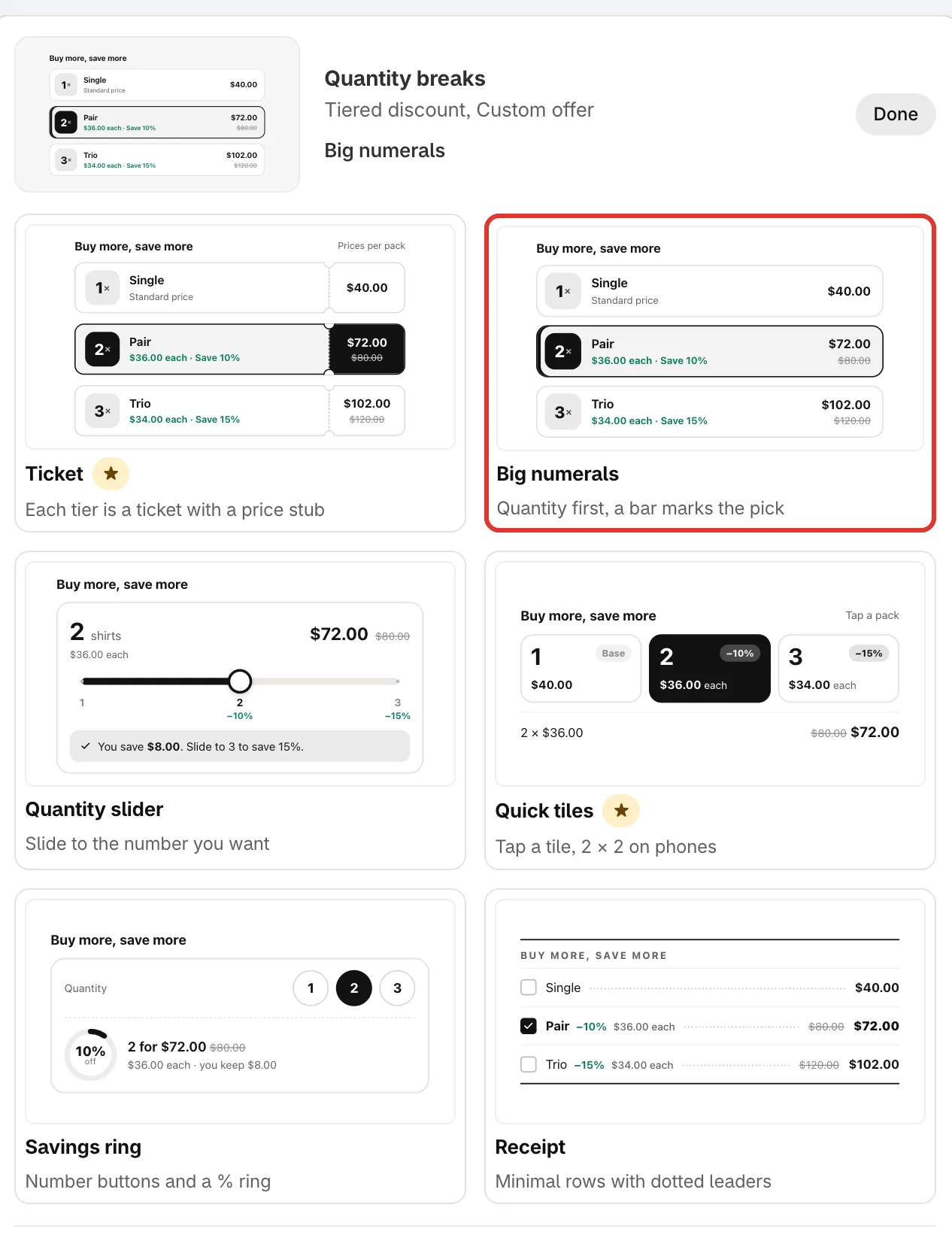
Click a look to make it the starting look.
-
Click Save in the bar at the top of the page. The line under the description changes to say how many looks you changed from the recommended looks, and that they’re saved for your store.
What you can set
Section titled “What you can set”Offer blocks
Section titled “Offer blocks”| Row | Used for |
|---|---|
| Quantity breaks | Tiered discount, Custom offer |
| Buy X get Y | Buy one get one, Buy X get Y, Cheapest item free |
| Flash sale | Flash sale |
| Complete the bundle | Complete the bundle |
| Cart goals | Order discount, Free shipping, Spending goals |
| Gift picker | Free gift |
Modules
Section titled “Modules”Modules are extra parts you can add inside an offer block.
| Row | What it is |
|---|---|
| Countdown timer | Timer inside the offer block |
| Badges | “Most popular” on a tier |
| Savings summary | How much the shopper saves |
| Checkbox upsells | Add-ons with the tier |
| Gifts by tier | Free gifts unlocked by tier |
| Mix with other products | Shoppers fill a tier with other products |
| Scratch-off | A hidden deal on one tier |
| Low stock alert | “Only 3 left” |
| Sticky add to cart | Bar while shoppers scroll |
Placements
Section titled “Placements”| Row | What it is |
|---|---|
| Collection page badge | Badges on product cards in collections |
| Cart line labels | Offer labels on cart lines |
Go back to the recommended looks
Section titled “Go back to the recommended looks”Click Use recommended looks, then Save. Every row goes back to its recommended look. The button is greyed out when you haven’t changed any.