
Storefront languages
Translate the shared texts shoppers see on your offers, such as buttons, cart messages and timer labels, into each language your store sells in.
이 콘텐츠는 아직 번역되지 않았습니다.
Your offers share a set of short texts that shoppers see on your store: buttons like Add to cart, cart goal messages, timer labels, badges and code notes. In Settings › Language you translate these shared texts into each language your store sells in.
Shoppers see a text in their language when you’ve translated it. Any text you haven’t translated shows in English.
See your languages
Section titled “See your languages”Click Settings in the app menu, then the Language tab. The Storefront languages list shows every language published in your store:
| Part of the row | What it tells you |
|---|---|
| Name | The language. English is marked (default), and your store’s main language is marked primary |
| Percentage | How many of the shared texts are translated |
| Badge | Default, Translated, Partly translated or Not translated |
| Buttons | Auto-translate and Edit texts, on every language except English |
The tab itself shows how many languages still need work, for example 2 to translate.

One row per language your store sells in.
If your store sells in one language only, the list says so. Add a language first (see below).
Translate the texts
Section titled “Translate the texts”-
Open the texts of a language
Section titled “Open the texts of a language”Click Edit texts on the language’s row. The editor opens under the list, with the English text on the left and a box for your translation on the right.
Use the switch at the top to show All texts, or one group at a time: Offer block, Buttons, Cart, or Codes and messages.
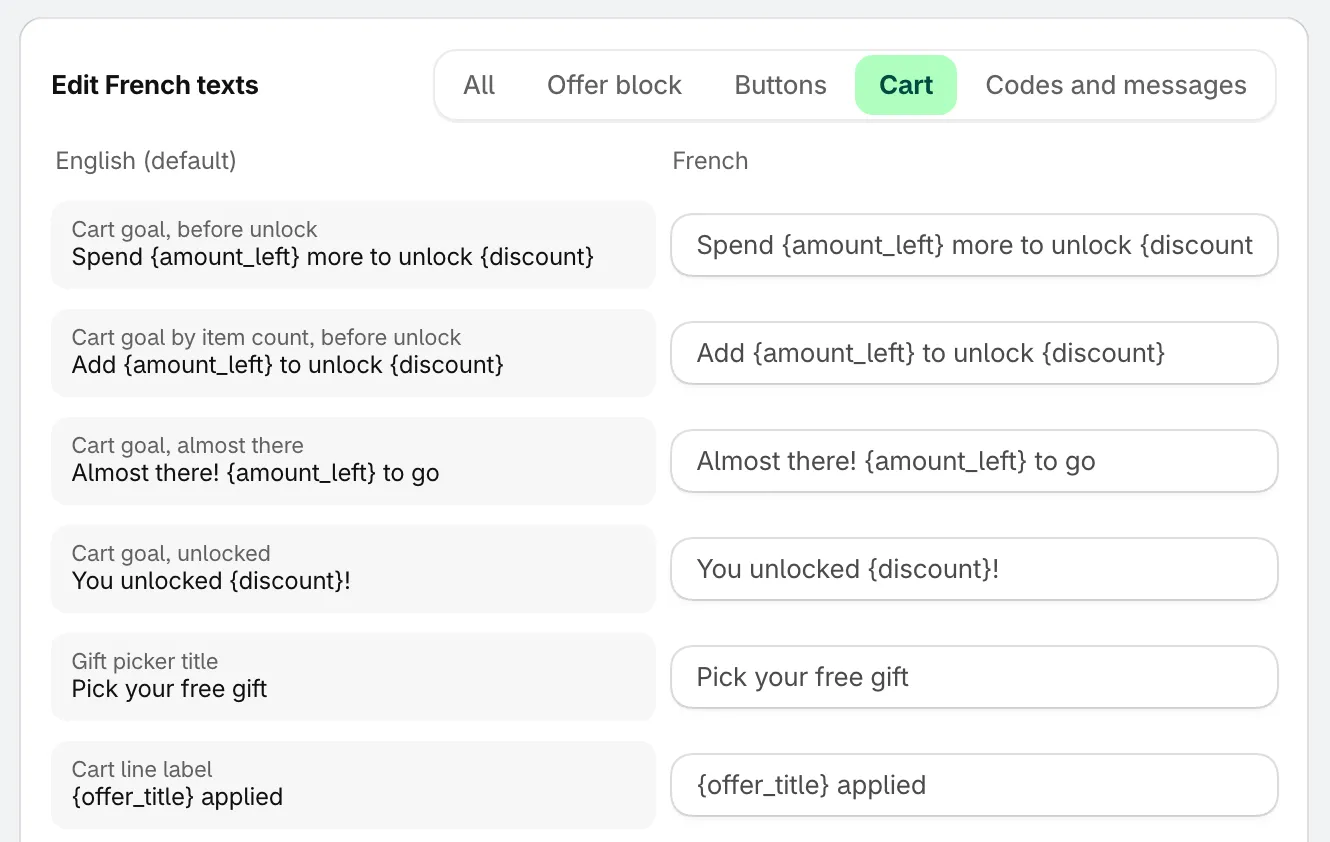
Each English text with its translation box.
-
Write or auto-translate
Section titled “Write or auto-translate”Type a translation in each box you want to change. A box you leave empty shows the English text on your store.
To fill the empty boxes for you, click Auto-translate this language. The app translates every empty box and leaves the ones you’ve written alone. Read the results before you save, and change anything that doesn’t sound right.
-
Keep the variables
Section titled “Keep the variables”Some texts contain variables in curly brackets, such as
{discount}or{amount_left}. Your store replaces them with real values, like “10%” or “$12.00”, so keep them exactly as they are in your translation:Spend
{amount_left}more to unlock{discount}Encore
{amount_left}pour débloquer{discount}If a translation drops a variable or adds one that doesn’t belong, the box shows what to fix, for example Keep {discount} in the text., and the app won’t save until it’s fixed.
-
Click Save under the texts. The app confirms with a message such as French texts saved. Click Cancel to close the editor without saving.
Auto-translate a whole language
Section titled “Auto-translate a whole language”The Auto-translate button on a language’s row opens that language’s texts and fills in every empty box in one go. As in the editor, nothing is saved until you review the texts and click Save.
Good to know:
- Auto-translate may need to be turned on for your store first. If it’s off, the page says Auto-translate needs to be switched on for your store. Contact us to turn it on. Contact support to ask.
- Auto-translate has a monthly allowance per store. When it’s used up, the app says This month’s translation allowance is used up. You can still type translations yourself.
- Auto-translate sends the texts being translated to an AI translation service. See Permissions and data.
Add a language
Section titled “Add a language”Click Add language. It opens your Shopify admin’s language settings, where you add and publish the language. Once it’s published, it appears in this list.
Next steps
Section titled “Next steps”- Translate an offer
- App language: the language of the app’s admin screens
- Translate countdown text