
Buy X get Y
When a shopper buys certain products, give them other products free, at a percentage off, or at a fixed amount off.
Ta treść nie jest jeszcze dostępna w Twoim języku.
Buy X get Y links two sets of products: when the shopper buys from the first, they get something from the second free or cheaper. “Buy a shirt, get socks 50% off” is the classic example. Use it to sell an add-on with a best-seller, or to move a slower product. For more of the same product, use Buy one get one instead.
What shoppers see
Section titled “What shoppers see”- On the product page of a Customer buys product, an offer block with the Get item as an add-on: its discounted price and a switch to add it or leave it out. Some looks show it as two choices instead: the product alone, or the product plus the Get item. When there are several Get products, shoppers pick one from small cards in the block (“Pick your free gift” or “Pick your discounted item”).
- With the add-on on, the theme’s Add to cart button adds both items.
- In the cart, the Get item at its deal price with a label under it. If you let the app add the reward, the Get item goes into the cart by itself once the shopper adds the Buy product.
Templates that start a Buy X get Y
Section titled “Templates that start a Buy X get Y”| Template | Starts with |
|---|---|
| Buy X Get Y (Gifts & BOGO tab) | Buy 1, get 1 at 50% off, once per order, with the reward added to the cart automatically. You pick both sets of products. |
You can also click Start from blank in the Gifts & BOGO category and pick Buy X get Y. See Create an offer.
Set up a Buy X get Y
Section titled “Set up a Buy X get Y”-
Pick what the shopper buys
Section titled “Pick what the shopper buys”In the offer editor, open the Offer tab and go to the Rules section. Under Customer buys, choose Products or Collections and add the items that start the deal. Then set Minimum quantity: how many of them the shopper has to buy.
-
Pick what the shopper gets
Section titled “Pick what the shopper gets”Under Customer gets, choose Products or Collections and add the items that get the discount. Then set:
Field What it does Quantity How many Get items are discounted each time the deal applies At Free, % off, or Fixed off Percentage or Amount off each The value for % off or Fixed off 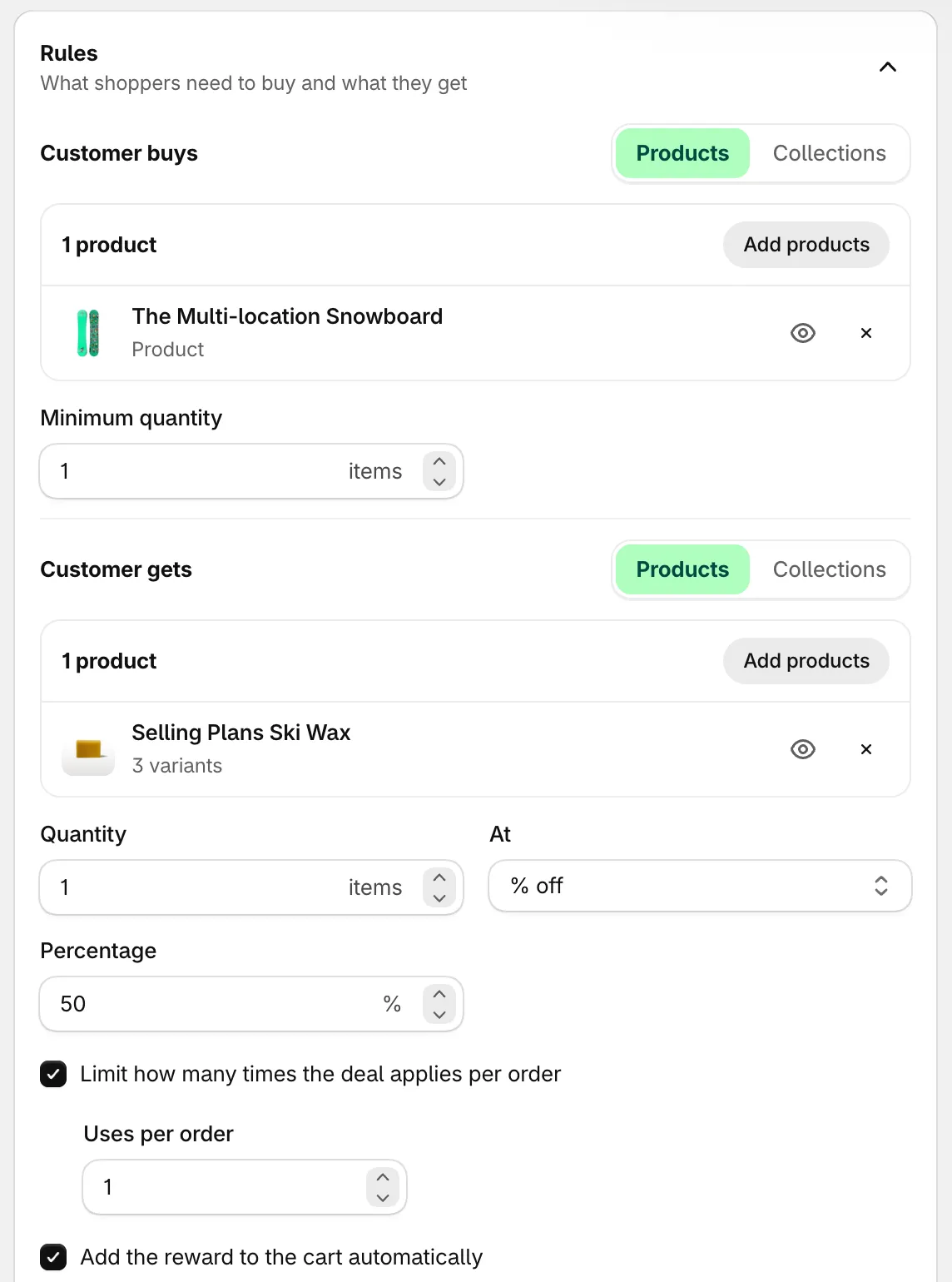
Customer buys starts the deal; Customer gets is discounted.
-
Limit the deal per order
Section titled “Limit the deal per order”Limit how many times the deal applies per order is on by default, with Uses per order set to 1. Raise the number, or turn the limit off to let the deal repeat for every full set: buy 2 shirts, get 2 pairs of socks at 50% off.
-
Choose whether the app adds the reward
Section titled “Choose whether the app adds the reward”Add the reward to the cart automatically is on by default:
- On the product page, the add-on starts switched on.
- In the cart, once the shopper has the Buy items, the app adds the first Get product that’s in stock. When the Buy items go up or down, the Get item’s quantity follows, unless the shopper changed it.
- If the cart stops qualifying, the app takes out the Get item it added. If the shopper removes it themselves, the app doesn’t add it back during that visit.
Turn it off to let shoppers add the Get item themselves. It’s still discounted at checkout.
-
Save and check your store
Section titled “Save and check your store”Set the status to Active and click Save. Open a Customer buys product on your store and add it to the cart with the add-on.
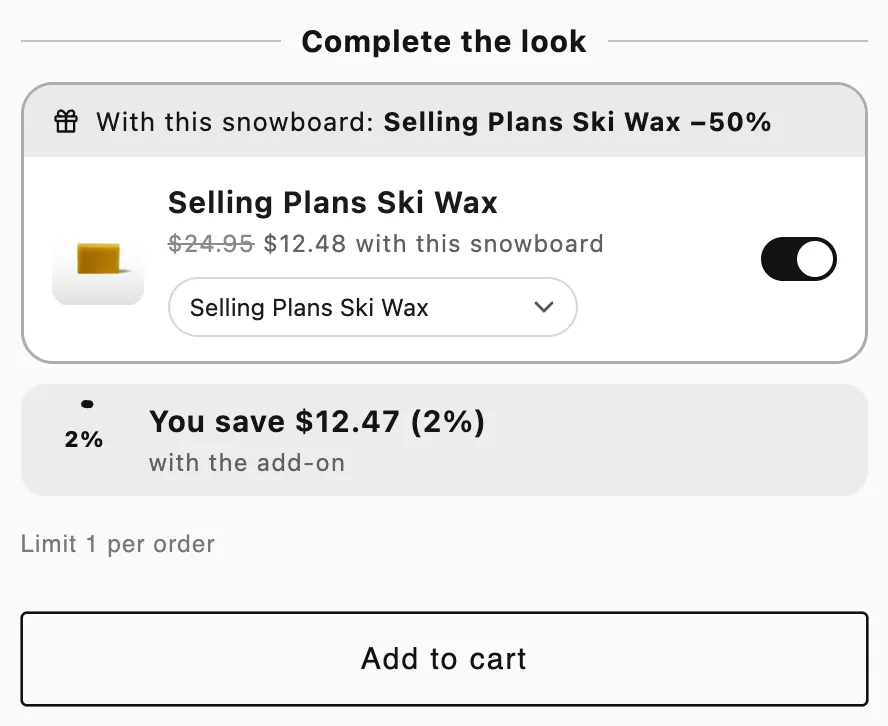
The Get item as an add-on on the Buy product’s page.
Warnings in the editor
Section titled “Warnings in the editor”The Rules section warns you about two setups that confuse shoppers:
- A product is in both Customer buys and Customer gets. Checkout then treats it as a deal on that same product (buy one, get one), and the store doesn’t add it to the cart by itself. For that, use Buy one get one.
- A Get product is also discounted by another offer. Checkout applies only one product discount to it, so shoppers may see this deal in your store and another price at checkout. To let both apply, turn on Settings › Advanced › Combinations › Product discounts in both offers. See Combinations and limits.
Good to know
Section titled “Good to know”- Products section. For this type, Customer buys and Customer gets choose the products. The Products section above Rules only excludes items that never get the offer.
- Collections on the Get side. The block offers the first products of those collections to pick from (up to six), but the app can’t choose one to add by itself, so automatic adding doesn’t happen.
- Removing the Buy item. The Get item goes back to full price at checkout.
- Which Get item is discounted. If the cart holds more Get items than the deal covers, the one added from the offer block is discounted first, then the cheapest.
- A/B tests. You can test the block style or the block title. See A/B test an offer.