
Complete the bundle
Offer the product being viewed together with add-on products, each with its own discount, added to the cart in one click.
Ta treść nie jest jeszcze dostępna w Twoim języku.
Complete the bundle shows the product a shopper is looking at together with products that go with it, such as a shirt with socks and a tote, and discounts the add-ons when they’re bought together. Use it to build a full outfit or kit around a best-seller.
What shoppers see
Section titled “What shoppers see”- On the product page, an offer block with the product being viewed (“This item”) and your add-ons, each with its price and discount, and a total.
- Depending on the layout, shoppers either switch add-ons on and off, or pick one of several bundles.
- A button (Add all to cart by default) that adds the product and the chosen add-ons in one go.
- In the cart and at checkout, the add-ons at their bundle price, with a label under each line.
Templates that start a bundle
Section titled “Templates that start a bundle”| Template | Starts with |
|---|---|
| Complete the bundle (Discounts tab) | One bundle with the Tick the items they want layout and an Add all to cart button. You add the products; each new item starts at 15% off. |
You can also click Start from blank in the Discounts category and pick Complete the bundle. See Create an offer.
Set up a bundle
Section titled “Set up a bundle”-
Choose which product pages show the bundle
Section titled “Choose which product pages show the bundle”In the offer editor, open the Offer tab. The bundle starts from the product the shopper is viewing, so in Products you pick the pages it shows on: Specific products, Collections, Product tags, or All products. Use Exclude products, Exclude collections, or Exclude tags to leave some out.
-
Choose the layout
Section titled “Choose the layout”At the top of the Rules section, pick what Shoppers do:
- Tick the items they want — one bundle. Shoppers switch off the add-ons they don’t want, and the discount follows what’s left.
- Pick one bundle — several bundles, each with its own items and discounts. Shoppers pick one. Use Add bundle to create more, the bundle buttons to switch between them, Bundle name shoppers see to name each one, and Remove this bundle to delete one.
-
Add the products
Section titled “Add the products”Click Add product and pick the add-ons. For each item:
Setting What it does Qty How many of that product are in the bundle Discount % off, Fixed off, or No discount Value The percentage or amount Ticked by default Only with Tick the items they want. Off means the add-on starts switched off. Hide price Hides the item’s price in the block Use Change to swap an item’s product, and the remove button to take it out.
The product being viewed is in every bundle at full price. To discount it as well, add it to the list: on its own page it shows once, as “This item”, with the quantity and discount you set here.
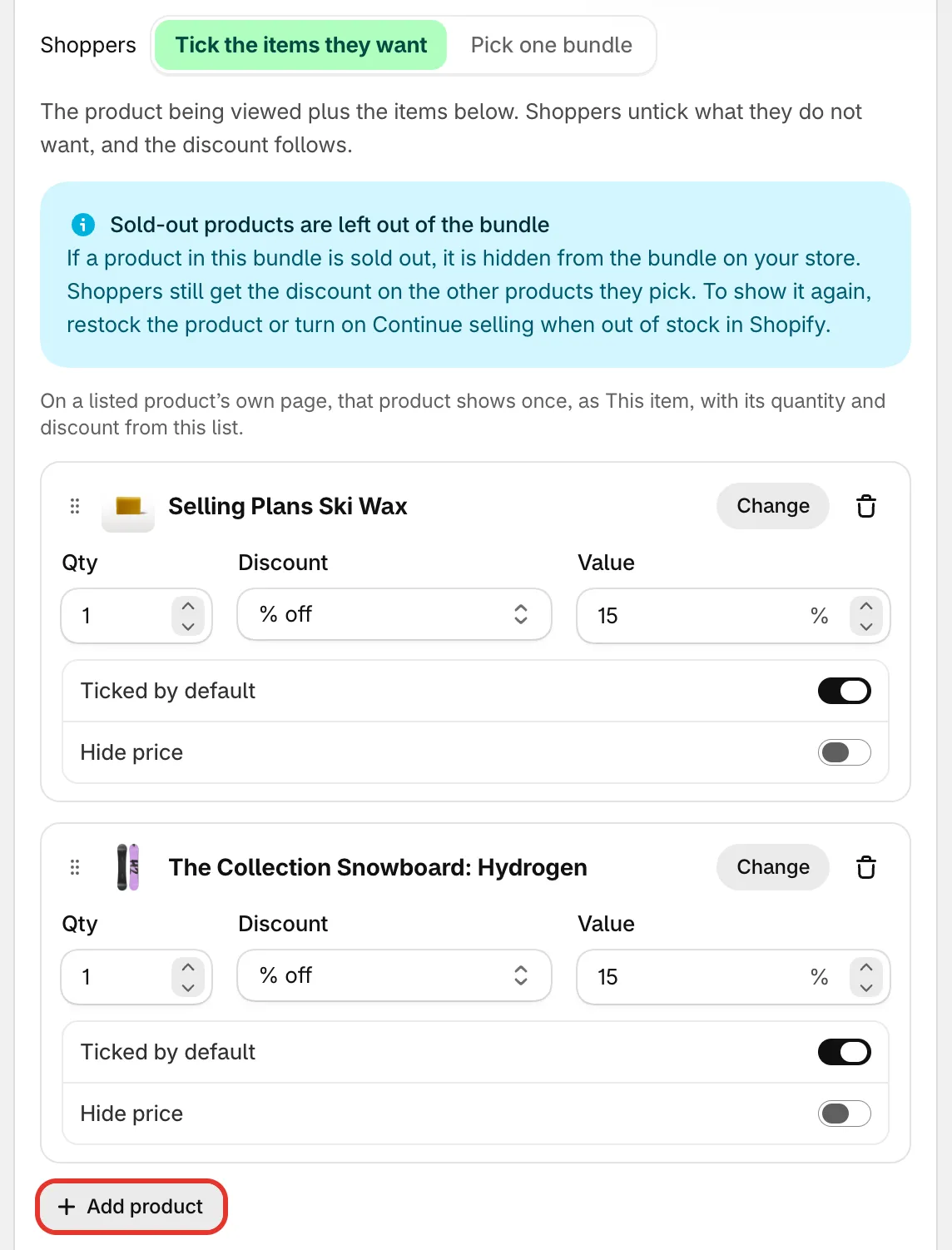
Two add-ons, each with its own quantity and discount.
-
Finish the block
Section titled “Finish the block”- Show the items only when the bundle is selected — only with Pick one bundle. Hides each bundle’s item list until the shopper picks it.
- Shoppers must pick a variant for each item — with Tick the items they want, adds a variant menu next to each add-on that has more than one variant. Without it, the first variant in stock is added.
- Button text — the label of the bundle’s button. It’s “Add all to cart” by default.
-
Save and check your store
Section titled “Save and check your store”Set the status to Active and click Save. Open a product the bundle shows on and click the bundle’s button.
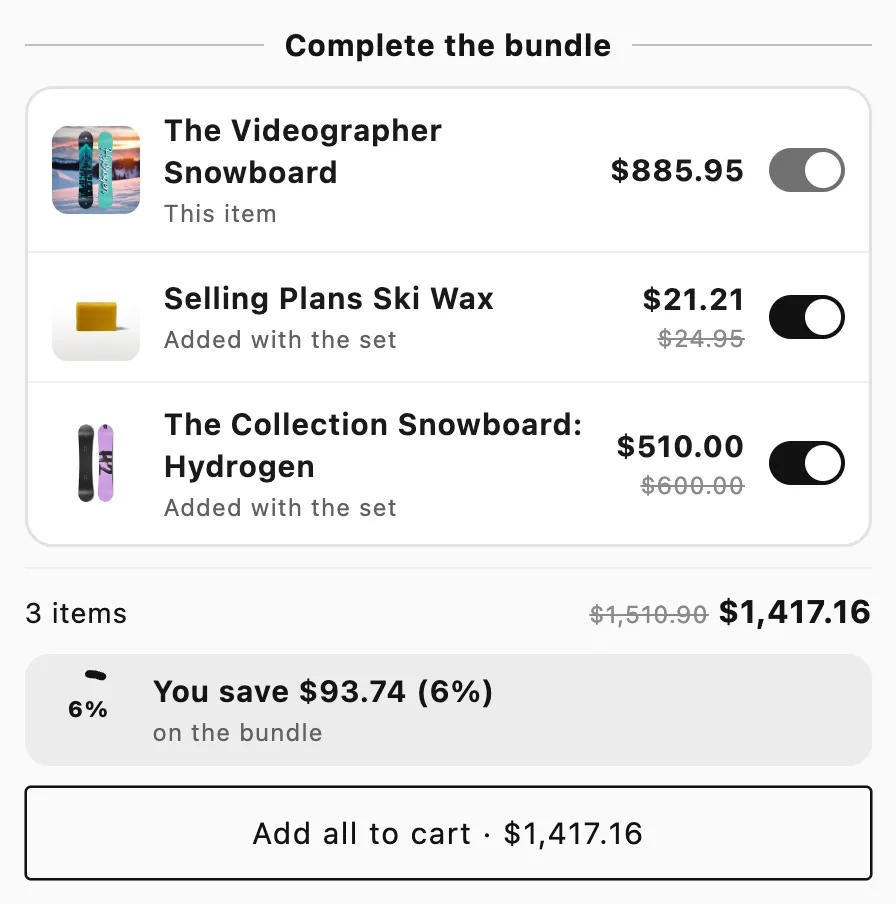
The bundle on a product page, with its own Add all to cart button.
Good to know
Section titled “Good to know”- Only items added with the bundle’s button are discounted. The same products added one by one, from their own pages, pay full price.
- Tick the items they want. Each add-on the shopper keeps gets its own discount. Switching one off doesn’t change the others.
- Pick one bundle. The discount applies only when every item of the chosen bundle is in the cart.
- Sold-out products. With Tick the items they want, a sold-out add-on is left out of the bundle and shoppers still get the discount on the rest. With Pick one bundle, a bundle with a sold-out item is hidden. The editor shows a notice either way. To show the item again, restock it or turn on Continue selling when out of stock for it in Shopify.
- Several sets. The discount covers as many full sets as the cart holds. Extra units of one item pay full price.
- A/B tests. You can test the block style or the block title. See A/B test an offer.