
Offer editor overview
A tour of the offer editor, its toolbar, its five sections, and how saving works.
Ta treść nie jest jeszcze dostępna w Twoim języku.
The offer editor is where you build and change an offer. It opens full screen when you pick a template, or when you click Edit on the Offers list or on an offer’s details page. This page explains the layout so you know where each setting lives.
The editor has three columns: the section menu on the left, the settings of that section in the middle, and a live preview on the right.
The toolbar
Section titled “The toolbar”
The editor toolbar.
| Control | What it does |
|---|---|
| Internal name | The offer’s name in the app. Only you see it. Shoppers see the Discount name instead, set in Settings › Advanced. |
| Active / Draft | The status the offer gets when you save. Paused also shows here when the offer is paused. |
| Preview on | Which page the preview shows: Product page, Collection page, Cart drawer, Cart page or Checkout. |
| Desktop / Mobile | Previews the offer at desktop or phone width. |
| Inspector | When on, clicking a part of the preview opens the setting that changes it. When off, the preview works like your store, so you can click tiers and buttons as a shopper would. |
| Preview as | Previews with one of the offer’s products instead of the sample product, in another market’s currency, or in another language. Nothing here changes the offer. |
| A/B test | Sets up a test of two versions. Only on offer types with a product page block. See A/B test an offer. |
| View in store | Opens your store in a new tab on a page where the offer shows: a product in the offer, or the cart for cart offers. Save the offer first. If it isn’t Active, your store won’t show it yet. |
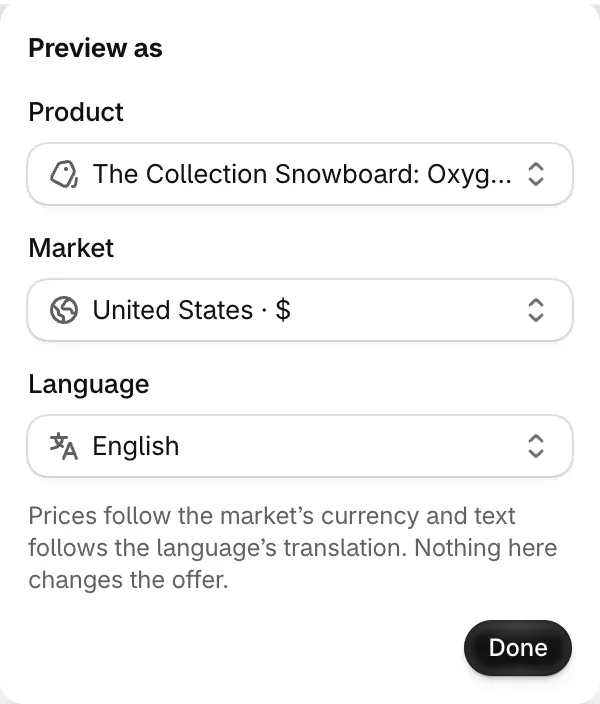
Preview as: a real product, market and language.
The five sections
Section titled “The five sections”The menu on the left opens each part of the offer. Click Collapse at the bottom to shrink it to icons.
| Section | What you set there | Guide |
|---|---|---|
| Offer | Products the offer applies to (and products it never applies to), and the Rules: what shoppers buy and what they get. Cart offers have rules only. | Your offer type page |
| Settings | Active dates, Timer mode, and Advanced: the discount name and method, who can use it, purchase requirements, combinations and usage limits. | Schedule and timer, Discount method, Customers and markets, Combinations and limits |
| Design | The look, modules, colors and fonts, variants and pricing, and custom CSS. | Design and looks |
| Placement | Where the offer shows, and display conditions that show or hide it. | Placement, Display conditions |
| Translation | The offer’s text in your store’s other languages. | Translate an offer |
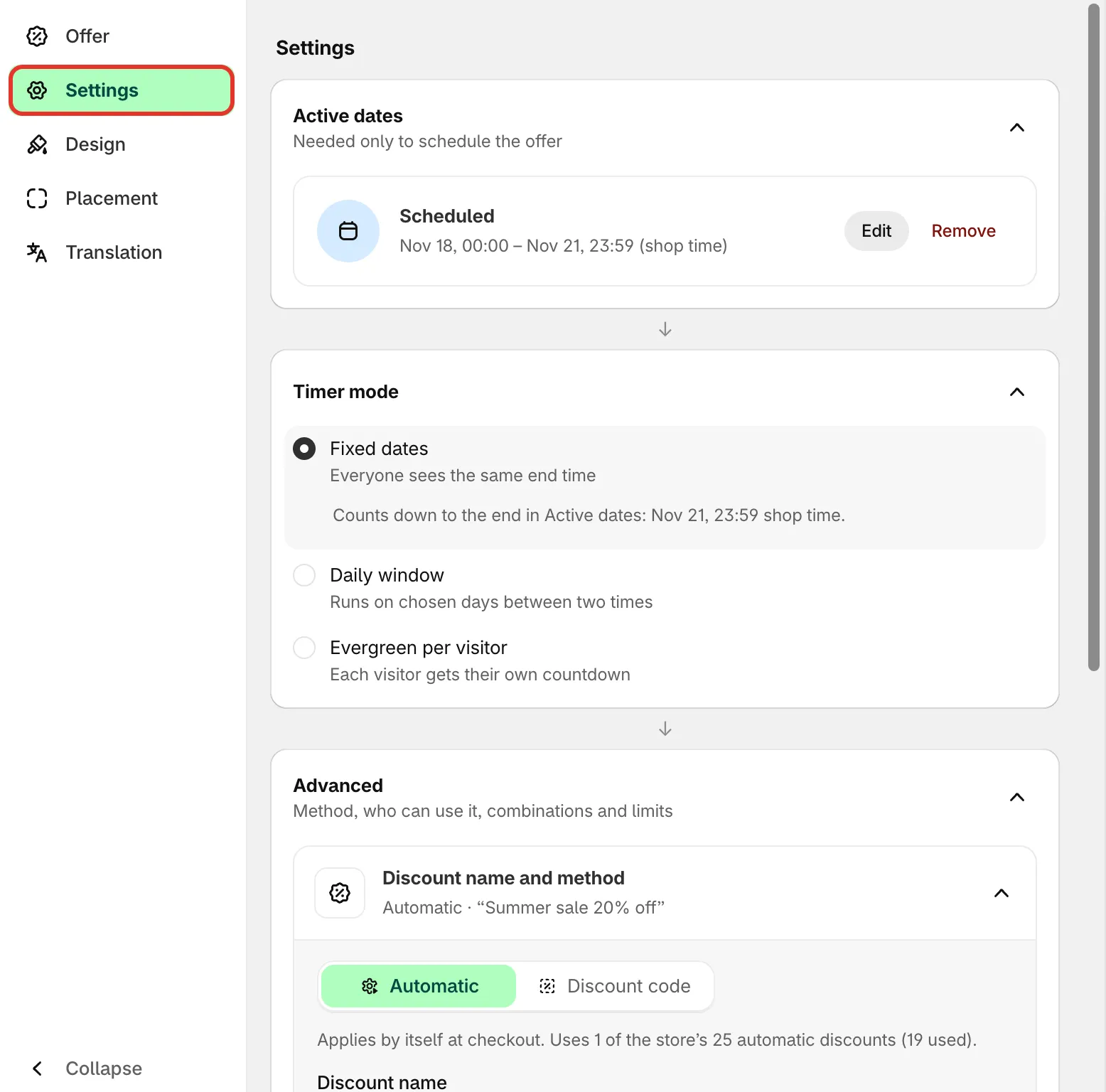
The section menu and the settings column.
Text fields that shoppers see carry a small language badge, such as EN. Click it to jump to that text on the Translation tab.
Save or discard
Section titled “Save or discard”As soon as you change something, Shopify’s save bar appears at the top with Save and Discard. Discard asks you to confirm, then puts back everything since your last save.
If something stops the save, a Fix these before saving list appears above the preview, and each field with a problem shows its own message. Click an item in the list to jump straight to that field. A common one is Give the offer a name., when the internal name is empty.
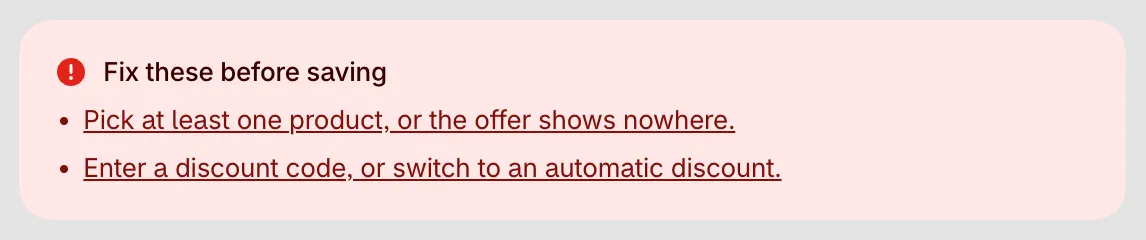
Click an item to go to the field that needs fixing.
On a phone
Section titled “On a phone”On a narrow screen, the editor shows the settings and the preview one at a time. Use the Edit / Preview switch under the toolbar to move between them. The preview always shows the phone layout there.