
Order Limit
Require customers to buy within a minimum and maximum quantity, amount, or weight before they can check out.
Order Limit lets you set a condition customers must meet — like a minimum order quantity — before they can check out.
Steps to manage
Section titled “Steps to manage”-
Open Order limit
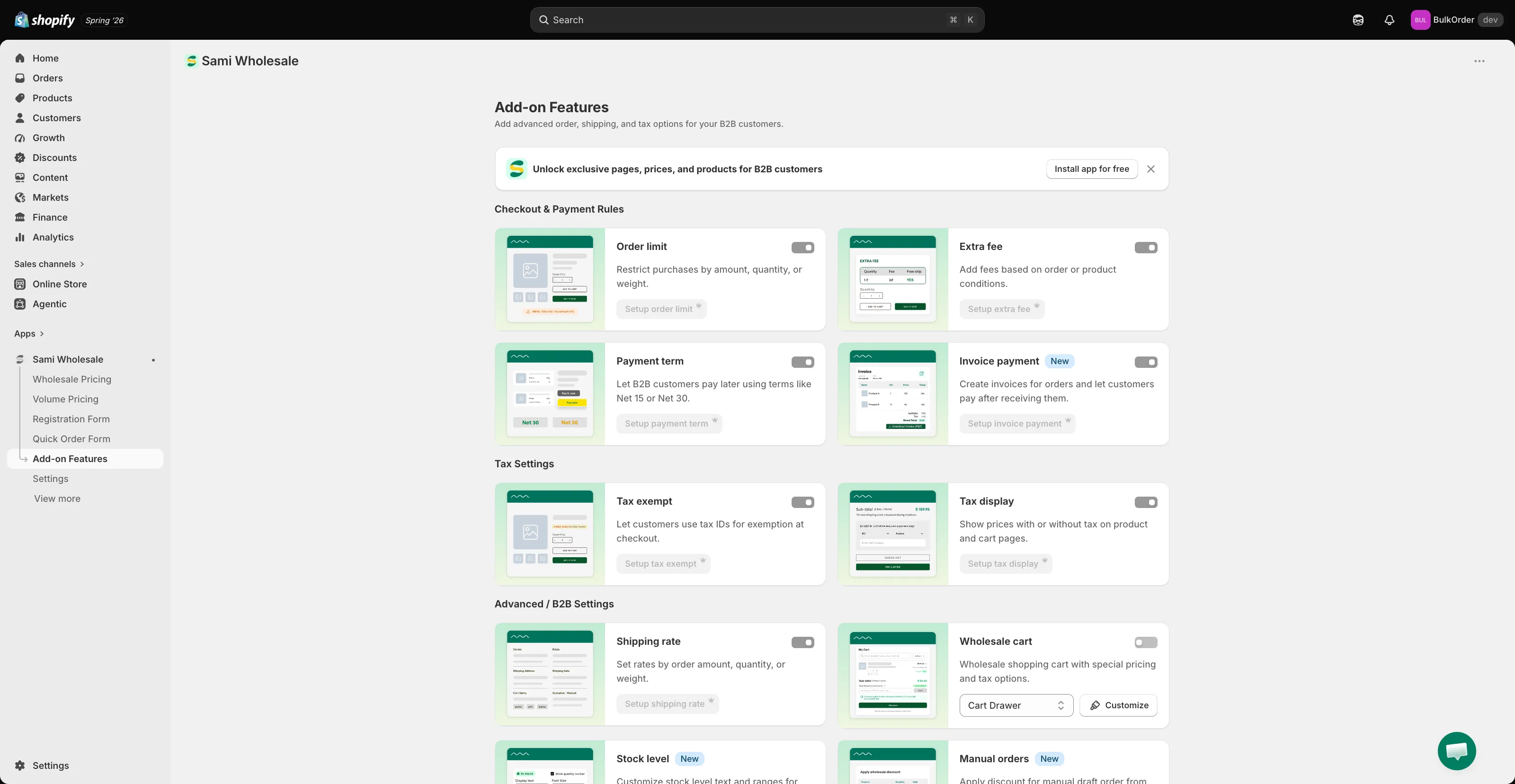
Section titled “Open Order limit”Open the app, go to Add-on Features, then click Order limit > Setup order limit.
-
Start a new rule
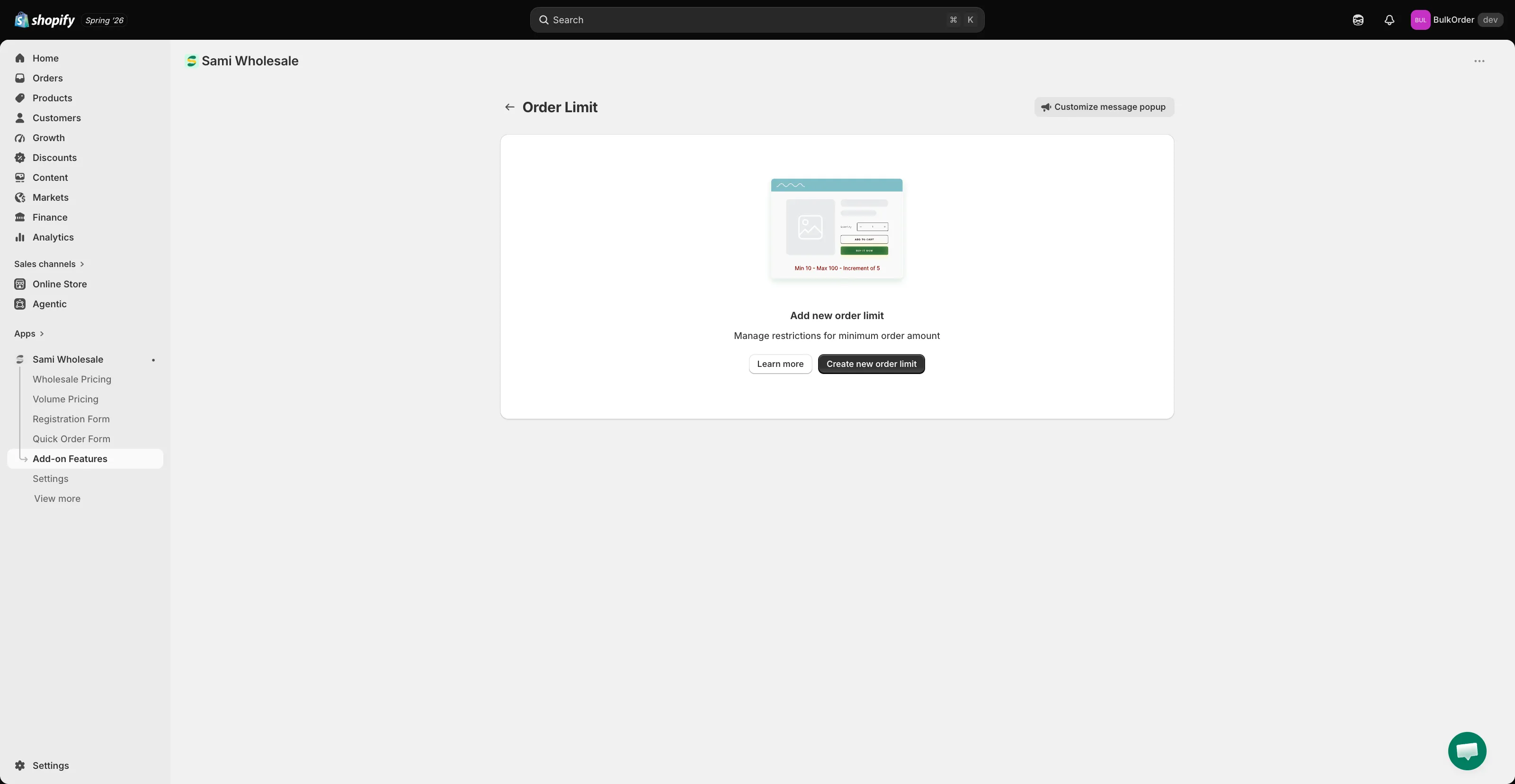
Section titled “Start a new rule”Click Create new order limit.
-
Name the rule
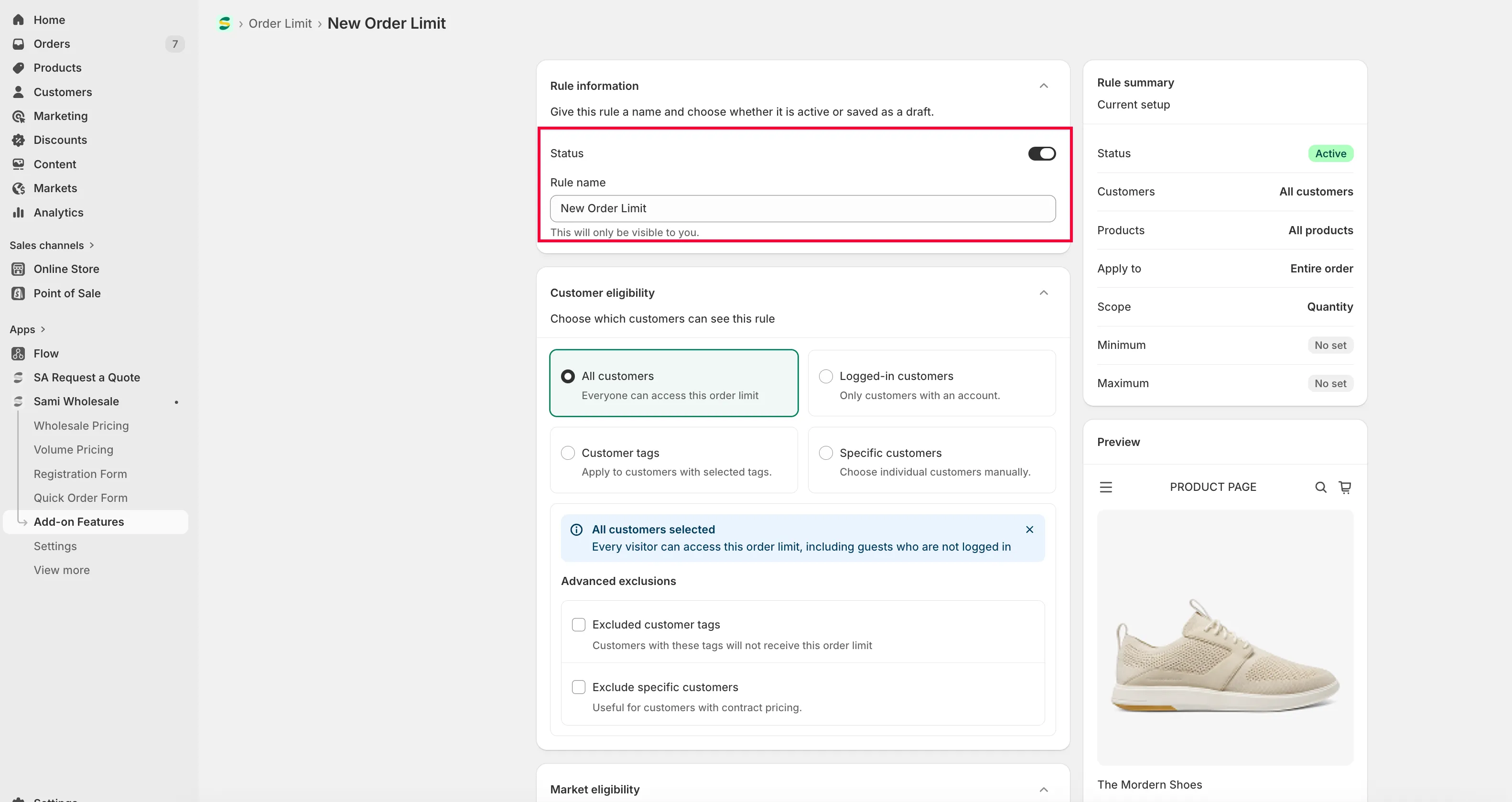
Section titled “Name the rule”In Rule information, give the rule a title and set its status to active or draft.
-
Choose which customers it applies to
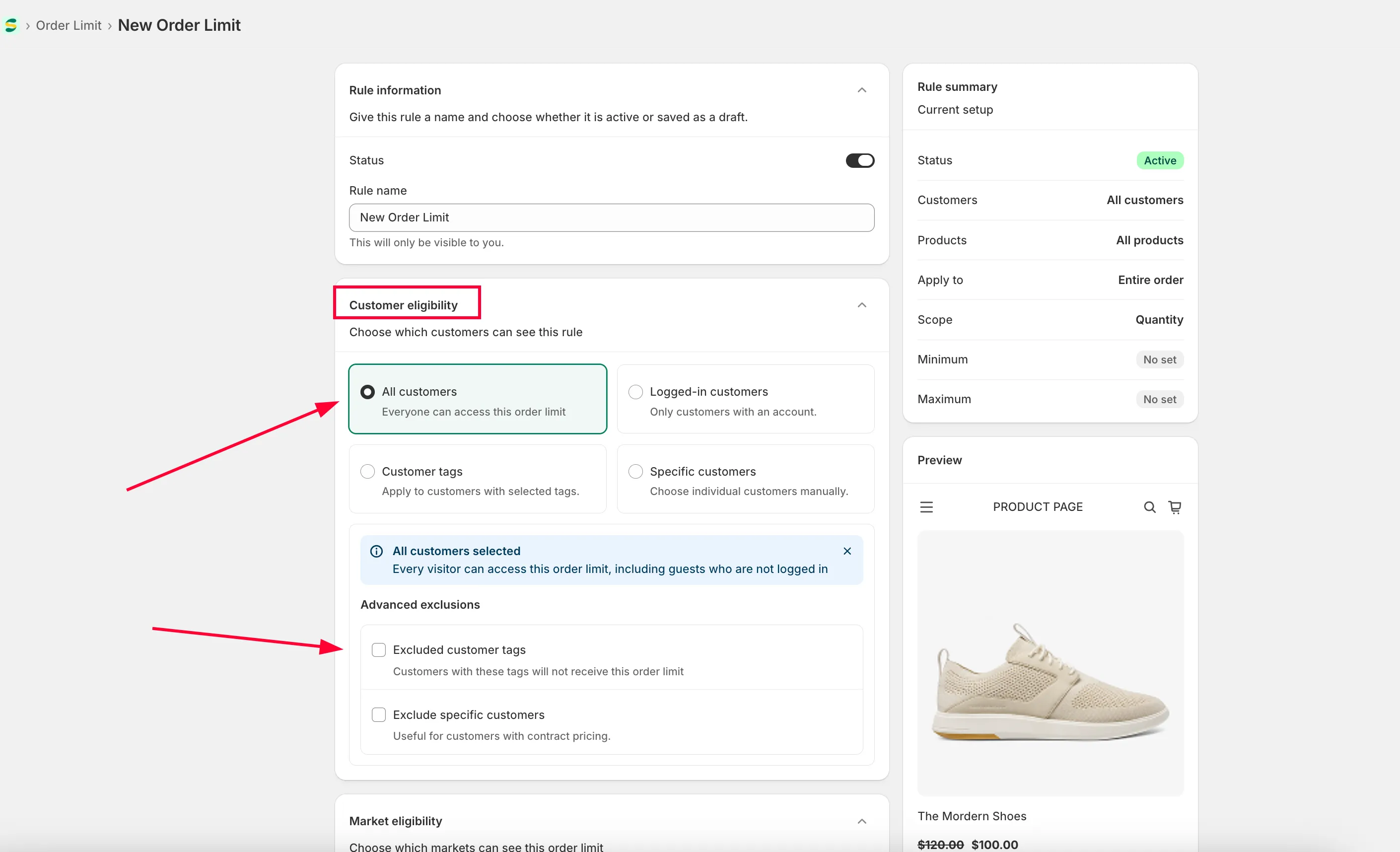
Section titled “Choose which customers it applies to”In Customer eligibility, choose:
- All customers — everyone.
- Logged-in customers — only customers logged in to your store.
- Specific customers — one or a few chosen customer accounts.
- Customer tags — only logged-in customers with the tag you specify.
You can also exclude specific customers.
-
Choose a market
Section titled “Choose a market”In Market eligibility, choose Specific markets and tick the ones you want, or choose All markets.
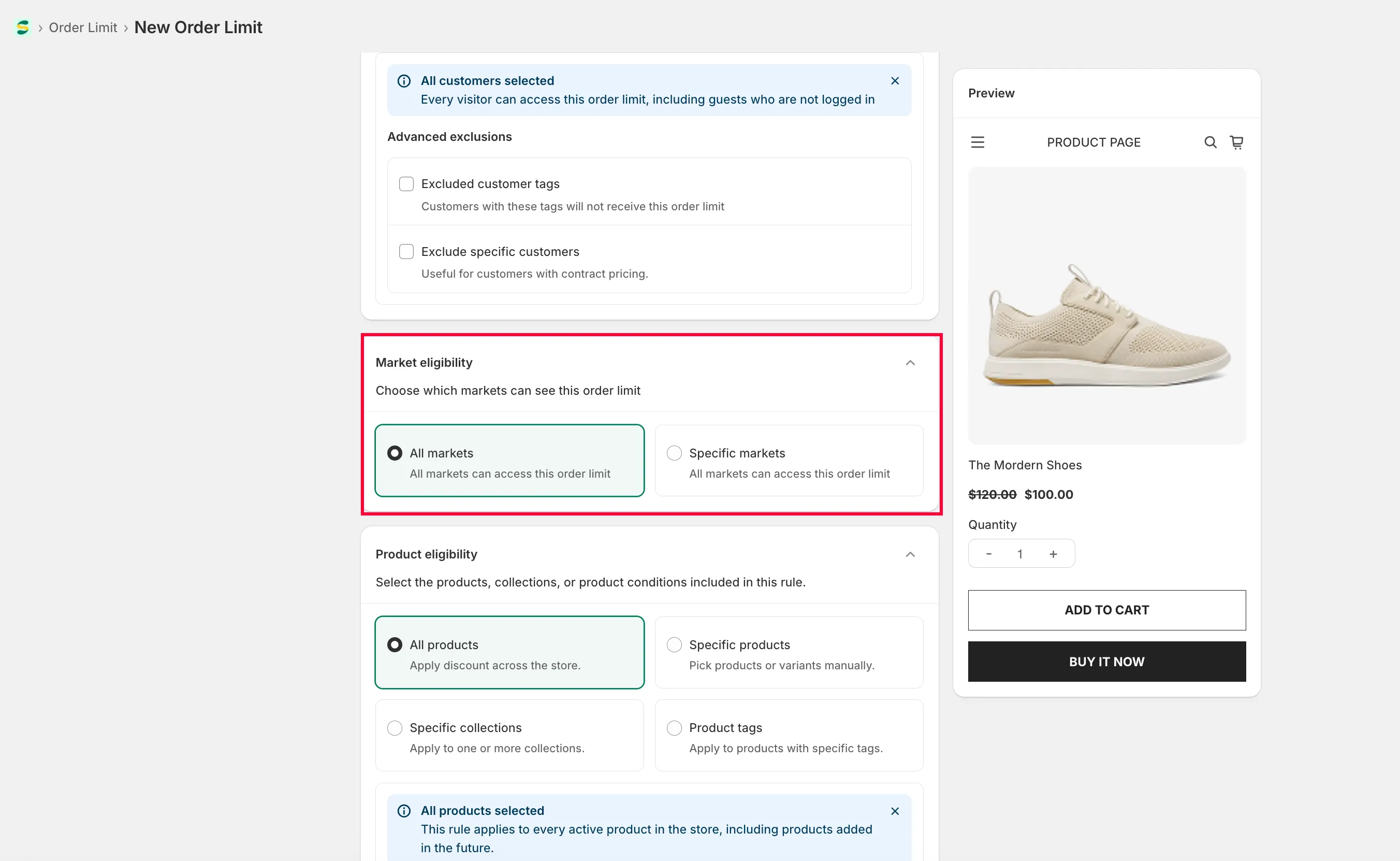
-
Choose which products it applies to
Section titled “Choose which products it applies to”In Product eligibility, choose All products, Specific products, Specific collections, or Product tag — and optionally exclude specific products.
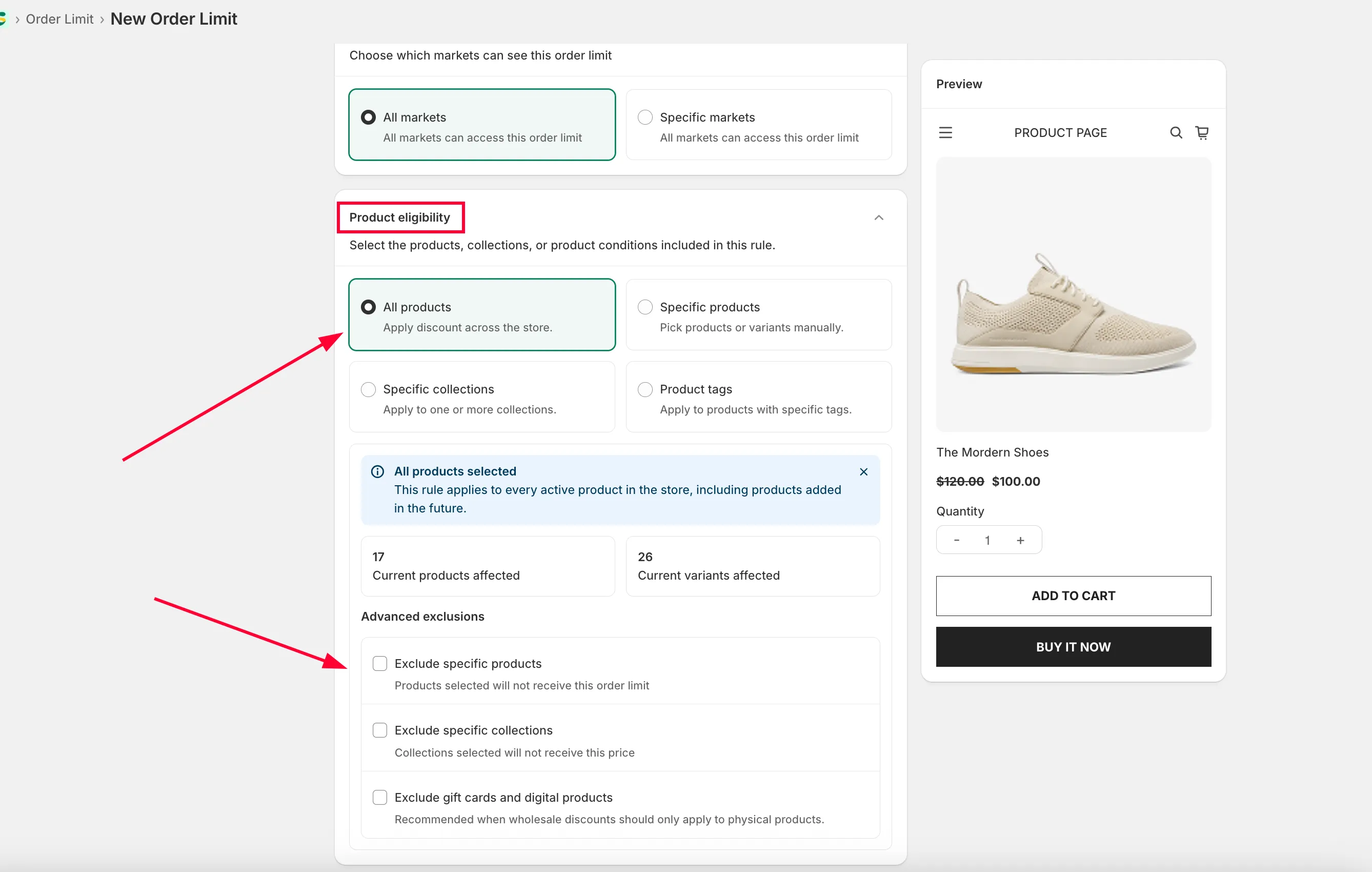
-
Configure the limit
Section titled “Configure the limit”Choose the order limit type:
- Entire order — limits the whole order’s total quantity or amount.
- Each product — limits each product in the order.
- Each variant — limits each variant of a product in the order.
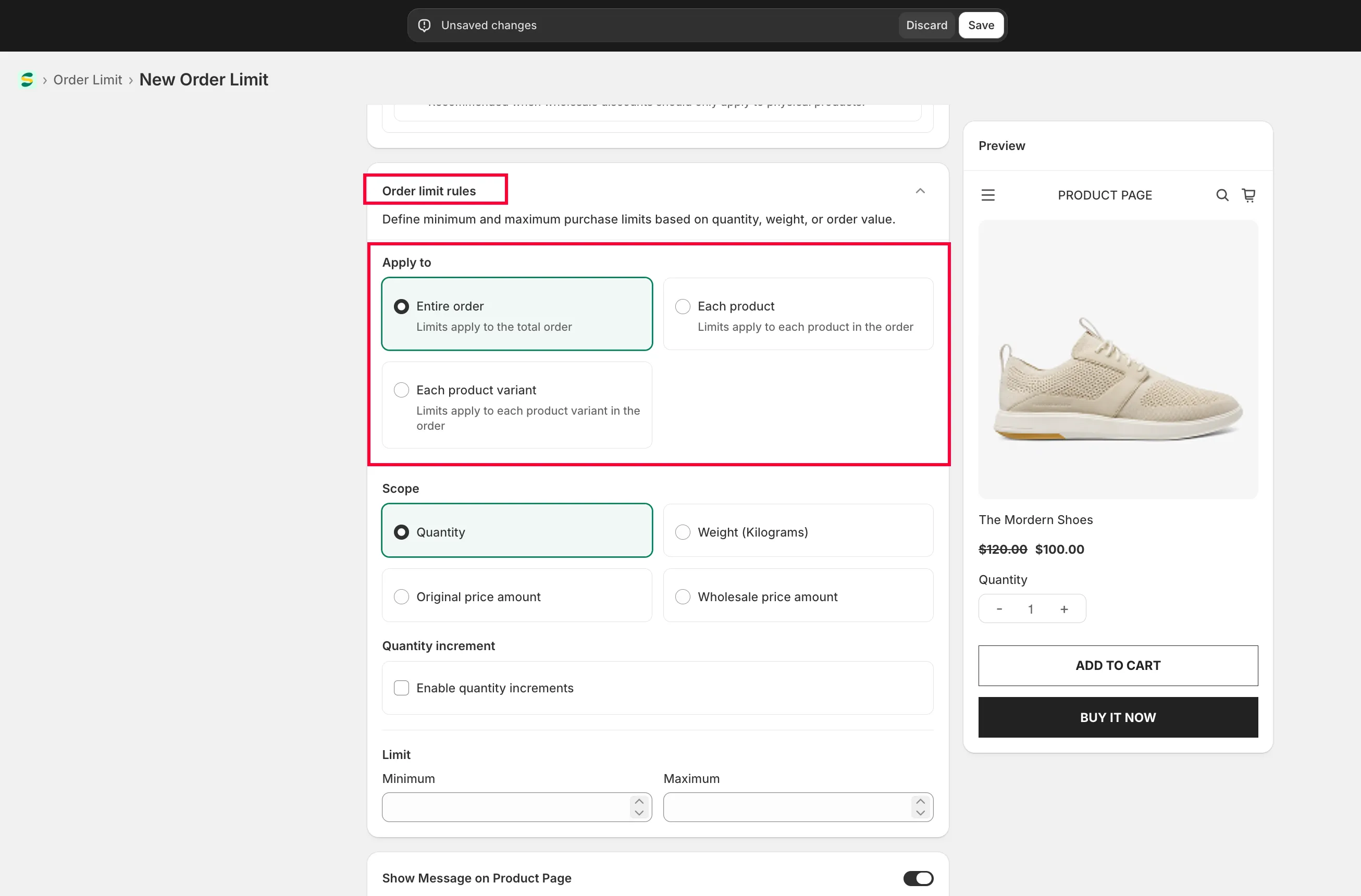
Then choose the scope — quantity, amount, or weight — and set the allowed range (from … to …).
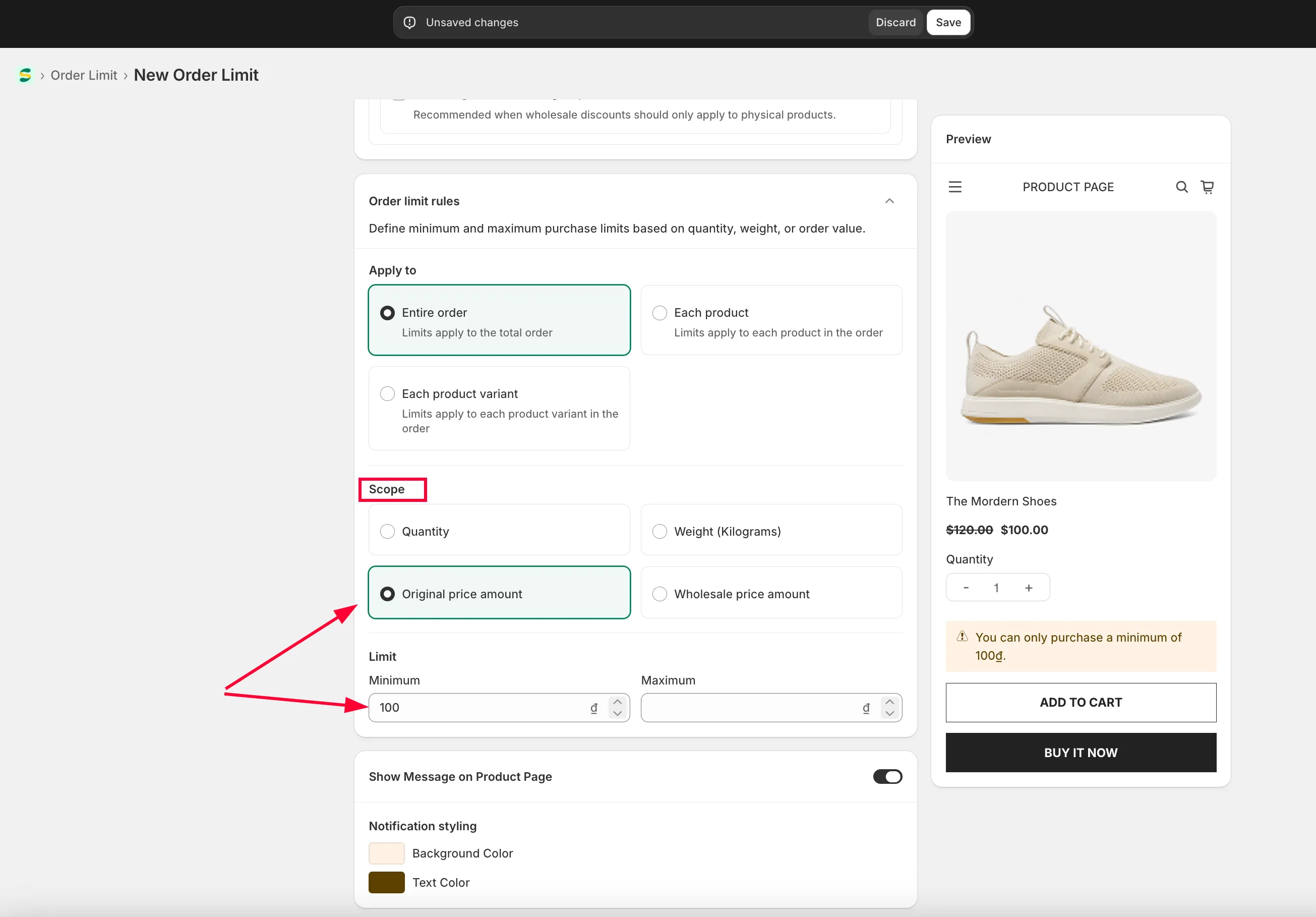
-
Combine additional conditions (optional)
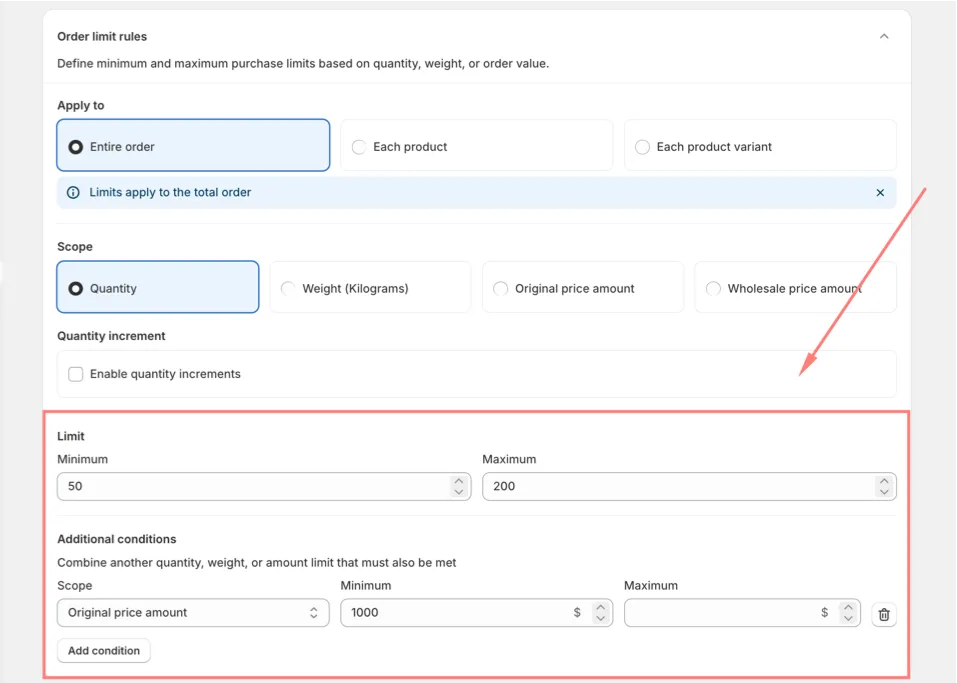
Section titled “Combine additional conditions (optional)”Under Additional conditions, click Add condition to require another quantity, weight, or amount limit on the same rule — every condition you add must be met together, not just the scope you set above. Pick a scope that isn’t already used on this rule, then set its own minimum and maximum. You can add up to two additional conditions, one for each of the remaining scopes. Click the delete icon next to a condition to remove it.
-
Click Save.
Design the warning message on the product page
Section titled “Design the warning message on the product page”The app can show a message on the product page to let customers know about the order limit. Turn this on or off here:
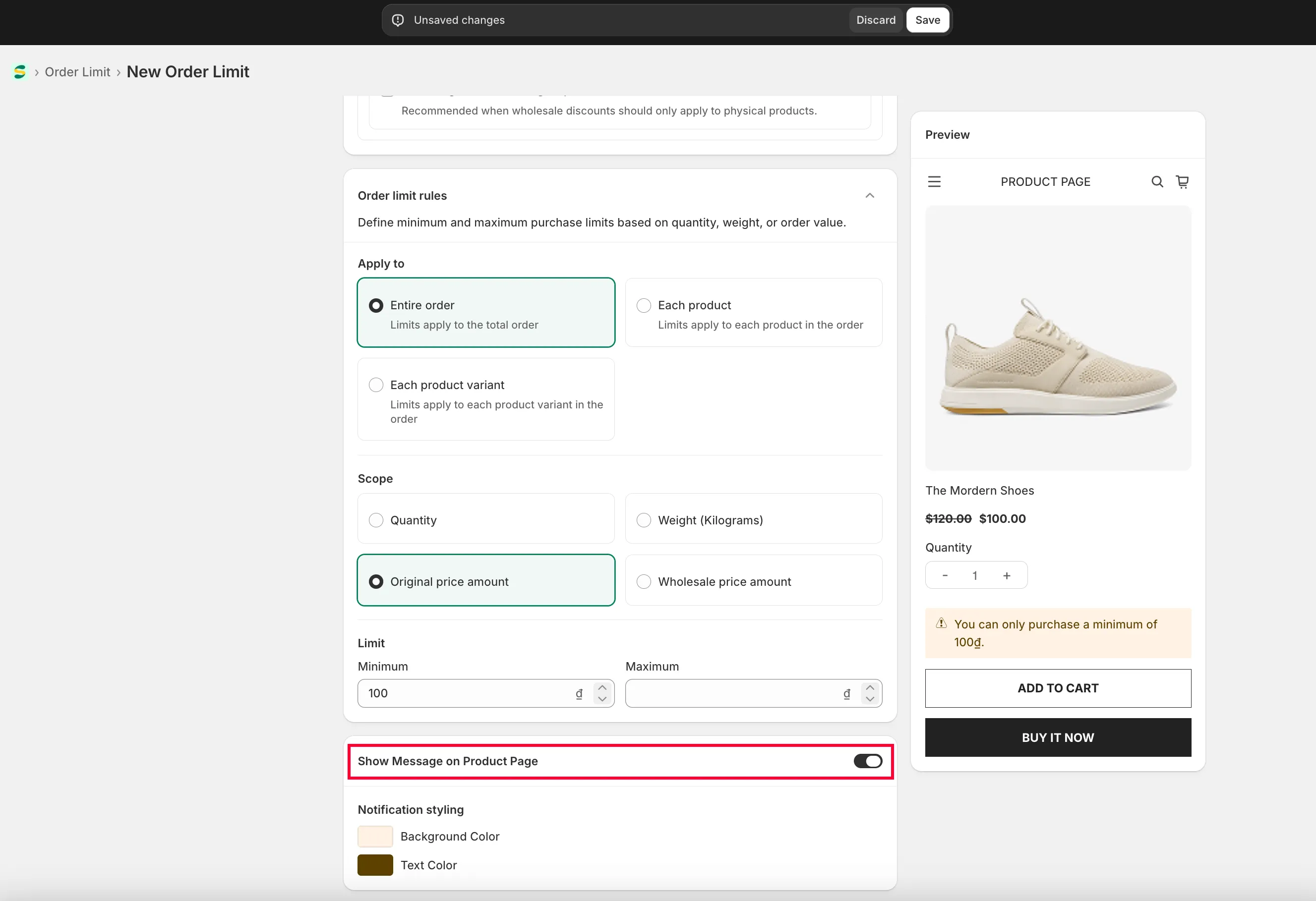
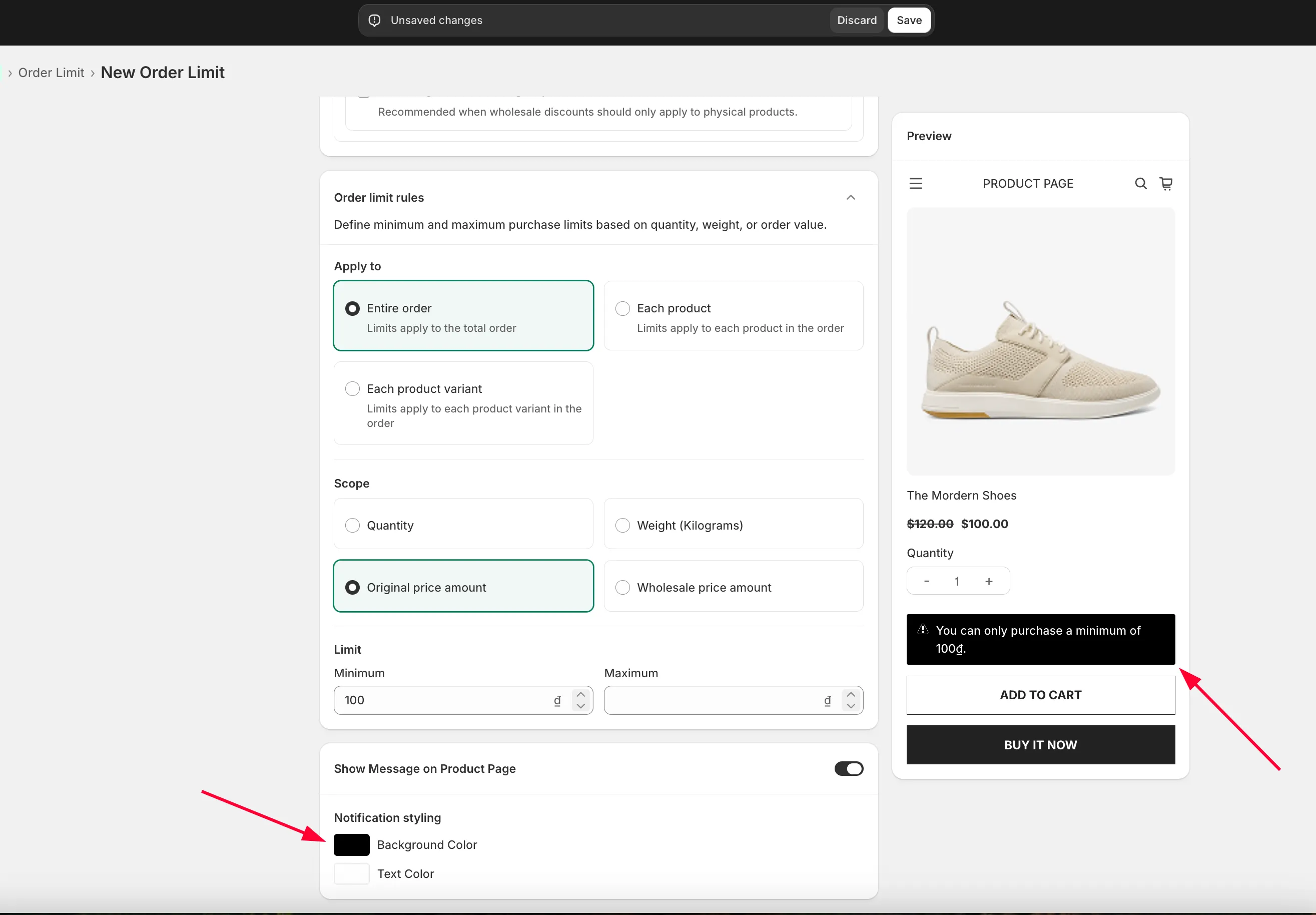
To change the message’s colors, use these settings:
Need support?
Section titled “Need support?”If you do encounter any difficulty while proceeding these steps, don’t show any hesitation to contact us promptly via the email address [email protected].