
Set up notification regarding payment term
Get an email whenever a customer chooses to pay later using a payment term.
Steps to manage
Section titled “Steps to manage”-
Open Notifications settings
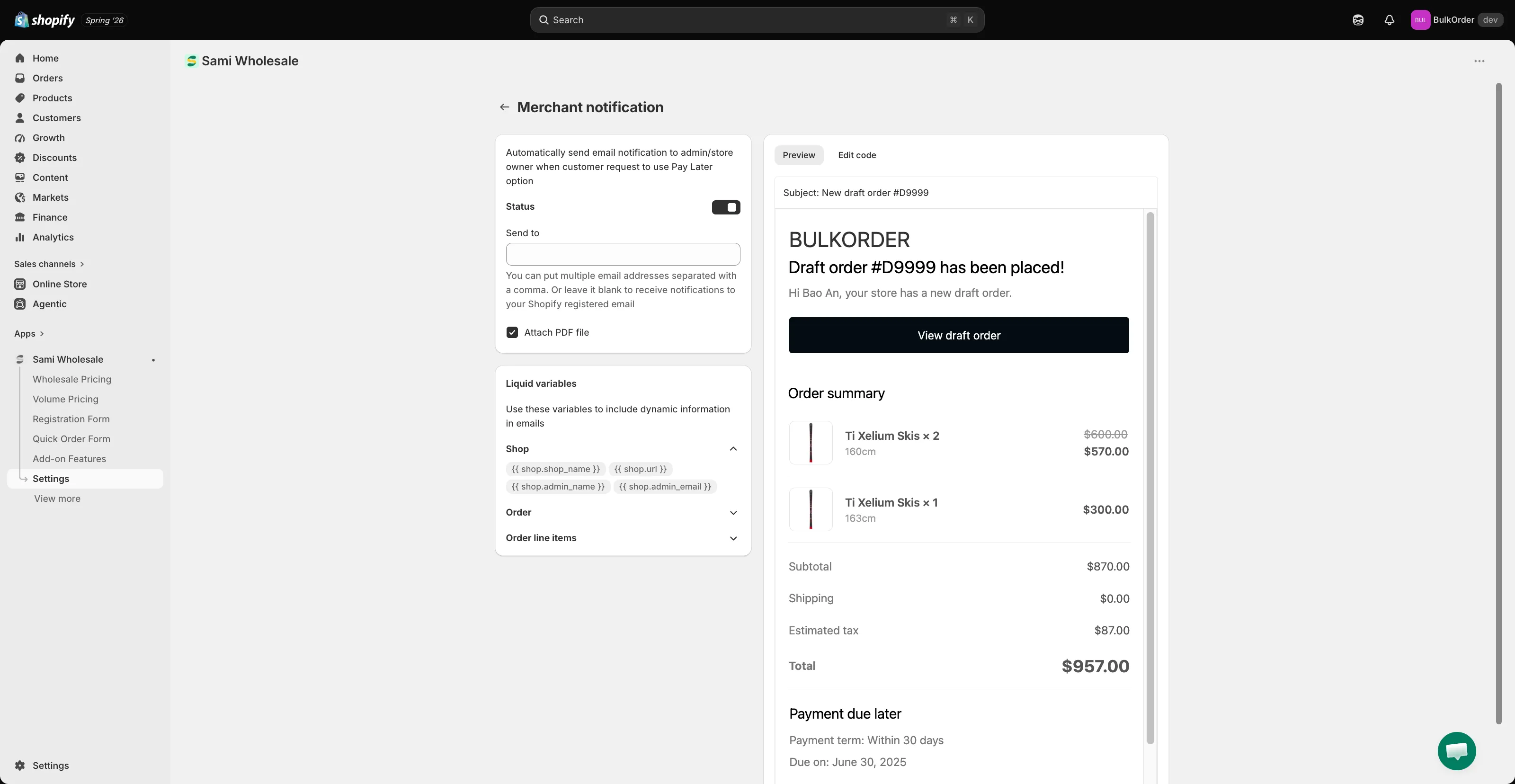
Section titled “Open Notifications settings”From the app, click Settings > Notifications. Under Payment terms, click Merchant notification — this is the email sent to you (the admin) whenever a customer chooses to pay later.
-
Turn it on and set the recipient
Section titled “Turn it on and set the recipient”Turn on Status, then enter the email address in Send to (leave it blank to use your Shopify-registered email, or separate multiple addresses with a comma).
-
Attach a PDF (optional)
Section titled “Attach a PDF (optional)”To attach a PDF of the draft order to this email, tick Attach PDF file.
-
Set up the customer notification
Section titled “Set up the customer notification”Go back to Settings > Notifications, and under Payment terms click Customer notification to set up the email your customer receives, then click Save.
For more on customizing the attached PDF, see Configure and attach PDF file for payment term notification.
Need support?
Section titled “Need support?”If you do encounter any difficulty while proceeding these steps, don’t show any hesitation to contact us promptly via the email address [email protected].