Create a wholesale order on POS
Apply a customer's wholesale discount to an in-person order in Shopify POS.
Steps to manage
Section titled “Steps to manage”-
Add products to the cart
Section titled “Add products to the cart”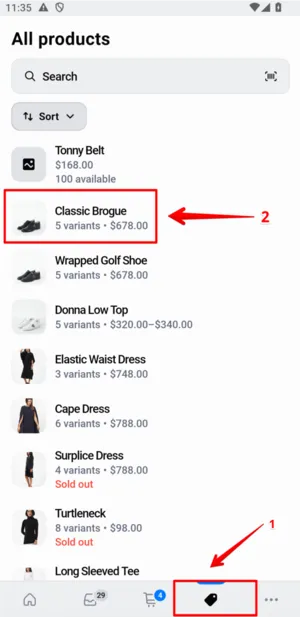
-
Check the discount in the app
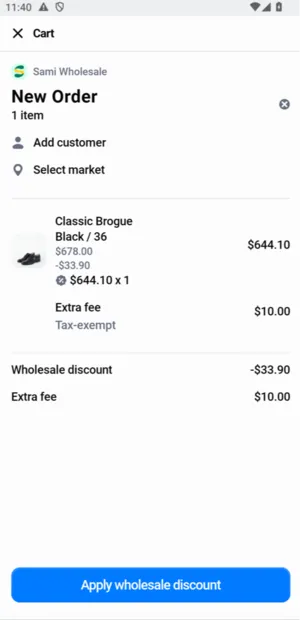
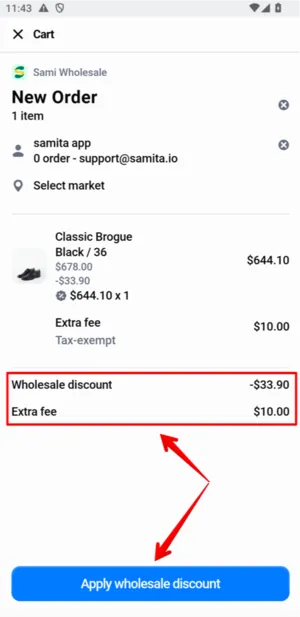
Section titled “Check the discount in the app”Open the Sami Wholesale app tile to check the discount. If the products and customer both qualify, the discounted price (and other features like extra fees or payment terms) applies automatically.
-
Troubleshoot if the discount doesn’t apply
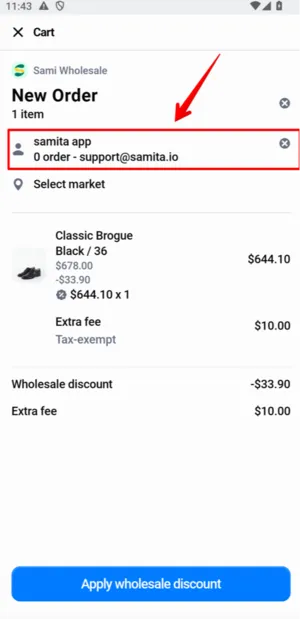
Section titled “Troubleshoot if the discount doesn’t apply”If no discount shows, double-check the customer information and market condition.
-
Apply the discount
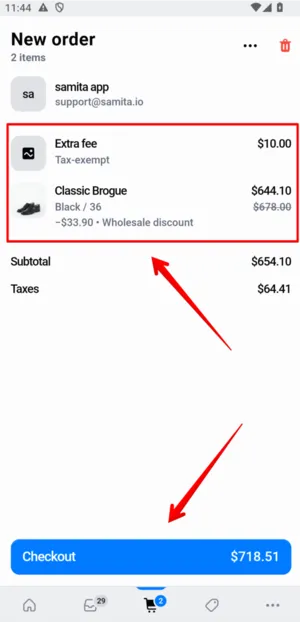
Section titled “Apply the discount”Once the discount looks correct, click Apply wholesale discount, then double-check the POS cart and checkout screen.
-
Check out
Section titled “Check out”Proceed to checkout with the discounted order.
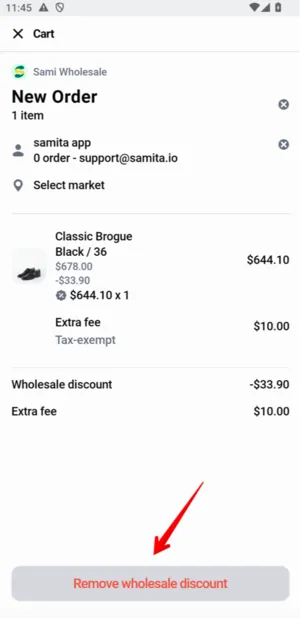
If you no longer want the discount applied, go back and click Remove wholesale discount.